

The Teammates Review dashboard allows managers to view their team roster, track appraisal progress, and audit self-assessments submitted by direct reports before final submission.
1. Accessing the Team Performance Portal
To view your team's self-evaluations:
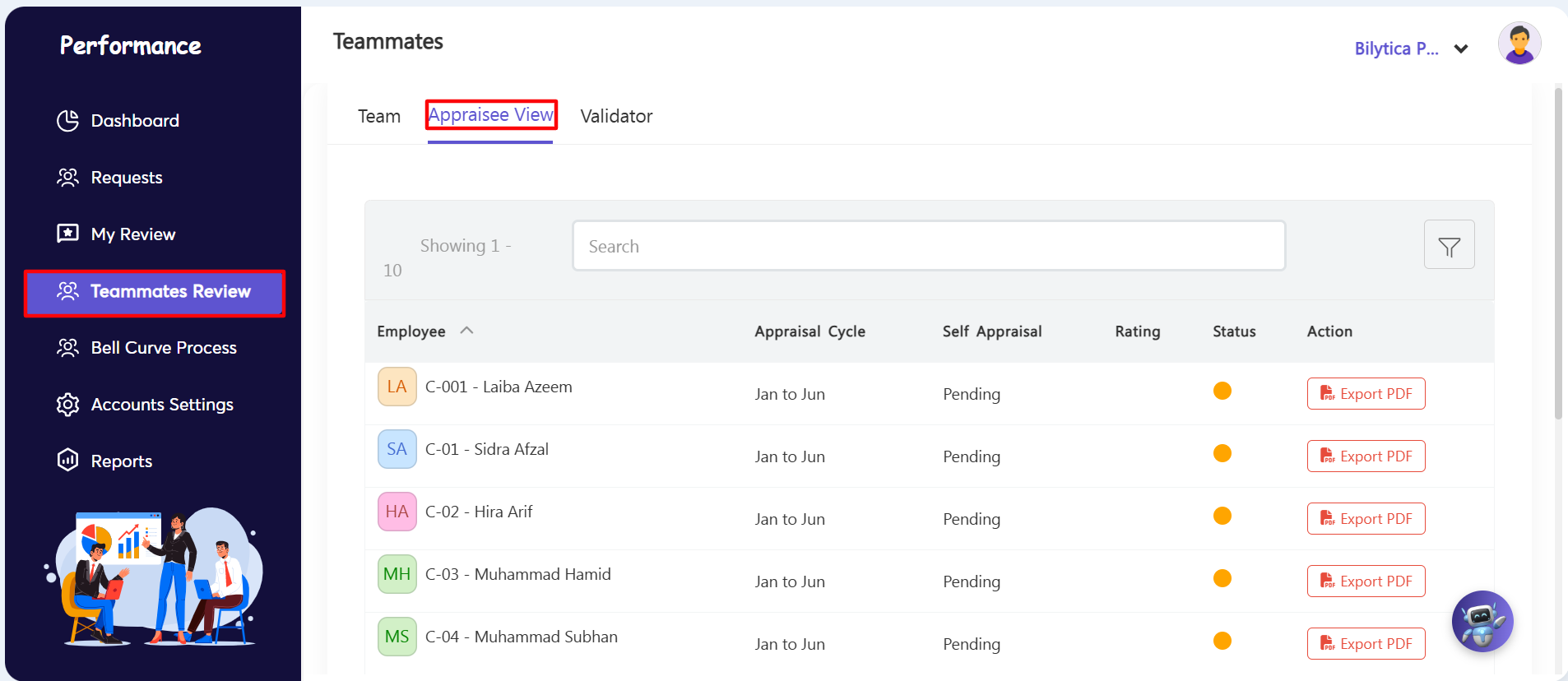
- Step 1: Open Teammates Review — Go to the left navigation panel inside the Performance module and click on the Teammates Review link (marked with a red box).
- Step 2: Switch to Appraisee View — Click the second horizontal tab at the top of the page labeled Appraisee View (marked with a red underline) to display your team evaluation board.
2. Reviewing Employee Self-Evaluations and KPIs
The Appraisee View opens as a scannable directory of your team. Follow these steps to filter and review their records:
- Step 3: Check Roster Status — Review the layout grid to see basic evaluation progress across your team:
- Employee Directories: Displays target profile rows for your team members (e.g., Laiba Azeem, Sidra Afzal, Hira Arif, Muhammad Hamid, Muhammad Subhan).
- Assessment Cycles: Shows the active review timeframe (e.g., Jan to Jun).
- Self Appraisal State: Shows whether the employee's self-submission is still Pending or already submitted.
- Step 4: Open a Deep Review — Click directly on an employee’s name. The system will instantly pull up their full review sheet, displaying their self-graded scores, comments, and milestones for every assigned Goal, KPI, and Core Competency.
- Step 5: Export to PDF — To save a local copy or compile a hardcopy report, go to the far right action column and click the red Export PDF button next to the employee's name.
Manager Calibration Alignment Pro-Tip: |