

The PayPeople platform allows employees to create their own goals, set execution priorities, pick target dates, and link milestones directly to active performance reviews.
1. Opening the Performance Self-Service Portal
To view your active requests or submit a new goal:
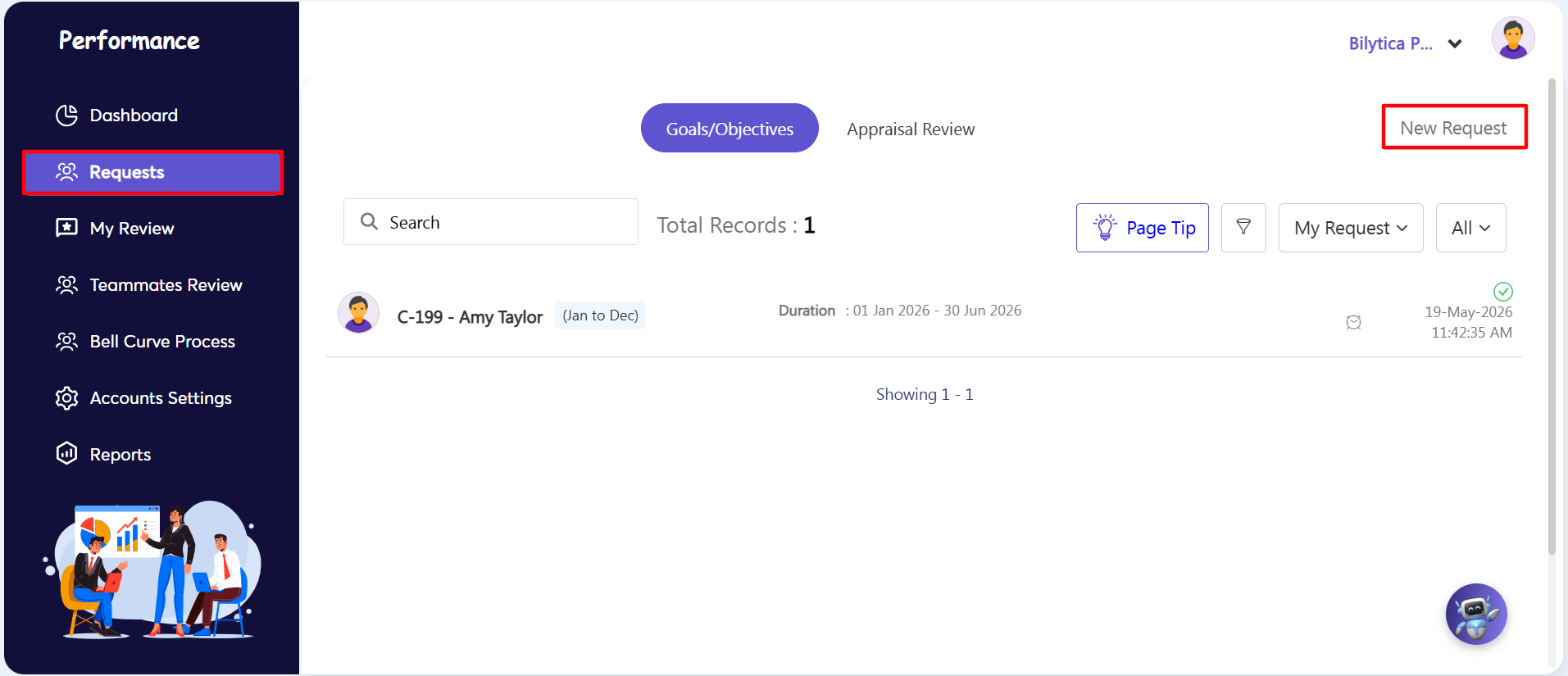
- Step 1: Open the Requests Section — Inside the Performance module, click the Requests sub-tab on the left navigation panel (marked with a red box). Make sure the top horizontal toggle is set to Goals/Objectives.
- Step 2: Start a New Request — On the requests overview page, click the New Request button in the top right corner (marked with a red box) to open the setup form wizard.
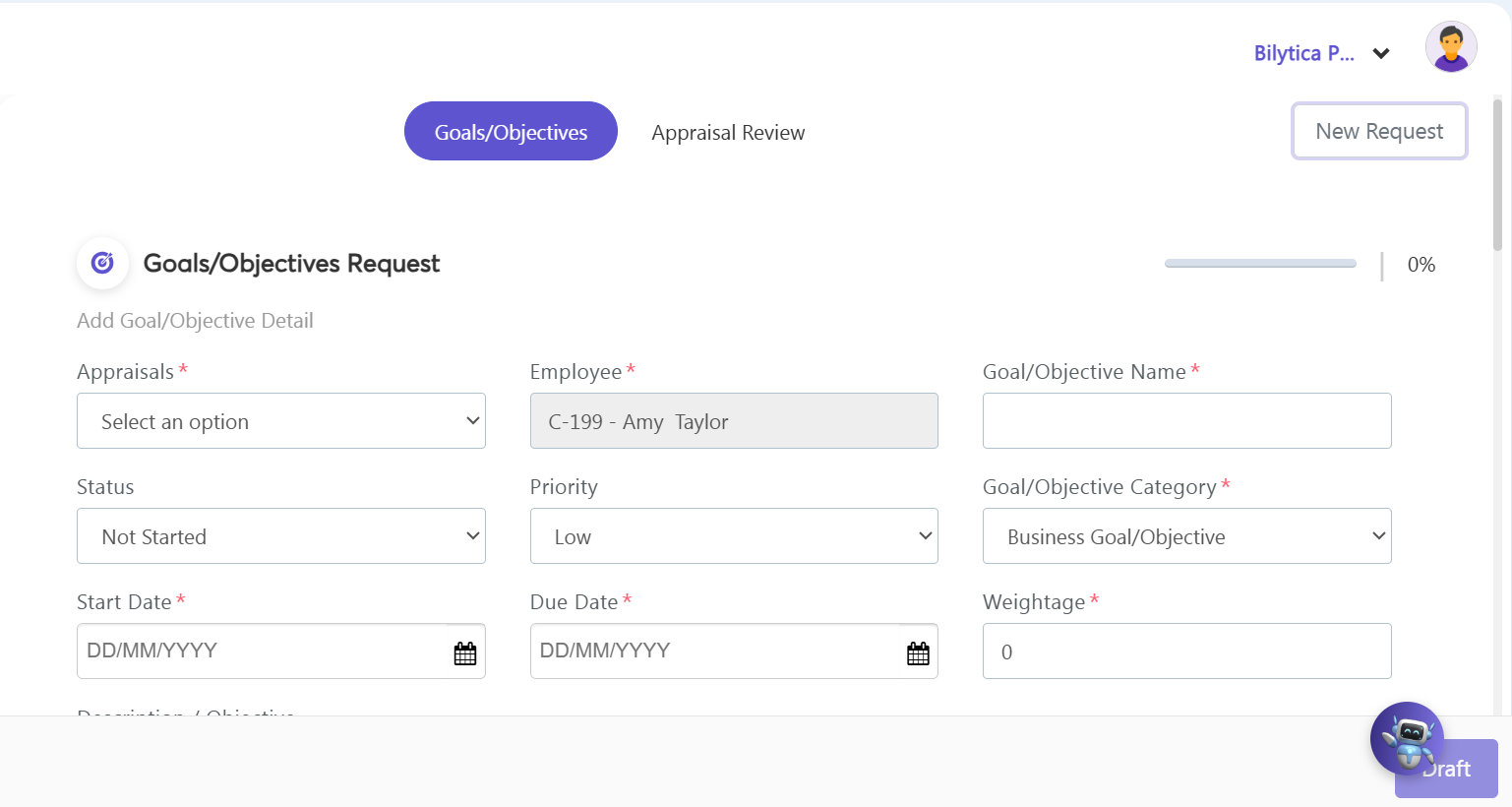
- Step 3: Enter Core Goal Details — Fill out the required information in the top section of the form:
- Appraisals Selection* Pick the active corporate appraisal cycle you want to link this goal to.
- Identifiers:* Type your goal's name in the Goal/Objective Name* field, choose its Category*, and select your Employee* profile.
- Timelines & Priority: Set the active Status (e.g., Not Started), select the urgency level under Priority (e.g., Low), and choose your Start Date* and Due Date*.
- Weightage Allocation:* Enter a number in the Weightage* field to define how much this goal impacts your overall final review score.
- Step 4: Add Sub-Tasks and KPIs — Scroll down to add trackable milestones:
- Sub-Tasks: Use the task grid to break your main goal down into smaller, individual tasks.
- KPI Frequencies: To add specific Key Performance Indicators (KPIs), fill out the performance fields and use the frequency dropdown menu to set the monthly timeframe needed to complete them.
- Step 5: Save and Send for Approval — Review your entries and click the purple Draft button in the bottom right corner. This saves the request and sends it to your supervisor or manager for approval. Once approved, the goal will automatically appear under the Goal/Objectives section of your My Review dashboard.
Goal Weightage Synchronization Pro-Tip: |