

Standardizing evaluation categories within continuous review cycles ensures 360-degree feedback loops remain structured and actionable. The PayPeople performance setup infrastructure allows system administrators and HR managers to define custom qualitative evaluation metrics, manage existing category statuses, and deploy fresh feedback pillars dynamically across the company portal.
1. Navigating to the Feedback Categories Panel
To access the administrative back-end controls and open your feedback categories workspace:
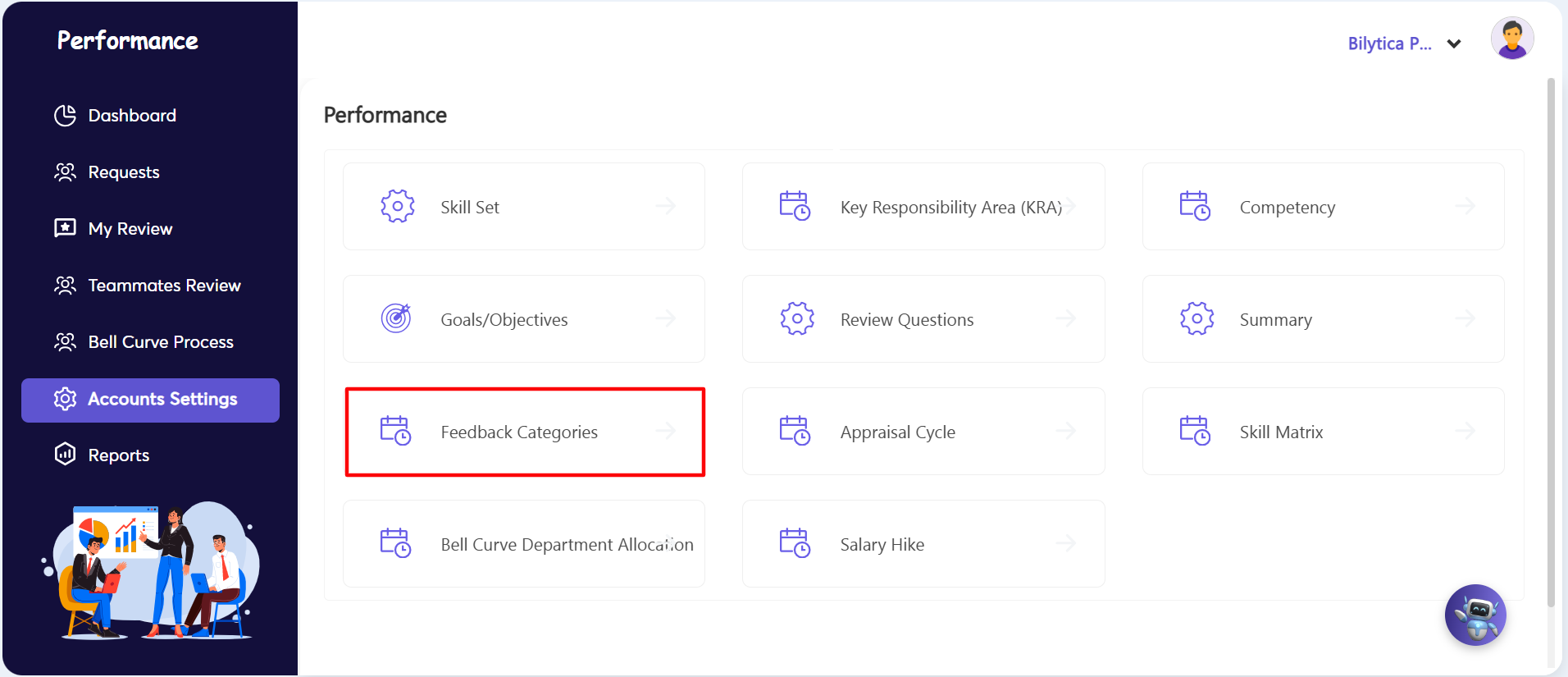
- Step 1: Open Settings Module — Go to the dark primary left-hand navigation pane inside the Performance portal and click on the Accounts Settings sub-tab selection link.
- Step 2: Launch Feedback Categories Board — The central configuration dashboard grid will load on-screen. Locate and click directly on the Feedback Categories tile block container (marked with a red rectangular frame box) to pull up your core evaluation metrics workspace.
2. Creating and Activating Feedback Categories
The workspace updates to show the category card layout board. Follow these steps to manage your qualitative metrics:
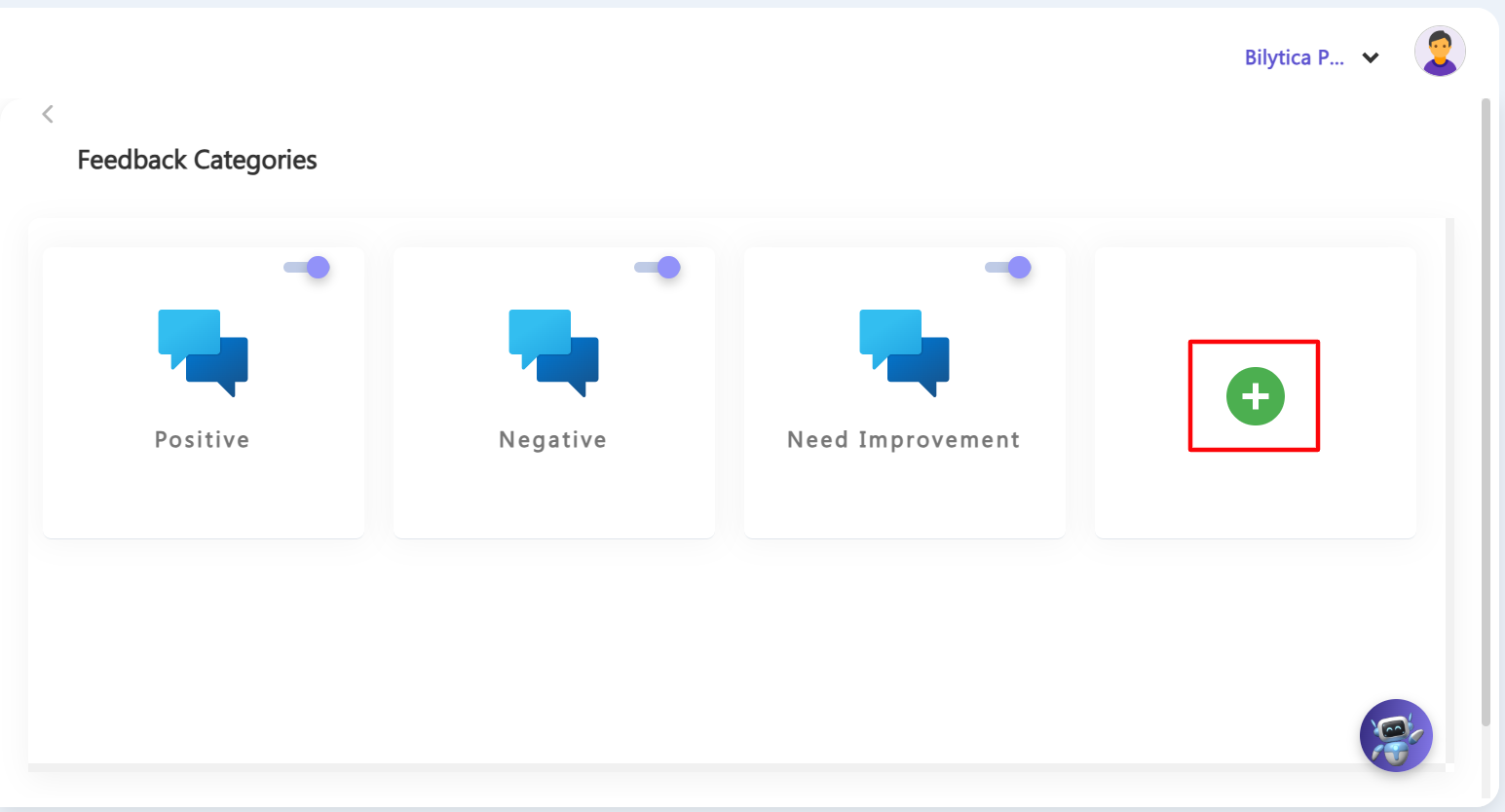
- Step 3: Create a New Category — To add a new feedback parameter, go to the far-right card and click the green plus (+) button (marked with a red box). Type your unique category name (like teamwork metrics or peer tracking) and save it.
- Step 4: Turn Categories On or Off — Use the blue toggle switches at the top-right corner of each card (such as Positive, Negative, or Need Improvement) to control its availability:
- Slide On (Active): The category is live and visible to users giving feedback.
- Slide Off (Inactive): The category is hidden from users, safely deactivating it without deleting any past review history.
Feedback Loop Standardization Pro-Tip: |