

Deploying qualitative review questionnaires inside final evaluation cycles allows organizations to collect focused structural feedback. Administrators can configure custom evaluation questions within the settings panel, tag them dynamically to target corporate structural roles, and ensure they load automatically inside live employee appraisal forms.
1. Accessing the Questionnaire Registry Hub
To open the administrative configuration backend and manage your performance review questionnaire cards:
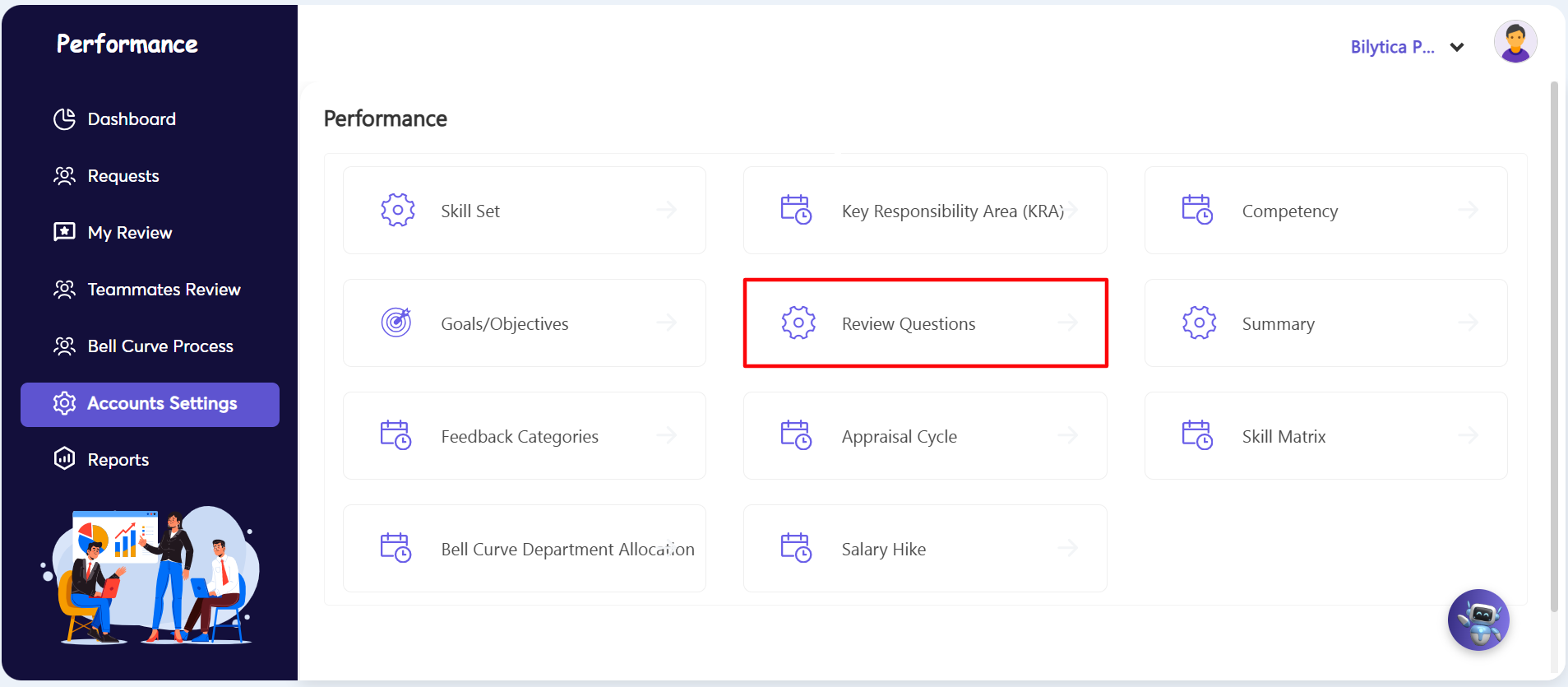
- Step 1: Open Configuration Console — Go to the dark vertical menu bar on the left side of the screen and click on the Accounts Settings sub-navigation link.
- Step 2: Launch Review Questions Dashboard — Find the central options card panel grid on the main page canvas and click directly on the Review Questions tile block container (marked with a red rectangular frame box) to open the targeted tracking matrix workspace.
2. Choosing Your Target Audience
The screen changes to a split-list view. Follow these steps to choose exactly who will receive the questions:
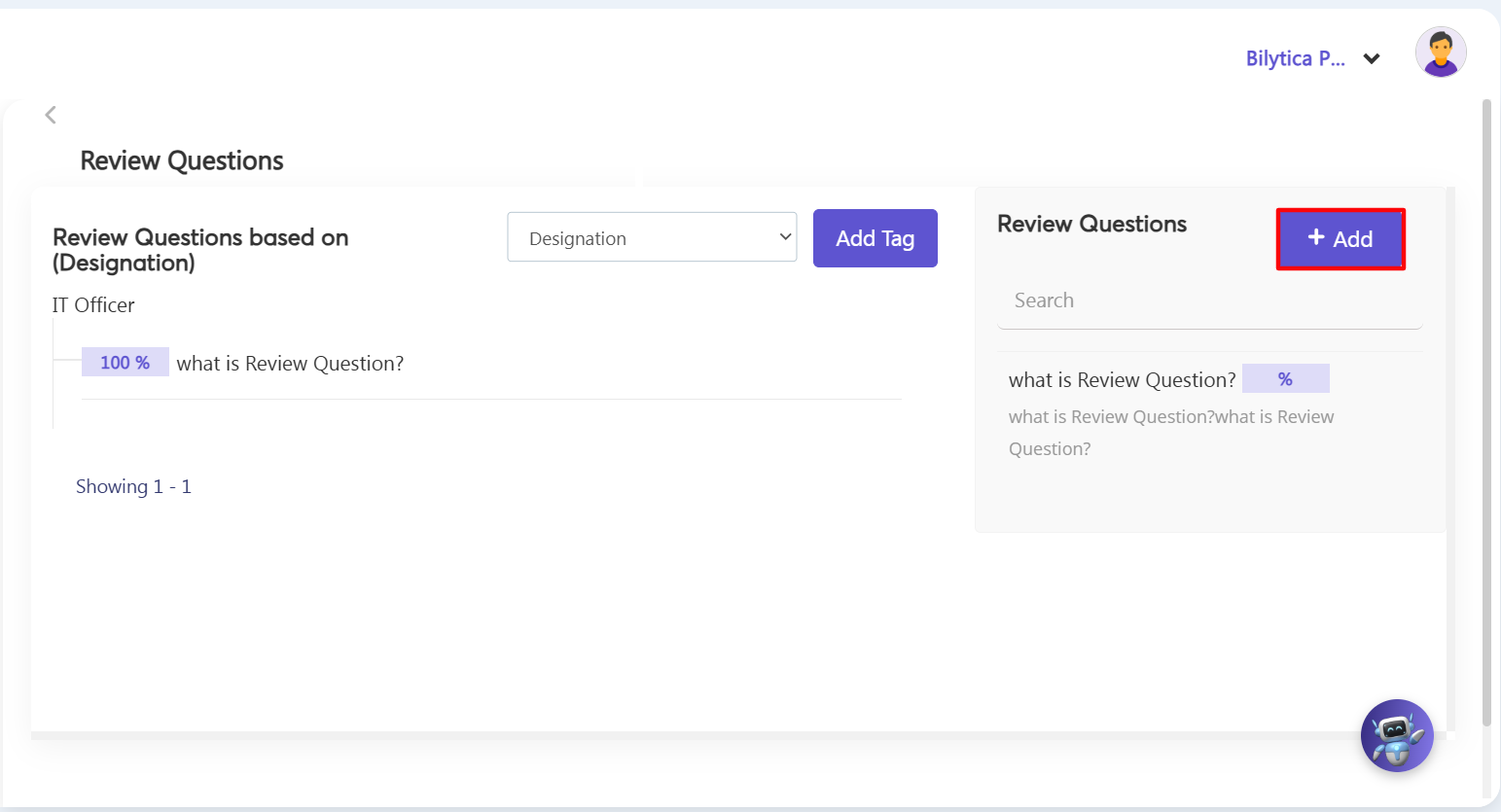
- Step 3: Select Mapping Type — Go to the main filter dropdown menu at the top of the panel and choose how you want to assign the questions: either by Designation-based (job title) or Department-based options.
- Step 4: Pick the Specific Role or Team — Select the exact department or job title (for example, selecting the IT Officer row) that you want to link your questions to.
3. Adding New Evaluation Questions
Once you have selected your target audience on the left, you can add new questions:
- Step 5: Open the Question Form — Go to the top of the right-hand sub-panel and click the blue Add button (marked with a red rectangular frame) to start creating your question.
- Step 6: Fill in the Required Fields — The question setup form will open. Type in your specific details line by line:
- Question Field: Type the exact text of your review question (for example: 'What is the review question?').
- Category Selection: Click the dropdown menu and choose the correct feedback group tag.
- Description Box: Add simple instructions or guidelines to help employees or managers answer the question during their reviews.
- Step 7: Save and Apply — Check your entries and click the Save button at the bottom of the form. The system updates instantly, and the new questions will automatically show up in active appraisal forms for any employee in that specific department or job title.
Evaluation Form Alignment Pro-Tip: |