

The My Review screen is your personal performance center. Here, you can track active goals, review Key Responsibility Areas (KRAs), rate your professional competencies, collect feedback, and view your manager's review history.
1. Opening the Personal Evaluation Interface
To open your active performance appraisal and verify your details:
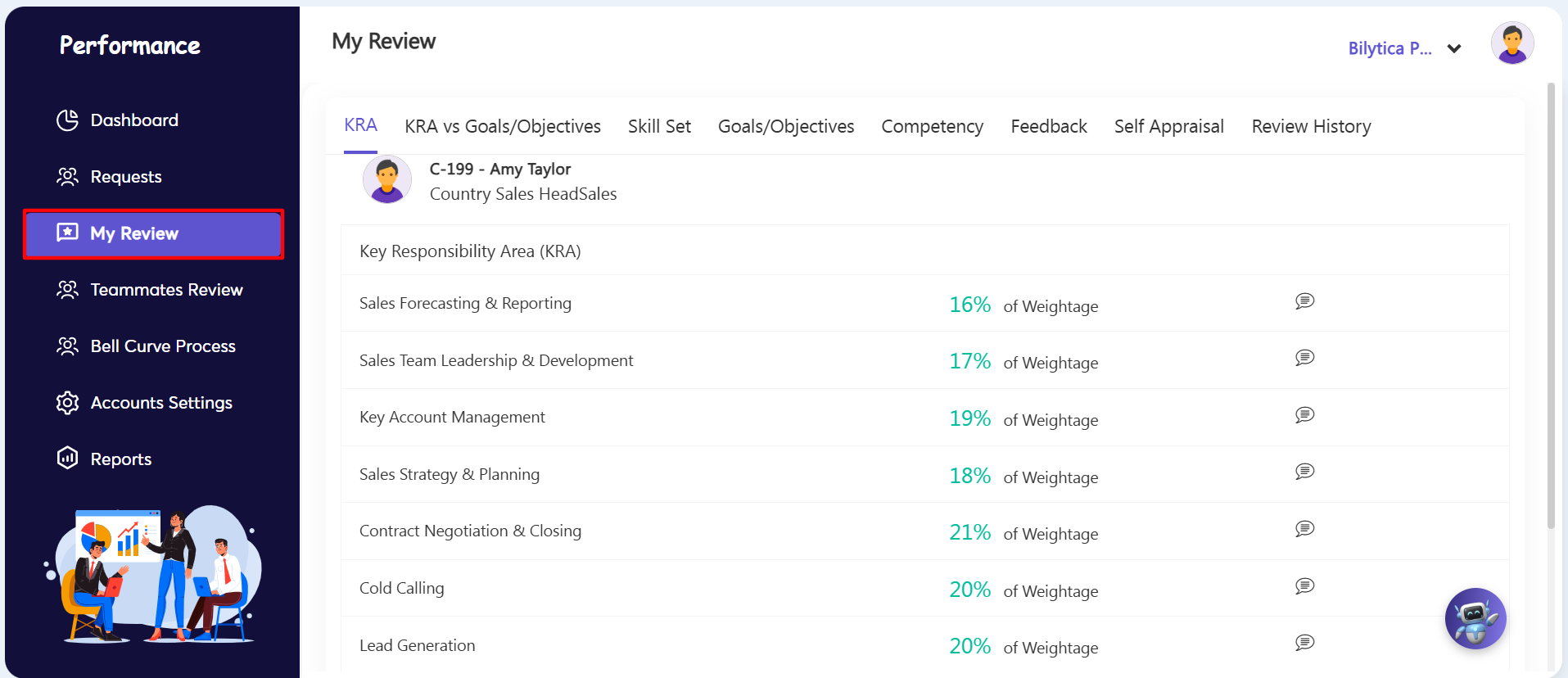
- Step 1: Open My Review — Go to the left-hand vertical menu bar inside the Performance module and click on the third sub-tab labeled My Review (marked with a red box).
- Step 2: Check Your Profile Details — The main review page will open, displaying your profile details at the top (such as your employee ID, name, and job title) to confirm you are viewing the correct evaluation file.
2. Reviewing Goals, Skills, and Performance Metrics
A horizontal menu bar runs across the top of the screen. Switch between these tabs to check your assigned targets:
- Tab 1: KRA (Key Responsibility Area) — View the core job responsibilities assigned by your manager. Each responsibility shows its specific impact weight (e.g., Lead Generation at 20% Weightage) along with recent status comments.
- Tab 2: KRA vs Goals/Objectives & Goals/Objectives — Review a row-by-row progress tracker that maps your personal goals directly against your main job responsibilities.
- Tab 3: Skill Set & Competency — Check the technical skills and core company competencies assigned to your role by HR to measure your professional growth.
3. Submitting Feedback and Self-Appraisals
To participate in active evaluation cycles, use the tabs on the right side of the screen:
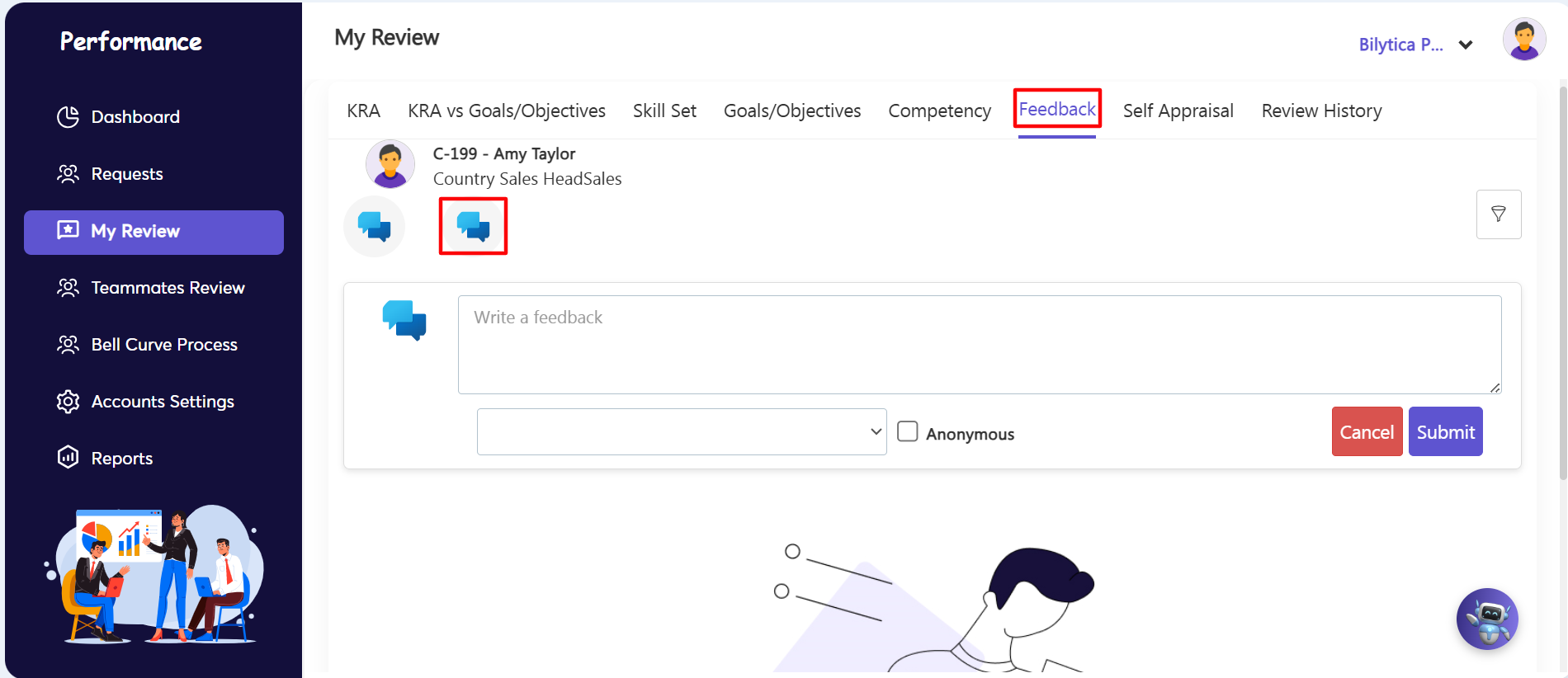
- Step 3: Submit 360-Degree Feedback — Click the Feedback tab to type and submit your performance comments. If you want to keep your insights completely objective and hidden from supervisor dashboards, simply flip the anonymous toggle switch.
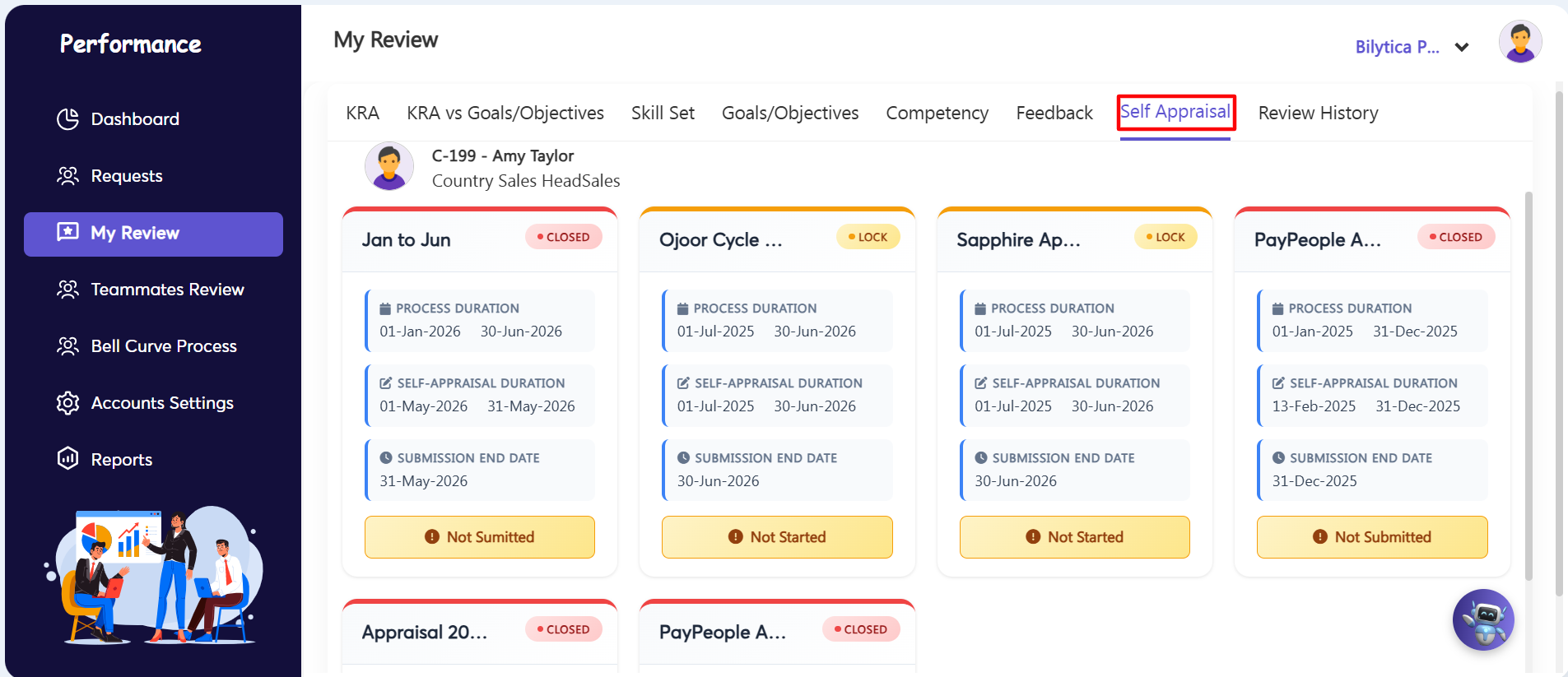
- Step 4: Complete Your Self-Evaluation — Select the Self Appraisal horizontal sub-tab. This section loads your active evaluation templates where you can grade your own performance, add personal comments, and share your reflections before your final review is processed.
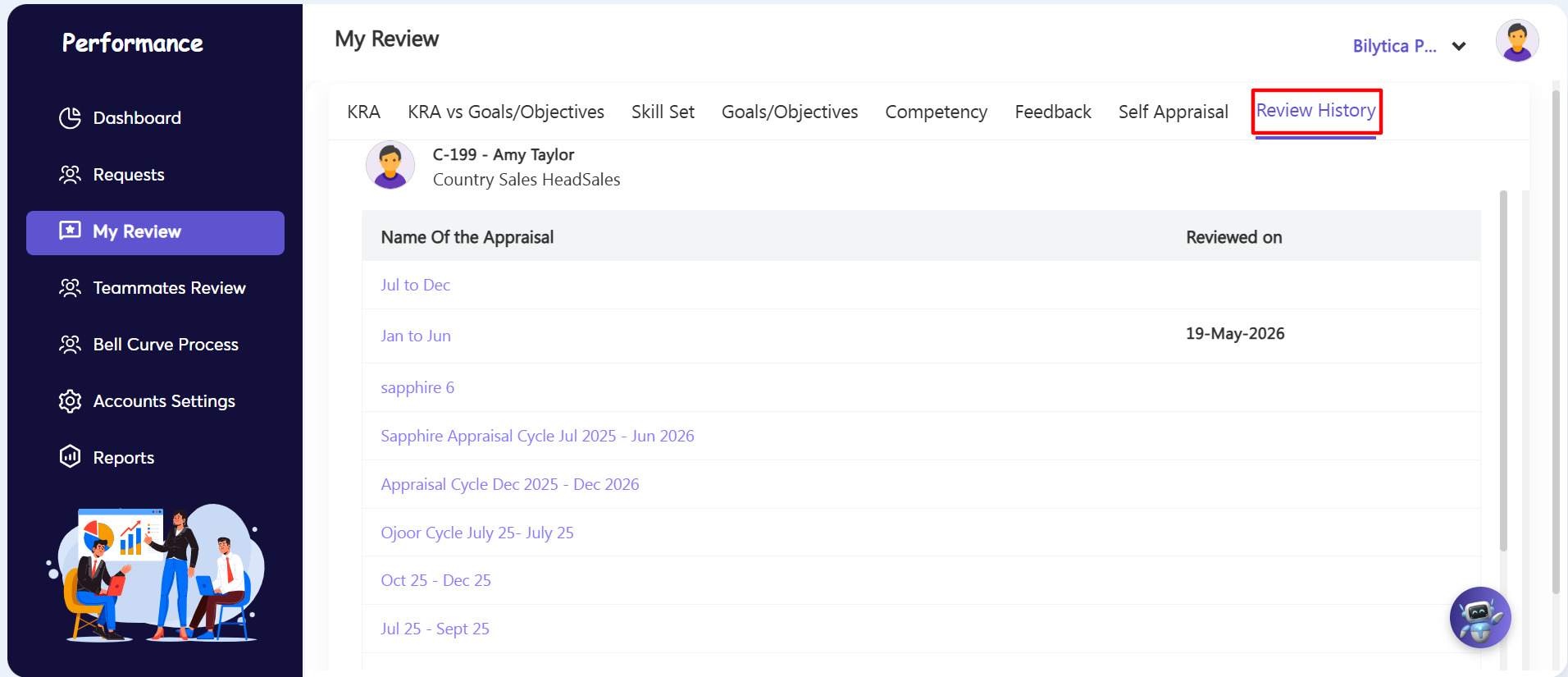
- Step 5: View Past Feedback via Review History — Click the final Review History tab. The system will instantly pull up your archived evaluation logs. Use this section to review your manager's previous scoring metrics, track your performance trends over time, and read their detailed qualitative comments.
Evaluation Anonymous Mode Security Pro-Tip: |