

Configuring summary blocks allows your organization's final appraisal forms to capture comprehensive overviews and qualitative leadership remarks. System administrators can set up standardized final statement prompts within the settings dashboard so managers have designated fields to record conclusive findings.
1. Navigating to the Performance Summary Console
To access the backend configuration card and add a summary prompt module:
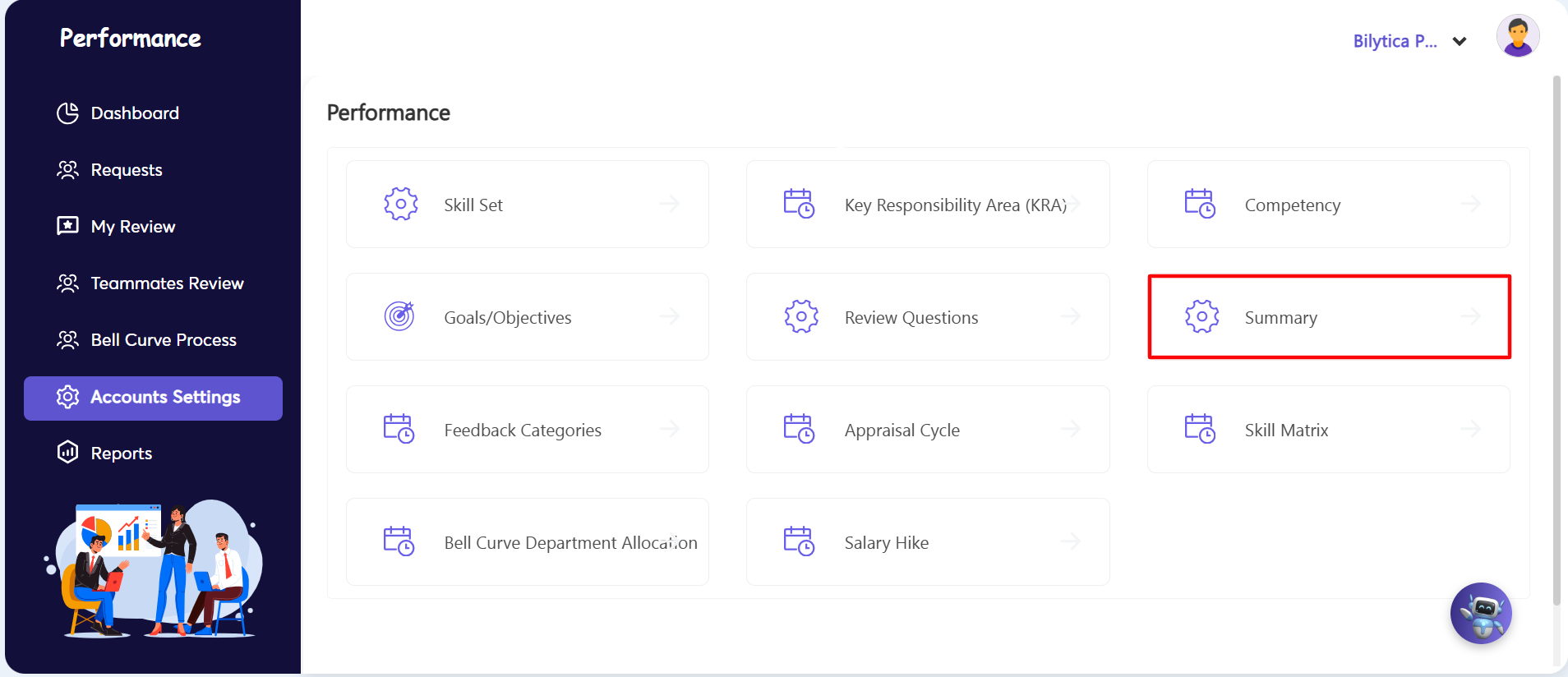
- Step 1: Open Accounts Settings — Go to the dark primary left-hand navigation pane inside the Performance module and click on the Accounts Settings sub-tab.
- Step 2: Access Summary Card Panel — Once the main admin dashboard loads, find and click on the Summary options card tile (marked with a red rectangular box) to open the configuration directory.
2. Creating and Saving Appraisal Summary Prompts
The page updates to the interactive summary management console. Use these steps to add your custom final summary criteria:
- Step 3: Open the Summary Wizard — Go to the right-hand actions margin and click the blue Add Summary button (marked with a red rectangular frame) to open the text input form.
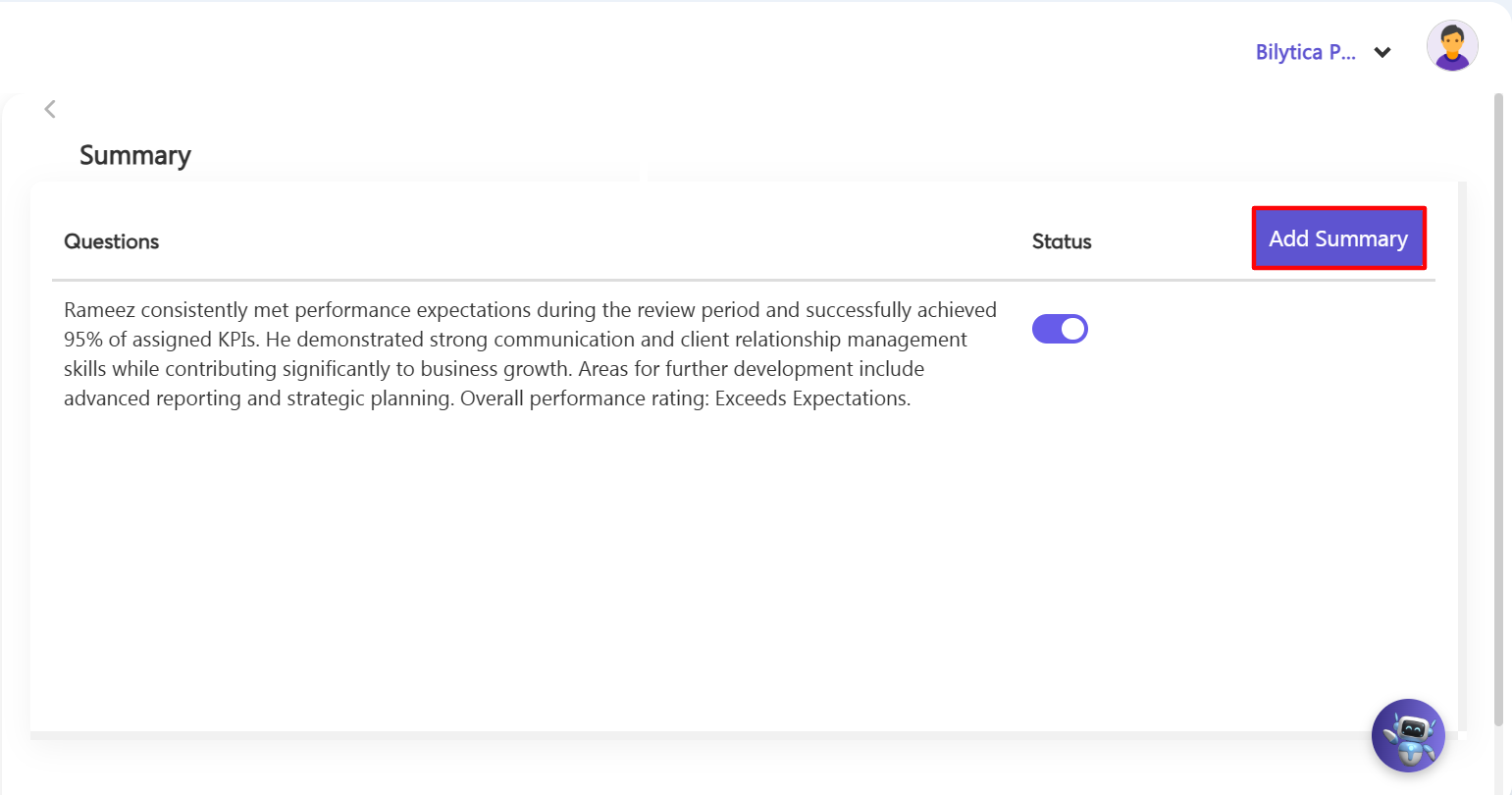
- Step 4: Type the Prompt Text — The text input form will open on-screen. Type the exact summary question or instruction that evaluators must answer when finishing reviews (for example: 'Rameez consistently met performance expectations during the review period and successfully achieved 95% of assigned KPIs... Overall performance rating: Exceeds Expectations.').
- Step 5: Save and Finish — Check your text entries and click the Save button in the actions toolbar. The newly formatted summary blocks will immediately appear inside all live performance appraisal forms.
Conclusive Evaluation Summary Pro-Tip: |