

Structuring your company's core job matrices requires defining Key Responsibility Areas (KRAs) and Core Competencies for different positions or departments. Using the same layout as the skill set workflow, the PayPeople platform lets you map accountability benchmarks, set behavioral expectations, distribute scoring weights, and link records directly to specific groups or designations.
1. Accessing Setup Controls and Tagging Frameworks
To create new performance criteria and link them to active roles:
- Step 1: Open Your Target Hub — Go to the left navigation panel inside the Performance module and click Accounts Settings. From the central dashboard grid, click on either Key Responsibility Area (KRA) or Competency, depending on which criteria you want to build.
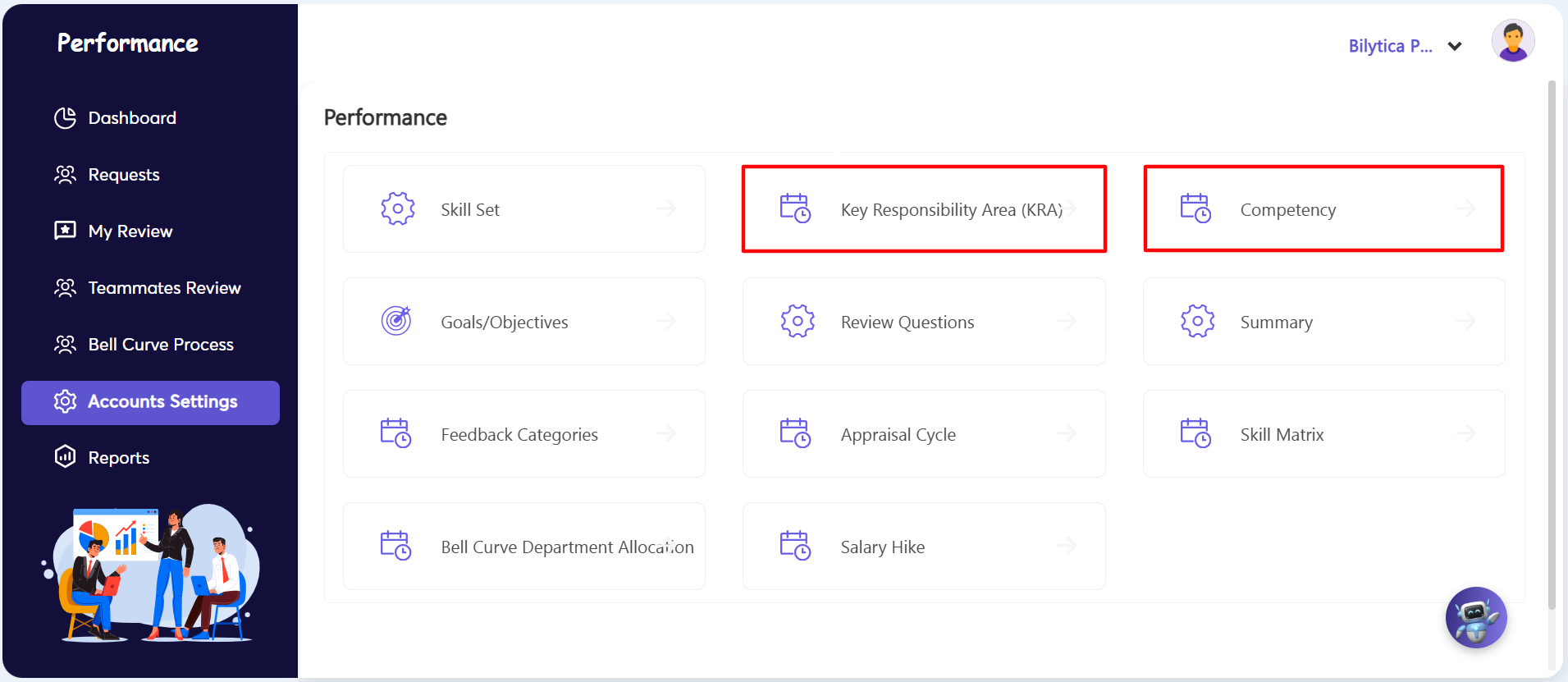
- Step 2: Choose Your Mapping Target — Inside the selected console, use the main dropdown menu to choose your tracking strategy: select either Designation-based (by job title) or Department-based allocation.
- Step 3: Open the Configuration Form — Once your filter is set, click the purple Tag button to open the multi-layer setup workspace form.
2. Creating KRA & Competency Rows Manually or with AI
The setup screen opens as a split-panel layout, allowing administrators to create parameters in two ways:
- Manual Repository Selection: Browse the pre-existing corporate libraries listed on the left panel. Use the checkboxes to manually select and pull specific rows into your list.
- AI Assistant Integration: To save time and skip manual typing, click the purple AI Assistant Spark icon in the top toolbar. The AI will instantly generate and populate standard benchmarks or behavioral metrics tailored specifically to that job title or department.
3. Setting Weights and Saving Your Settings
After selecting or generating your rows, configure their scoring impact before saving your changes:
- Step 4: Allocate Calculation Weights — Your selected rows will instantly move to the grid on the right. Click into the Weightage % cells line by line and type in specific numbers to set how much each item impacts the final performance review score.
- Step 5: Save and Lock Configurations — Review your metrics to ensure the total weight balances correctly, then click Save in the bottom actions toolbar. The platform will instantly update the server and apply these KRAs or Competencies to the designated job roles across all employee performance review dashboards.
KRA & Competency Balancing Pro-Tip: |