

The Accounts Settings console gives administrators and HR managers a global dashboard to configure the core pillars of performance management—including skills, KRAs, competencies, review questions, appraisal cycles, and salary hike rules.
1. Opening the Performance Accounts Settings Console
To access these administrative back-end controls:
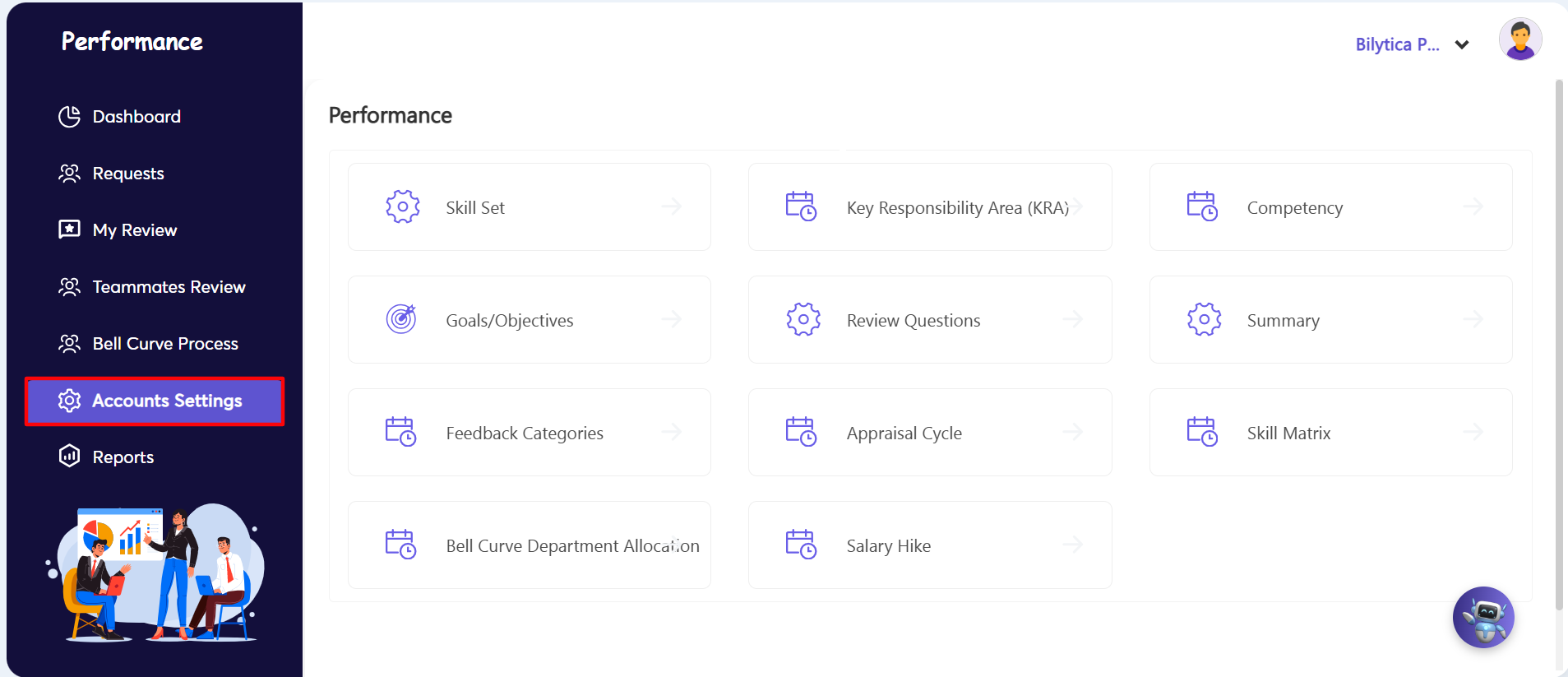
- Step 1: Open Settings Dashboard — Go to the left navigation panel inside the Performance module and click the Accounts Settings sub-tab (marked with a red box).
- Step 2: Explore Configuration Sub-Modules — The main settings grid will load, displaying these key setup components:
- Skill Set & Skill Matrix: Define capability criteria and proficiency levels for employees.
- Key Responsibility Area (KRA): Set core functional accountability benchmarks for different roles.
- Competency & Goals/Objectives: Structure corporate behavioral attributes and organization-wide OKRs.
- Review Questions & Feedback Categories: Program standardized appraisal questionnaires and 360-degree feedback guidelines.
- Appraisal Cycle, Salary Hike, & Bell Curve Department Allocation: Calibrate live evaluation timelines, rating matrices, and automated budget allocation rules.
2. Administering and Creating Core Appraisal Cycles
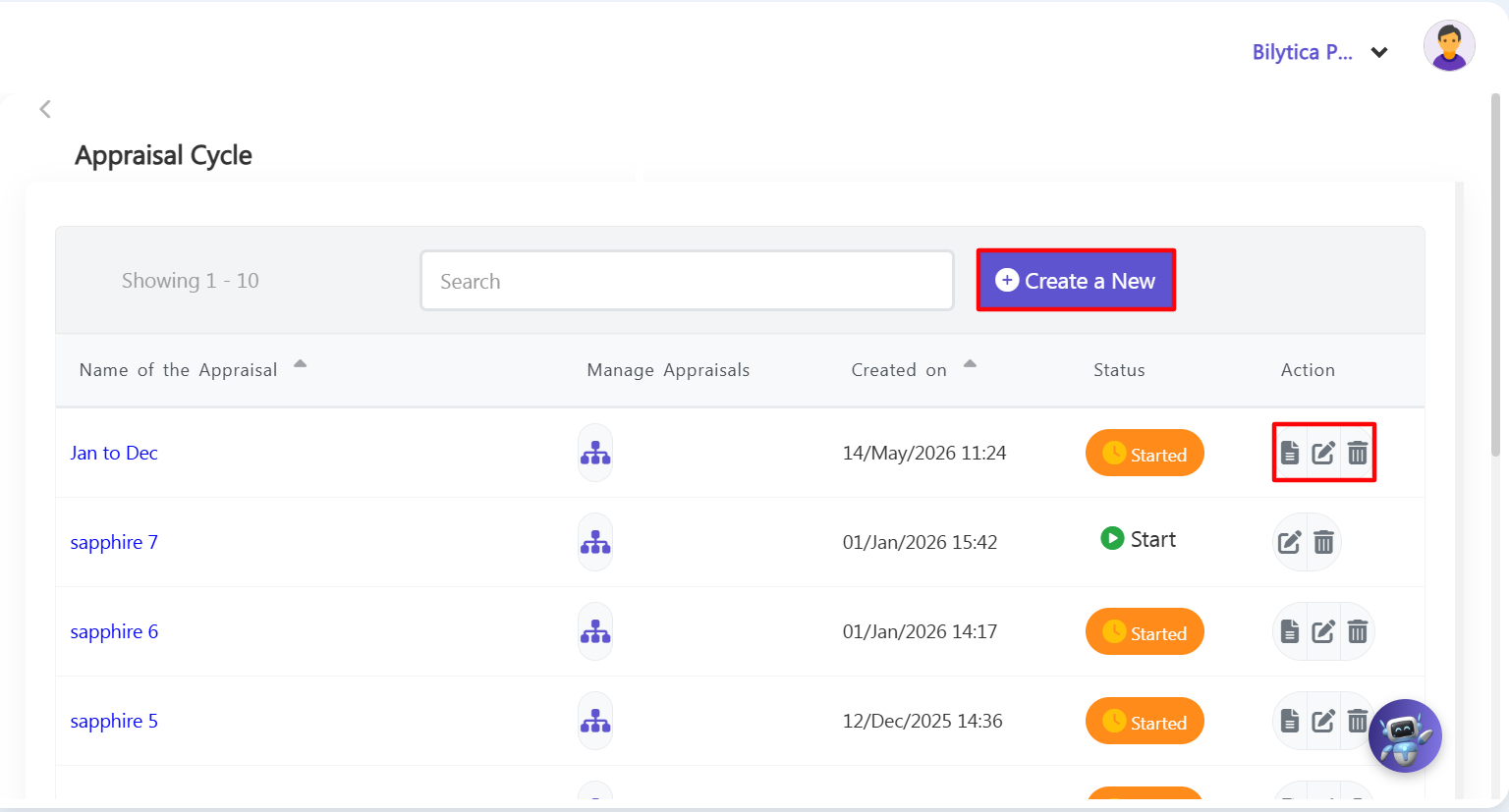
- Step 3: Open the Appraisal Ledger — Click directly on the Appraisal Cycle card option within the settings grid workspace layout.
- Step 4: Review Existing Cycles — The historical ledger grid will display on-screen. Here, you can review active review cycles (such as Jan to Dec, sapphire 7, sapphire 6, or sapphire 5), check their current status (Started or Start), and use the shortcut icons in the right-margin Action column to open, edit, or delete specific rows.
- Step 5: Start the Creation Wizard — Click the blue Create a New button (marked with a red rectangular frame) at the top of the toolbar to launch the master appraisal setup wizard.
3. Setting Up Evaluation Rules, Workflows, and Sub-Appraisals
Inside the master setup wizard form, fill out the sections in order:
- Step 6: Enter Basic Info — Type in the cycle Name, select the dates under Period of Cycle, and add instructions in the Description box. You can also upload a PDF copy under Guideline Document.
- Step 7: Choose Grading Criteria — Set the scoring logic rules for reviews:
- Self Evaluation Basis: Check the boxes (KRA, Competency, Goal/Objective, Skillset) to choose what employees use to grade themselves.
- Reviewer Evaluation Basis: Select what managers will use to evaluate their team members.
- Step 8: Set Approval Workflows — Choose the Workflow routing sequence to set the manager approval path for final performance sign-offs (e.g., Department Head > Manager > HR Administration).
- Step 9: Add Sub-Appraisal Intervals — For multi-stage tracking (like mid-year reviews), click Add Appraisals to add smaller sub-cycles. For each sub-cycle, set:
- Period Calibration: The exact start and end dates for that specific review window.
- Submission Limits: Deadlines for when employees must finish self-reviews and when managers must complete their reviews.
- Goal Request Deadline: The final cutoff date for employees to add or change goals in the system.
4. Setting Rating Scales, Bell Curves, and Salary Hikes
Link your review scores to company budget and compensation rules before saving:
- Step 10: Select Rating Format — Under the rating dropdown menu, choose how scores are displayed: Star-based, Number-based, or Text-based.
- Step 11: Setup Scoring Slabs & Salary Hikes — Set your score ranges and link them directly to Bell Curve targets and Salary Hike percentages line by line.
- Example: You can create a rule stating that a score between 2.1 - 3.0 Stars limits that rating tier to 20% of employees (Bell Curve) and automatically triggers a 5% salary increase potential.
- Step 12: Save and Compile — Review your settings and click Save at the bottom of the form. Once an appraisal cycle ends, the system will automatically check these scales and suggest salary increases based on your custom rules.
Automated Salary Hike Matrix Alignment Pro-Tip: |