

Standardizing internal business documentation—such as offer letters, warning notices, or experience certificates—ensures organizational consistency and cuts down manual clerical efforts. PayPeople integrates an automated text generation template framework that pulls workforce profile information directly into your document variables.
1. Navigating to the Letter Templates Registry
To begin designing or uploading a standard personnel document layout:
Step 1: Open the primary layout interface ribbon dashboard and click on the Setup module icon (gear ) positioned in the upper right-hand corner area.
Step 2: Confirm the Organization horizontal menu tab is active, then locate and click on the Letter Templates grid card module component (highlighted in a red box layout).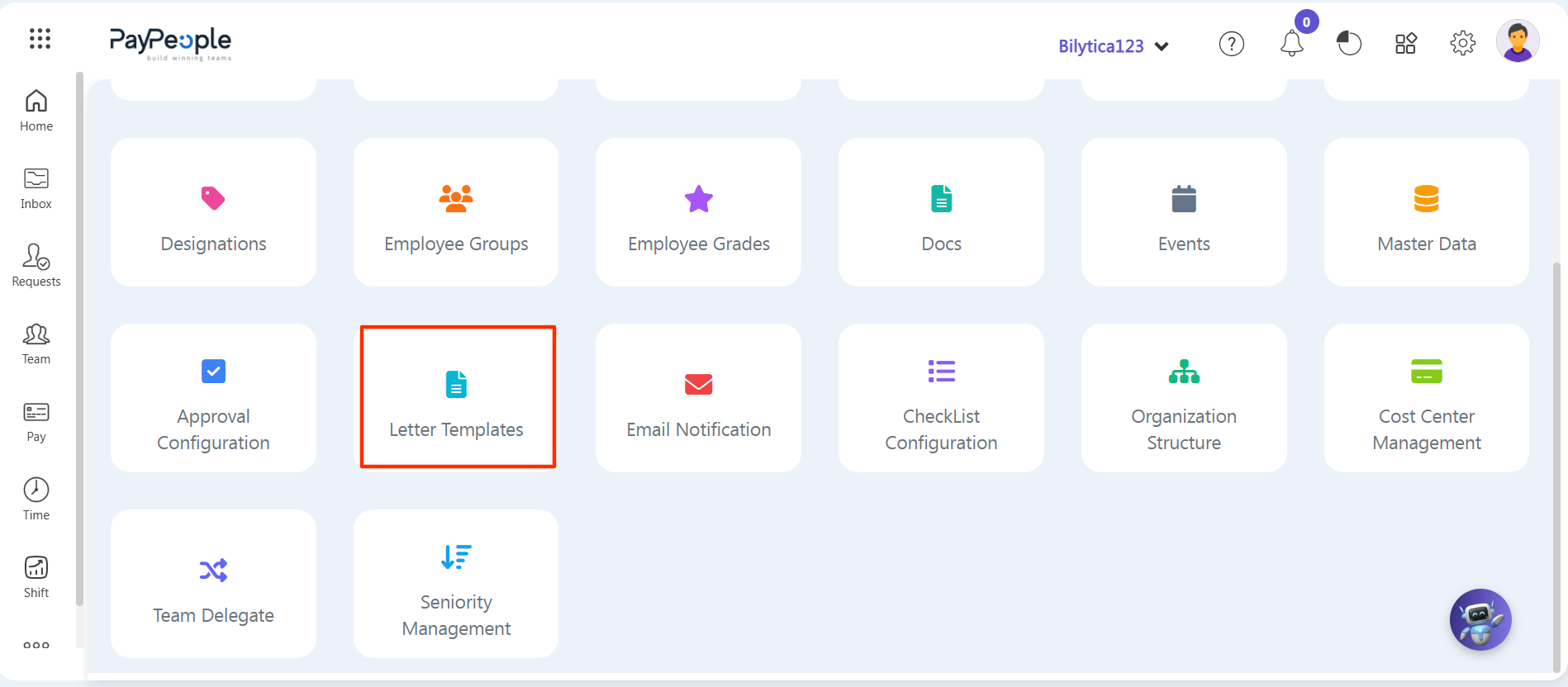
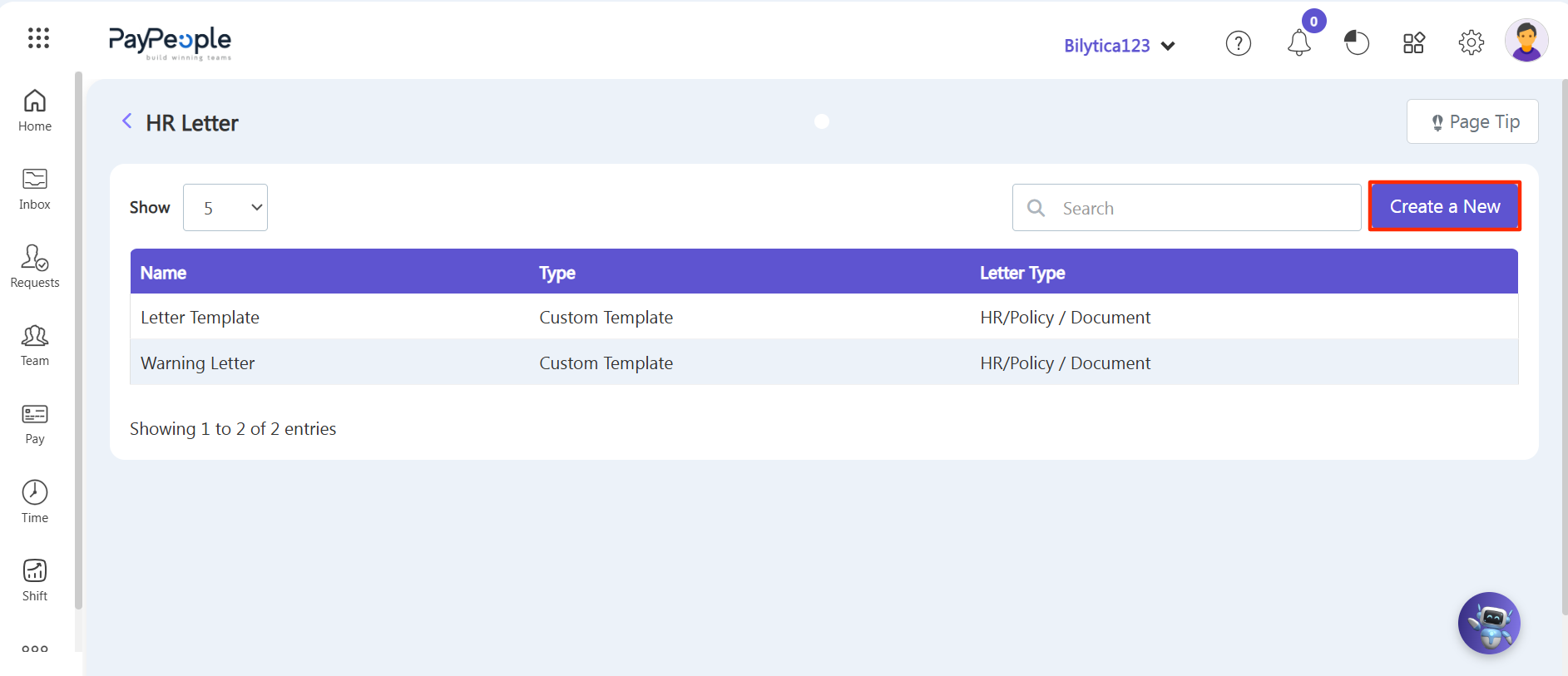
Step 3: The central HR Letter master indexing directory panel will load, providing a structured register of existing templates, text document classifications, and corporate document categories.
Step 4: Click on the purple Create a New action button block (highlighted in a red frame) inside the upper-right panel sub-navigation toolbar.
2. Custom Template Layout Construction & Merge Field Mapping
An Add HR Letter configuration popup modal window container overlay will pop up. Populate your metadata and dynamic variable links sequentially:
Step 5: Document Core Attributes — Type your public title designation string inside the Name* required text field area block, choose your format style from the Type* selection box dropdown menu (defining whether you want to build via standard word document layout parameters or a custom systemic template), and append tracking notes within the Description container.
Step 6: Injecting Dynamic Merge Fields — To prompt the system database to automatically extract real-time personnel profile records, deploy the dynamic field injection bar layout tool. Select your target framework category from the Available Merge Fields block picker menu, choose your specific profile attributes from the Select Field dropdown (such as employee full name, date of joining, designation, or department), and click the purple Insert button. This drops the programmatic token directly into your text editor, so the system automatically fetches the correct matching strings whenever you generate a letter profile for a team member.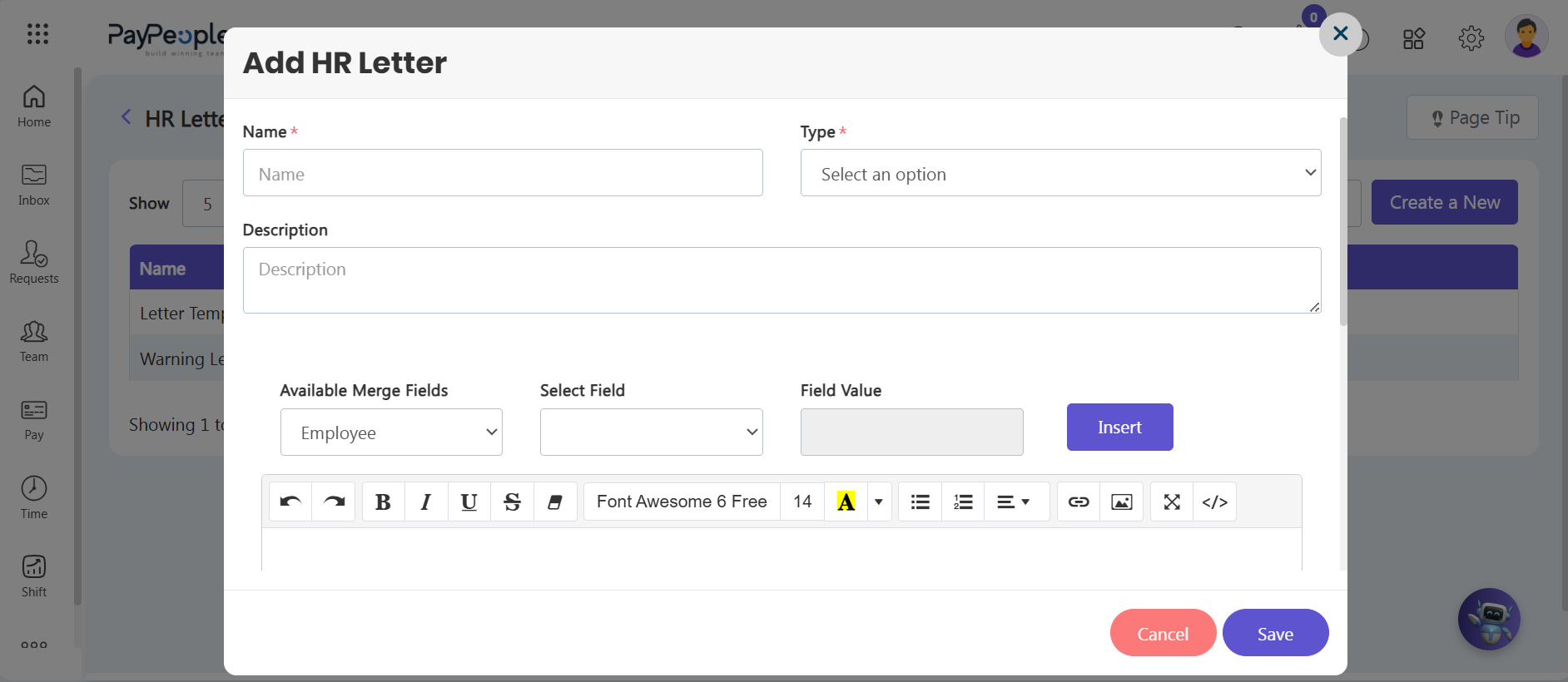
3. Uploading Premade Files & Executing Corporate Signatures
Scroll down into the final quadrants block of the Add HR Letter wizard container tool overlay to structure external content and authority rules:
Step 7: Uploading Natively Pre-existing Layouts — If you already have a structured template file or corporate legal layout drafted offline, bypass manual building by clicking on the blue Upload File action link text button. This allows you to pull your offline text asset straight into the digital system repository logs.
Step 8: Mapping Executive Employee Signatures — Scroll to the base layer fields container titled Executive Employee Signatures. Click inside the 1st Executive Employee* and 2nd Executive Employee search text field input boxes to find and select those high-level personnel whose signatures must be appended onto the final document output pages layout view (such as mapping the CEO or HR Director profiles).
Step 9: Look over your configured formatting criteria and click the purple Save option button control in the lower right margin to permanently compile your automated corporate letter template.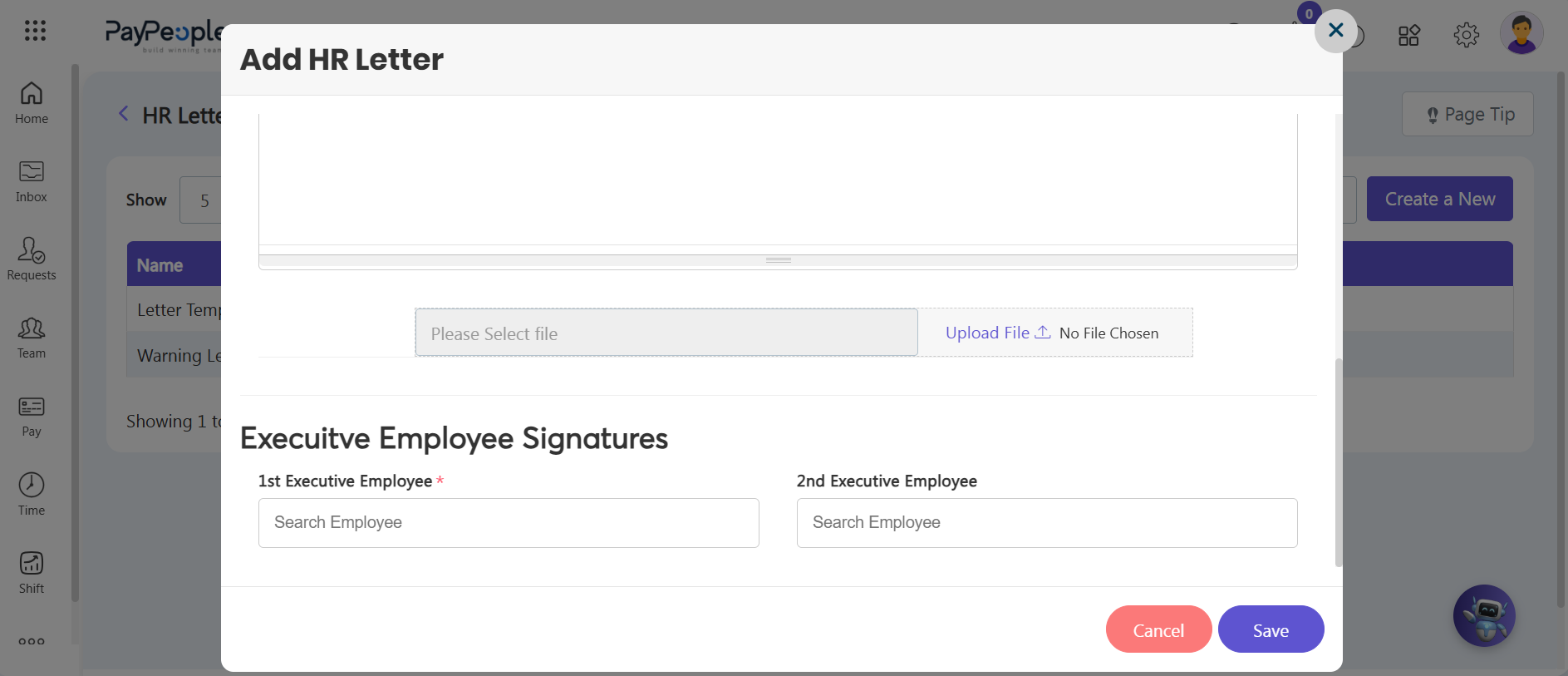
Data Optimization Tip: |