

Employee grading frameworks form the backbone of structural compensation bands, operational allowance limits, and corporate budget caps. PayPeople allows you to map specific salary expectations, headcount restrictions (sanctioned strength), and linked expense categories straight to each grade tier profile.
1. Navigating to the Employee Grades Portal
To build or revise your corporate tier frameworks:
Step 1: Click on the central Setup module icon (gear ) on your top-right header menu ribbon panel.
Step 2: Ensure the Organization horizontal tab is active on the workspace dashboard, then click on the Employee Grades card option.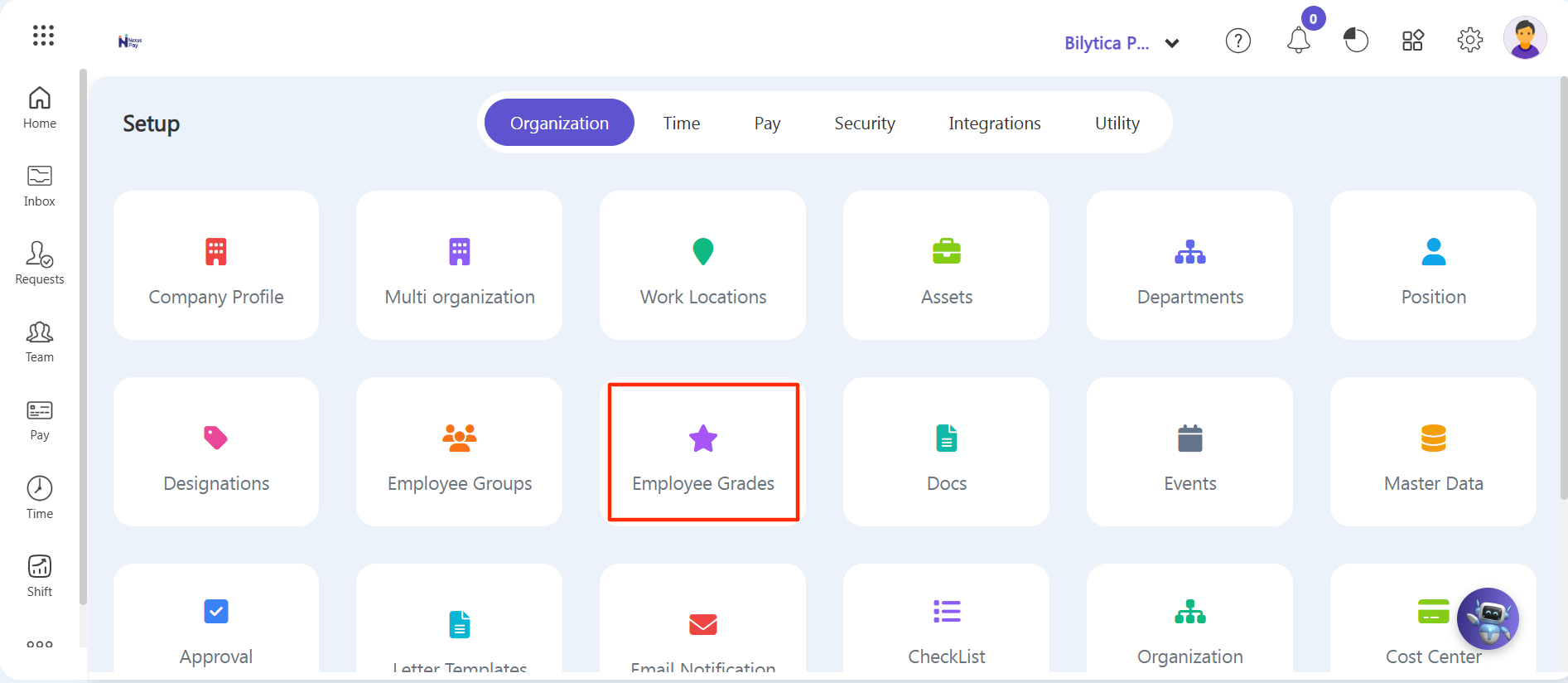
Step 3: The central employee grades listing ledger grid will load on your page view, showcasing your existing tiers and active user tallies.
Step 4: Click on the purple Create a New button inside the right header ribbon block margin to reveal the configuration window overlay.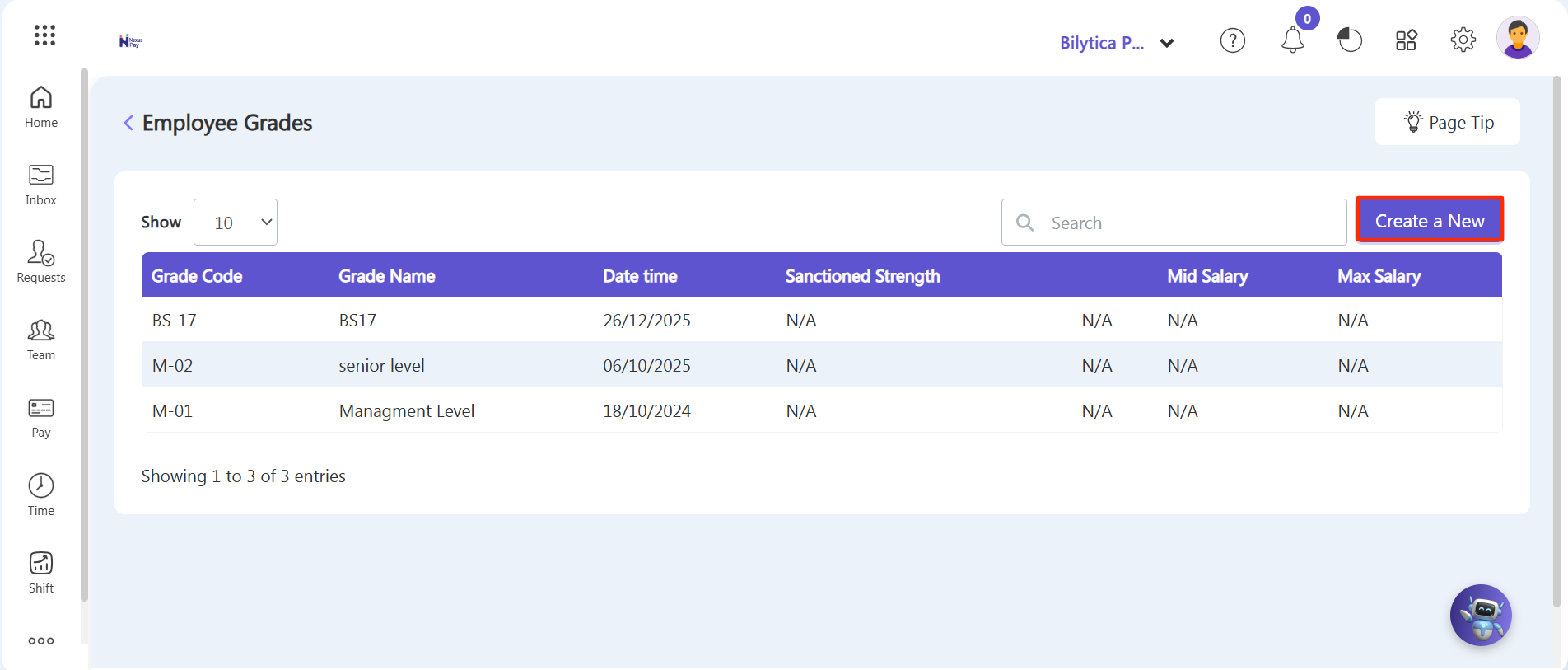
2. Configuring Grade Parameters & Budgetary Locks
An Add Employee Grade setup popup overlay form card container will open. Populate the workspace parameters sequentially:
Step 5: Grade Identifier Elements — Type your internal shorthand classification string inside the Grade Code data block field, and write out the formal tier title within the Name text box.
Step 6: Salary Band Mapping (Optional) — If you want to enforce structured salary boundaries for this specific grade tier layer, populate the compensation fields to map out exactly how much baseline salary applies to employees assigned to this grade.
Step 7: Sanctioned Strength & Budgeting Controls — Define your operational resource ceilings by inputting parameters into the Sanctioned Strength data field (capping the maximum number of employee profiles that can fall under this grade simultaneously) and filling out the overall financial Budget limits allowed for this tier segment group.
Step 8: Expense Category Linking — Enable the dedicated checkbox indicator tool option to link this grade profile explicitly with an active Expense Category. This automatically enforces compliance caps on expense claims or traveling allowances filed by team members holding this grade.
Step 9: Double-check your field entries and click the green Save button on the lower right of the container to permanently log the grade level into your master database framework.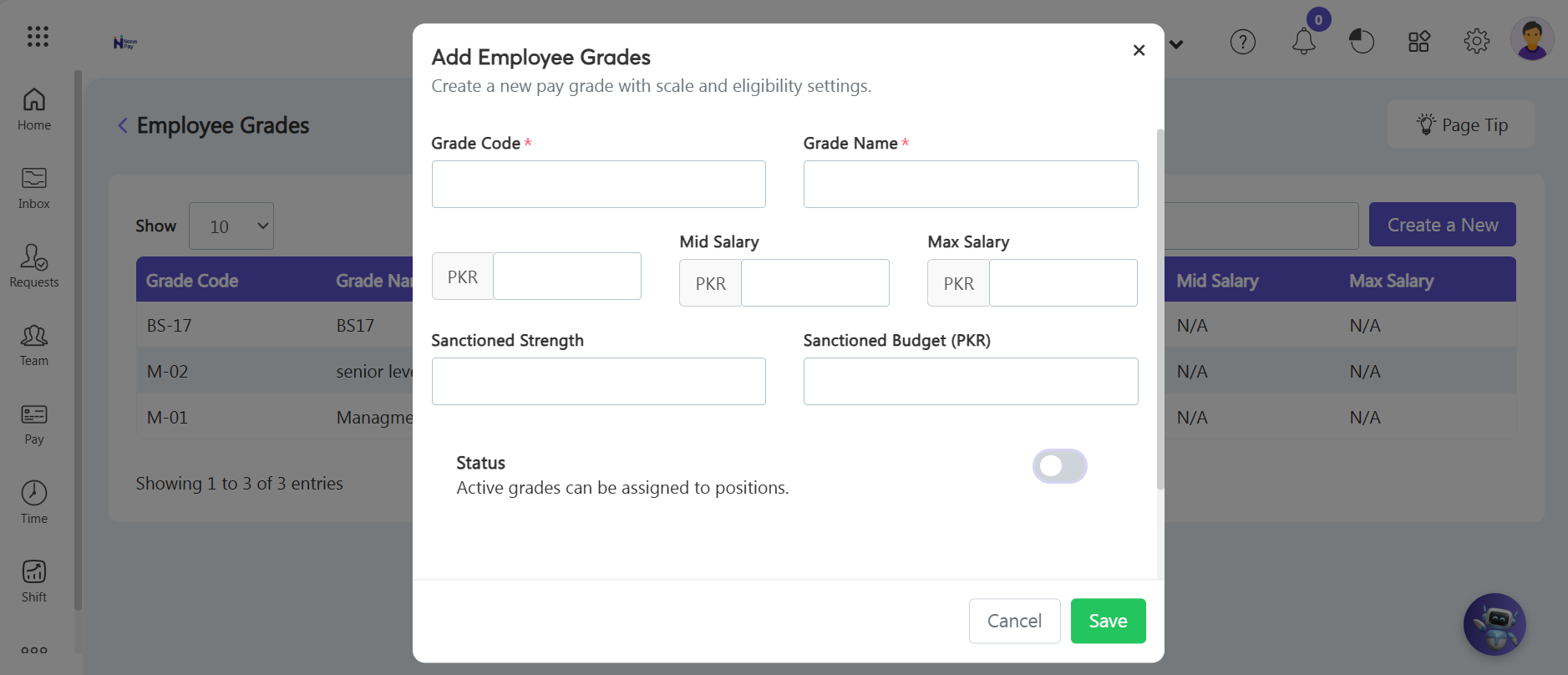
Workforce Budgeting Tip: |