

Automating attendance penalties and structural balance overrides ensures non-biased compliance tracking and eliminates manual payroll adjustment logs. PayPeople integrates a central Time Rule calculation engine to capture transaction behaviors—such as lateness, early departures, missing biometric logs, or break exceptions—and translate them directly into quantitative salary deductions or programmatic leave bank updates based on progressive rule slabs.
1. Navigating to the Time Rule Dashboard
To configure a global workforce behavioral policy or initialization matrix:
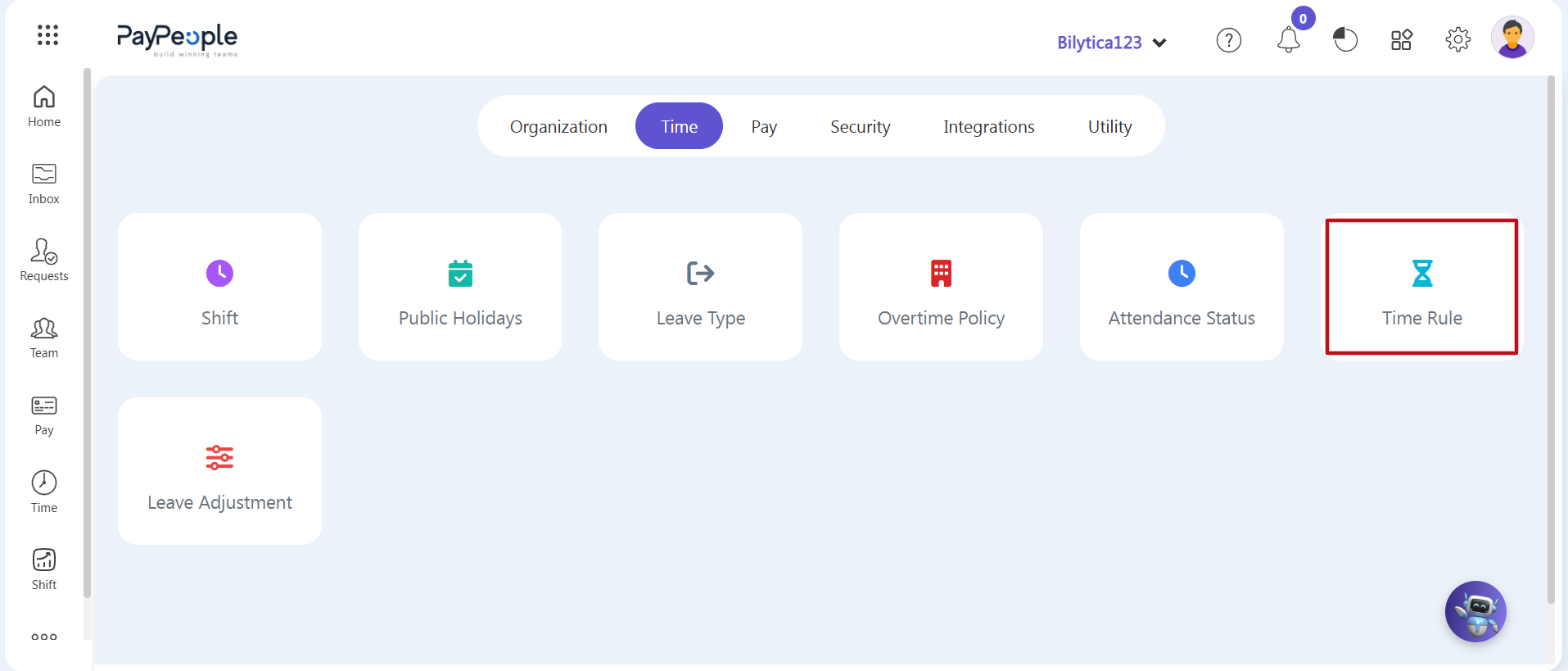
- Step 1: Open System Settings — Navigate to your primary administrator dashboard ribbon and click on the Setup gear icon located in the upper-right navigation area.
- Step 2: Access the Time Rule Panel — Confirm that the horizontal Time category sub-tab is active on your layout ribbon, then select the Time Rule card module icon (marked with a red box layout frame).
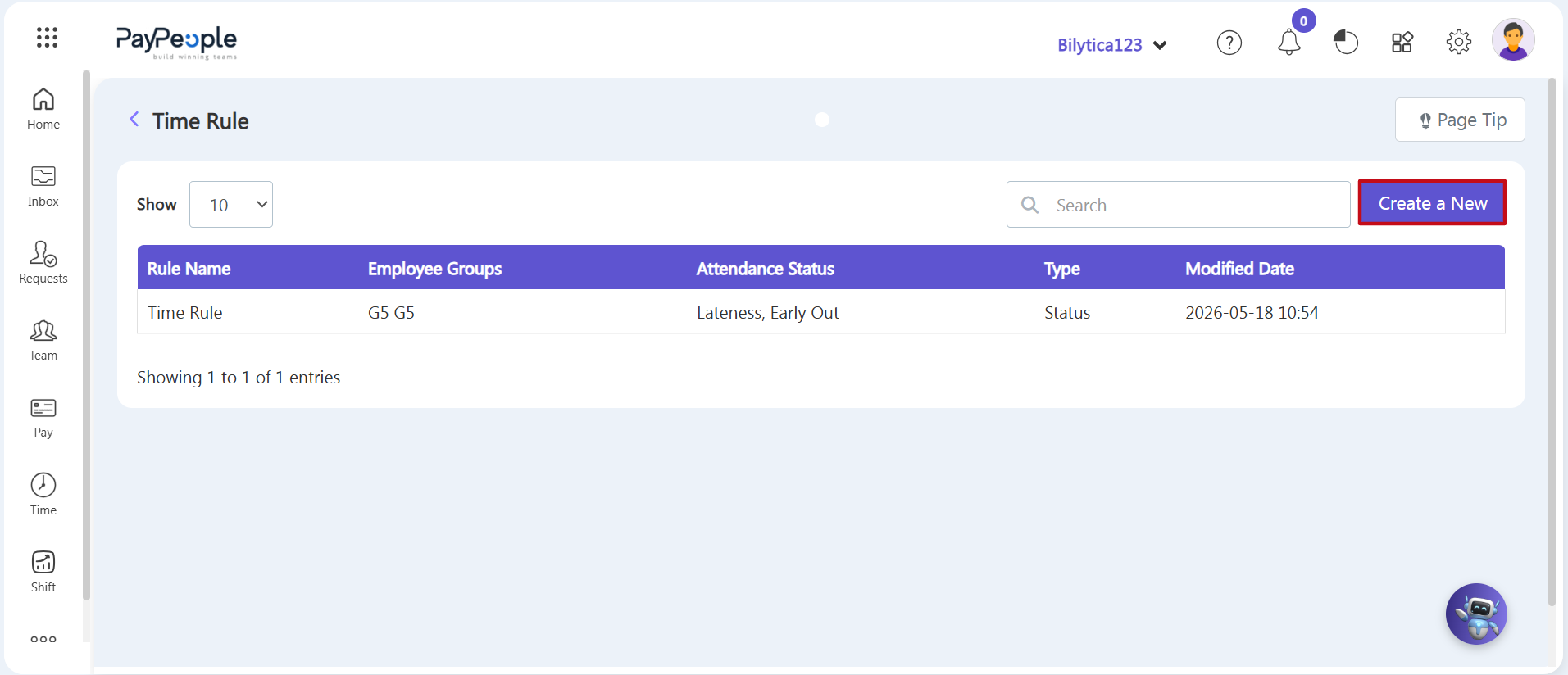
- Step 3: View the Time Rule Registry — The main Time Rule registry directory overview ledger panel will display on-screen, showing active corporate calculation mappings.
- Step 4: Launch the Rule Builder Wizard — Look to the right margin sub-navigation toolbar line and click the purple Create a New action button (marked with a red rectangular frame box).
2. Compiling Policy Attributes & Rule Slabs
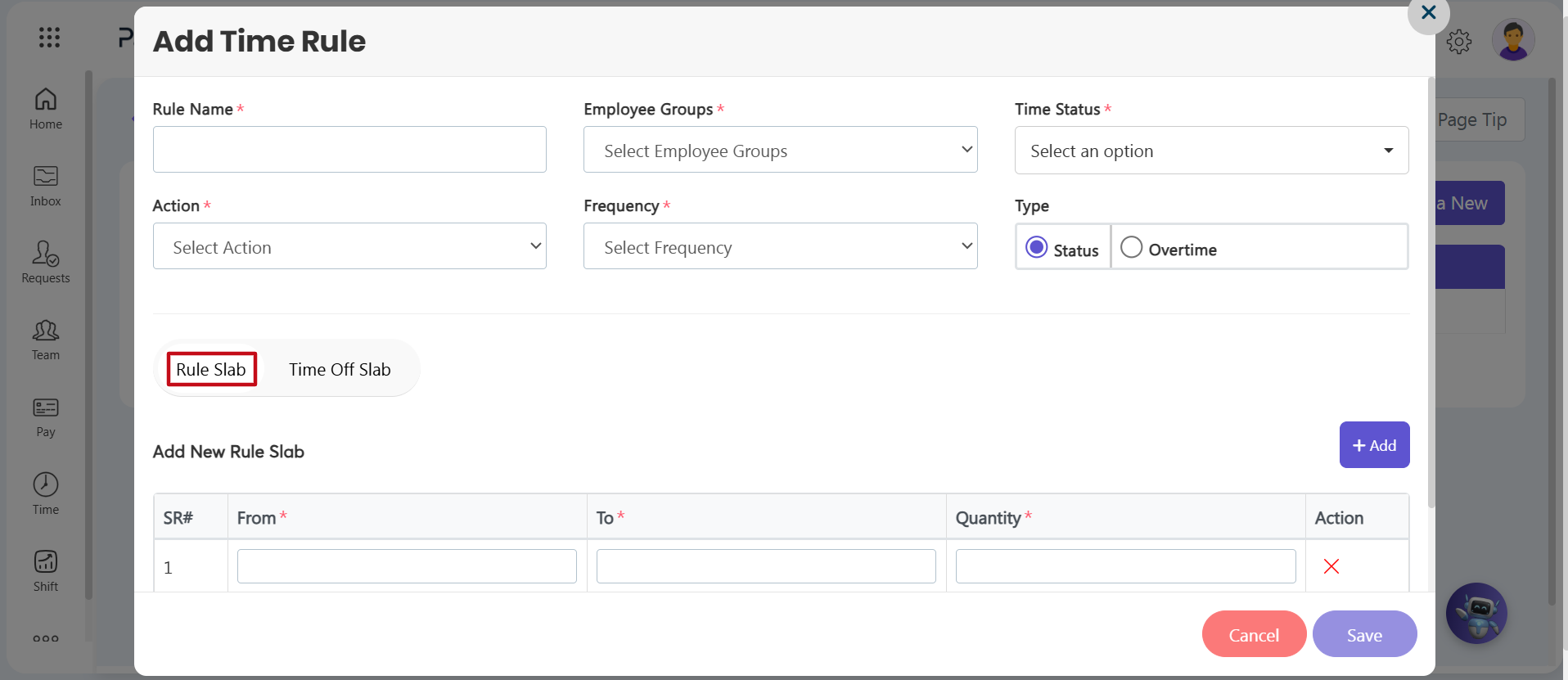
An Add Time Rule parameter configuration wizard window will display on-screen. Populate the fields step-by-step to establish the base calculation logic:
- Step 5: Define Base Rule Attributes — Type your public policy shorthand title string inside the Rule Name* required text field. Use the Employee Groups* dropdown picker tool to define exactly which worker cohort target population boundaries this policy applies to.
- Step 6: Map Target Time Status Criteria — Move to the Time Status* dropdown box matrix. Select the specific attendance status elements you intend to track for this execution block (such as Lateness, Early Out, Short Duration, Missing Punches, Breaktime, Work From Home, or other custom metrics tags).
- Step 7: Configure Action Metrics, Frequencies, and Types — Customize calculation behavioral rules across the adjacent field selections:
- Action: Define whether calculations evaluate on total accumulation parameters (Minutes) or historical frequencies of events (Counts).
- Frequency: Set whether the systemic action occurs as a One Time fixed penalty transaction or updates progressively On Every Occurrence.
- Type: Toggle the core calculation logic radio button block to target either active Status definitions or supplemental Overtime records.
- Step 8: Define Progressive Rule Slabs (Salary Deductions) — Ensure the navigation sub-tab view layer is set to the Rule Slab toggle option link (marked with a red frame box). Click the blue + Add button to spawn a data input container line. Complete fields sequentially to establish your threshold mapping rows (for example, to implement rules where logging 1 to 3 late arrivals docks half a day's salary, enter 1 inside the From* column text box, 3 inside the To* column text box, and 0.5 inside the Quantity* column line).
3. Implementing Leave Balance Priority Overrides (Time Off Slabs)
If your corporate attendance guidelines require the system to deduct time-off balances from employee profiles first before triggering direct payroll penalty deductions, deploy an override structure:
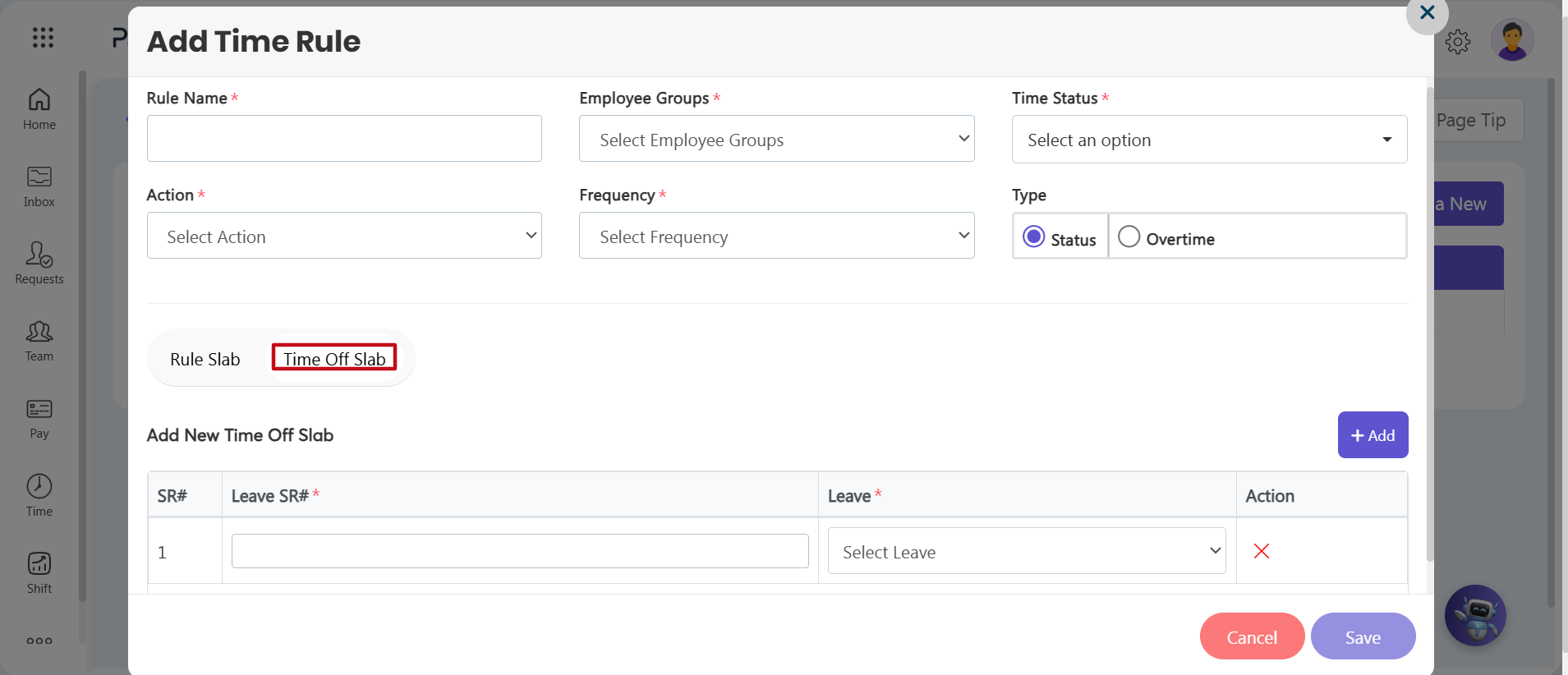
- Step 9: Open Time Off Slab Workspace — Click on the adjacent horizontal view tab labeled Time Off Slab (marked with a red frame box) inside the lower section layer.
- Step 10: Map Slabs Serial Numbers — The interface will adjust to a fresh table layout. Click the blue + Add action button to launch a new data input row workspace.
- Step 11: Link Leave Types to Rule Slabs — In the Leave SR#* required field, type the exact corresponding serial number of the row tier mapped inside your previous Rule Slab setup. Move to the adjacent Leave* column dropdown menu and select exactly which leave classification bank (such as Casual Leave, Annual Leave, or Sick Leave) the system should subtract balance metrics from.
- Step 12: Permanent Database Activation — Review all your text field parameters, progressive count range matrices, and linked balance deduction lines, then click the purple Save button in the lower-right corner to permanently register the policy rules workflow.
Payroll Administration Pro-Tip: |