

Overseeing day-to-day employee operations requires an administrative workspace that provides immediate transparency into scheduled work hours. PayPeople integrates a central Shift Calendar grid system that enables tracking daily applied shifts, processing bulk data roster imports, configuring specialized time-bound shifts, and deploying ad-hoc weekly rest overrides from a single view layout.
1. Utilizing the Daily Shift Calendar View
To monitor the specific shift active on any individual employee on a daily basis across an entire month:
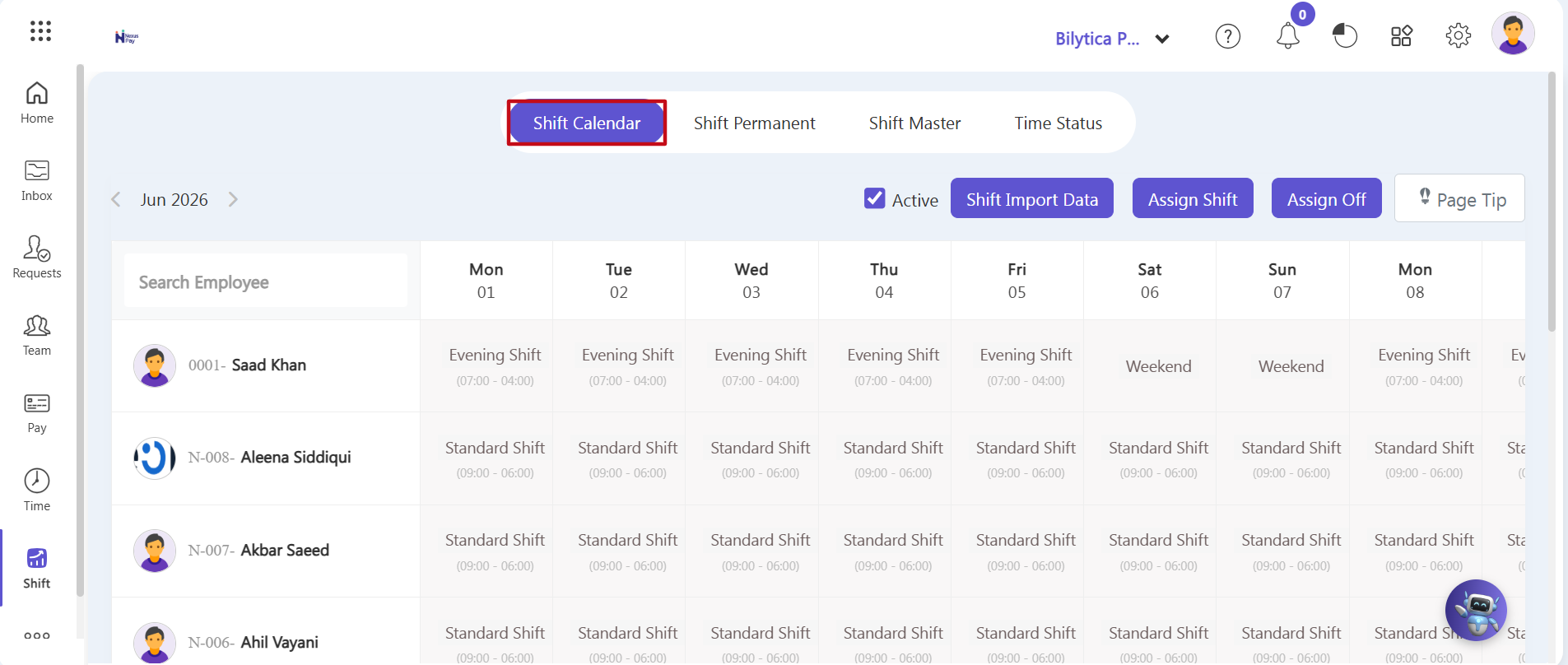
- Step 1: Open the Shift Calendar Panel — Within the main Shift management module layout, locate and click the horizontal sub-tab labeled Shift Calendar (marked with a red boundary box frame).
- Step 2: View the Comprehensive Tracking Grid — The workspace will load a monthly calendar tracking grid. This master dashboard maps out the specific shift applied to each individual employee day-by-day, allowing managers to see upcoming scheduling matrices at a glance (such as verifying 'Standard Shift' or 'Evening Shift' coverage blocks).
2. Processing Bulk Roster Updates via Shift Import Data
When managing rotating team rosters across massive operation fields, use the bulk data import utility directly from the upper toolbar:
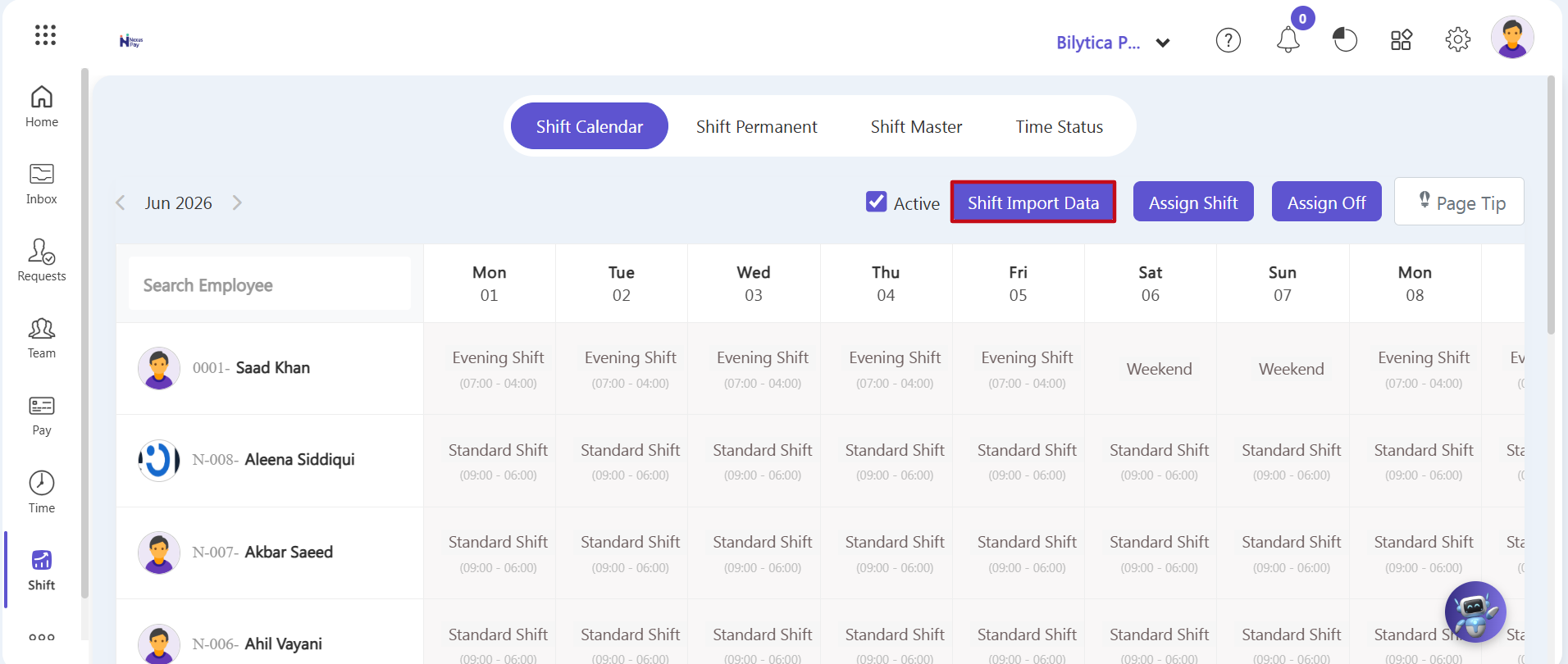
- Step 3: Launch the Import Utility — Locate the sub-navigation action button cluster in the upper-right area of the Shift Calendar pane and click the purple Shift Import Data button block.
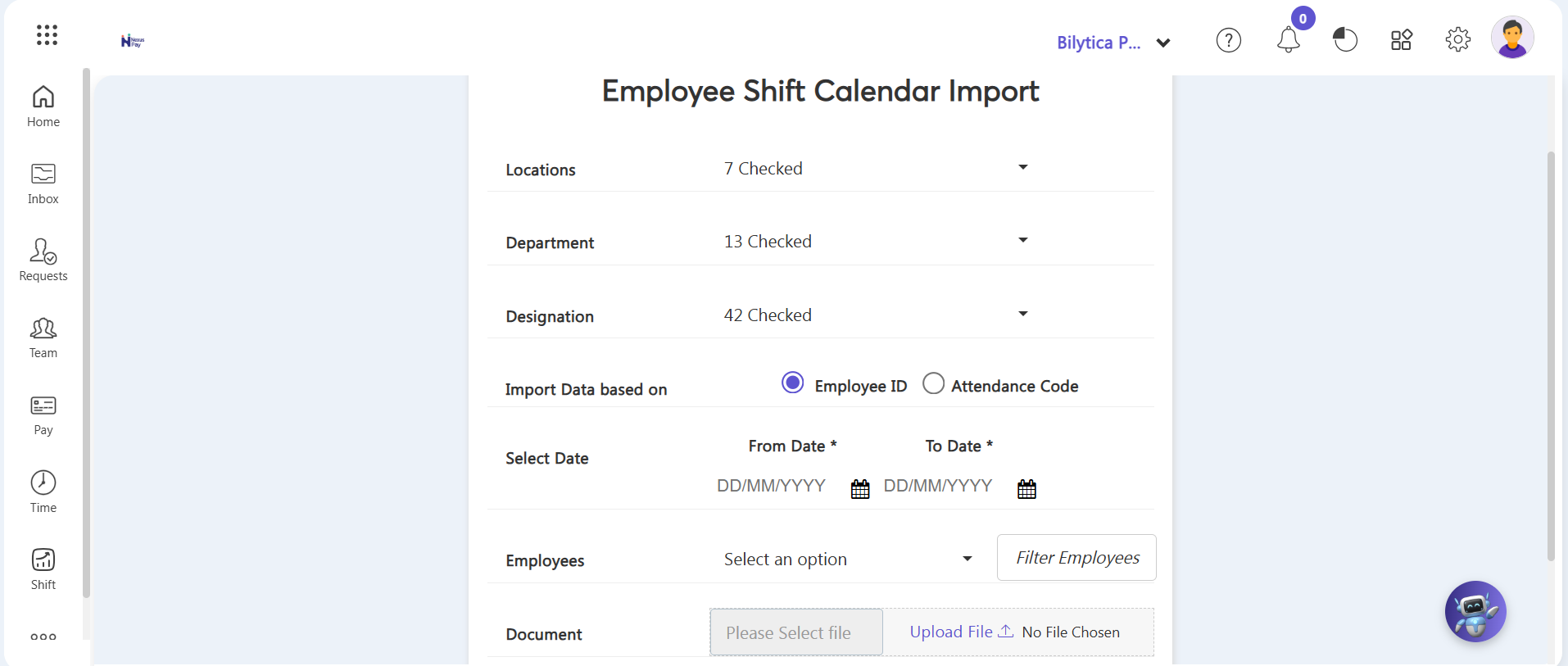
- Step 4: Download and Filter Templates — An administrative file wizard overlay will launch. Apply the organizational filter constraints to isolate your targeted workforce segments, then select the option to download the system's specialized spreadsheet template.
- Step 5: Populate and Upload the Spreadsheet — Fill in your custom team schedule dates offline within the downloaded sheet layout. Once the file is ready, return to the interface wizard, attach your populated spreadsheet via the file box uploader link, and execute the upload command. The corporate rosters will be imported instantly into the system database registers.
3. Mapping Time-Bound Shifts & Random Off-Days Exceptions
To enforce unique or temporary calendar changes without altering an employee's core underlying profile, deploy ad-hoc tools from the toolbar area:
• Assign Shift (Time-Bound Allocations): For a specific type of seasonal or operational schedule alignment (e.g., configuring and mapping a special Ramadan shift for a specified calendar period), click on the purple Assign Shift action button block. This workspace tool allows you to select a specific calendar time period, ensuring that the alternate timing configuration window automatically triggers and ends based on your defined date boundaries.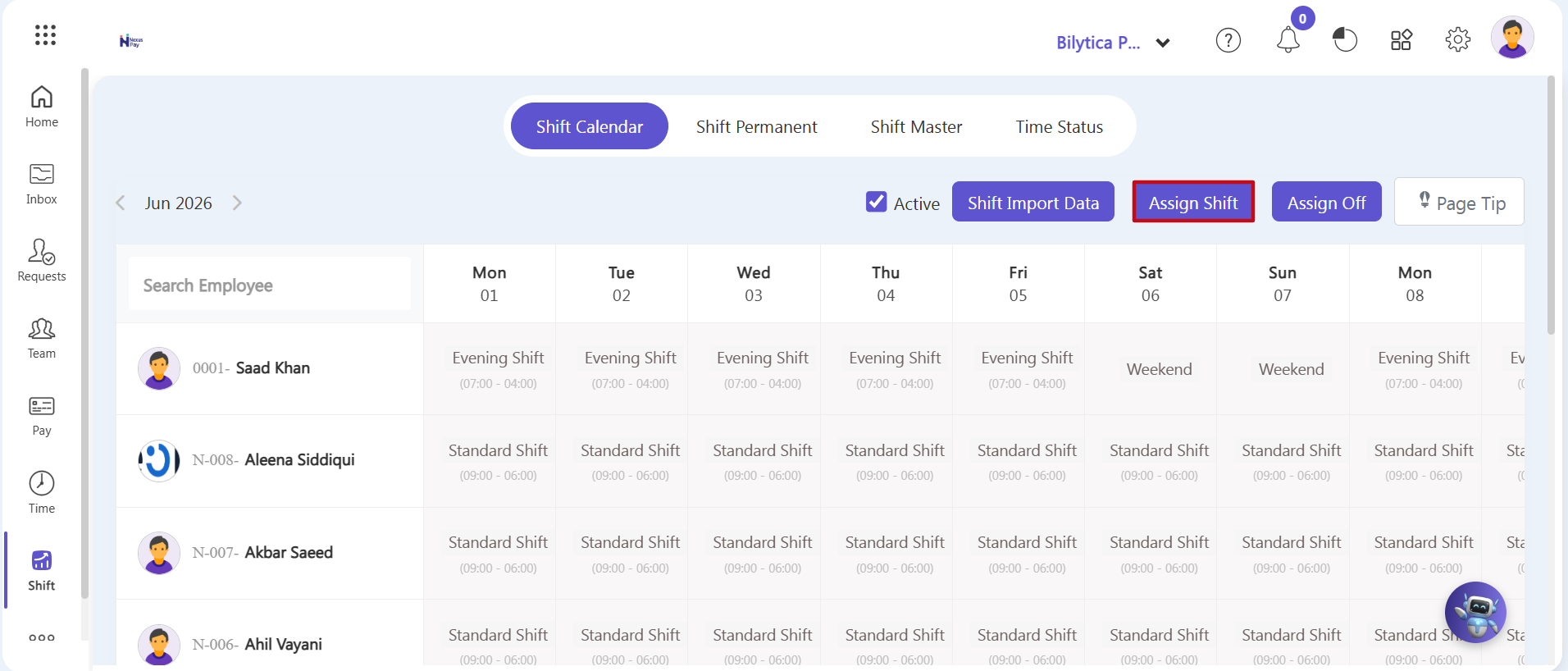
• Assign Off (Random Rest Day Adjustments): If your operational adjustments require you to apply off-days randomly across specific individuals' monthly calendars, click on the purple Assign Off button component. This interface allows you to manually mark random off-days or rest exceptions over any specific date blocks, immediately overriding default baseline expectations on the live tracking matrix.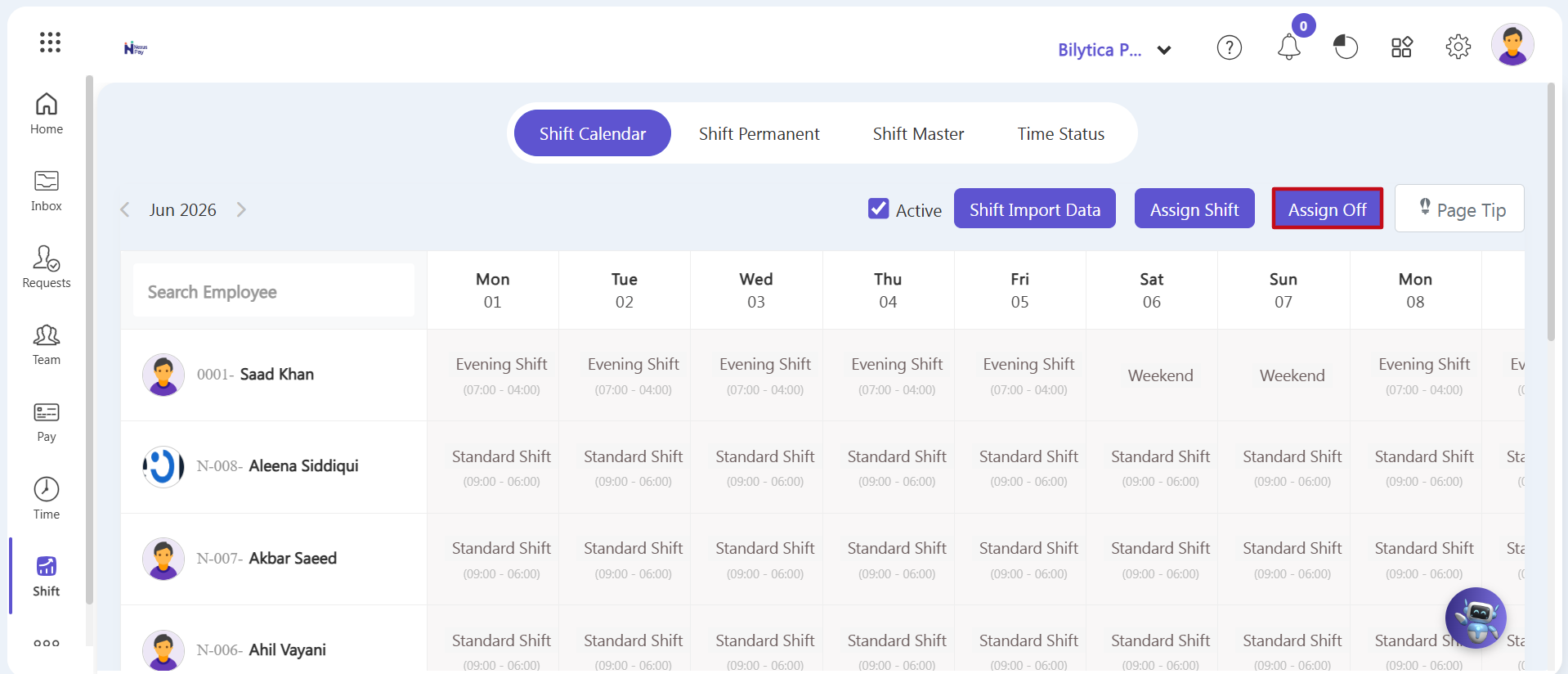
Workforce Management Notice: |