

Once operational schedules, thresholds, and tolerance limits are established in the core system, administrators must assign those policies to the workforce. Using the Shift Permanent utility, you can target specific employee groups, apply structural rosters, set future-dated timelines, and configure override rest cycles natively.
1. Navigating to the Permanent Shift Ledger
To view current worker schedule rosters or reassign calendar shifts permanently:
- Step 1: Open the Permanent Shift Panel — Within the main Shift management module workspace, locate and click the horizontal sub-dashboard tab labeled Shift Permanent (marked with a red boundary box frame).
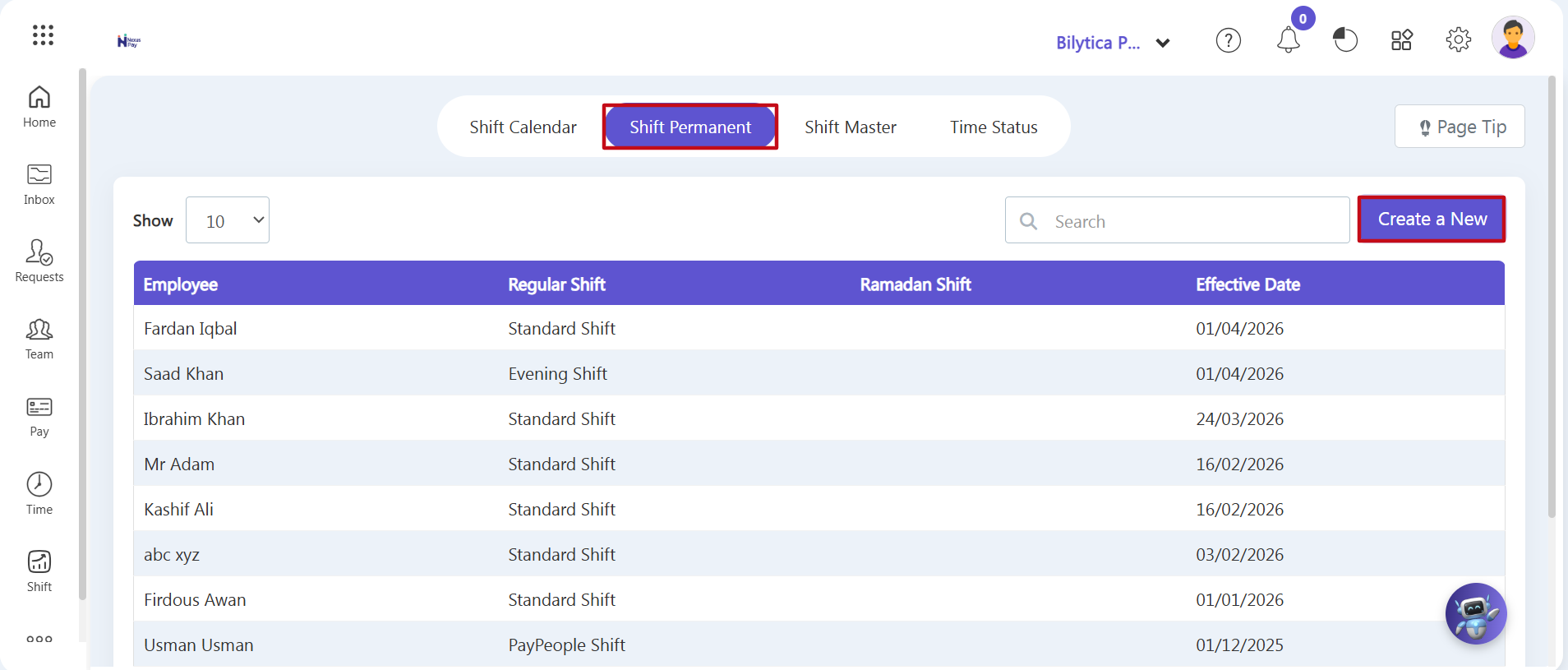
- Step 2: View the Roster Registry — The master roster registry log will populate on-screen, displaying an index table of active assignments that details the employee name, regular shift type, Ramadan shift parameters, and the explicit system effective date.
- Step 3: Launch the Assignment Wizard — Click the purple Create a New action button (marked with a red rectangular frame) on the upper-right sub-navigation toolbar.
2. Filtering Employees and Scheduling Roster Rules
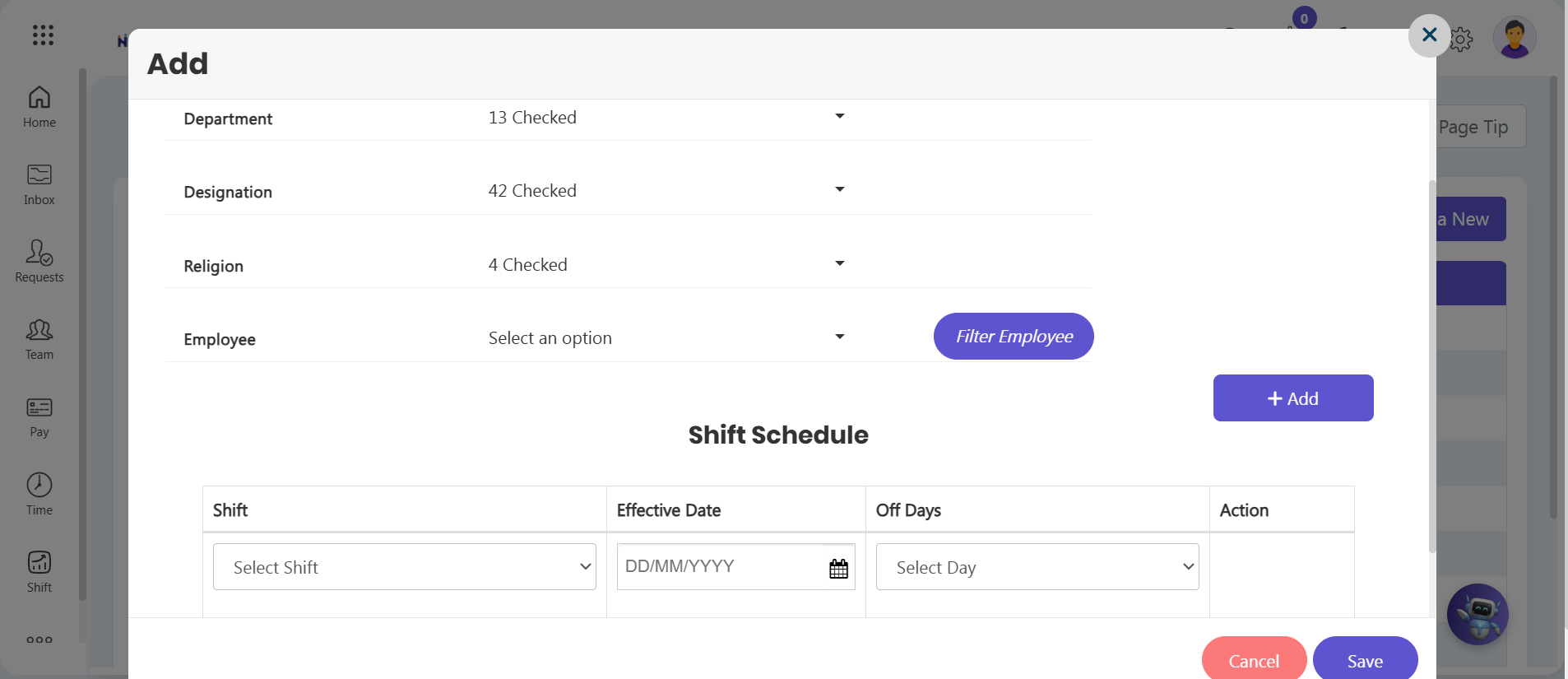
An Add workflow setup wizard window will open on your dashboard. Populate the parameters step-by-step:
- Step 4: Establish Workforce Filter Criteria — Narrow down your target employee group by selecting options from the dropdown filter fields, including Department, Designation, and Religion. You can also use the Employee dropdown menu to target a specific profile.
- Step 5: Load the Filtered List — Click the purple Filter Employee action button to search the database and pull up the matching list of employees.
- Step 6: Map the Target Shift Template — Scroll to the Shift Schedule parameters grid right below the filters. Open the Shift dropdown menu and choose the exact pre-configured shift you want to apply (such as Standard Shift or Evening Shift).
- Step 7: Set the Effective Date — Click inside the Effective Date calendar field to choose the exact date when this new shift rule will systemically activate.
- Step 8: Configure Off-Days Overrides — Open the Off Days dropdown list. If the rest days for this reassignment have changed, you can select custom weekly rest cycles here. This overrides the default rest day rules without altering the master configuration inside the main Shift Master repository.
- Step 9: Commit to the Database — Review your targeted employee list and shift settings, then click the purple Save button in the lower-right corner to permanently activate the new shift roster rule for the filtered employees.
Workforce Management Notice: |