

Managing statutory calendar declarations and cultural exceptions ensures time-tracking clarity and accurate payroll processing. PayPeople utilizes a centralized public holiday provision engine to establish custom calendar holiday events and apply specific eligibility boundaries to targeted segments of the workforce natively.
1. Navigating to the Public Holidays Directory
To log a standard organizational holiday calendar event:
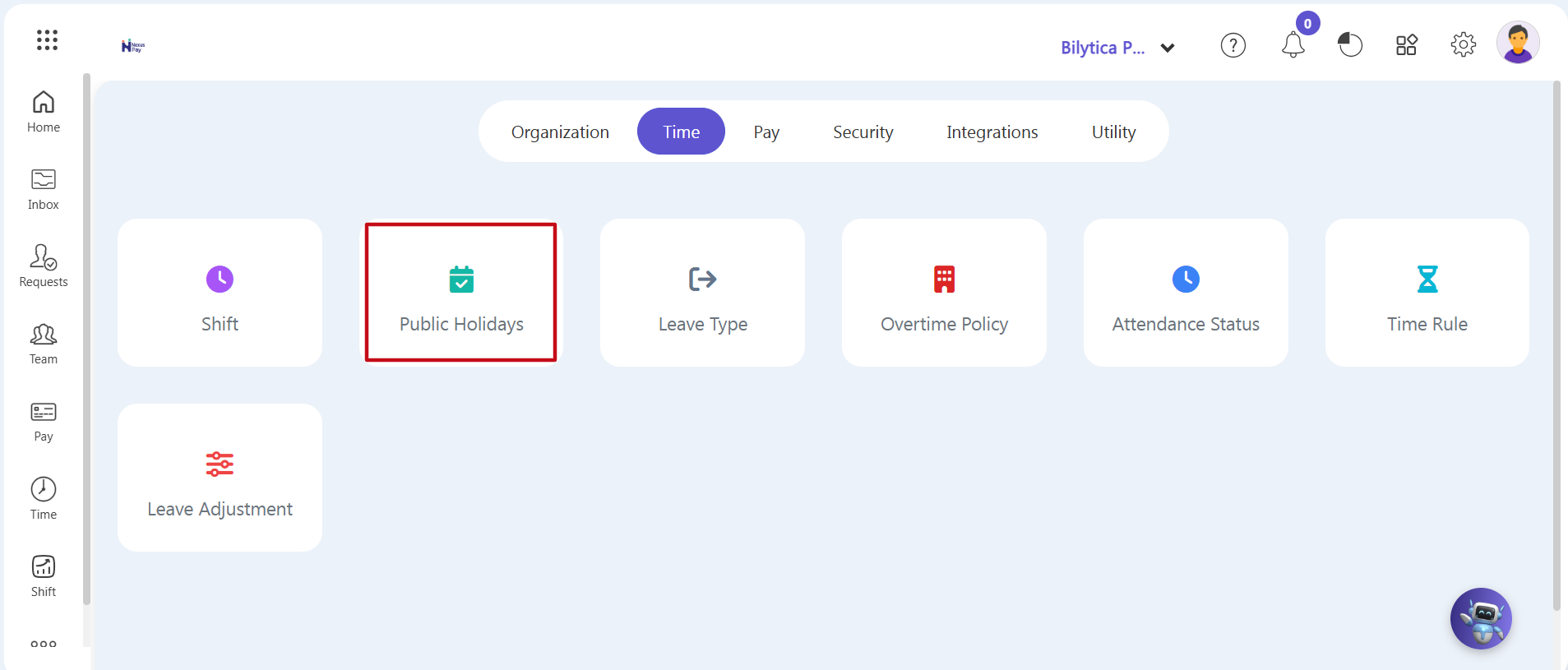
- Step 1: Open System Settings — Navigate to the main system control interface and click on the Setup gear icon located in the top dashboard navigation ribbon.
- Step 2: Access the Public Holidays Panel — Ensure that the horizontal Time configuration sub-tab is active on the layout header ribbon, then select the Public Holidays card module icon (marked with a red box frame).
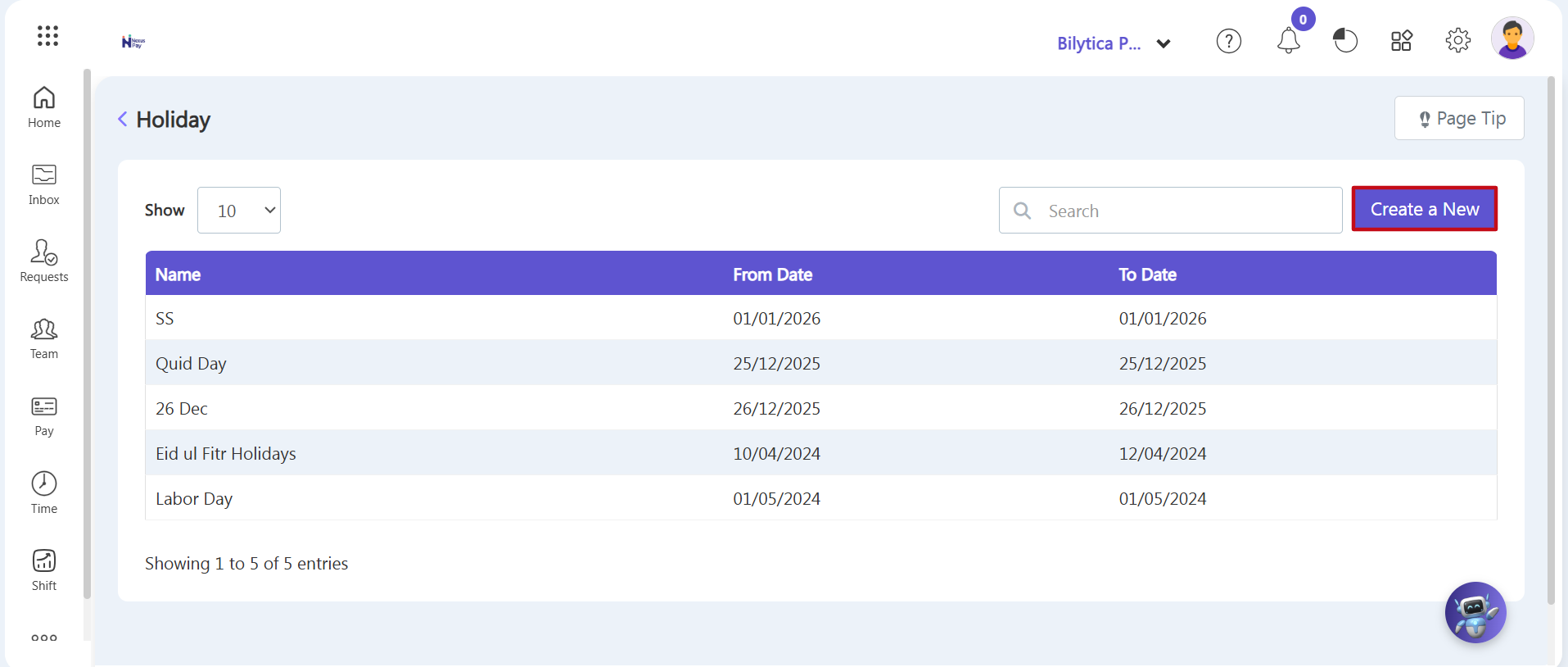
- Step 3: View the Holiday Directory — The central Holiday directory layout will load on-screen, providing a structured summary register table detailing existing calendar events, From Date rows, and To Date tracking limits.
- Step 4: Launch the Holiday Creation Wizard — Click the purple Create a New action button (marked with a red rectangular frame) located on the right side of the panel sub-navigation toolbar.
2. Setting Holiday Windows & Demographic Scoping Filters
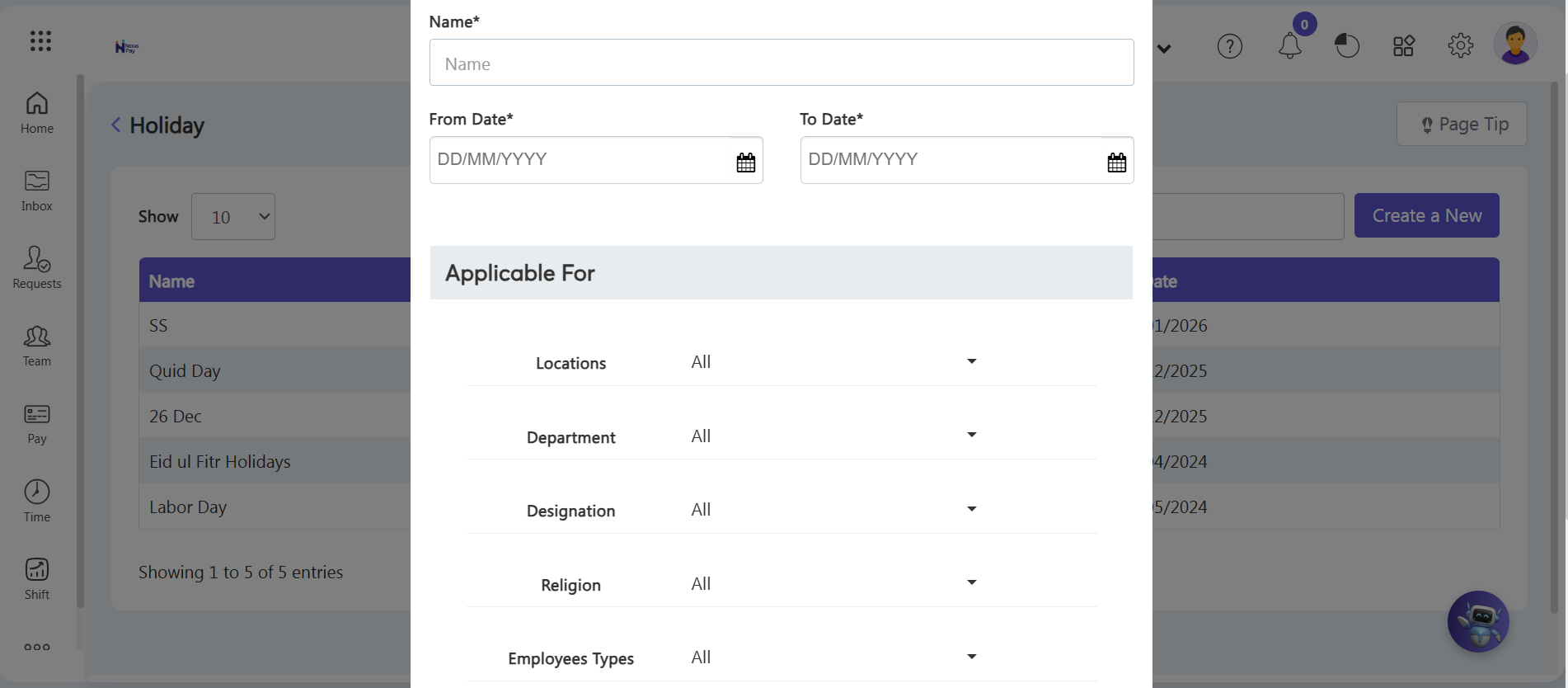
An Add Holiday configuration wizard window will open over your workspace. Populate the timeline parameters step-by-step:
- Step 5: Name the Calendar Event — Type a clear, identifiable title inside the Holiday Name text field (such as Eid ul Fitr Holidays or Independence Day).
- Step 6: Map the Timeframe — Define the exact calendar window by selecting the target parameters in the From and To date fields sequentially.
- Step 7: Filter Workforce Eligibility — Apply demographic constraints to dictate exactly which employees the holiday applies to. For instance, to restrict a religious holiday to specific personnel, navigate to the demographic filtering section, expand the Religion dropdown filter, and select the appropriate group (such as Muslims).
- Step 8: Save to the System — Review your calendar boundary settings and click the purple Save button in the lower-right corner. The calendar exception will be permanently stored and instantly applied across the targeted employees' shifts and time tracking frameworks.
Cultural Scope Customization Tip: |