

Consolidating enterprise earning elements, matching contributions, and recurring deductions into a single blueprint establishes the core framework for automated salary calculation. PayPeople's Gross Salary Structure module enables administrators to systematically bundle previously registered dynamic elements, apply proportional distribution formulas, and maintain pristine compliance scaling across distinct organizational profiles.
1. Navigating to the Gross Salary Structure Registry
To access your system's salary architecture panel and initialize configuration steps:
- Step 1: Open System Settings — Go to your main administrator dashboard interface and click on the Setup gear icon located in the upper-right control toolbar.
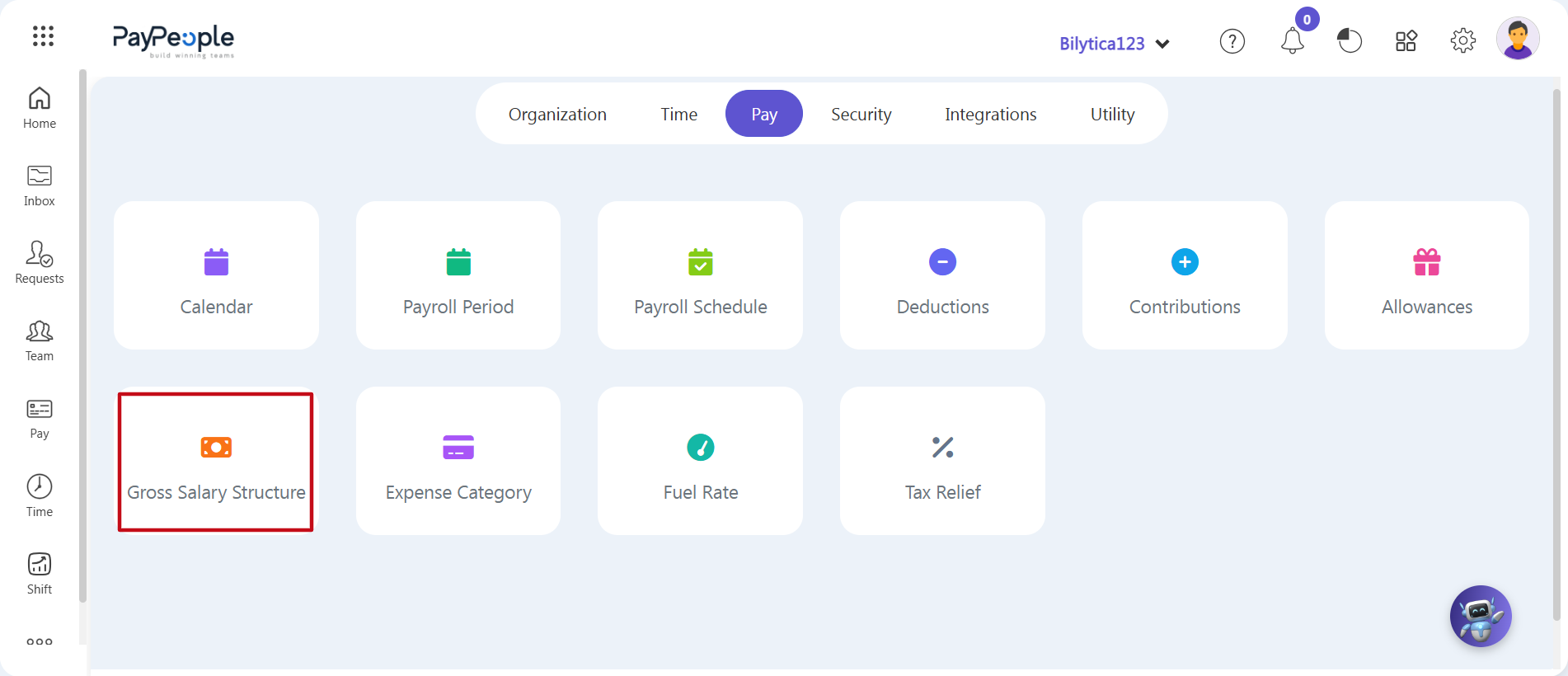
- Step 2: Enter the Pay Module Panel — Click on the horizontal Pay tab inside the top setup menu. Locate and click on the primary Gross Salary Structure card module (marked with a red rectangular frame).
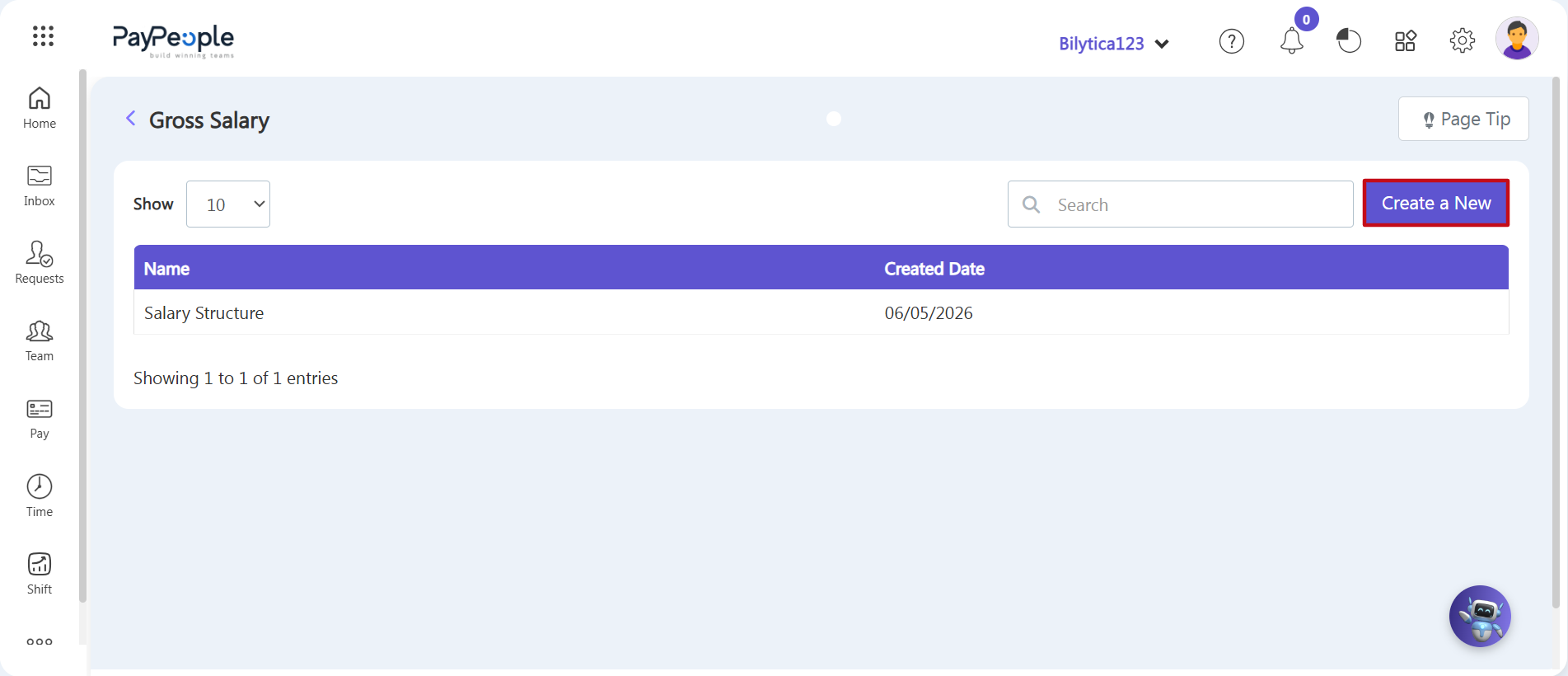
- Step 3: Open the Architecture Wizard — The main Gross Salary registry table will open, showing your existing structural formulas. Click the purple Create a New button (marked with a red rectangular frame box) in the top-right toolbar.
2. Filling Out the Gross Salary Breakdown Form
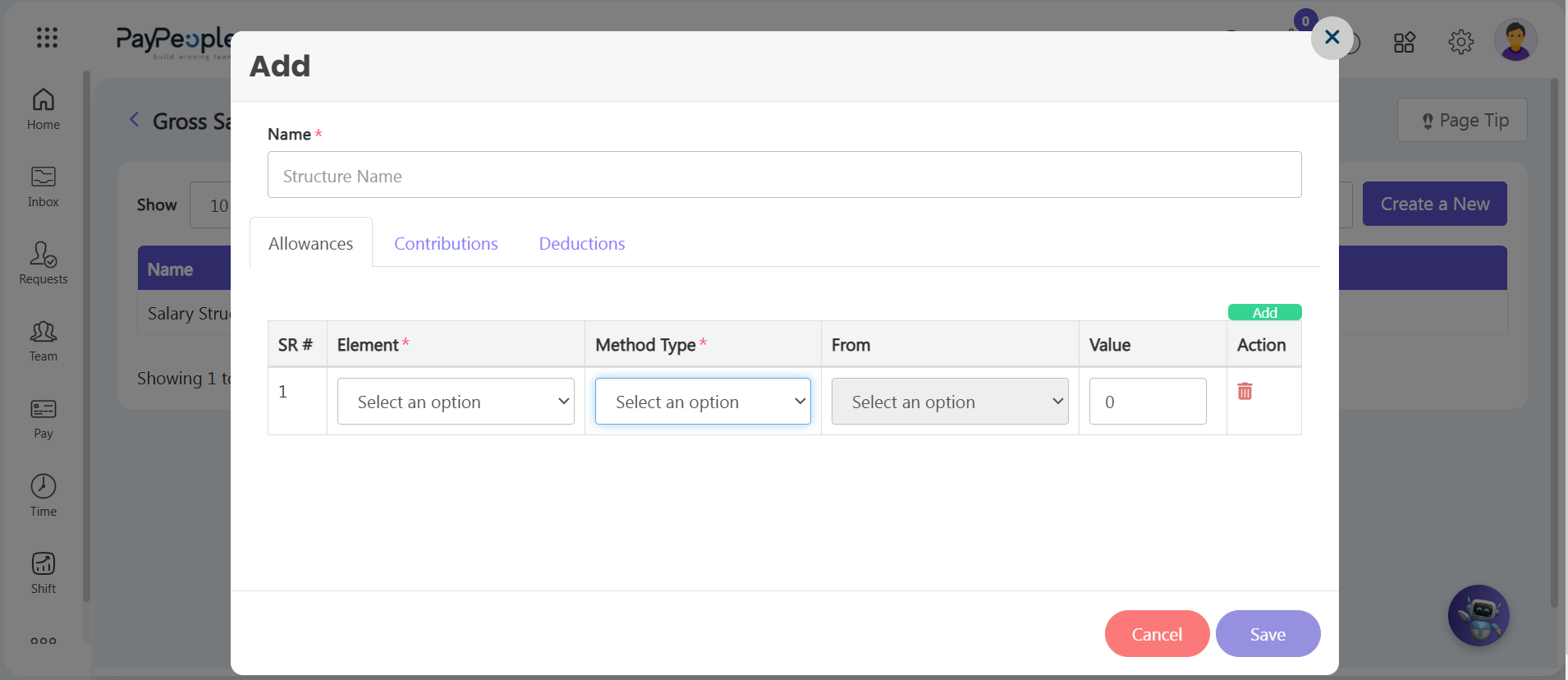
An Add popup window will open on-screen. Enter your configuration details step-by-step to build your salary allocation blueprint:
- Step 4: Name Your Structure — Type a descriptive name in the Name* input box to label this formula template (e.g., 'Executive Salary Breakdown' or 'Standard Grade Structure').
- Step 5: Add Allowance Rows — Make sure you are on the Allowances sub-tab. Click the green Add button above the right side of the grid to add a new component row.
- Step 6: Link Your Earnings Elements — In the new row, open the dropdown menu under the Element* column and select the allowance you created earlier during the setup phase.
- Step 7: Set Calculation Method Rules — Go to the Method Type* column to choose how the element calculates its value. For example, if an item uses a dynamic fraction of overall earnings (like a medical allowance set at 10% of total gross), select '%age of gross' and type the integer value (e.g., '10') directly into the Value input box.
- Step 8: Link Deductions and Contributions — Switch to the adjacent Contributions and Deductions sub-tabs. Follow the same steps: click the green Add button, select the specific statutory deductions or matching employer contributions under the Element column, choose your Method Type, and enter the baseline values.
- Step 9: Save the Salary Blueprint — Review your calculation rows, method types, and value inputs across all three sub-tabs. Click the purple Save button in the bottom-right corner to finalize the setup and make the structure ready for operational assignment.
Architectural Implementation Master Pro-Tip: |