

Establishing standardized salary reduction structures is critical to executing compliant net pay extractions, statutory fund management, and internal loan recoveries. The PayPeople payroll engine provides a specialized deductions workspace that allows corporate administrators to establish dynamic calculation rules, enforce capping boundaries, map grade-based eligibility criteria, and execute advanced formula scripts natively.
1. Navigating to the Deductions Framework Module
To configure structural salary reductions and register new payroll deduction components:
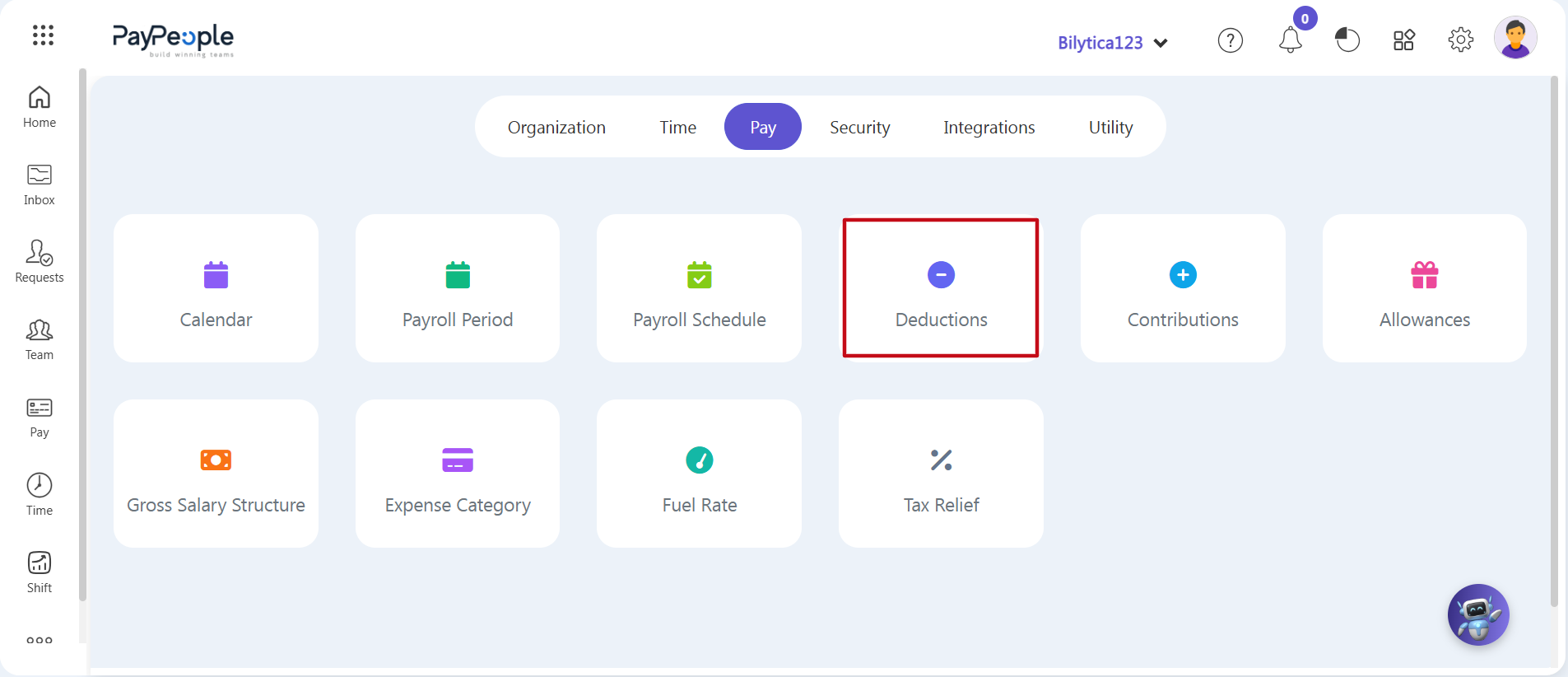
- Step 1: Access Platform Settings — Click on the primary Setup wheel icon (gear ) located in the upper-right control ribbon area of your master administrator dashboard layout.
- Step 2: Open the Pay Module Panel — Select the horizontal Pay category tab from the upper horizontal sub-navigation dashboard menu. Click directly on the primary Deductions grid card component (marked with a red frame box).
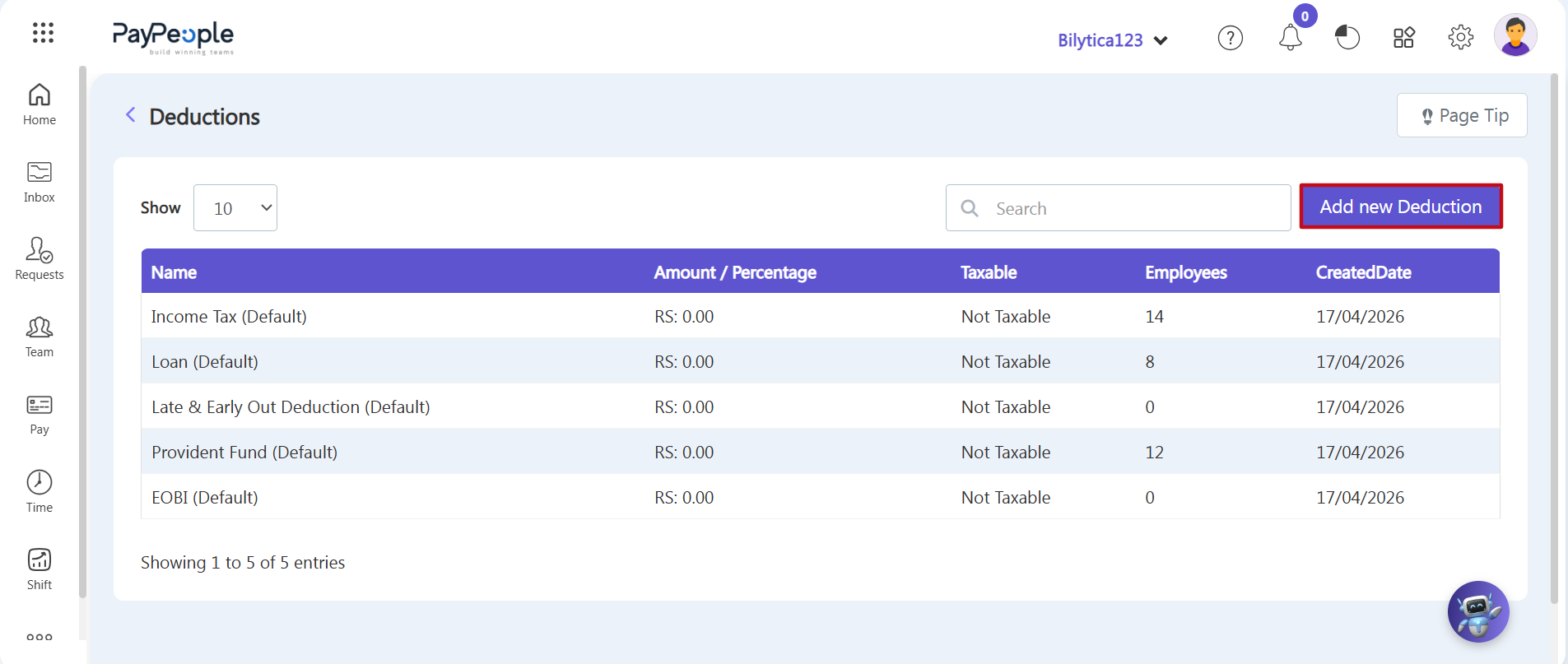
- Step 3: Open the Configuration Sheet — The main Deductions ledger index panel will open, listing your current components like Income Tax, Loans, Late & Early Out, Provident Fund, and EOBI. Click the purple Add new Deduction button (marked with a red rectangular box) on the right side of the toolbar.
2. Filling Out the Add Deductions Form
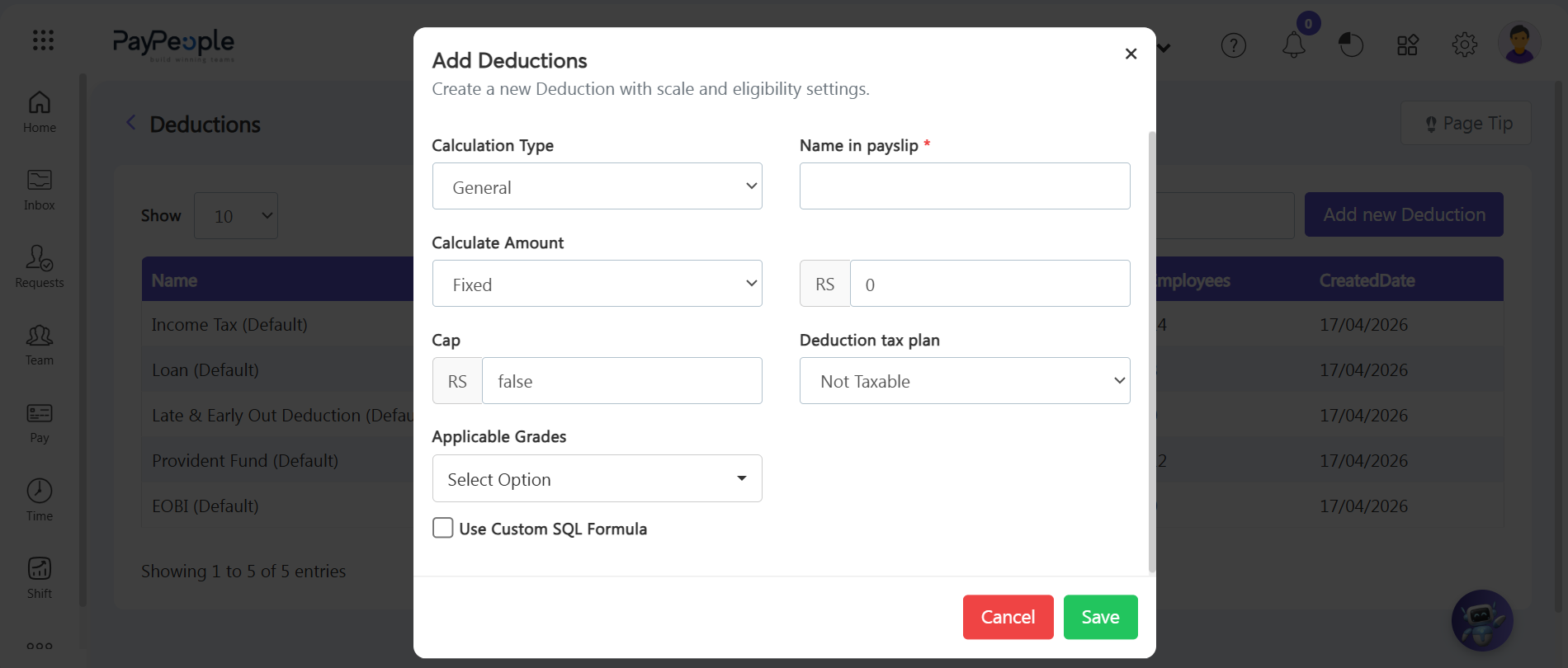
An Add Deductions popup form will open on-screen. Enter your processing details step-by-step:
- Step 4: Choose the Calculation Type — Click the Calculation Type dropdown menu. Select 'General' for standard deduction rules, or select 'Attendance' if the deduction depends on automated time tracking.
- Step 5: Label the Payslip Title — Type the exact name of the deduction in the Name in payslip* input box as you want it to appear on employee payslips.
- Step 6: Choose the Calculation Method — Open the Calculate Amount dropdown menu to choose how values are computed:
- Fixed Base: Select this for a flat cash reduction, then enter the fixed monetary amount in the next field.
- Percentage Base (%age of salary): Select this to deduct a dynamic fraction of earnings, then enter the percentage rate in the next field.
- Step 7: Set a Capping Limit — Type a maximum currency threshold in the Cap text field to put an upper limit on the deduction amount.
- Step 8: Set the Tax Status — Open the deduction tax plan dropdown menu and choose either 'Taxable' or 'Not Taxable' based on your local regulations.
- Step 9: Assign Grade Eligibility — Click the Applicable Grades dropdown filter and check the boxes for the specific corporate salary grades and tiers that this deduction applies to.
- Step 10: Enable Advanced Custom Formulas — For complex calculations that flat rates or percentages can't handle, check the 'Use Custom SQL Formula' box. This opens an advanced text area where you can type custom SQL script rules directly.
- Step 11: Save and Complete — Review your ranges, caps, and formula settings. Click the green Save button in the bottom-right corner to finalize the setup and add the deduction to your gross salary structures.
Structural Deductions Implementation Pro-Tip: |