

An Org Chart (Organizational Chart) visually shows reporting lines and company structure. PayPeople builds this automatically based on reporting data to help team members identify hierarchies instantly.
1. Viewing the Org Chart Hierarchy
Step 1: Go to the Team section from the left side navigation menu.
Step 2: Look at the top sub-menu bar and click on Org Ch (Organizational Chart) option.
Step 3: The hierarchy view will load. You can click the view toggle to see the layout organized by 4 different view structures (such as standard reporting, departments, or office positions).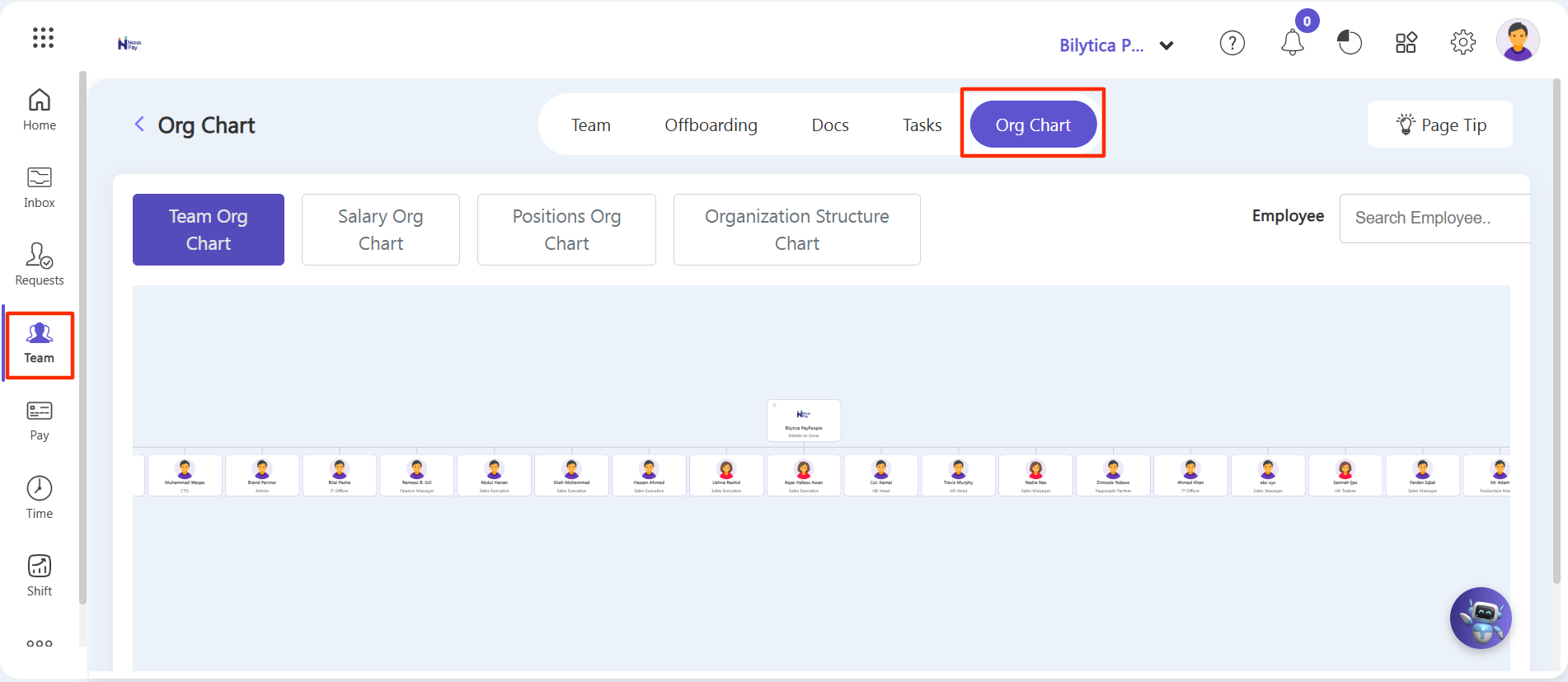
2. How to Set Up the Hierarchy Structure
The visual hierarchy tree builds automatically, but it requires line managers to link individual employee profiles together. You can set this up using two flexible workflows:
Method A (During Profile Creation): When you are manually onboarding a brand new person inside the Team creation wizard, navigate to Step 2 (Official Section) and select their designated manager from the Line Manager dropdown box.
Method B (Updating an Existing Profile): If an employee changes managers or needs a mapping fix, go to Team, click into their specific profile, select the Edit Profile dropdown at the top-right corner, click Official, choose their correct manager from the Line Manager list, and hit Save.
Quick Setup Rule: |