

If you have many employees to add at the same time, you do not need to type them one by one. PayPeople lets you upload your entire team list at once using a simple Excel spreadsheet.
1. Finding the Import Screen
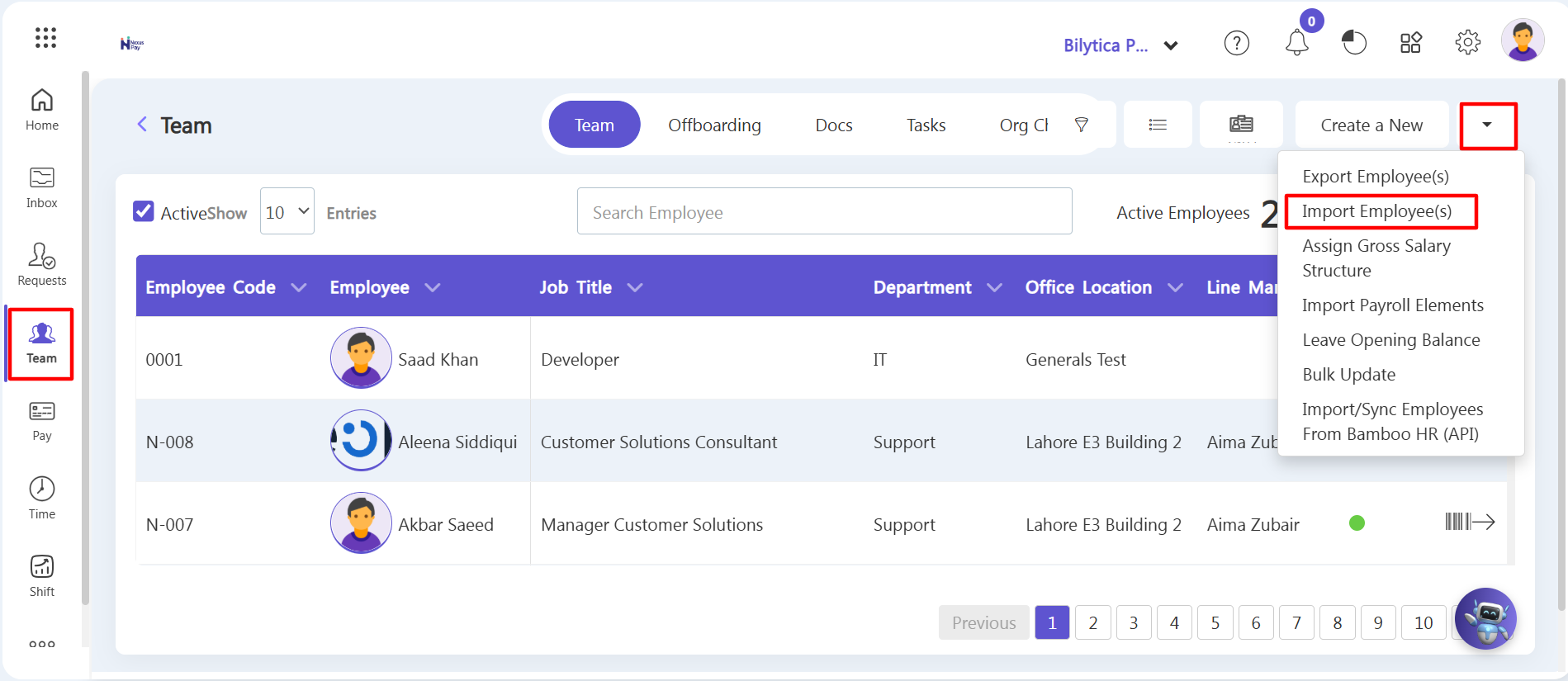
Step 1: Go to the Team section from the left side menu.
Step 2: Look at the top right corner. Next to the 'Create a New' button, click the small arrow dropdown button (▼).
Step 3: Click on Import Employee(s) from the list (highlighted in red).
2. Downloading and Filling the Excel File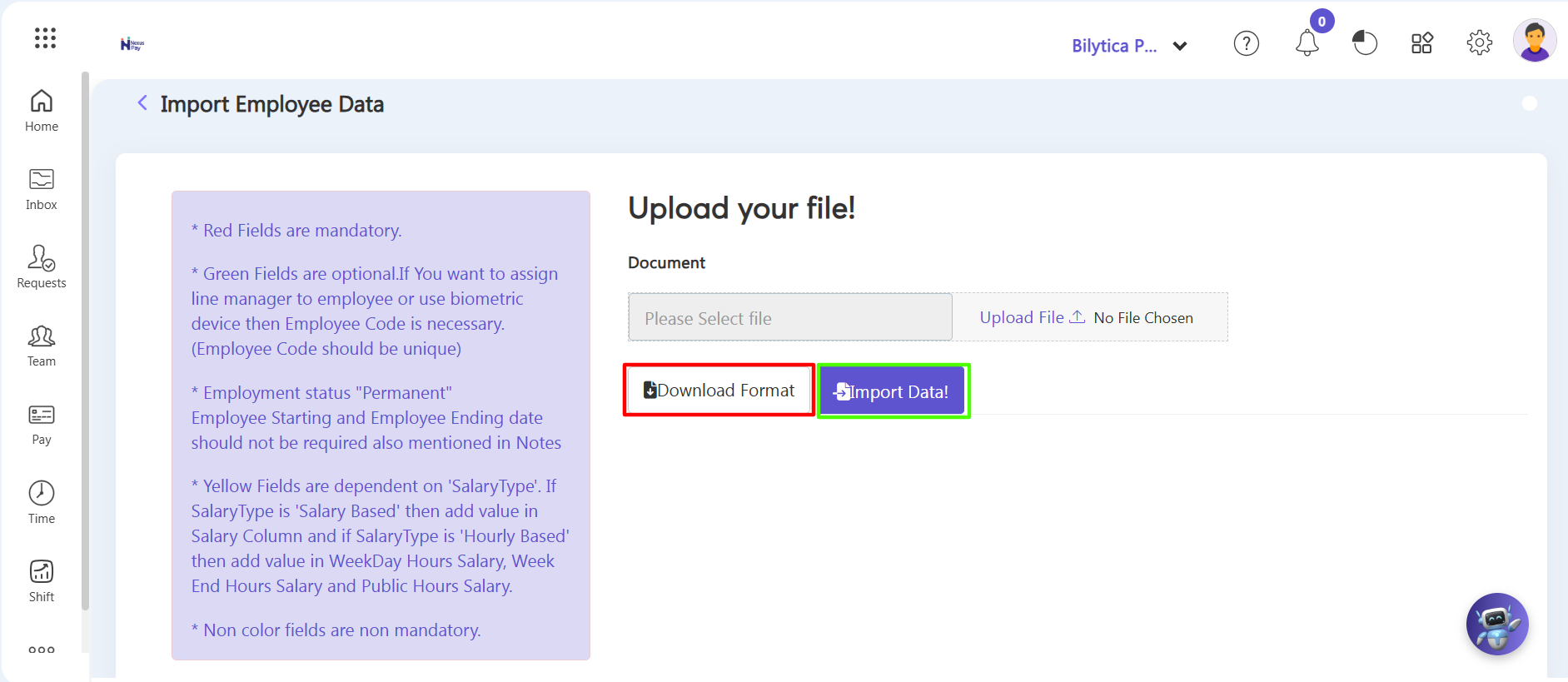
Step 4: Click the white Download Format button (highlighted in red). This will download an Excel template file onto your computer.
Step 5: Open the Excel file and fill in your employees' information into the spreadsheet columns.
Quick Tip: Read the helpful notes on the left side of the PayPeople screen for specific data instructions regarding mandatory fields, unique employee codes, and payroll type configurations before entering your data.
Step 6: Save and close your Excel file after adding your data.
3. Uploading the File to PayPeople
Step 7: On the same page, click the Upload File button and select your saved Excel file from your computer.
Step 8: Click the purple Import Data! Button (highlighted in green).
The system will read the file and create all the profiles automatically in a few seconds. You are all done!
Quick Checklist: |