

When an employee leaves the company—whether through resignation, retirement, or termination—you must log an official Separation in PayPeople. This updates your active team metrics and cuts off system access safely.
1. Opening the Separation Tool
Step 1: Go to the Team section from your primary left side menu.
Step 2: Look at the top horizontal menu options and click on Offboarding.
Step 3: Click the Add Employee Separation button (highlighted in red) to open the separation setup page.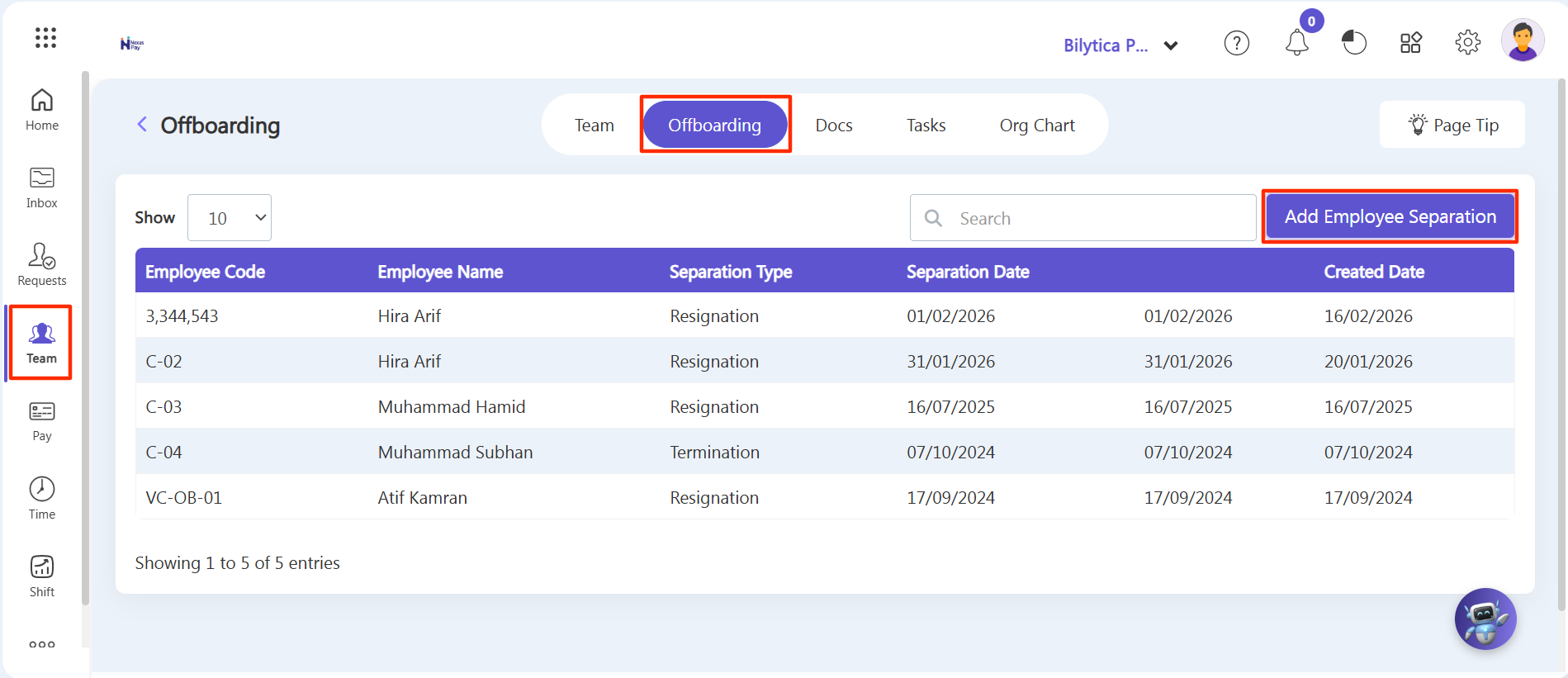
2. Filling Separation Details & Saving
Step 4: A form window will open. Select the Employee you want to offboard from the list.
Step 5: Choose the relevant separation rules from the fields:
• Separation Type (Resignation, Termination, etc.)
• Separation Reason (Personal Reasons, Better Opportunity, Contract Ended, etc.)
• Notice Period Days (The time they must serve before their final day)
• Resignation Date (The day they submitted their official request)
• Separation Date / Last Working Day (Their absolute final day in the office)
Step 6: Once all relevant details are filled out, click the purple Save button at the bottom.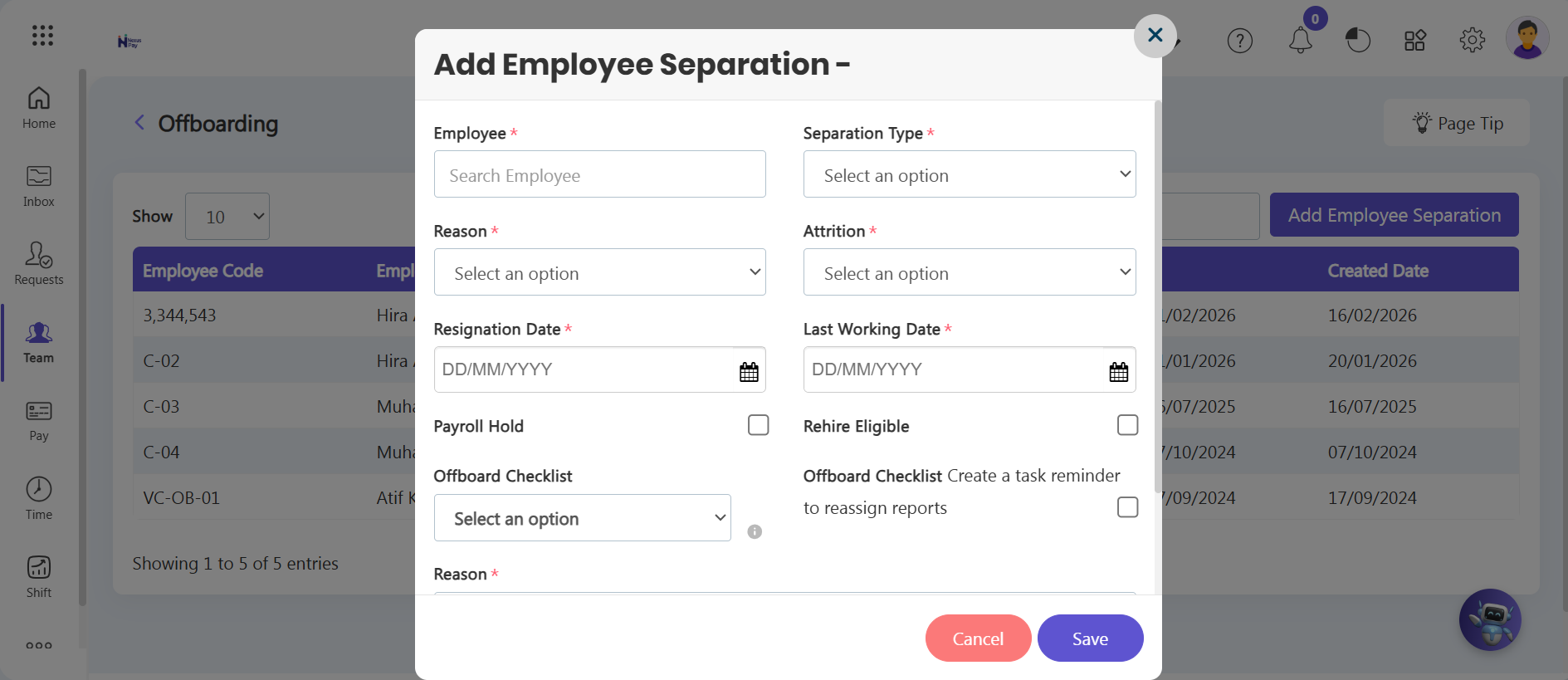
3. Visual Changes in Headcount Numbers
As soon as you save the separation data, the platform updates your live headcount metrics immediately:
• Active Employees Count: Decreases automatically by 1, as the offboarded staff member is removed from current active rosters.
• InActive Employees Count: Increases automatically by 1. The employee's historical data, payroll cards, and past logs remain archived inside this inactive database list for easy reporting.
Safety Tip: |