

Managing daily assignments and reminders is simple with PayPeople's built-in Task engine. You can create private reminders for yourself or delegate official assignments to your team members.
1. Opening the Tasks Dashboard
Step 1: Click on the Team module on your left primary sidebar menu.
Step 2: From the top horizontal menu bar, navigate and click on Tasks.
Step 3: Click the Create a Task button located on the top right margin (highlighted in red) to open the task creation form.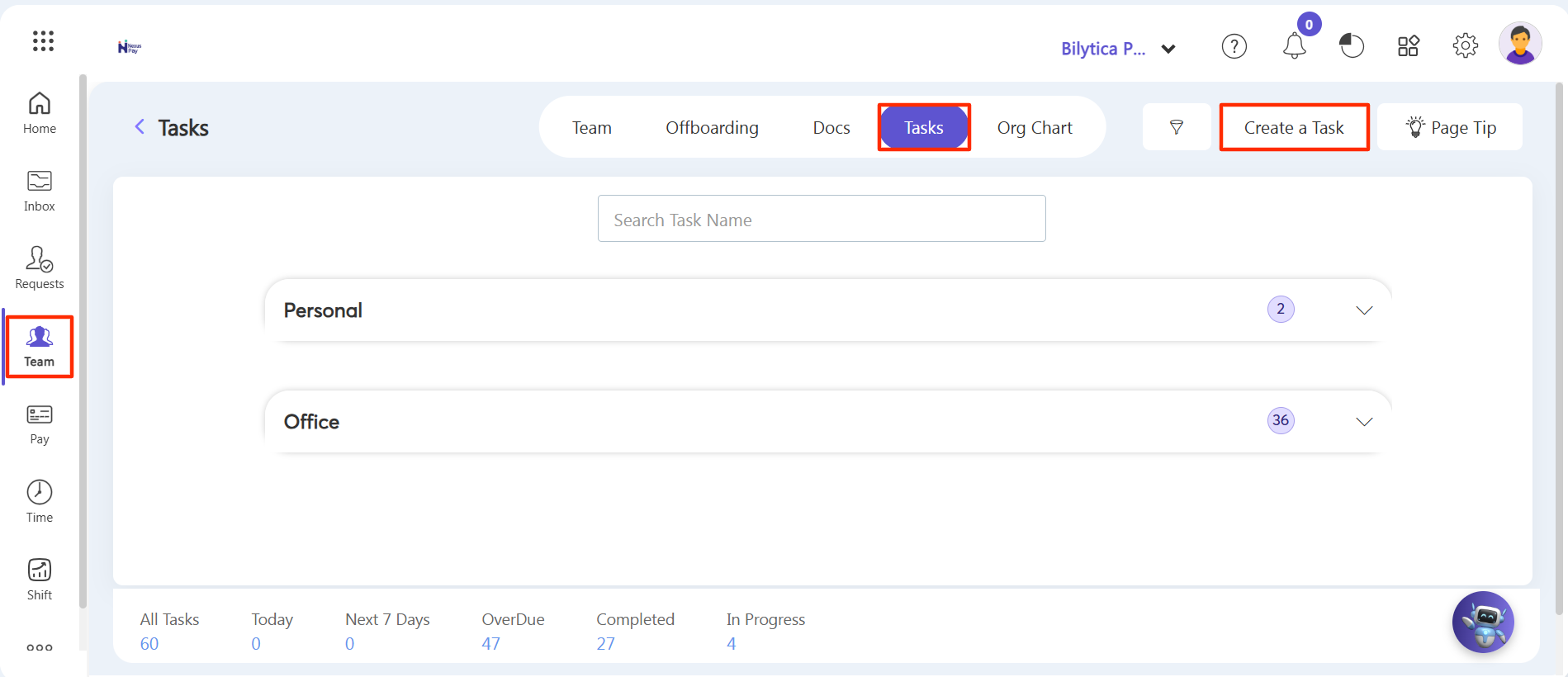
2. Filling Task Details and Choosing Level
Step 4: A 'Create a New Task' slider window will pop up on your screen.
Step 5: Fill in your task details, such as Project name, Task Name, execution timing filters (Today, Tomorrow, Custom), and any relevant descriptions or file attachments.
Step 6: Look at the LIST section on the right side of the pop-up window (highlighted in red). Here you can toggle the task type level based on who needs to see it:
• Personal Level: Select this choice if you want to assign the task to yourself as a personal workflow reminder. Only you will see it on your board.
• Official Level: Select this option if you want to assign the work to your staff. Choosing 'Official' will reveal a dropdown menu list where you can check and select the specific employees responsible for the task.
Step 7: Click the purple Save button at the base of the panel to assign the task.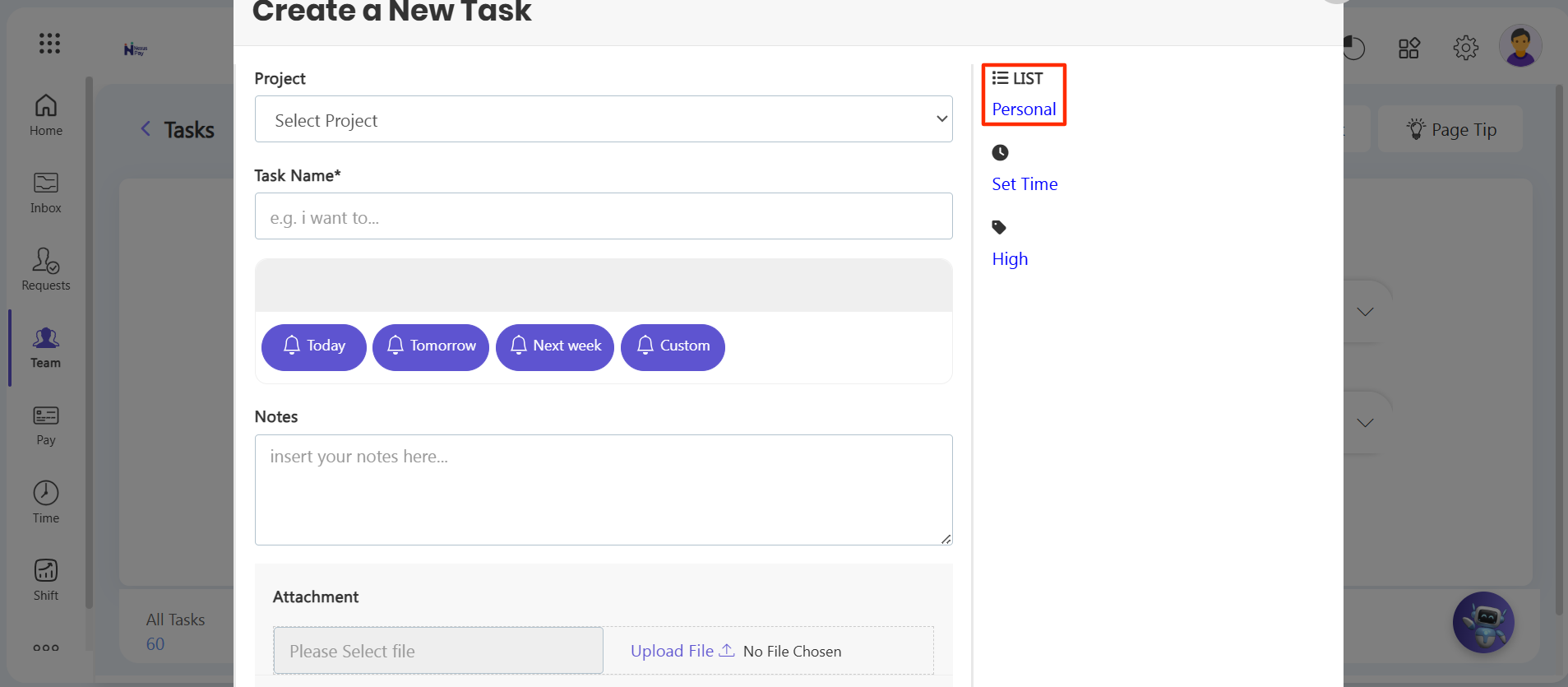
Quick Overview: |