

Sharing company rules, handbooks, and standard forms with employees is easy in PayPeople. HR managers can upload files in a central location, and they will immediately show up on every employee’s home dashboard.
2.5.1 Admin Workflow: How to Upload Company Files
Step 1: Click on the Team module from the left primary navigation deck.
Step 2: Look at the top header menu options and navigate to Docs > Company Files.
Step 3: Click the Add New File button on the top right margin to launch the document setup form.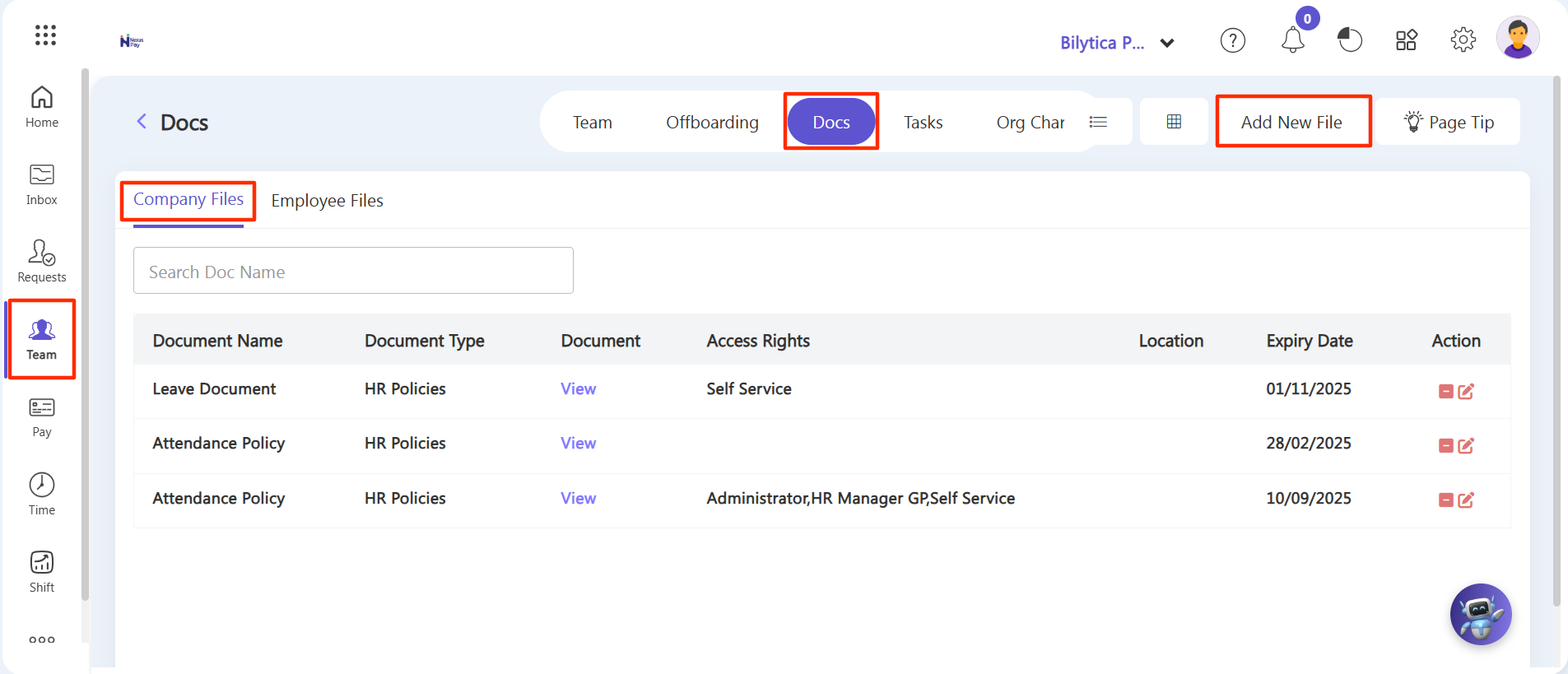
Step 4: A pop-up form window will open on your screen.
Step 5: Click the Document browse option to upload your file (such as a PDF or Word file) from your computer.
Step 6: Fill in the relevant details, including the File Title, Document Category, and Description box fields.
Step 7: Click the green Save button at the bottom of the form to publish the document.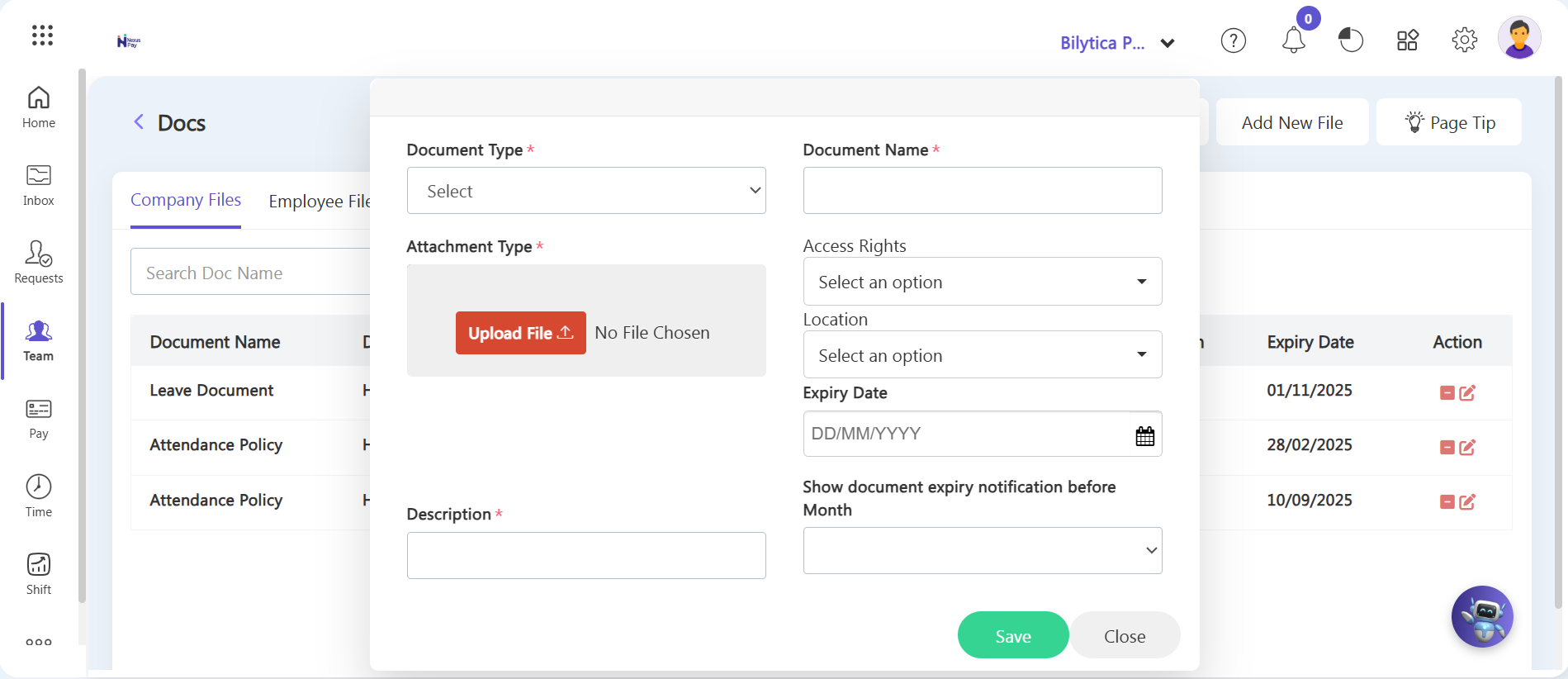
2.5.2 Employee Workflow: How to View Shared Files
Once an administrator uploads a policy file, it becomes available to employees across their personal user portal accounts immediately:
Step 1: Employees must log into their personal portal page and stay on the main Home dashboard view.
Step 2: From the top horizontal menu selections, go to Files > Company Files tab.
Step 3: A grid view layout of all active company policies, guidelines, and documents will appear. Employees can click on any file card to view and read the document instantly.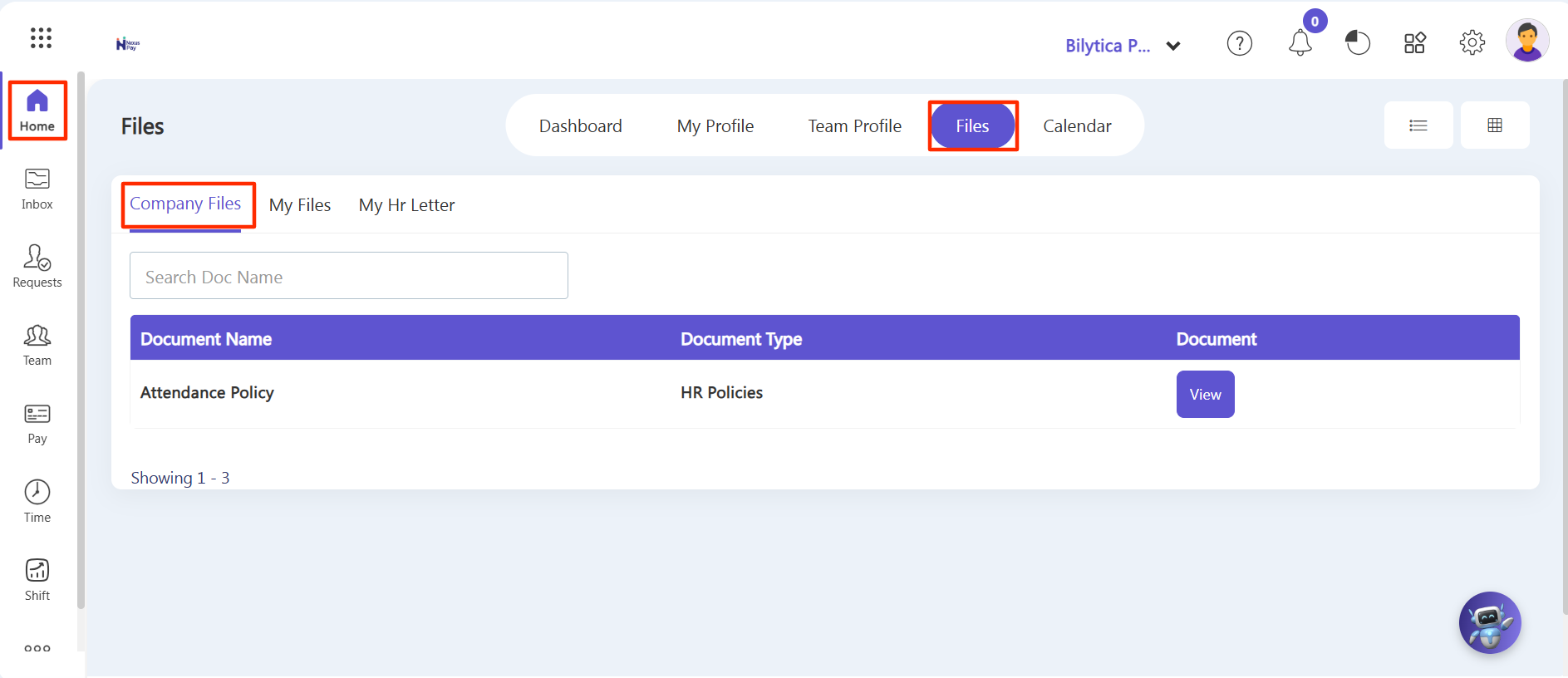
Practical Advantage: |