Recruitment Dashboard in PayPeople
The Recruitment Dashboard in PayPeople provides a comprehensive overview of your hiring process. It offers real-time insights into applicant status, departmental needs, and recruitment performance, helping HR teams make informed decisions quickly and efficiently.
How to Access the Dashboard:
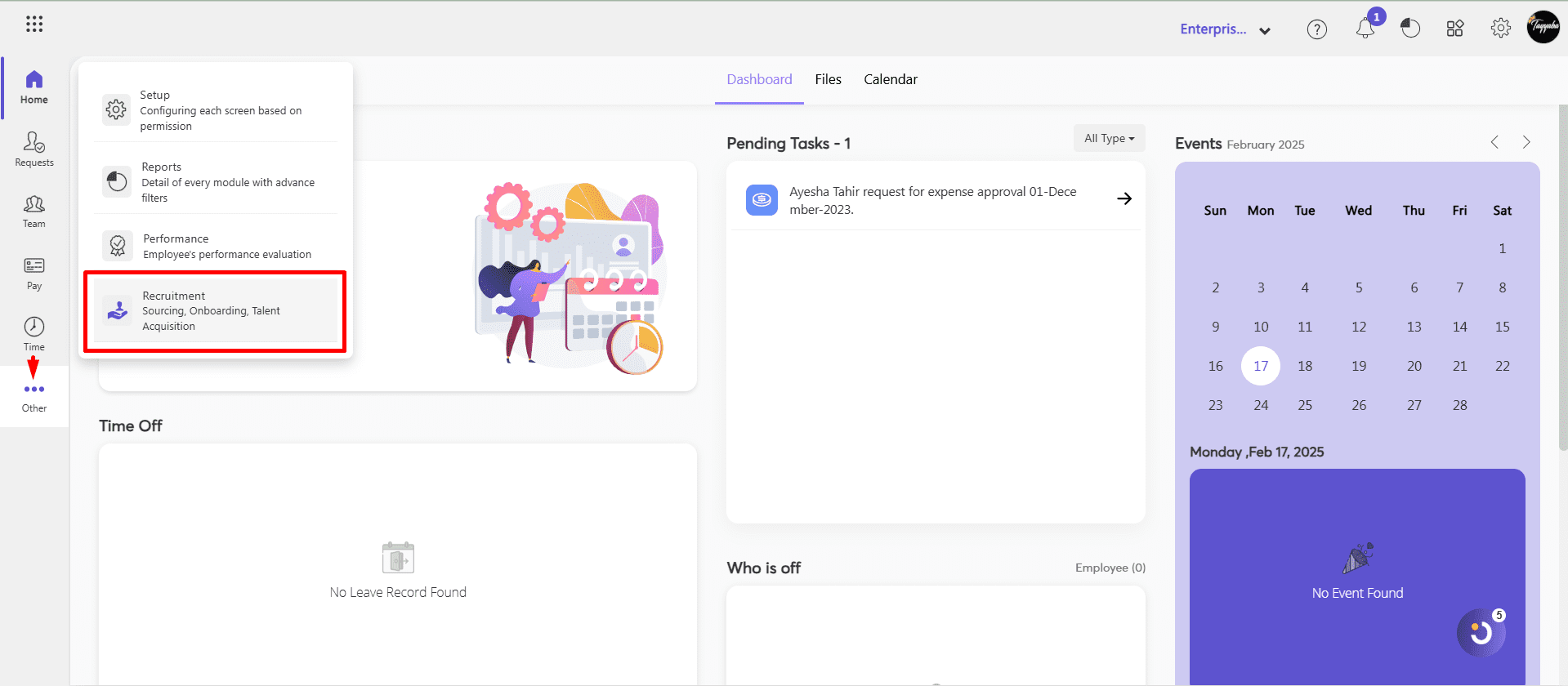
- Login to your PayPeople account.
- Navigate to Others Recruitment.
Key Features of the Recruitment Dashboard:
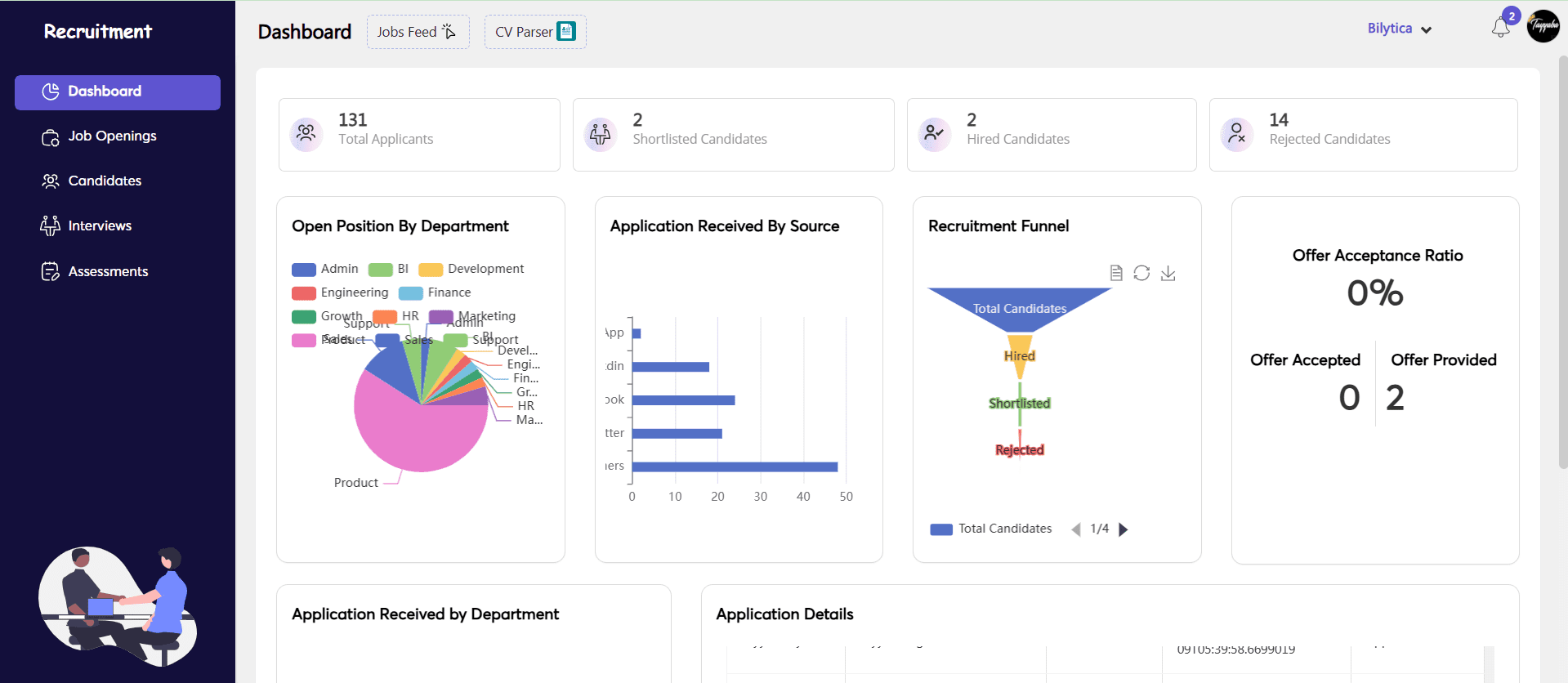
- Job Feed – Live dashboard of all published job openings.
- CV Parser – extracts important information from candidates’ resumes and structures it into the system.
- Total Applicants – Shows the total number of candidates who applied.
- Shortlisted Applicants – Displays the number of applicants who have been shortlisted for further stages.
- Hired Applicants – Indicates the count of candidates who have been successfully hired.
- Rejected Applicants – Lists the number of applicants who were not selected.
- Open Positions by Department – Shows current job openings categorized by departments.
- Applications Received From – Displays the sources (portals) through which applications were received.
- Recruitment Funnel – Visual representation of each stage in the hiring process.
- Offer Acceptance Ratio – Highlights the percentage of job offers accepted by candidates.
- Offers Accepted – Indicates how many offers have been accepted.
- Offers Provided – Displays the total number of offers extended to candidates.
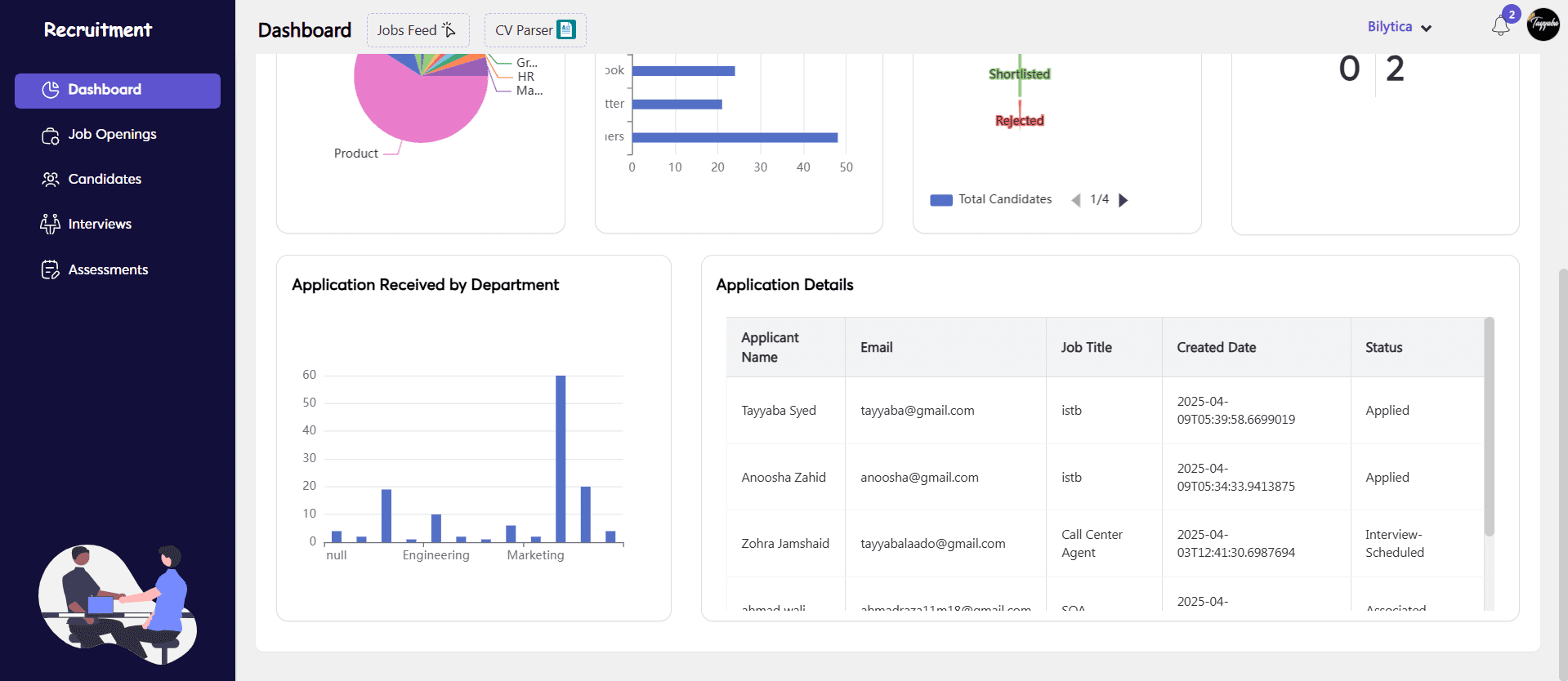
- Applications Received by Department – Shows department-wise breakdown of applications.
- Application Details (Recent 5 Applied Users) – Lists the most recent five applicants with their basic info.