How to Create Job Openings?
PayPeople offers a user-friendly recruitment module that allows employees to apply for job openings. Within the Recruitment Modulee, you can create job openings by Include every relevant detail about a job vacancy, such as the ddepartment, location, title, requirements, and deadline for applications.
The first step in the recruitment process is to create job openings. Follow these instructions to create a job opening:
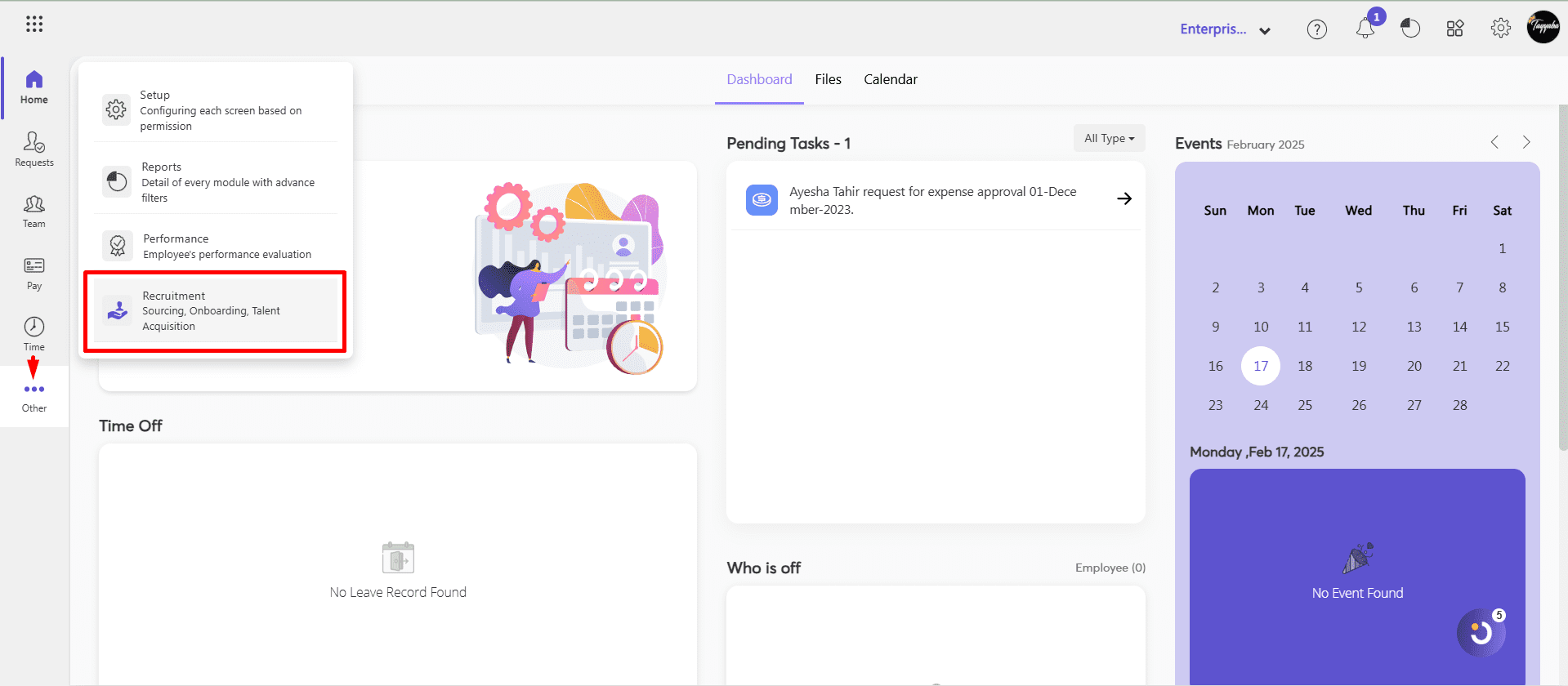
- Go to Menu Path:OtherRecruitment
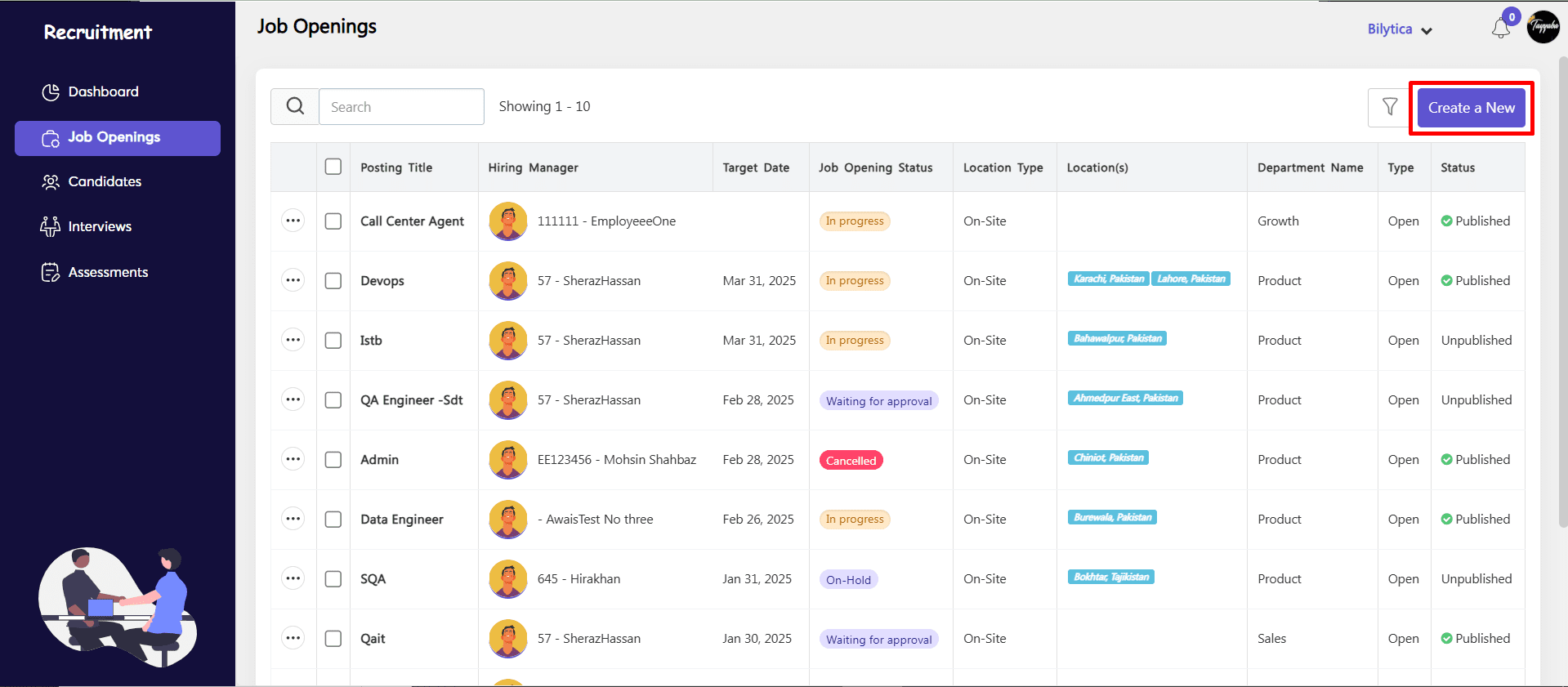
- Job Openings > Create a New
- Fill the details in Job Information, Address, Forecast Details, Description, Attachment and Url according to your requirements for the job opening.
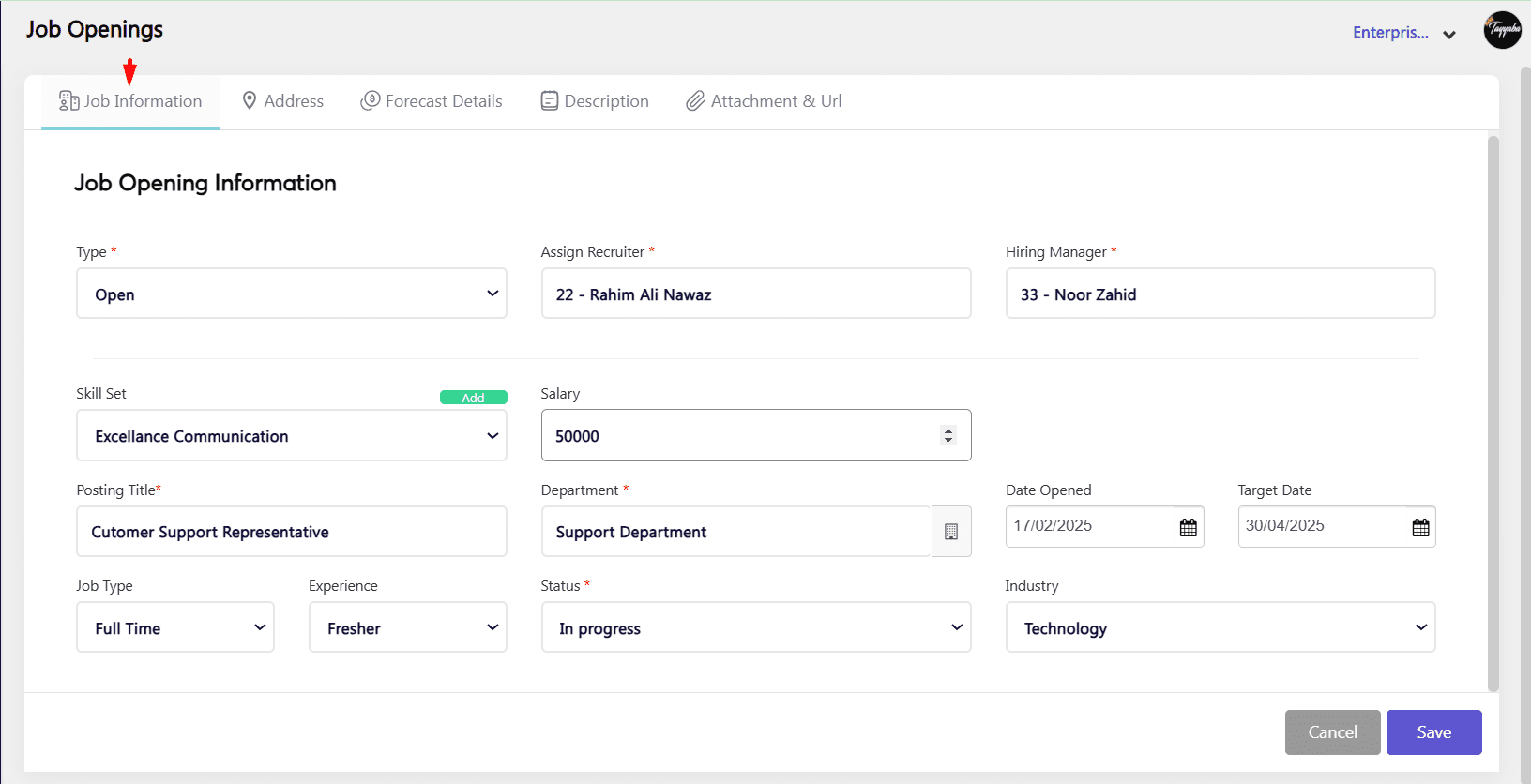
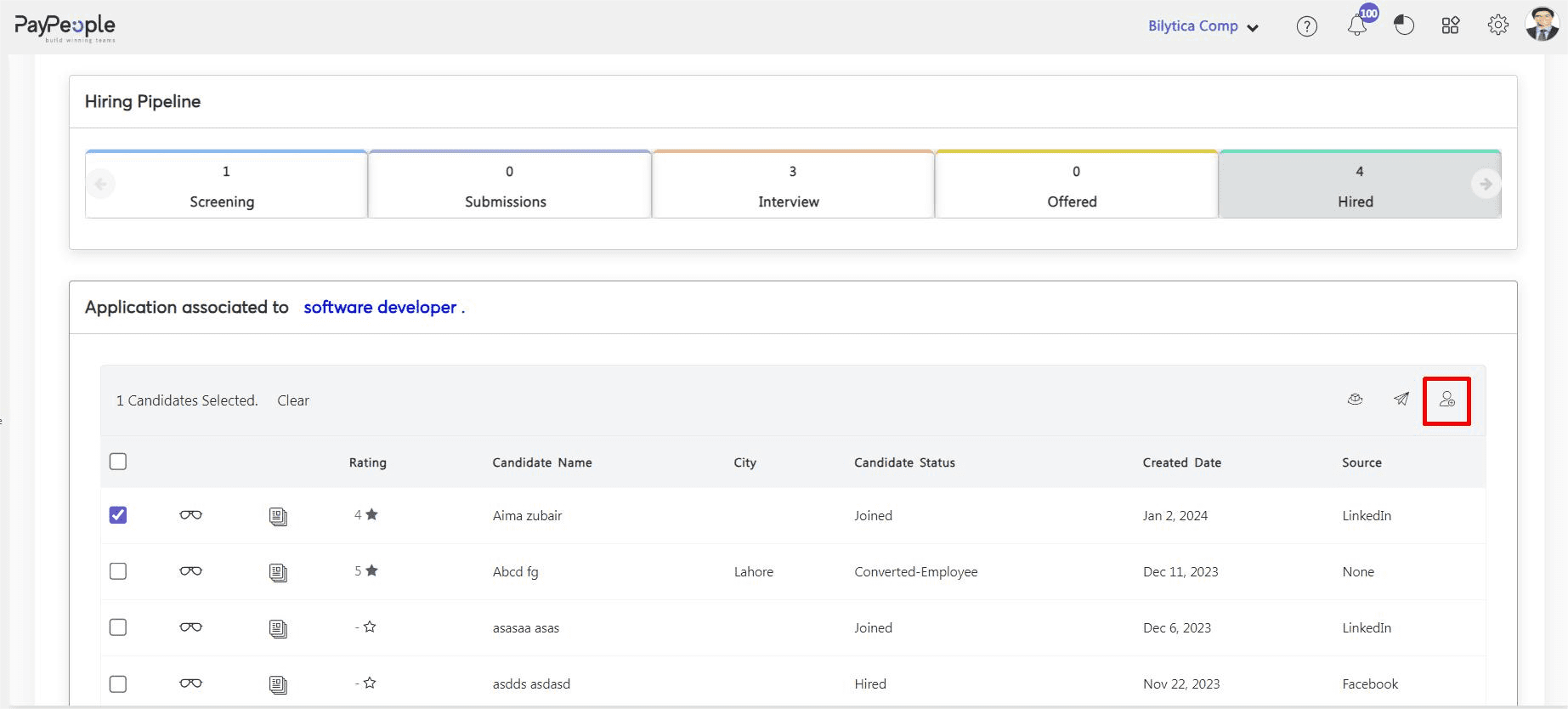
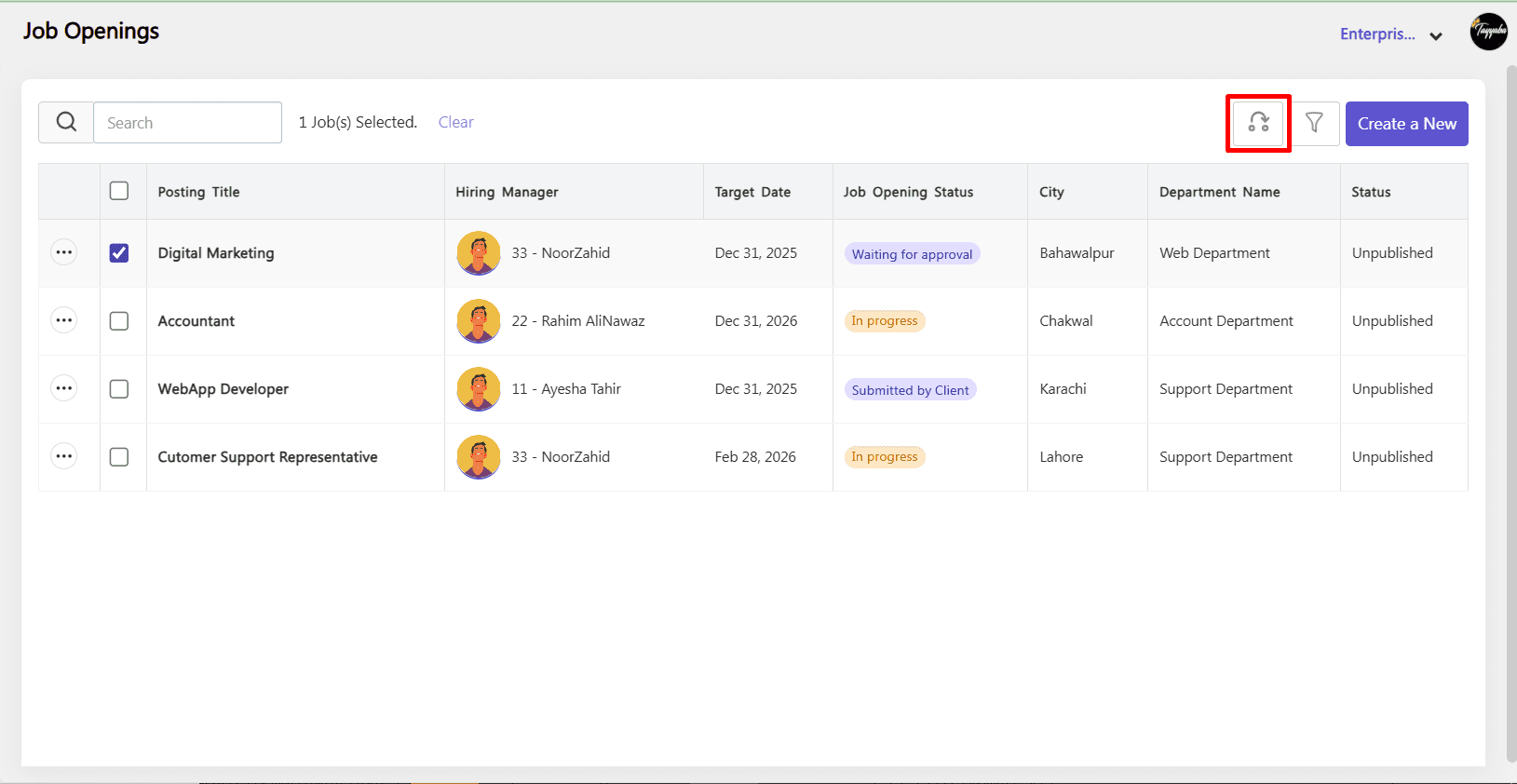
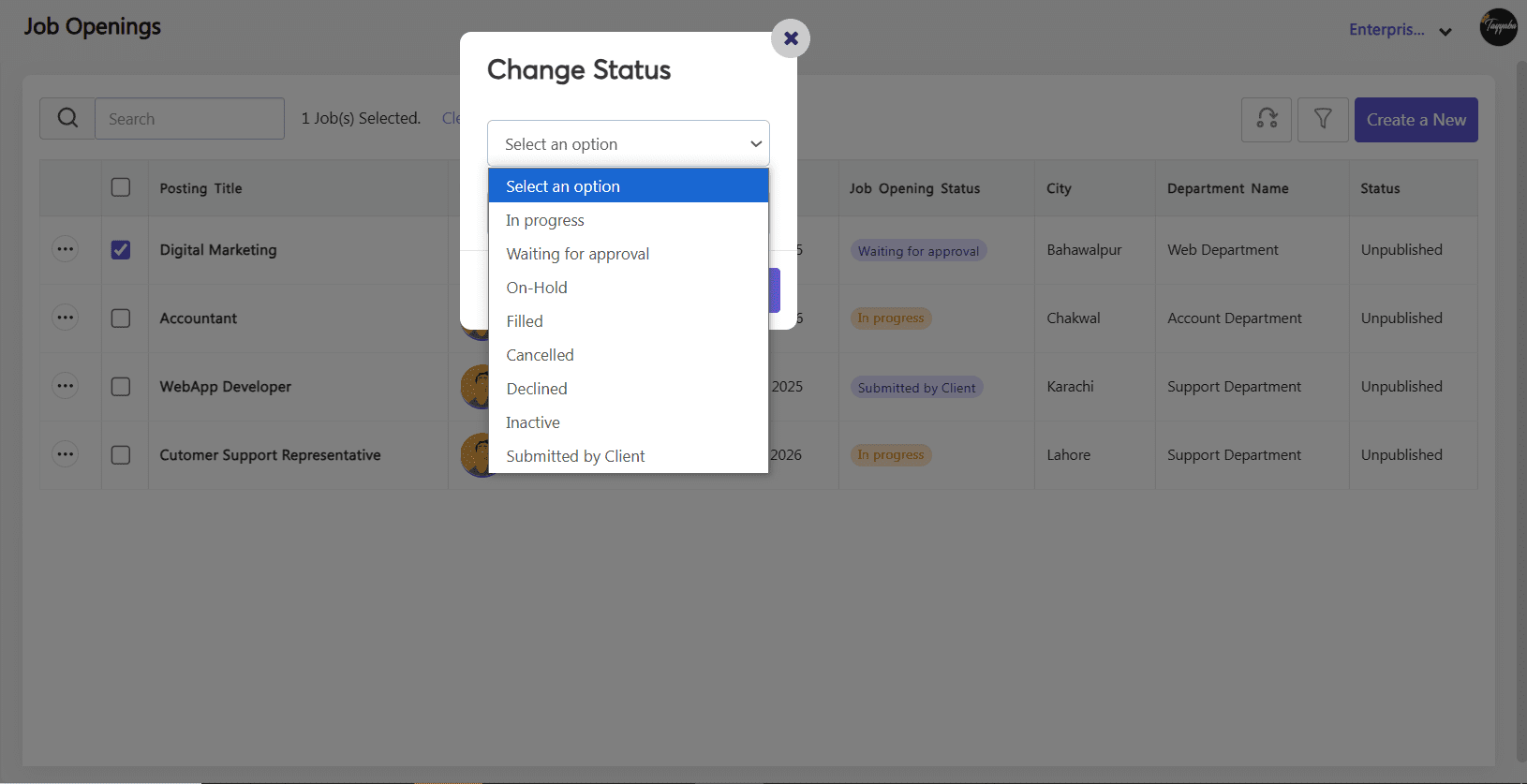
- By clicking the status icon you can change Job Status.
How to Publish the Job?
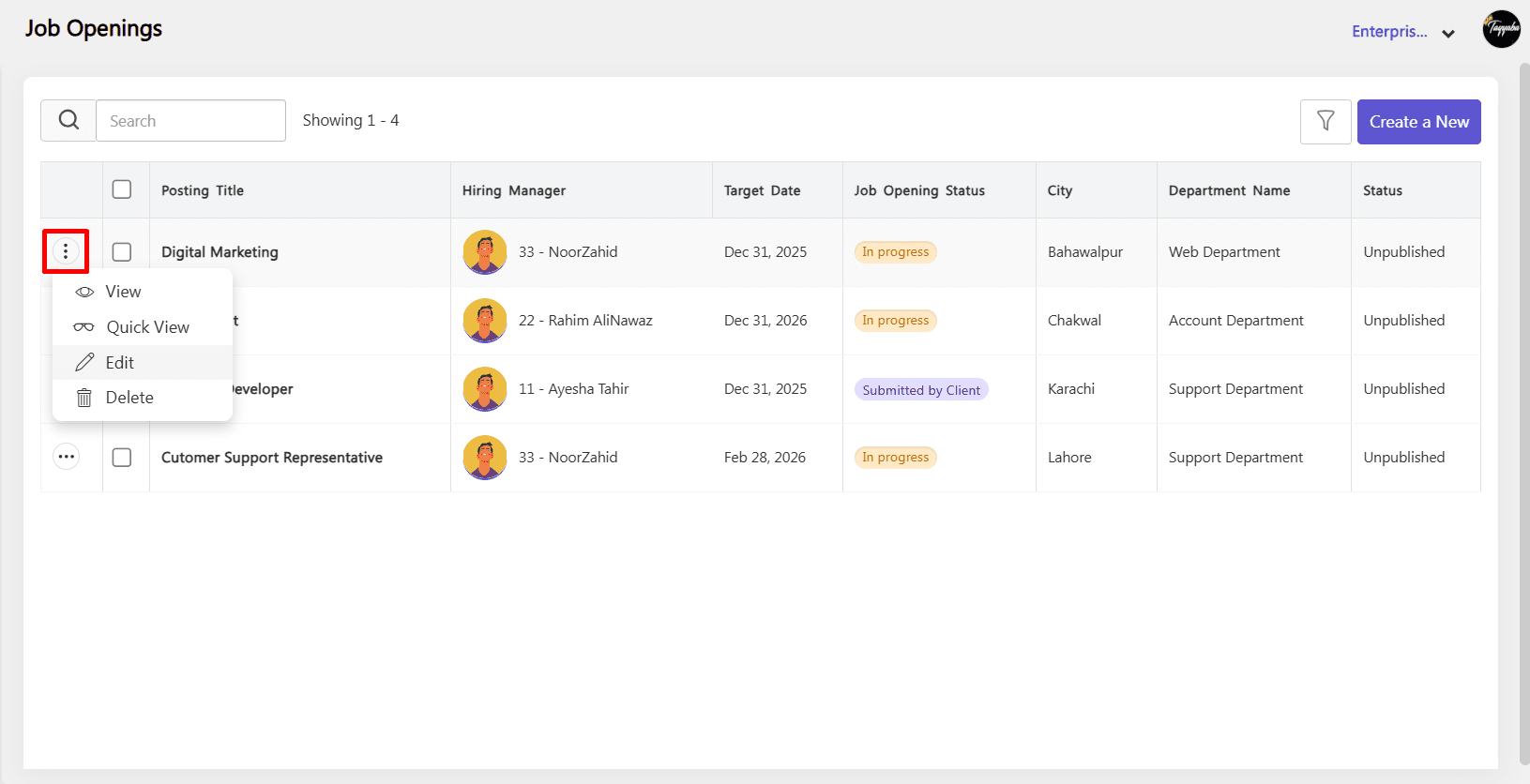
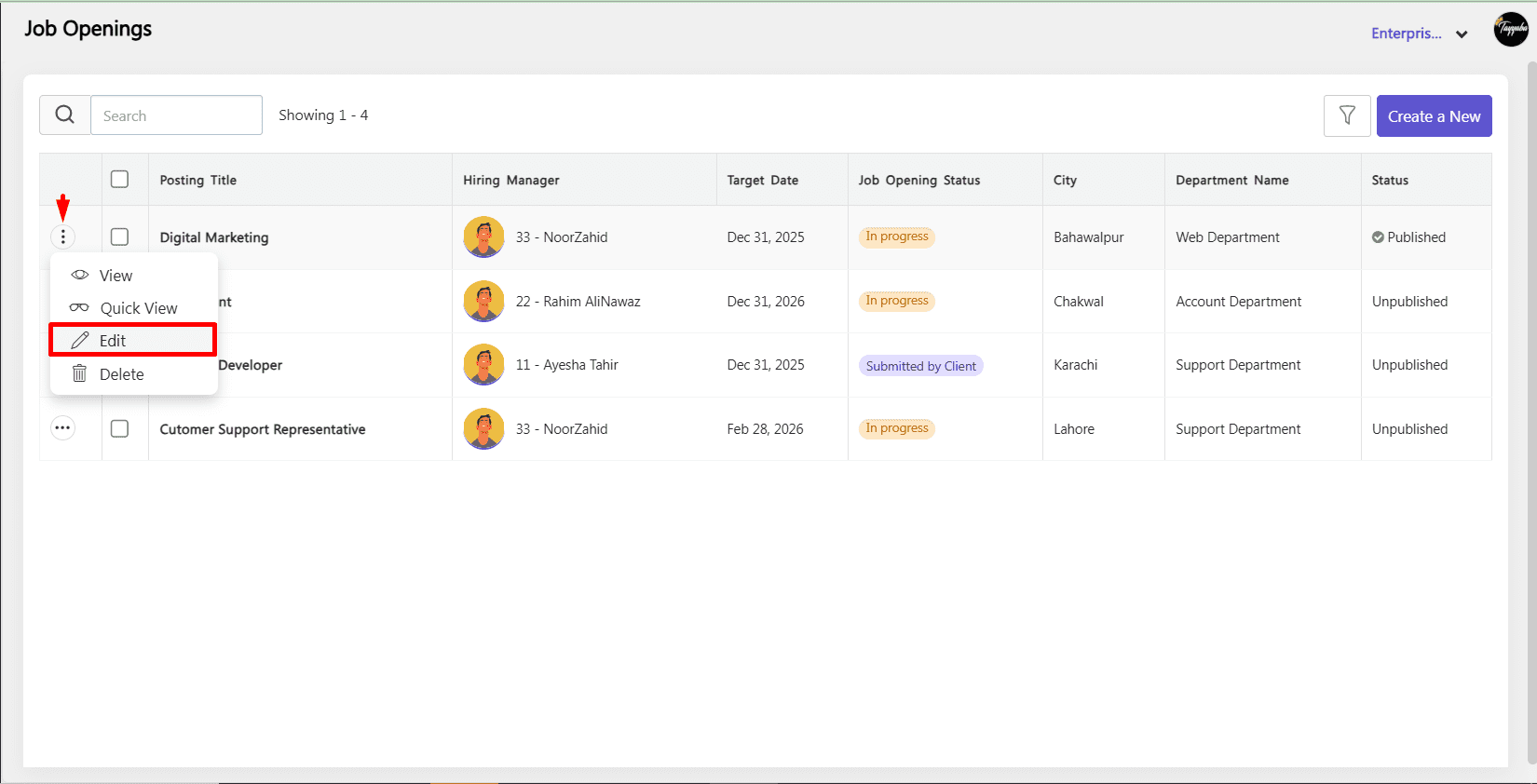
- Edit Job: Click on the three-dot icon and select the edit option.
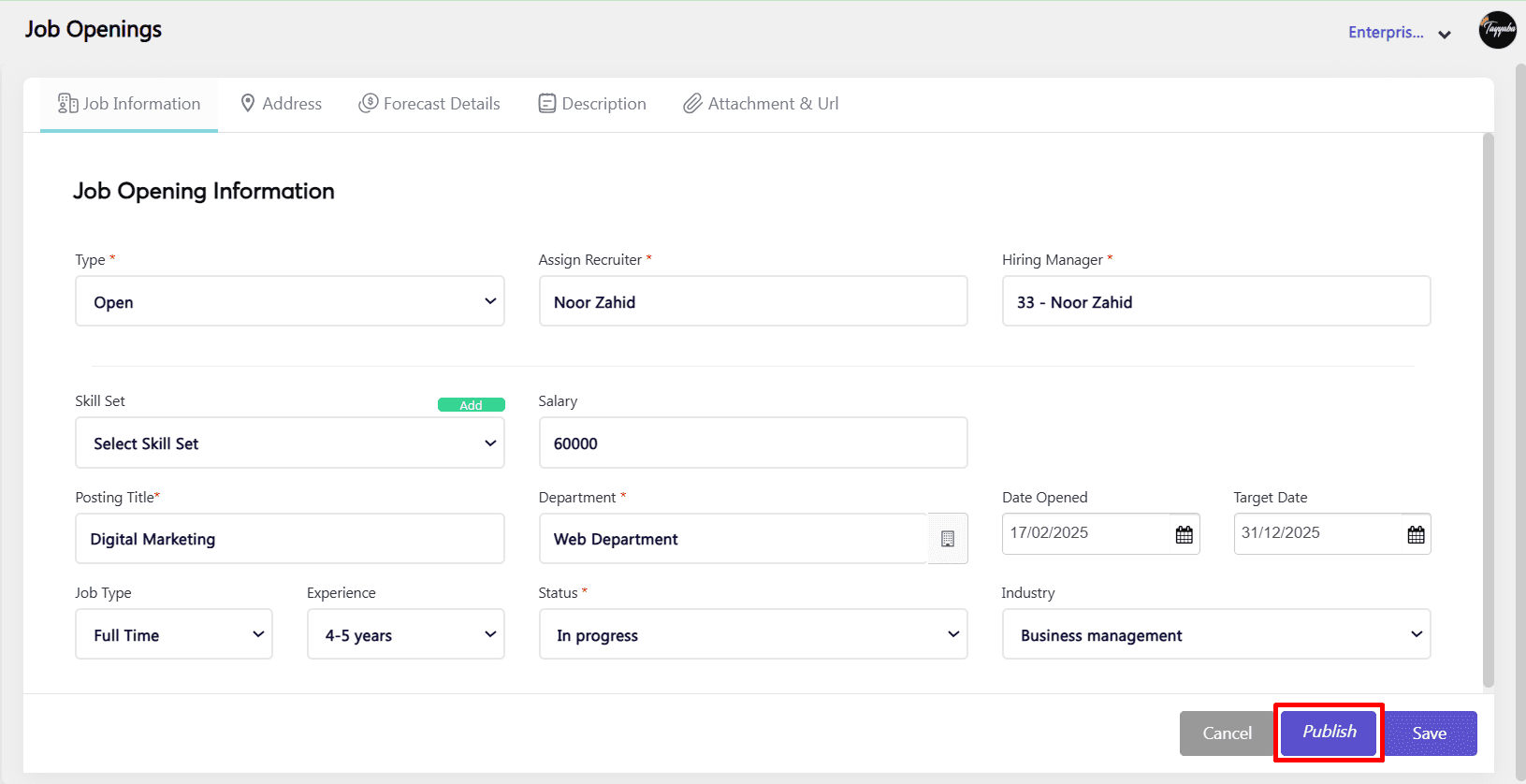
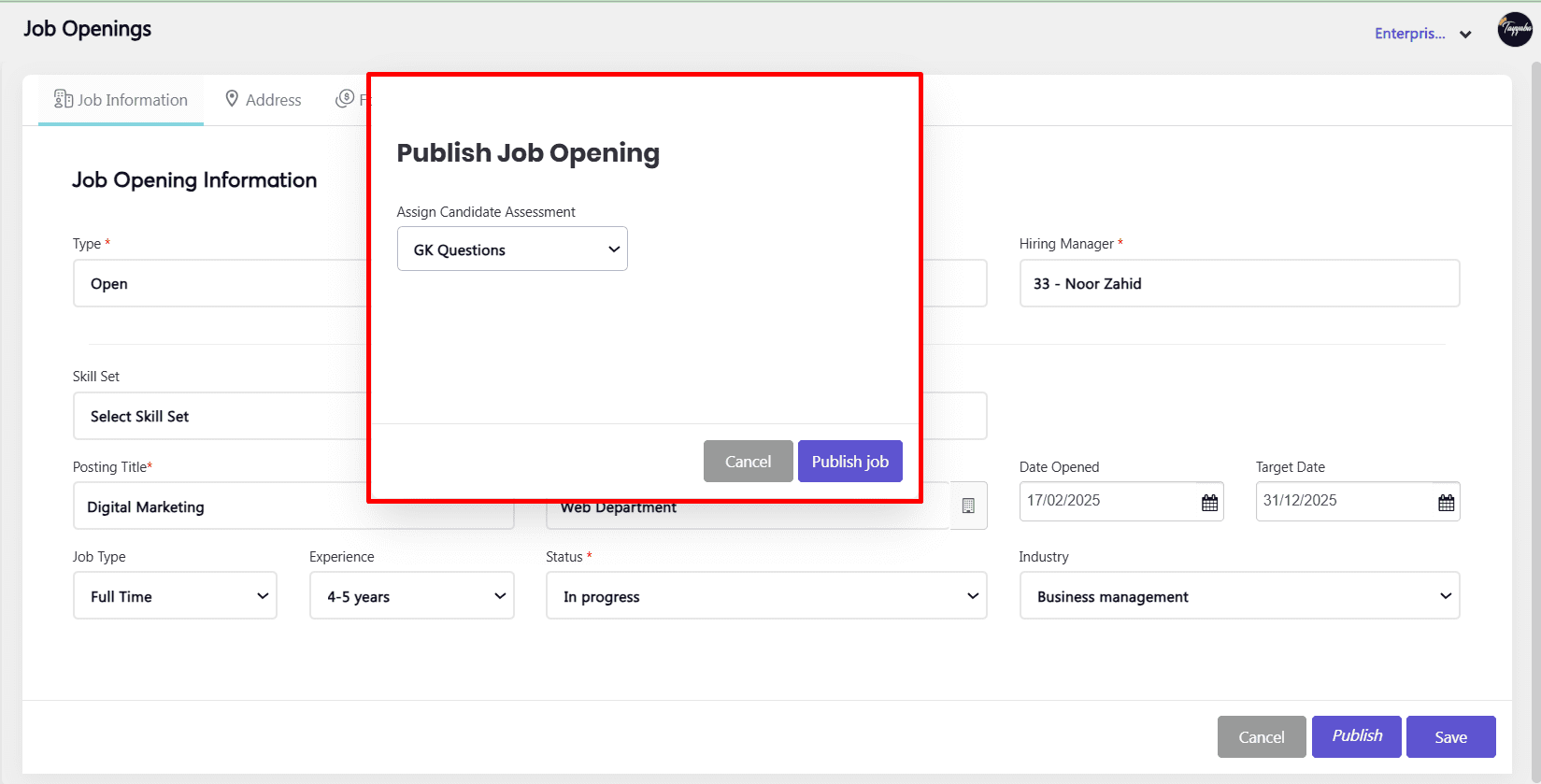
- Click Publish: Press the Publish button.
- Assessment Popup: A pop-up will appear asking if you want to add an assessment for the job.
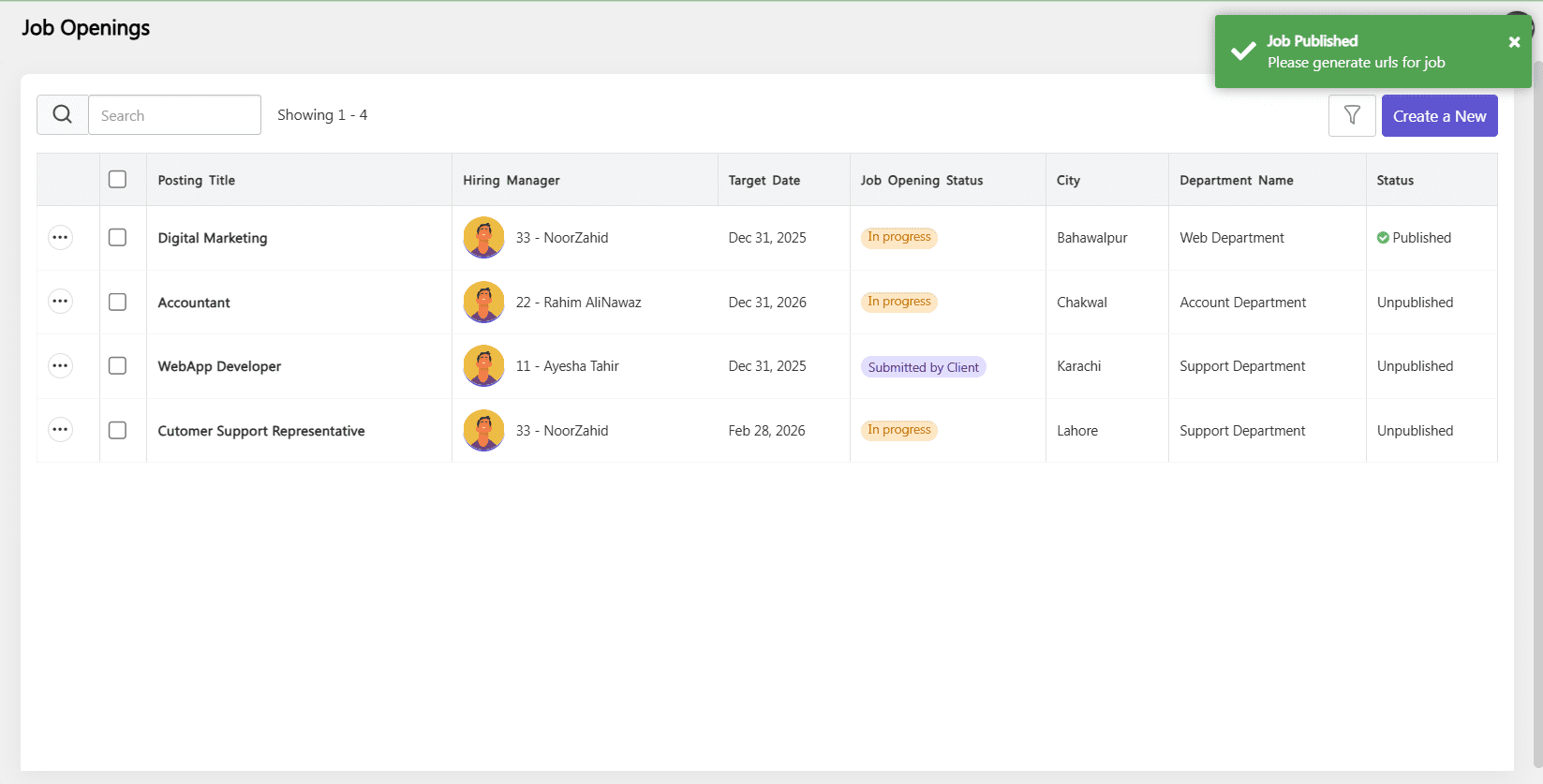
- Success Message: After publishing, a success message will be displayed.
How to Get URLs for Job Posting
- Click on the three-dot icon and select the edit option.
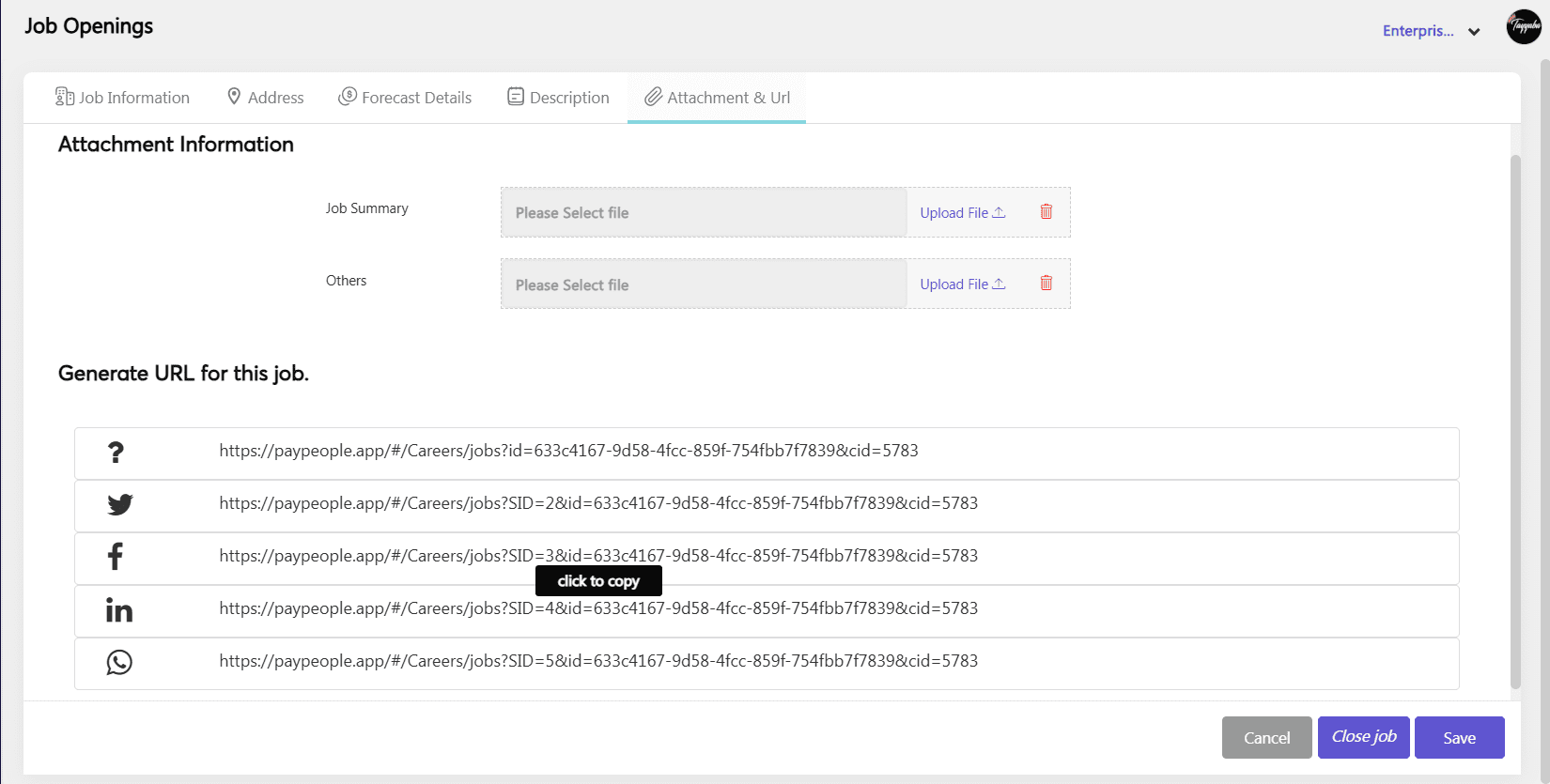
- Navigate to the Attachment and URL tab.
- Here, you will find different links for various portals like LinkedIn, Facebook, WhatsApp, Instagram, and others.
How to Apply for Job?
Here’s a step-by-step guide on how to apply for a job:
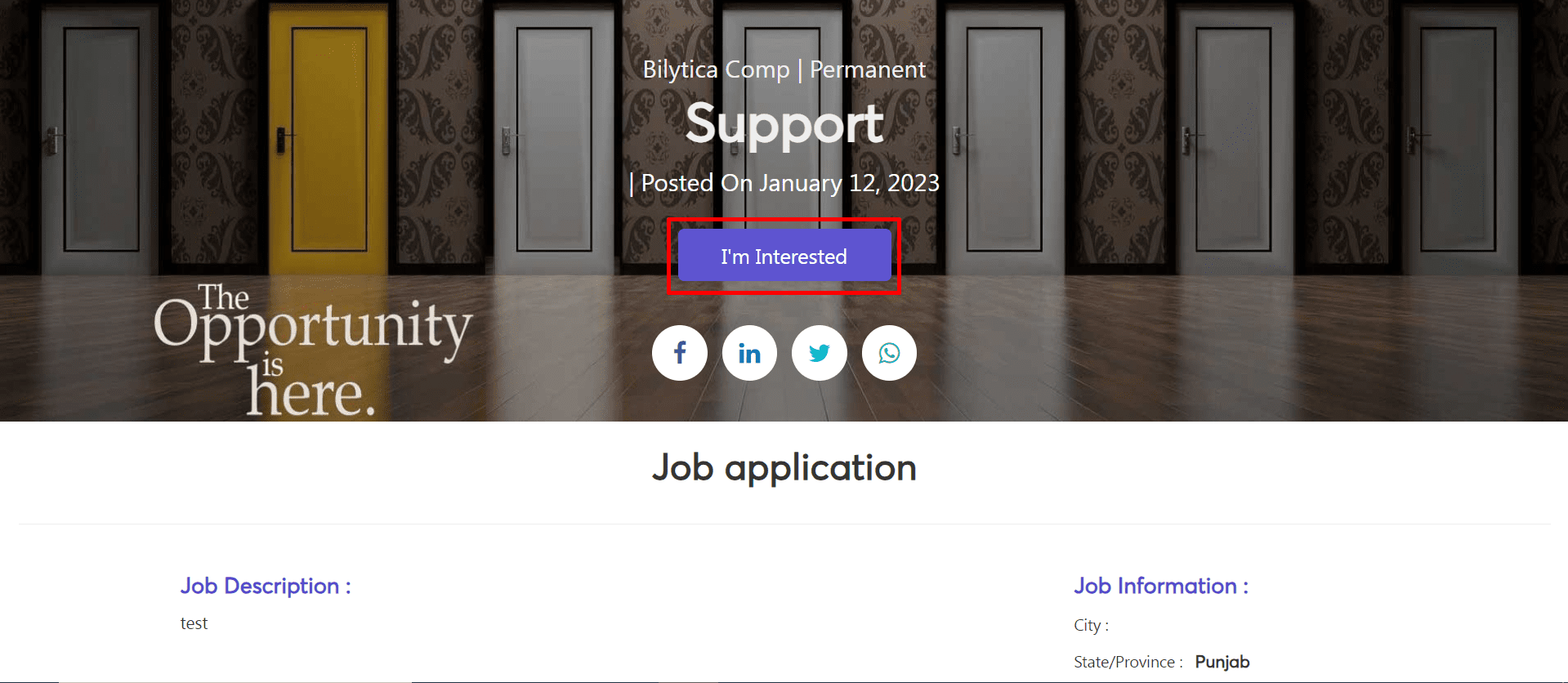
- When user click on your posted links through different social media platform They will navigate ti job applying screen. Click on I’m Interested button for applying.
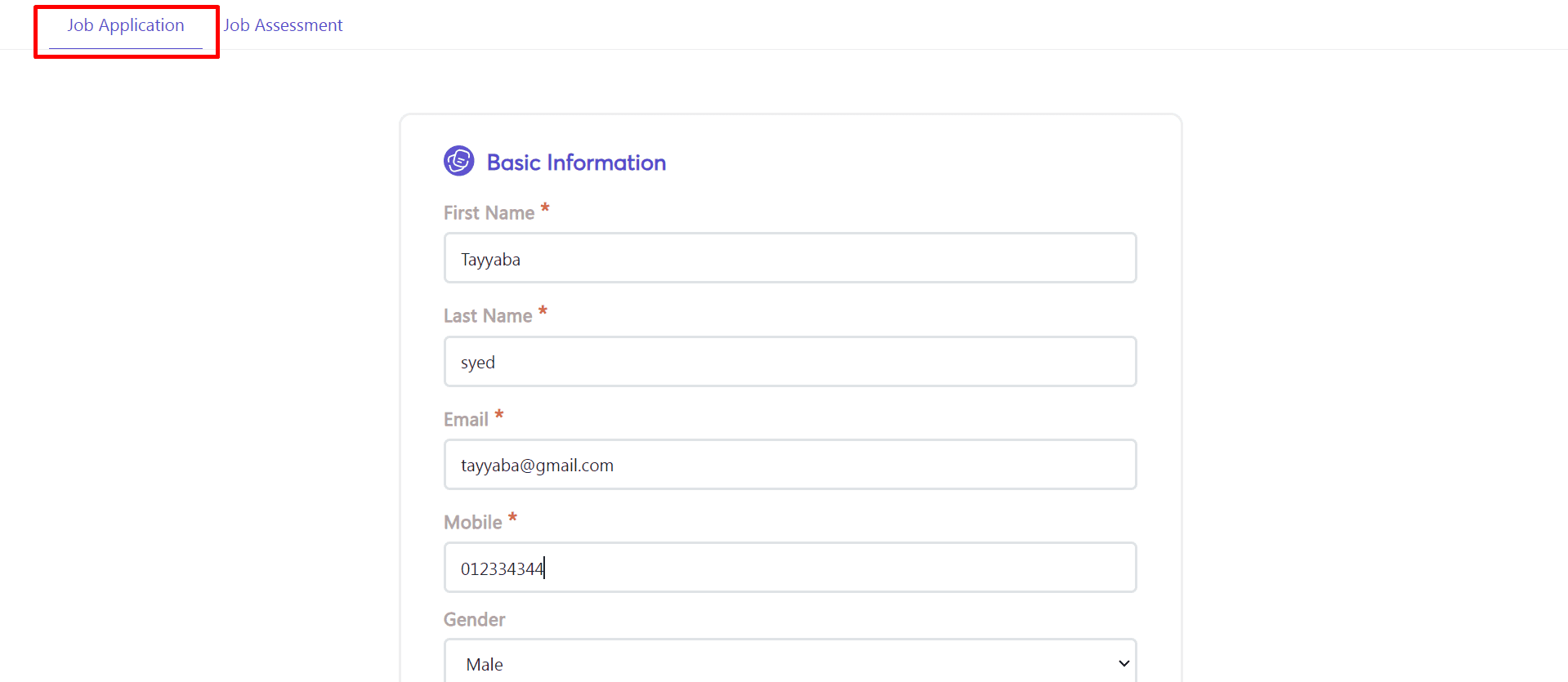
- Two tabs will be visible, i.e., Job Application and Job Assessment. Click Job Application to fill the form.
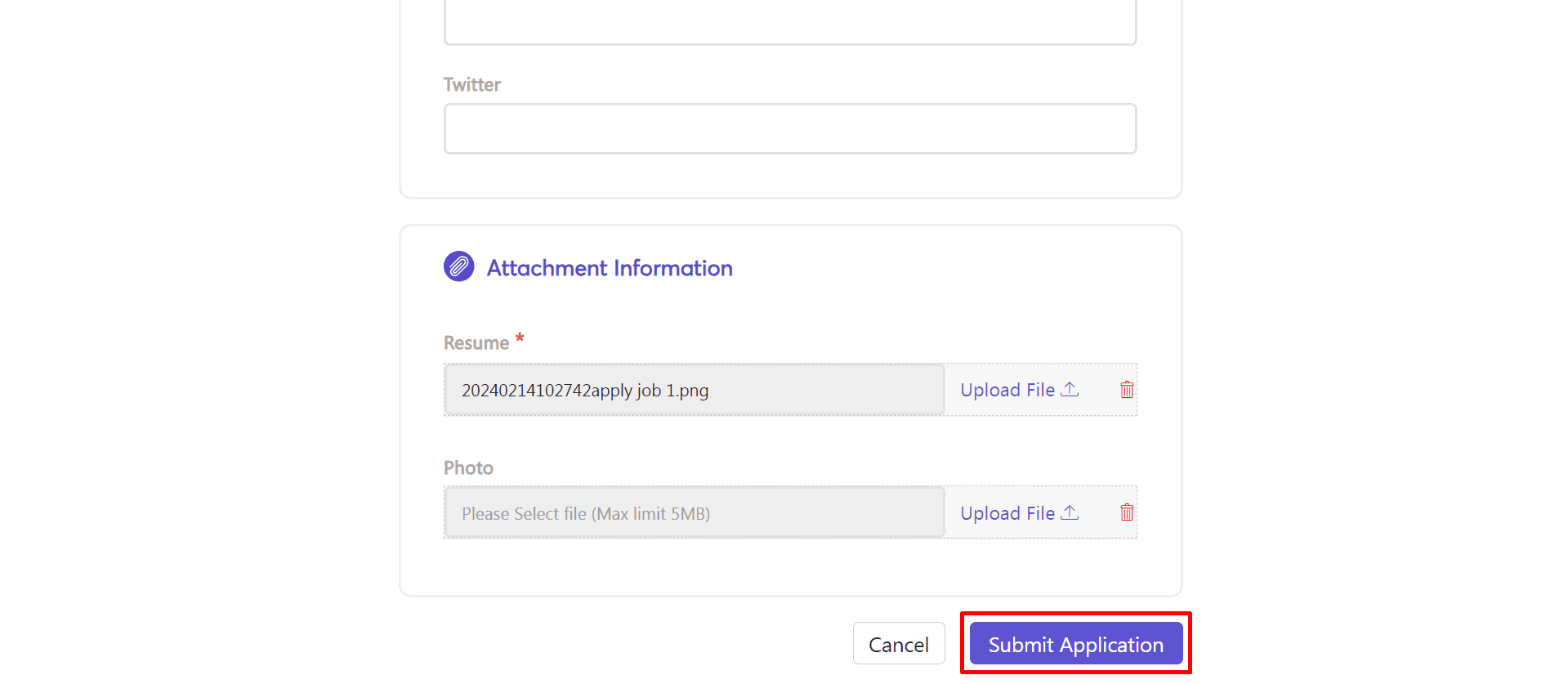
- After write mandatory fields or other information click submit application button.
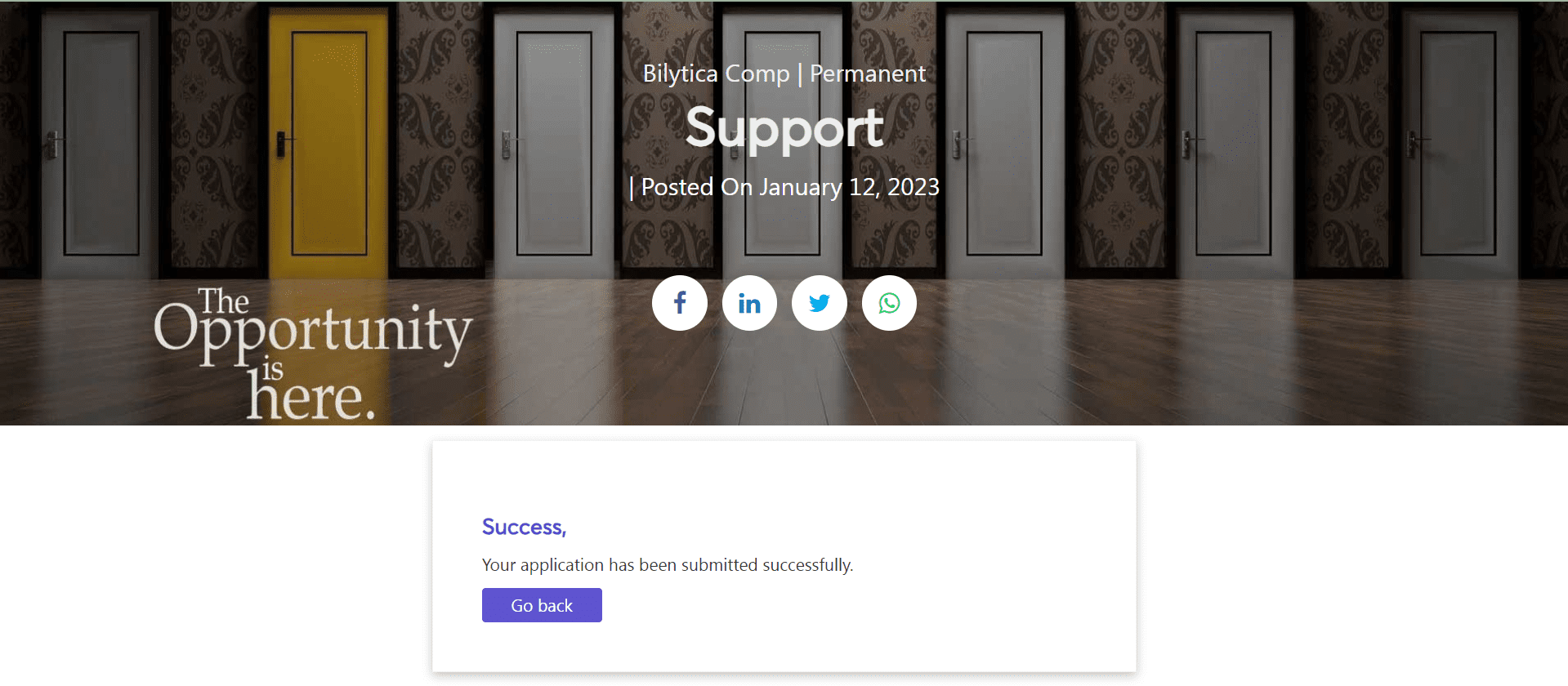
- After submit application success message will be visible at screen.
How to Manage Jobs?
- Editing Job Posting: Click on the three-dot icon and select the edit option.
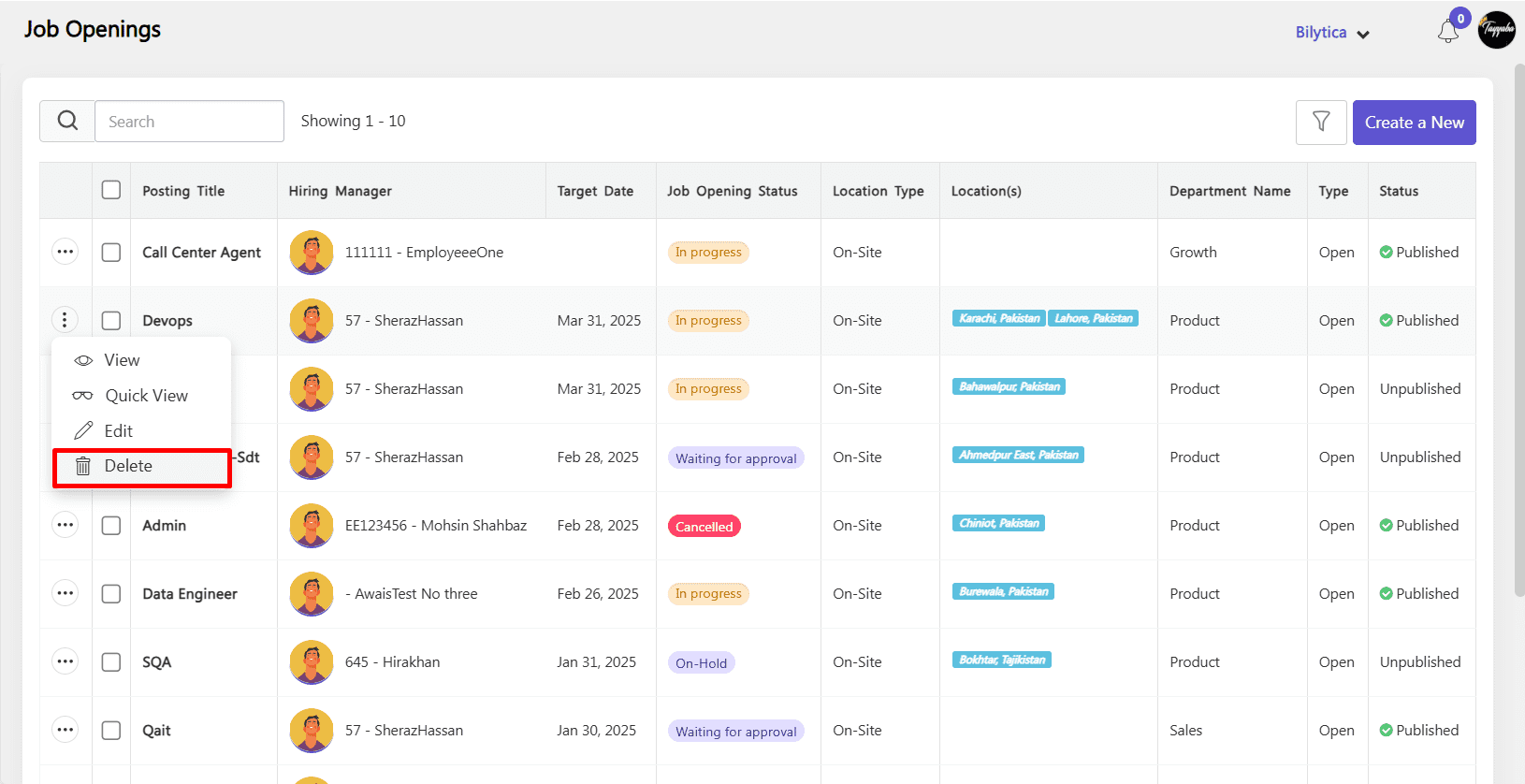
- Deleting a Job Posting: Click on the three-dot icon and select the delete option.
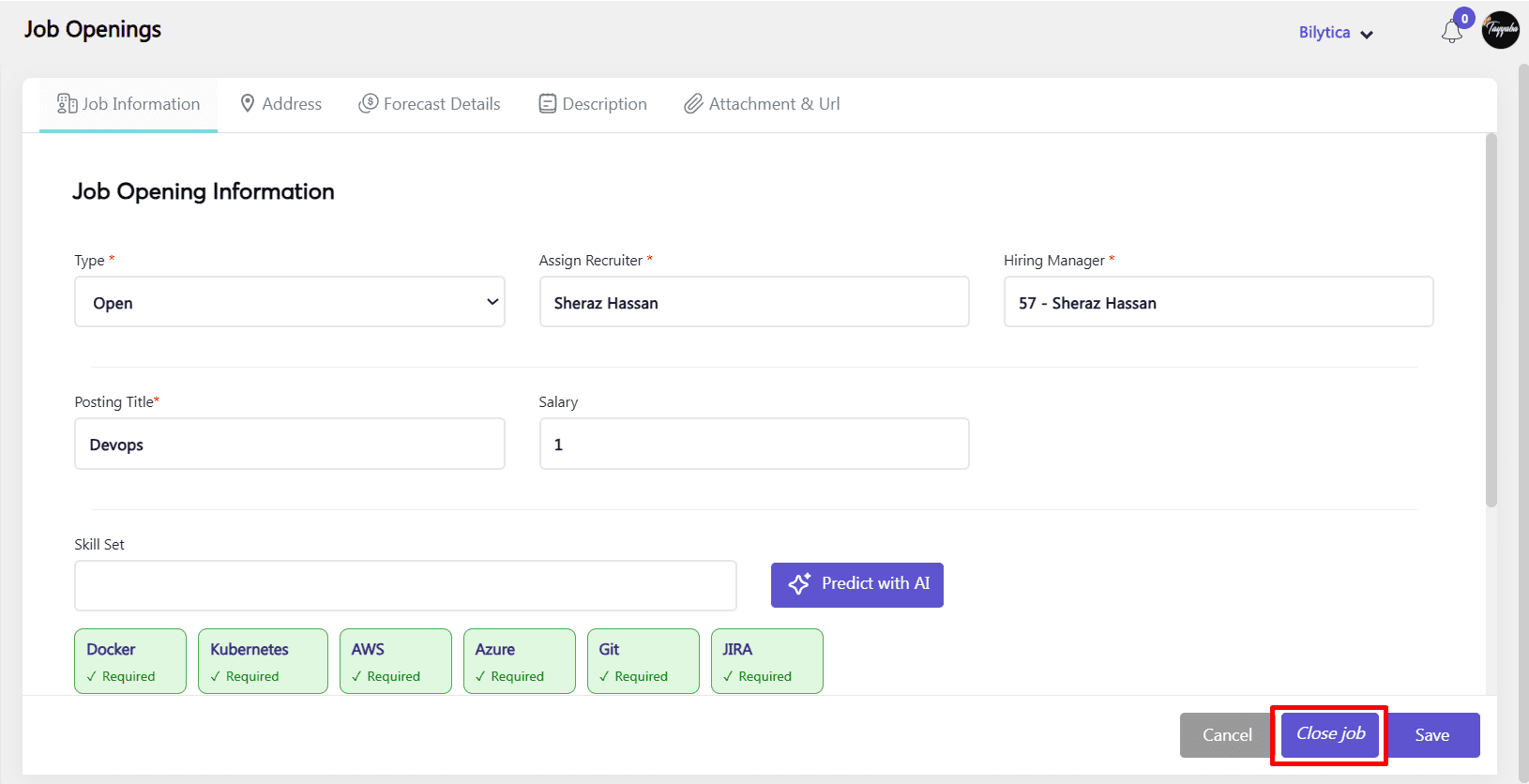
- Closing a Job Posting: After clicking the edit button you can close the job also.
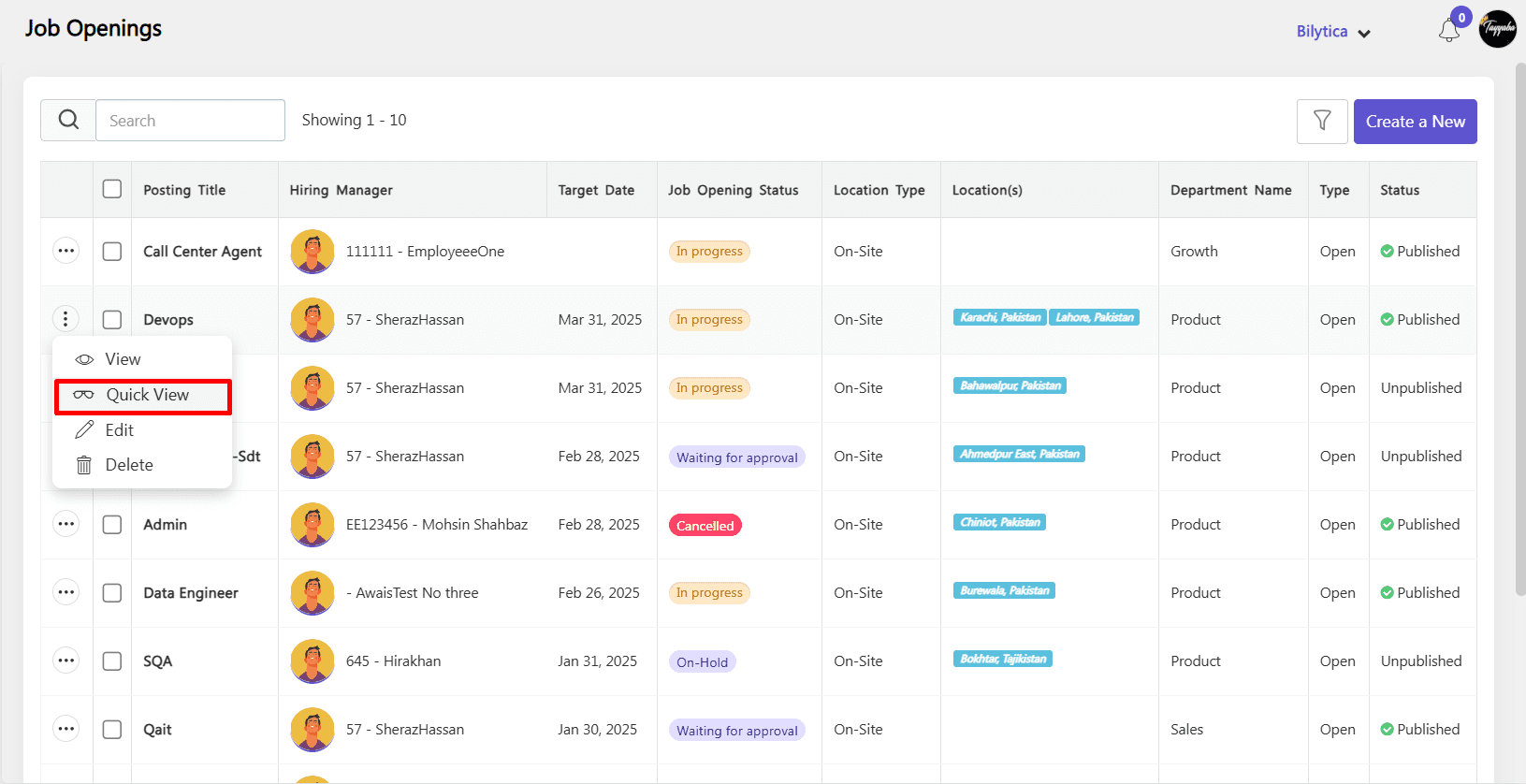
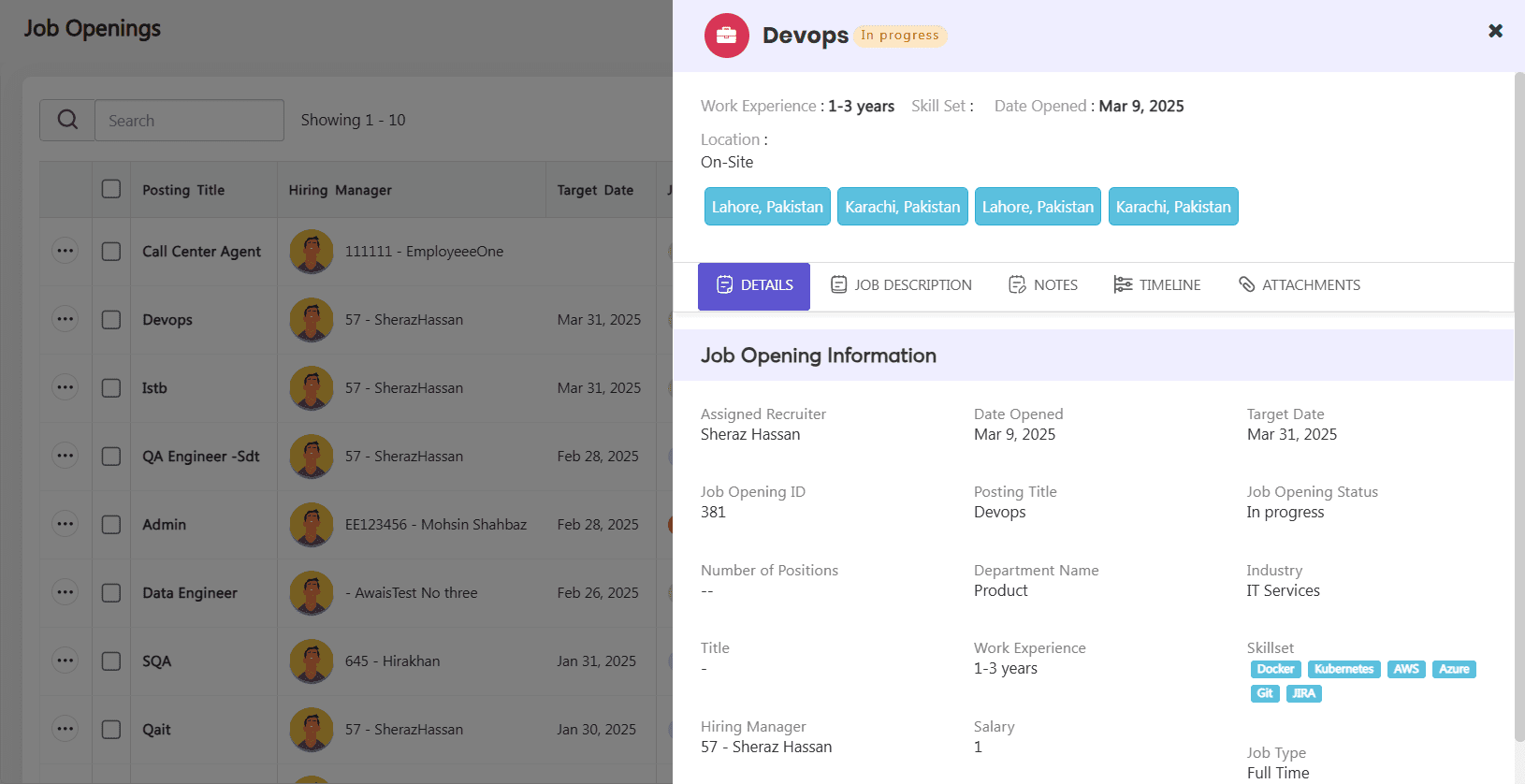
- QuickView Job Posting: Click on the three-dot icon and select the Quick View option.
- Managing Candidates: Click on the three-dot icon and select the edit option. Hiring pipeline, i.e., Screening, Submissions, Interviews, Offered, Hired and Archive etc, will be visible to you and by selecting option from drop down menu you will navigate to that screen.
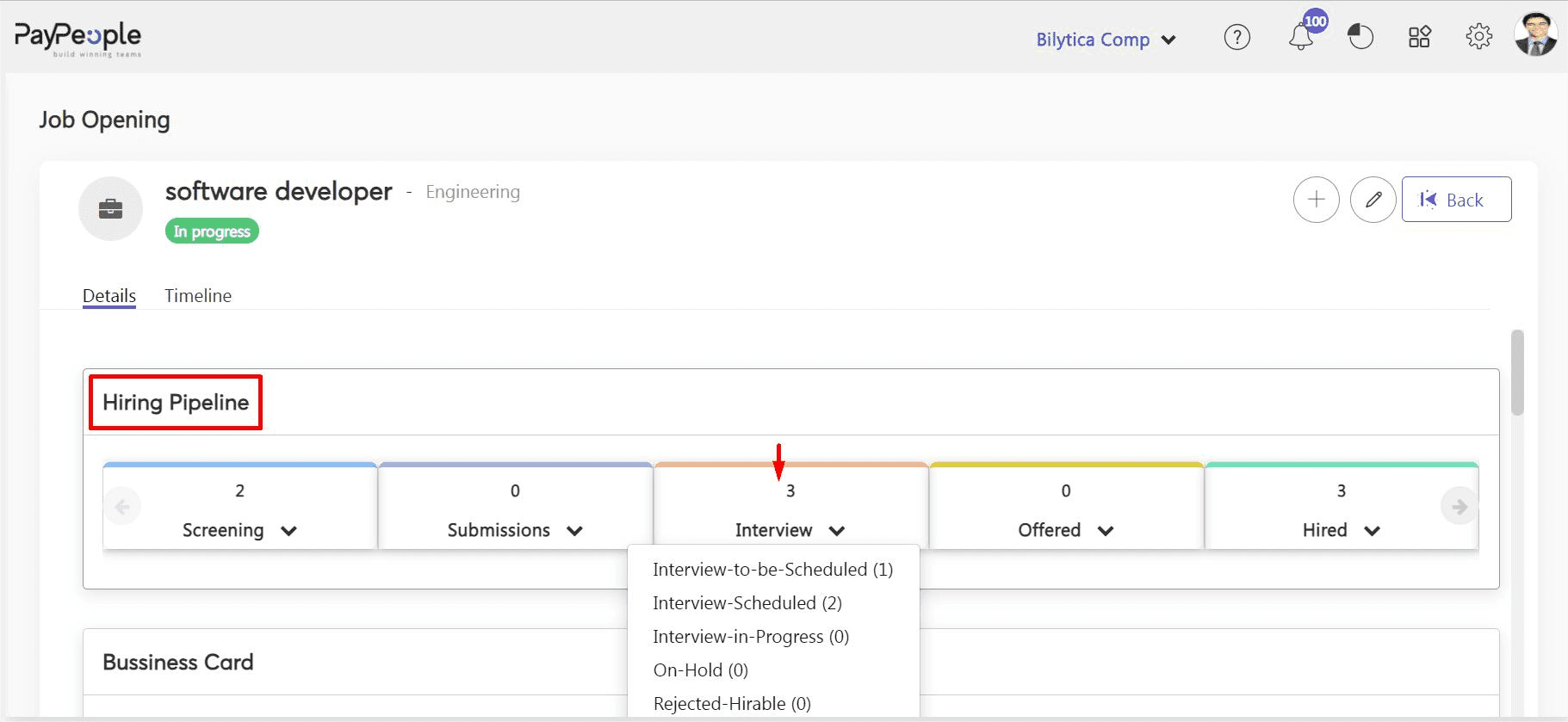
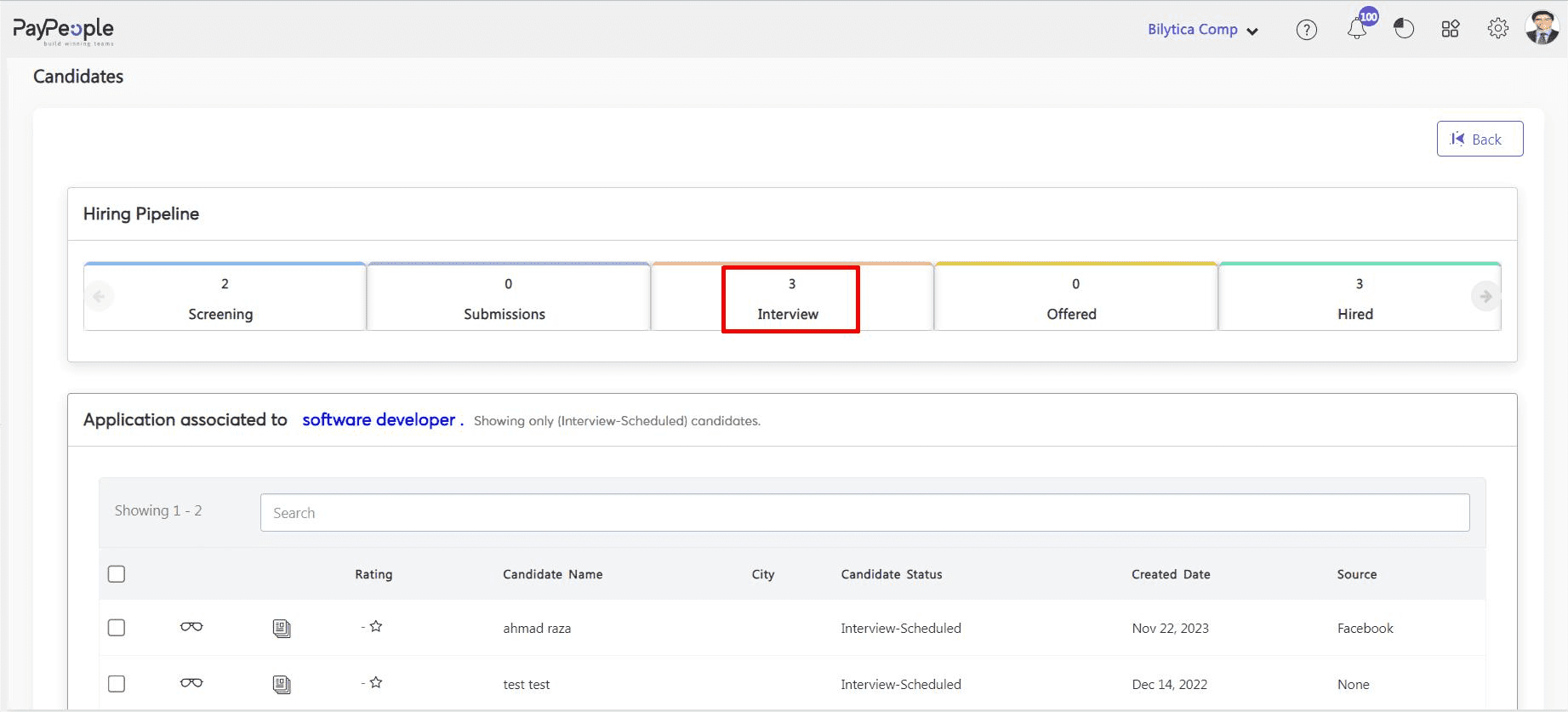
- Candidates who are selected for interview will be visible in ‘Interview‘.
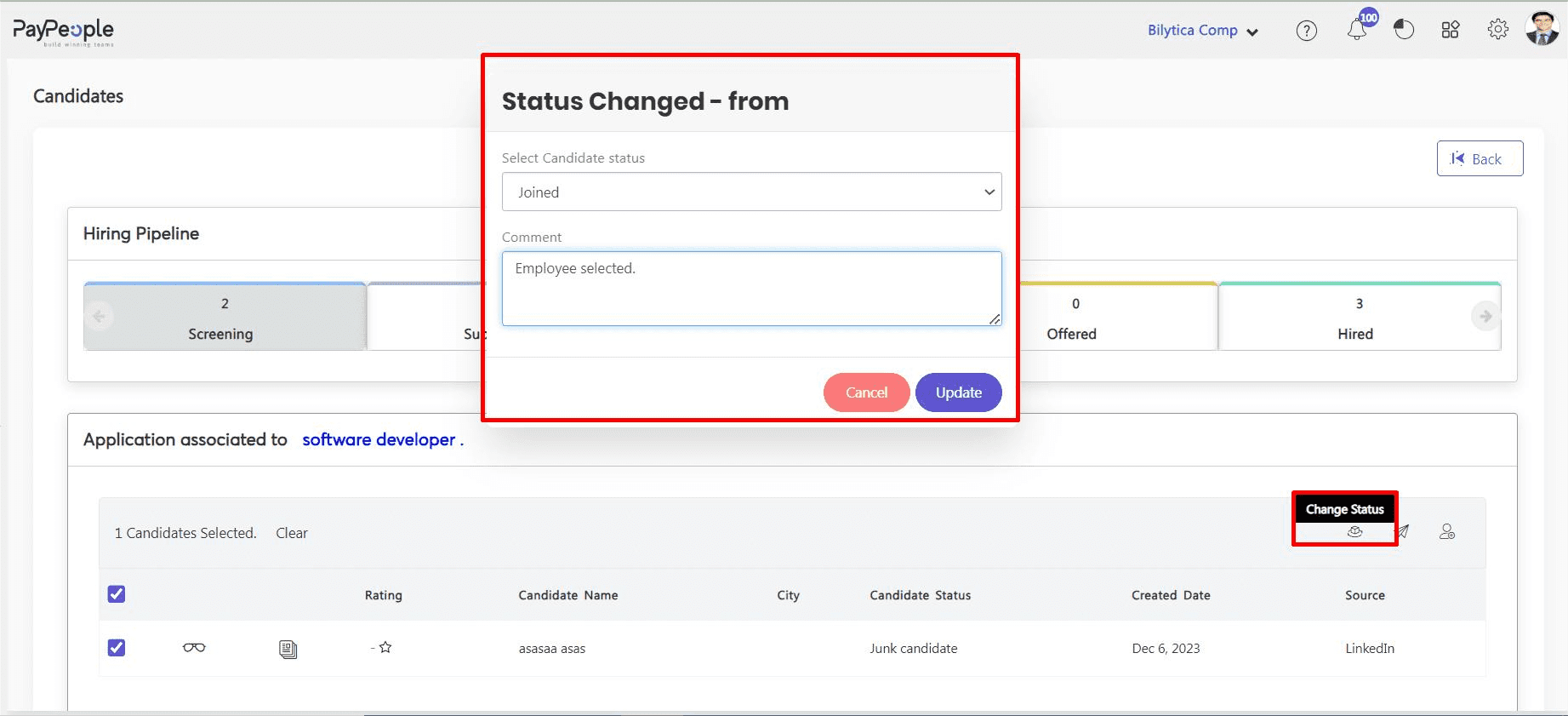
- Select the employee and click change status icon. Pop up window will be visible change candidate status and click update button. Candidate status will be changed successfully and automatically move to selected status tab.
- You can send email by clicking send email button.
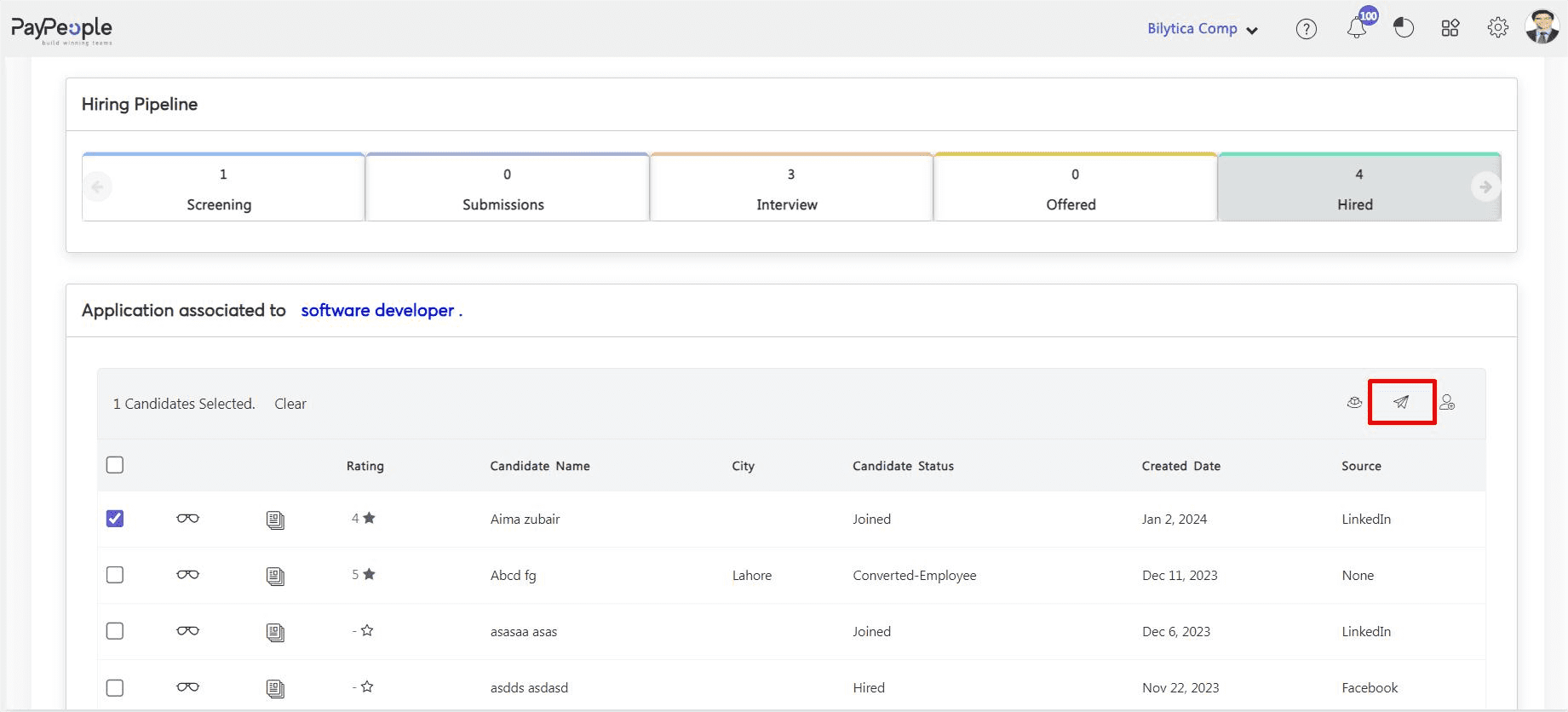
- You can change the employee pipeline status by clicking submit to hiring manager button.