How to View Your Reporting Team in the PayPeople Mobile App
The PayPeople Mobile App allows managers to easily view details about their reporting team. Follow these steps to access the reporting team information:
- Log In to the Mobile App
- Open the PayPeople Mobile App and log in using your credentials.
- Navigate to the Reporting Team Module
-
Click the Team icon from the bottom navigation bar on the home screen.
- This option will display a list of employees who report directly to you, organized by designations.
-
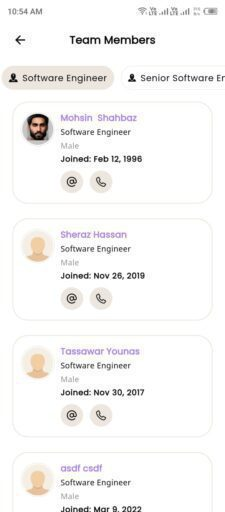
Team Contact
-
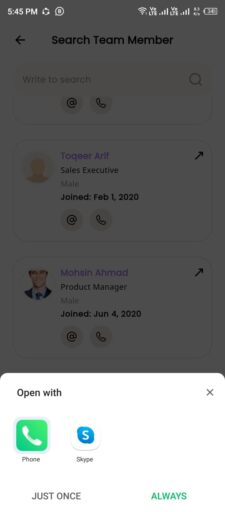
- By clicking the employee’s “mobile” icon, you can call the employee, and by clicking on the “@” symbol icon, you can send an email to the employee.
Team Profile
- By clicking any specific employee from team list, you can view employee profile details and his reporting team.
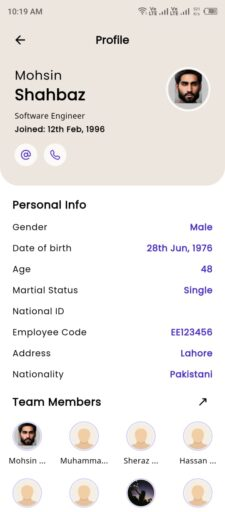
- By clicking the arrow icon in the top-right corner of the team members section, you can view the selected employee’s reporting team, organized by department.
- By scrolling down on an employee’s profile, you can view your team member’s current day attendance. To view attendance for other months, click on the arrow located in the top right corner of the monthly attendance section in team profile screen.
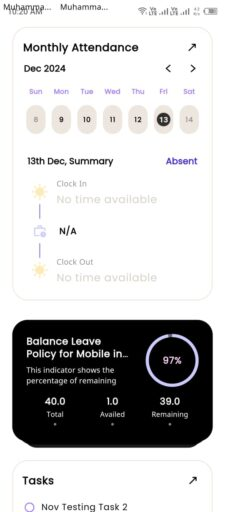
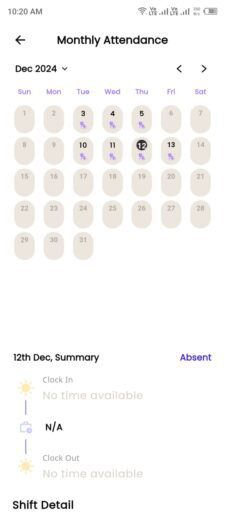
- By clicking arrow you can view any month attendance and per day attendance details.
Team Leave Balance
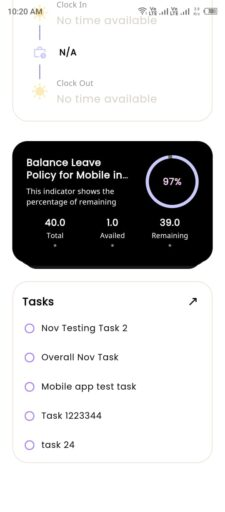
- You can also view team leave balance.
Team Member Tasks Details
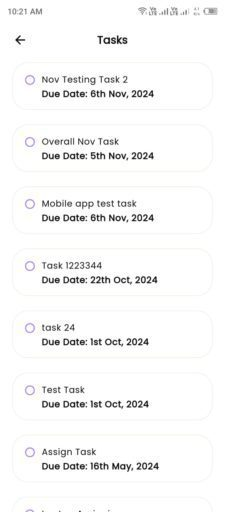
- You can also view your team member assigned tasks list by clicking arrow on top right corner of task section.