How to Add a Leave Request in the PayPeople Mobile App?
Employees can easily submit leave requests through the PayPeople Mobile App by following the steps outlined below:
- Log In to the Mobile App
- Open the PayPeople Mobile App on your device and log in using your credentials.
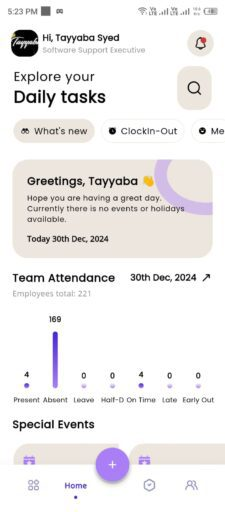
- Access the Request Module
- From the home screen, tap on the “+” icon.
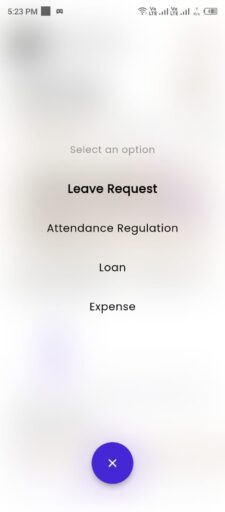
- Choose the Request Type
- Select the request type Leave Request from the list provided.
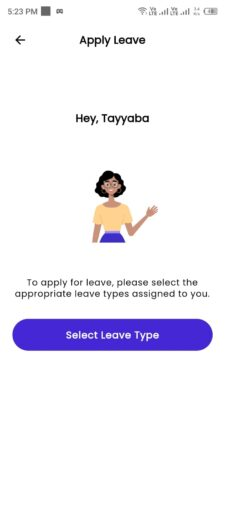
- Choose the Leave Type
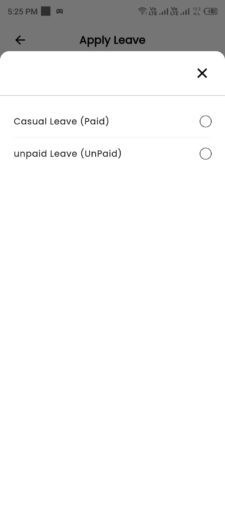
- Click Select Leave Type button.
-
- Select the appropriate leave type (e.g., Annual Leave, Sick Leave, Casual Leave) from the list provided.
- Set the Leave Dates
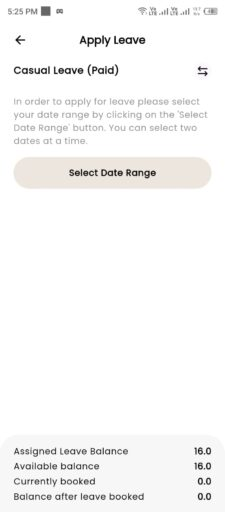
- Click the Select Date Range button to choose the desired dates.
-
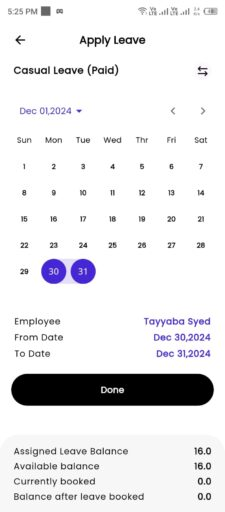
- Select the Start Date and End Date from the date calendar.
- For single-day leave, both dates should be the same.
- Click done button.
- Provide Additional Information (Optional)
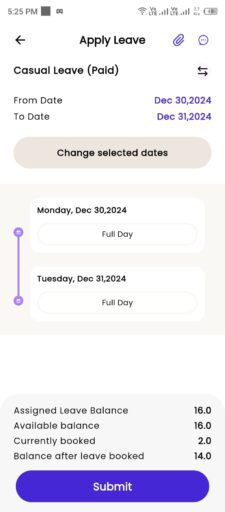
- You can change date by clicking Change selected dates button.
-
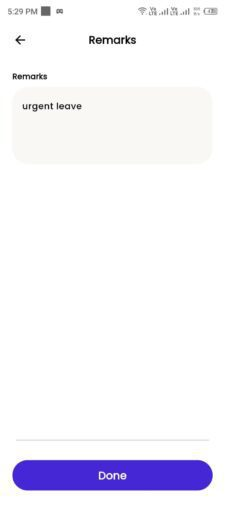
- Enter the reason for leave in the comments or description field, if required by clicking message icon button.
- If applicable, upload supporting documents (e.g., medical certificates) using the Upload option on top right corner.
- Review Leave Balance
- Check your available leave balance displayed on the screen to ensure you have enough leave days for the selected type.
- Submit the Leave Request
- After reviewing the details, tap on the “Submit” button.
-
- A confirmation popup will appear; click ‘Yes, Do it’ to proceed.
- You will receive a confirmation notification once the request is successfully submitted.
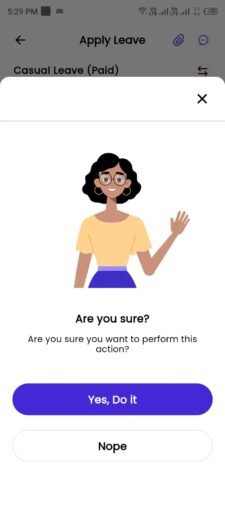
- Your request will be shown on approver dashboard for approval.
How to Add an Attendance Regulation Request in the PayPeople Mobile App?
Employees can submit attendance regulation requests directly from the PayPeople Mobile App. Follow the steps below to submit a request:
- Log In to the Mobile App
- Open the PayPeople Mobile App and log in using your credentials.
- Navigate to the Request Module
- From the main menu, tap on the “+” icon.
- Select the Attendance Regulation
- From the list, tap on the “Attendance Regulation” option.
- Select the Date
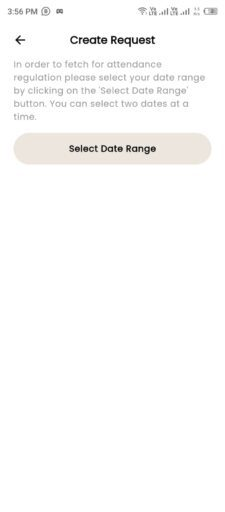
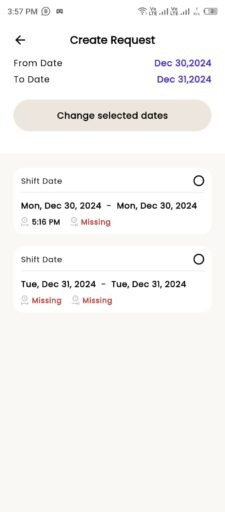
- Tap on the Select Date Range field to choose the date for which you need to request attendance regulation.
-
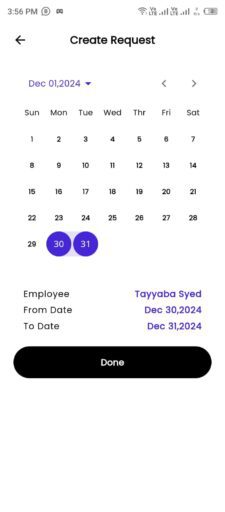
- Select the Start Date and End Date from the date calendar.
- For single-day leave, both dates should be the same.
- Click done button.
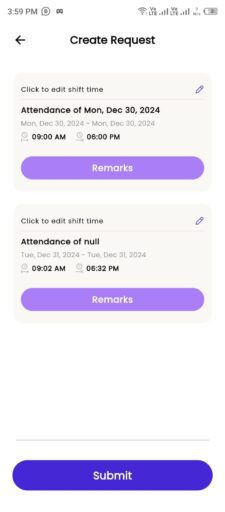
- Edit Attendance Details
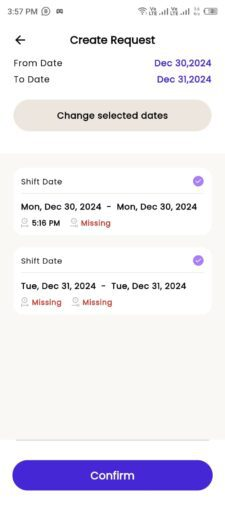
- Check the checkbox for the specific day you want to edit the attendance.
-
- Tap on the Edit icon to start modifying the attendance details.
- Add Remarks by remarks button.
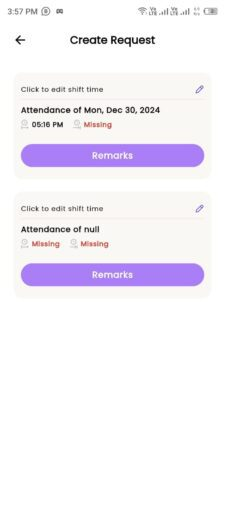
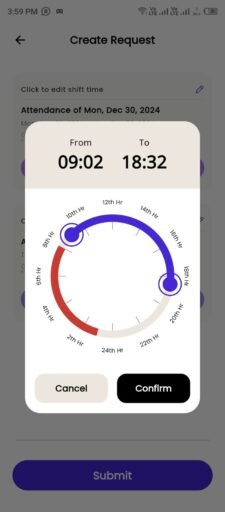
- Adjust the Clock In and Clock Out times by selecting the appropriate times on the clock.
- Click Confirm button.
- Submit the Request
- Review the details you’ve entered and tap on the Submit button.
- A confirmation notification will appear once your request is successfully submitted.
- Your request will be sent to the designated approver (manager or HR or Admin) for approval.
How to Add a Loan Request in the PayPeople Mobile App?
Employees can easily submit loan requests through the PayPeople Mobile App. Follow these steps to complete your loan request:
- Log In to the Mobile App
- Open the PayPeople Mobile App on your device and log in using your credentials.
- Access the Request Module
- From the main menu, tap on the “+” icon.
- Access the Loan Request Module
- From the list, tap on the “Loan” option.
- Select Loan Type
- Choose the loan type (e.g., Loan, Advance, PF, or any other type created by the admin).
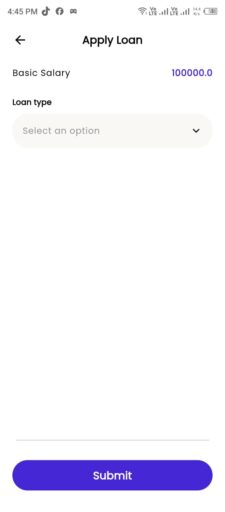
- Fill in Loan Details
- Loan Recovery Method: Select the method of payment recovery whether to deduct from per month’s salary or by cash.
- Payment Installment Amount: Select the installment method in which you want to deduct the loan from the employee’s salary whether Fixed Amount Percentage of Basic Salary.
- Add Loan Taken Date & Payment Start Date.
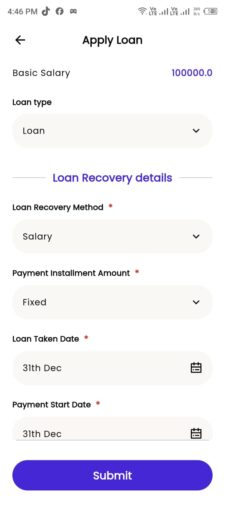
- Enter the Loan Amount.
- Enter deduction value: If the deduction is in Percentage(%), enter the percentage value in the “Deduction Field” Alternatively, if you selected a fixed amount in the “Payment Installment Amount” section above, enter amount.
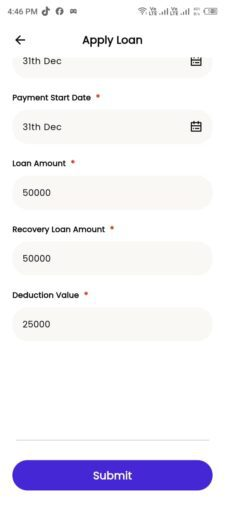
- Submit the Loan Request
- Tap on the Submit button to send your request for approval.
- Add Remarks/Description.
- Click Done button.
- A confirmation notification will appear once the request is successfully submitted.
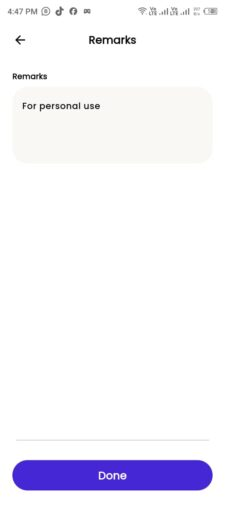
- Your loan request will be sent to the designated approver (manager or HR or Admin) for approval.
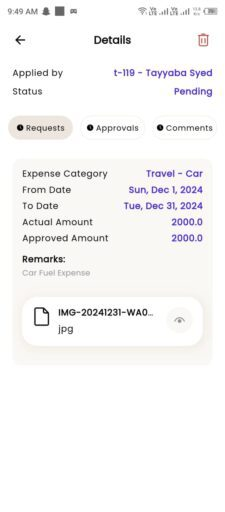
How to Add an Expense Request in the PayPeople Mobile App?
Employees can submit expense requests through the PayPeople Mobile App quickly and efficiently. Follow these steps to create and submit your expense request:
- Log In to the Mobile App Open the PayPeople Mobile App and log in using your credentials.
- Access the Request Module
- From the main menu, tap on the “+” icon.
- Access the Expense Request
- From the list, tap on the “Expense” option.
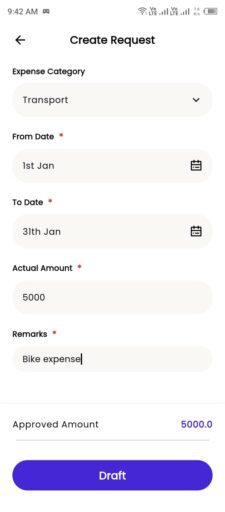
- Enter Expense Details
- Expense Category: Select the category of expense (e.g., Travel, Meals, Accommodation, or any other type created by the admin).
- Actual Amount: Enter the amount of the expense.
- Expense Date: Choose the from and to date of the expense.
- Enter a description or reason for the expense in the Remarks field.
-
- If required, upload supporting documents such as receipts or invoices by using the Upload a file option.
- Click the Draft button to save your expense request.
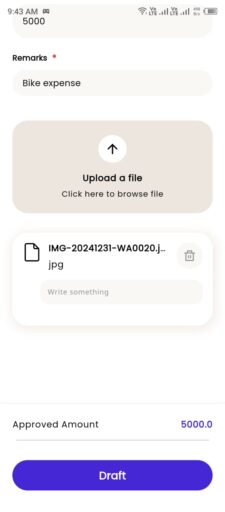
- Finalize the Expense Request
- Once the draft is successfully saved, a success message will be displayed, and the app will automatically navigate to the Services screen.
- Click Expense.
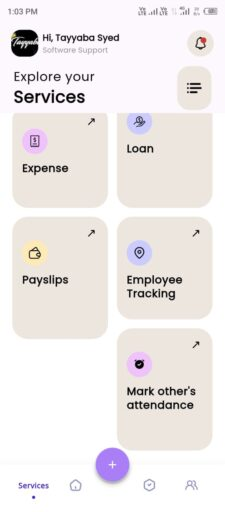
-
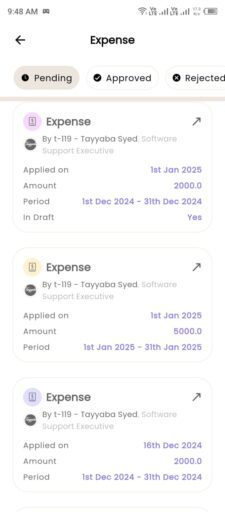
- Locate the draft request you wish to finalize in Pending tab.
- Tap on the draft to open it.
-
- Tap the Edit button to make changes or finalize the request.
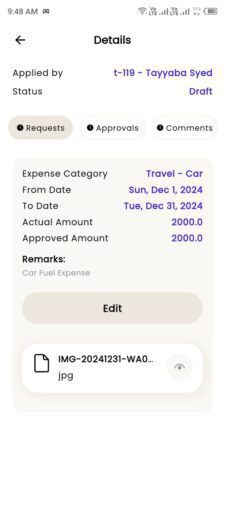
-
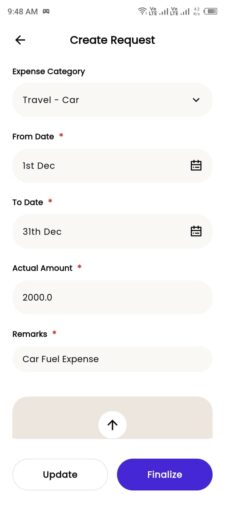
- Update any necessary details if required, such as expense type, amount, or attached documents.
- Once satisfied, click Update or Finalize the request by submitting it for approval.
- After finalization, the request will be sent to the designated approver (manager or HR or Admin) for approval.
-
- Now your request is showing in Pending status.