Services in PayPeople HRMS Mobile App
Services in the PayPeople HRMS Mobile App refer to the range of employee self-service tools designed to streamline HR requests processes, enhance transparency, and improve operational efficiency. These services empower employees to manage their own HR-related tasks while reducing the administrative burden on HR teams. To use this feature:
-
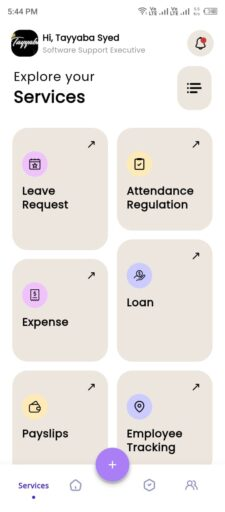
Click the Services icon from the bottom navigation bar on the home screen.
The core services include:
Leave Request
The Leave Request feature enables employees to manage their leave applications and track their leave history efficiently. Employees can view the status of all their leaves requests, including pending, approved and rejected.
- Click the Services icon from the bottom navigation bar on the home screen.
- Click Leave Request
Pending
In the Pending section, you can view all your leave requests that are awaiting approval.
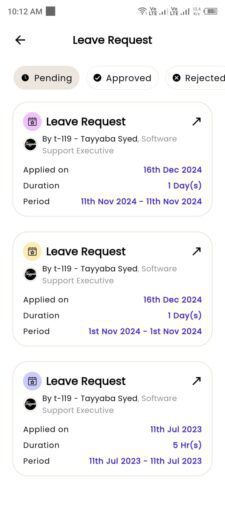
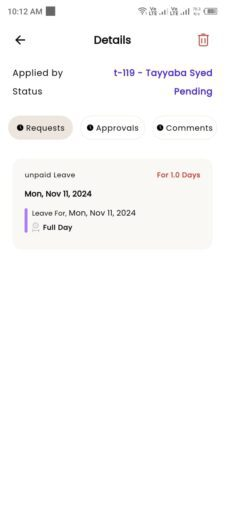
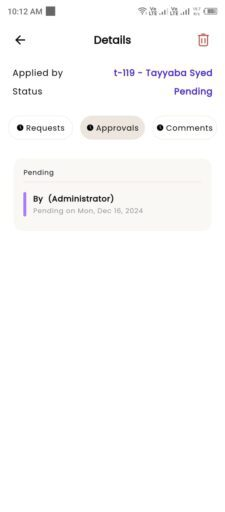
By clicking a specific request, you can access detailed information organized into the following tabs:
-
- Requests Tab: Displays the details of your leave request, such as leave type, duration, and reason.
-
- Approvals Tab: Shows the name of the approver responsible for reviewing your request.
-
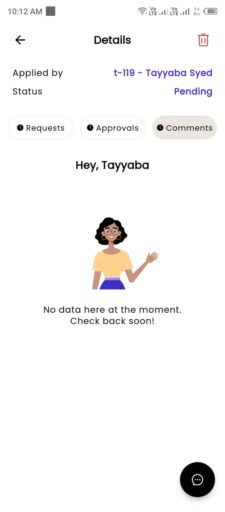
- Comments Tab: Lists any comments or feedback provided by the approver. By clicking comments icon in bottom right corner you can write the comment also.
Approved
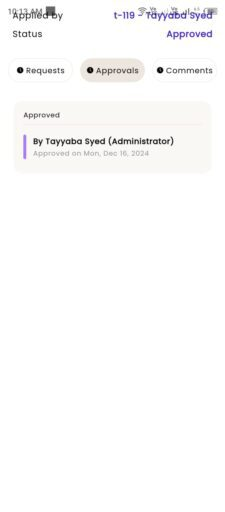
In the Approved section, you can view all your leave requests that have been approved.
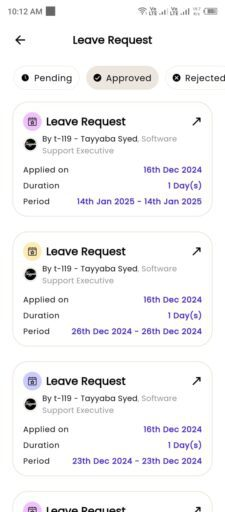
- By clicking a specific request, you can access detailed information organized into the following tabs:
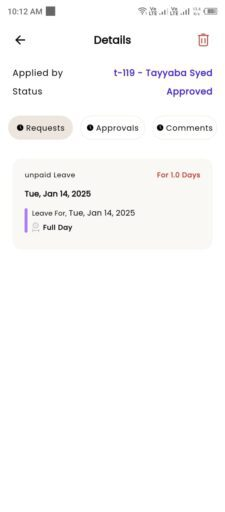
- Requests Tab: Displays the details of your approved leave, such as leave type, duration, and reason.
-
- Approvals Tab: Shows the name of the approver who approved your request.
-
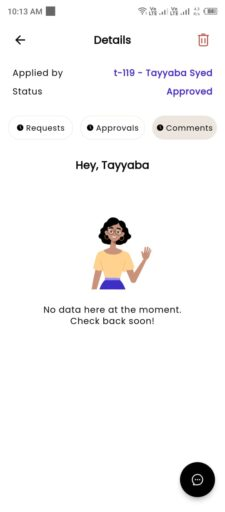
- Comments Tab: Lists any comments or feedback provided during the leave or approval process. By clicking comments icon in bottom right corner you can write the comment also.
Rejected
In the Rejected section, you can view all your leave requests that have been declined.
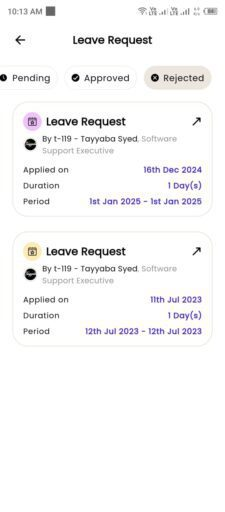
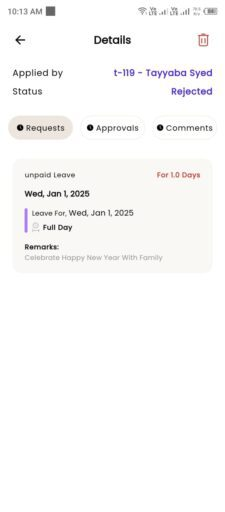
- By clicking a specific request, you can access detailed information organized into the following tabs:
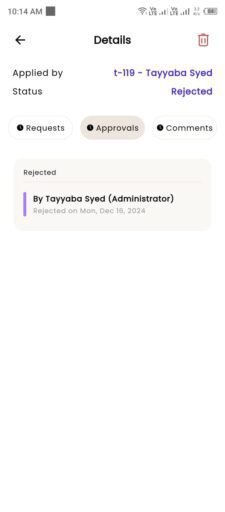
- Requests Tab: Displays the details of your rejected leave, such as leave type, duration, and reason.
-
- Approvals Tab: Shows the name of the person who rejected your request.
-
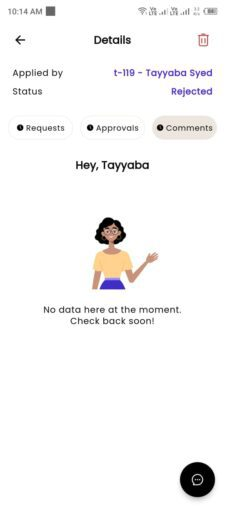
- Comments Tab: Lists any comments or reasons provided for the rejection.
Attendance Regulation
The Attendance Regulation feature enables employees to manage their attendance applications and efficiently track their attendance history. Employees can view the status of all their attendance regulation requests, including pending, approved, and rejected.
- Click the Services icon from the bottom navigation bar on the home screen.
- Click Attendance Regulation
Pending
In the Pending section, you can view all your attendance regulation requests that are awaiting approval.
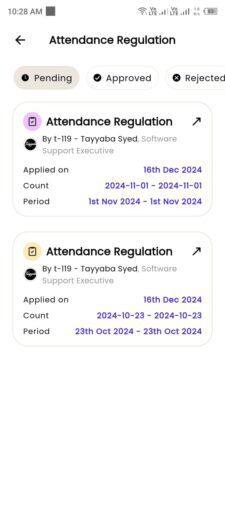
- By clicking a specific request, you can access detailed information organized into the following tabs:
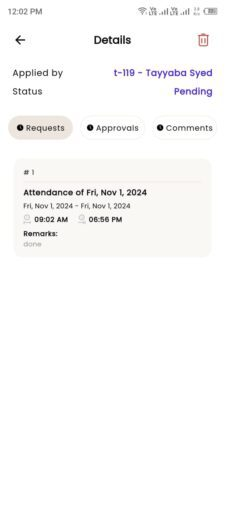
- Requests Tab: Displays the details of your attendance regulation request.
-
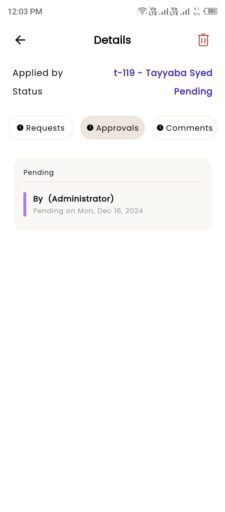
- Approvals Tab: Shows the name of the approver responsible for reviewing your request.
-
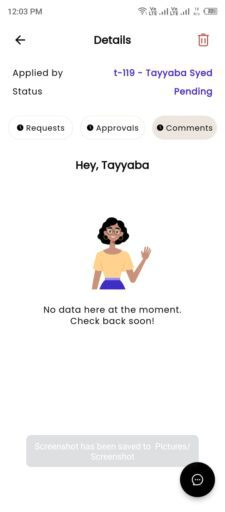
- Comments Tab: Lists any comments or feedback provided by the approver. By clicking comments icon in bottom right corner you can write the comment also.
Approved
In the Approved section, you can view all your attendance regulation requests that have been approved.
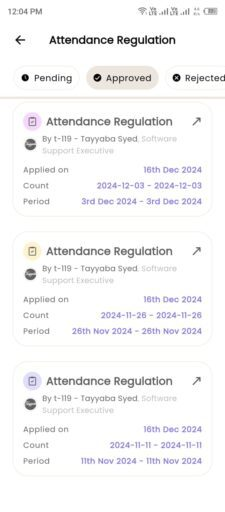
- By clicking a specific request, you can access detailed information organized into the following tabs:
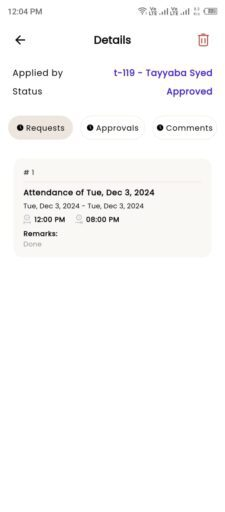
- Requests Tab: Displays the details of your approved leave, such as leave type, duration, and reason.
-
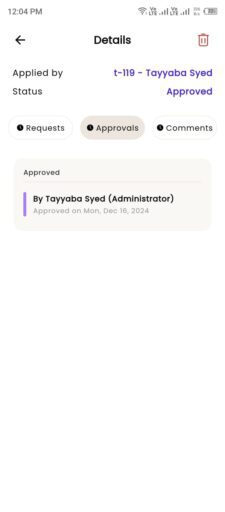
- Approvals Tab: Shows the name of the approver who approved your request.
-
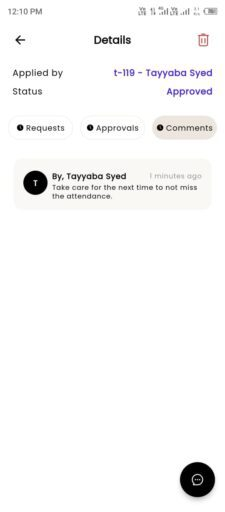
- Comments Tab: Lists any comments or feedback provided during the leave or approval process. By clicking comments icon in bottom right corner you can write the comment also.
Rejected
In the Rejected section, you can view all your attendance regulation requests that have been declined.
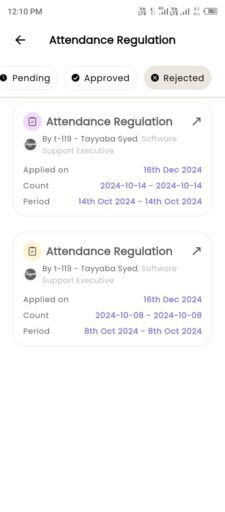
- By clicking a specific request, you can access detailed information organized into the following tabs:
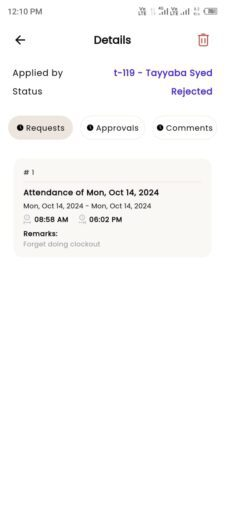
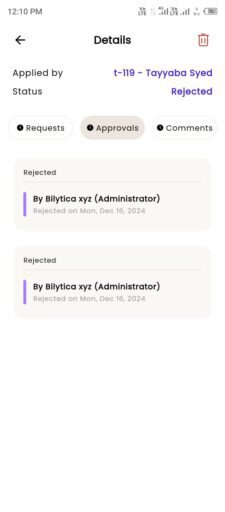
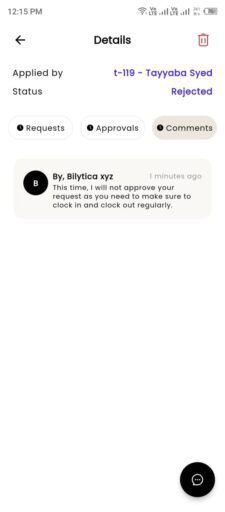
- Requests Tab: Displays the details of your rejected leave, such as leave type, duration, and reason.
-
- Approvals Tab: Shows the name of the person who rejected your request.
-
- Comments Tab: Lists any comments or reasons provided for the rejection.
Expense
The Expense feature in the PayPeople HRMS Mobile App simplifies the process of managing, and tracking employee expenses. This tool is designed to enhance transparency and efficiency in expense management while reducing administrative overhead. To use this feature:
- Click the Services icon from the bottom navigation bar on the home screen.
- Click Expense
Pending
In the Pending section, you can view all your expense requests that are awaiting approval. This feature allows you to track the status of your claims and access the necessary details for each request.
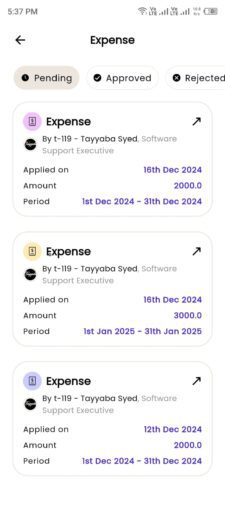
- By clicking a specific request, you can access detailed information organized into the following tabs:
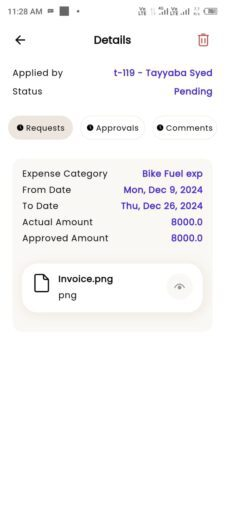
- Requests Tab: Displays the full details of your pending expense request, including the expense category (e.g., travel, food, lodging), amount, date, and any uploaded supporting documents such as receipts or invoices.
-
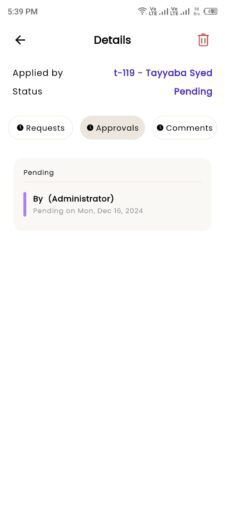
- Approvals Tab: Shows the name of the approver responsible for reviewing or approving your request, along with their name or role. This ensures transparency in the approval workflow.
-
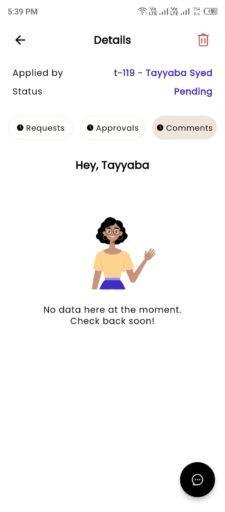
- Comments Tab: Lists any comments or feedback provided by the approver or employee itself. By clicking comments icon in bottom right corner you can write the comment also.
Approved
In the Approved section, you can view all your expense requests that have been successfully approved. This feature allows you to review the details of past approvals for transparency and record-keeping.
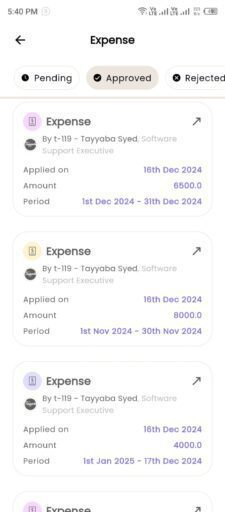
- By clicking a specific request, you can access detailed information organized into the following tabs:
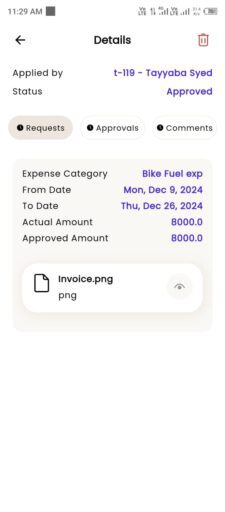
- Requests Tab: Displays the complete details of your approved expense request, including the expense category (e.g., travel, meals, lodging), amount, date, and any attached supporting documents like receipts or invoices.
-
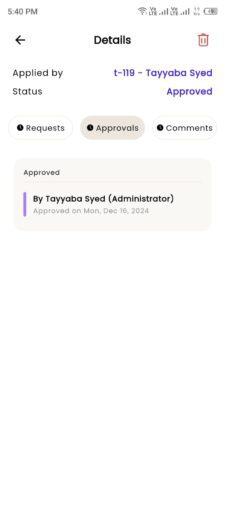
- Approvals Tab: Shows the name and role of the approver who approved your request, along with the date and time of approval for accurate tracking.
-
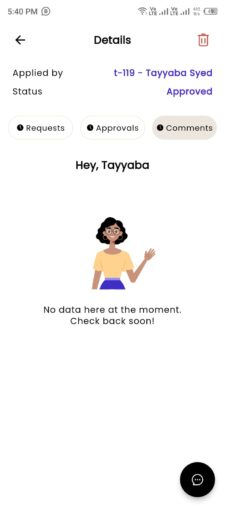
- Comments Tab: Lists any comments or feedback provided by the approver or employee itself. By clicking comments icon in bottom right corner you can write the comment also.
Rejected
In the Rejected section, you can view all your expense requests that have been declined. This feature provides a clear understanding of why an expense request was not approved, helping you take corrective action if needed.
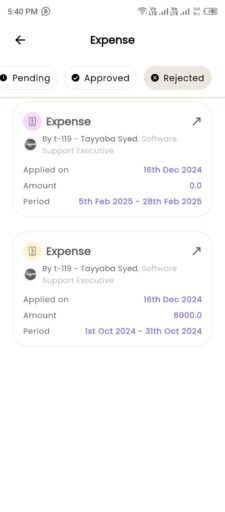
- By clicking a specific request, you can access detailed information organized into the following tabs:
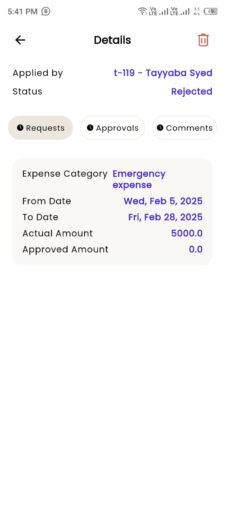
- Requests Tab: Displays the complete details of your rejected expense request, including the expense category (e.g., travel, meals, or office supplies), the claimed amount, the submission date, and any uploaded documents such as receipts or invoices.
-
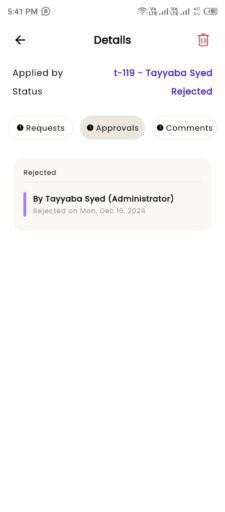
- Approvals Tab: Shows the name and designation of the approver who reviewed and rejected the request. It may also include the date and time of the rejection for better tracking.
-
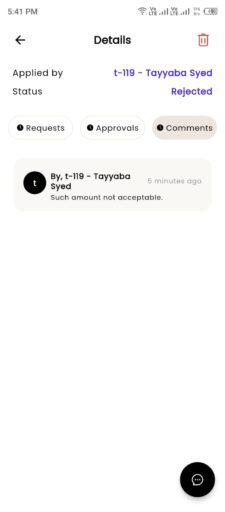
- Comments Tab: Provides detailed feedback or reasons for the rejection, as shared by the approver. This may include information on errors, missing documents, or policy violations, allowing you to understand the rejection and address any issues in future submissions. By clicking comments icon in bottom right corner you can write the comment also.
Loan
The Loan feature enables employees to see their loan applications and track their loan requests directly through the app. Employees can view the status of all their loan requests, categorized as Pending, Approved, and Rejected for better transparency and tracking. To use this feature:
- Click the Services icon from the bottom navigation bar on the home screen.
- Click Loan
Pending
In the Pending section, you can view all your loan requests that are awaiting approval.
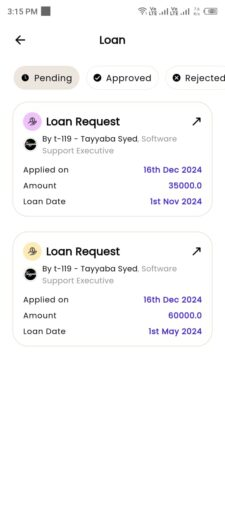
- By clicking a specific request, you can access detailed information organized into the following tabs:
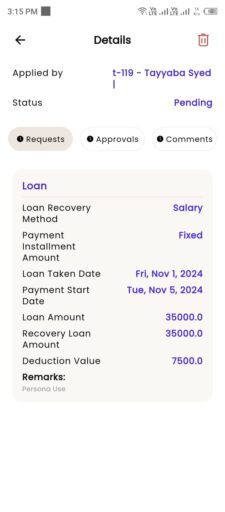
- Requests Tab: Displays the details of your loan request, such as the amount, duration, and reason.
-
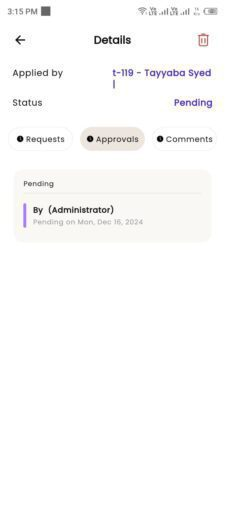
- Approvals Tab: Shows the name of the approver responsible for reviewing and approving your request.
-
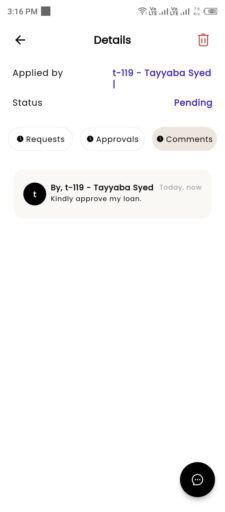
- Comments Tab: Lists any comments or feedback provided by the approver or the employee itself. By clicking comments icon in bottom right corner you can write the comment also.
Approved
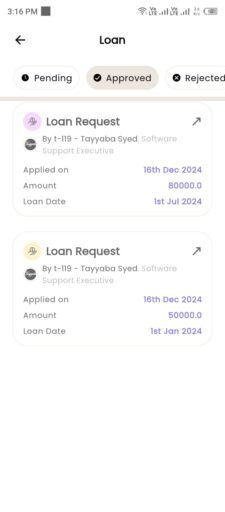
In the Approved section, you can view all your approved loan requests.
- By clicking a specific request, you can access detailed information organized into the following tabs:
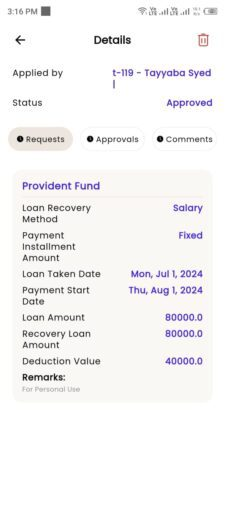
- Requests Tab: Displays the details of your approved loan request, such as the amount, duration, and repayment schedule.
-
- Approvals Tab: Shows the name of the approver who approved your request.
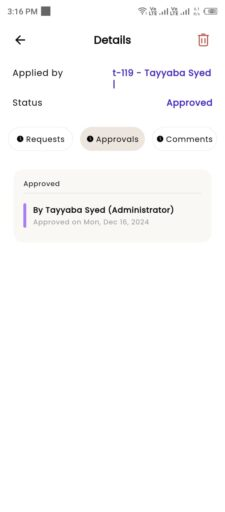
-
- Comments Tab: Lists any comments or feedback provided during the approval process or employee itself.
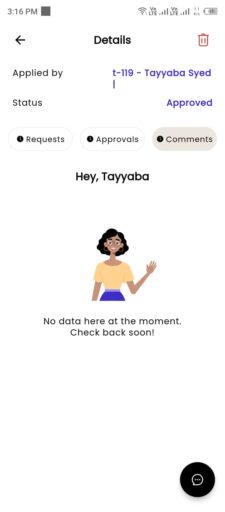
Rejected
In the Rejected section, you can view all your rejected loan requests.
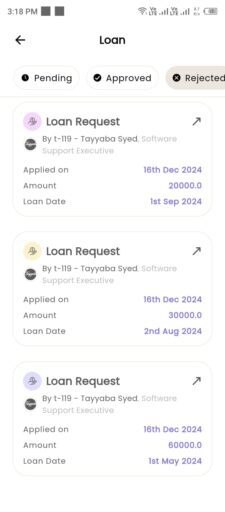
- By clicking a specific request, you can access detailed information organized into the following tabs:
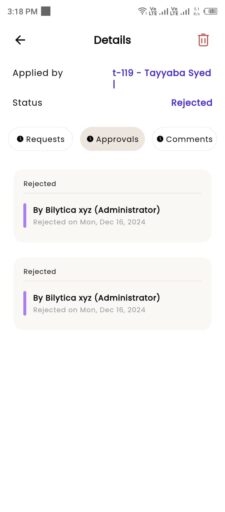
- Requests Tab: Displays the details of your rejected loan request, such as the amount, duration, and reason.
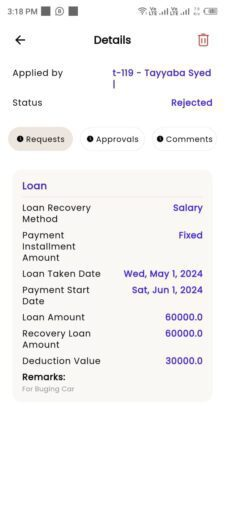
- Approvals Tab: Shows the name of the person who rejected your request.
-
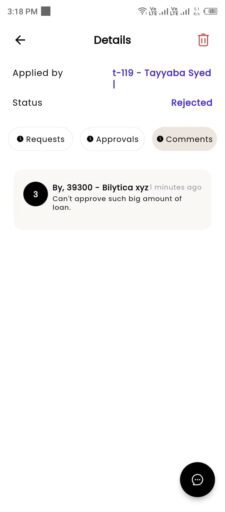
- Comments Tab: Lists any comments or reasons provided for the rejection. By clicking comments icon in bottom right corner you can write the comment also.
How to View Payslips in PayPeople Mobile App?
The PayPeople Mobile App makes it easy for employees to access and download their payslips. Follow these steps to view your payslips:
- Log in to the App:
Open the PayPeople Mobile App and log in using your credentials. - Navigate to the Payslips Section:
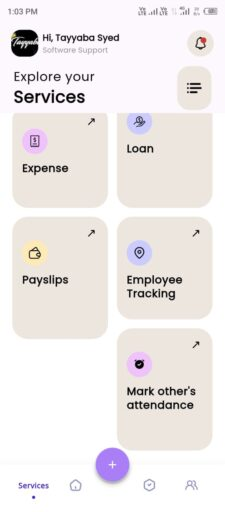
- From the home screen, tap on the Services icon located in the bottom navigation bar.
- Select the Payslips option from the available services.
- View Payslip History:
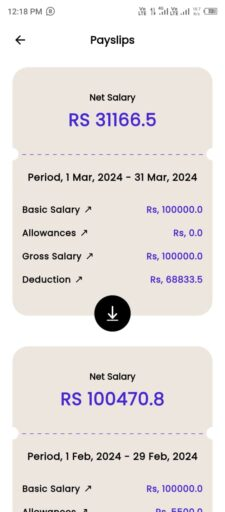
- A list of all your payslips will be displayed, categorized by month and year.
- Download:
- You have options to download it by clicking download icon.
- Details Available on Payslip:
- Your payslip will show detailed information such as:
- Basic Salary
- Allowances
- Gross Salary
- Deductions (e.g., tax, provident fund)
- Your payslip will show detailed information such as: