Notifications in PayPeople App
The Notifications section in the PayPeople app keeps employees informed about important updates and actions. Users can view their notifications for accepting leaves, loans, expense request etc.
The Notifications feature in the PayPeople app ensures users stay updated on critical updates and tasks seamlessly.
- Click Notifications Icon on top right corner from the home screen.
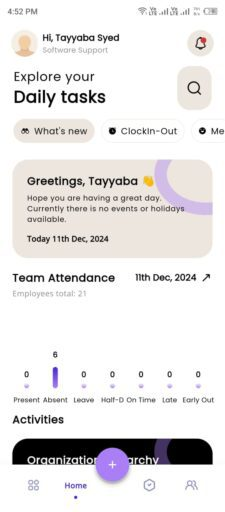
Here’s an overview of the notification categories:
Notification Categories
-
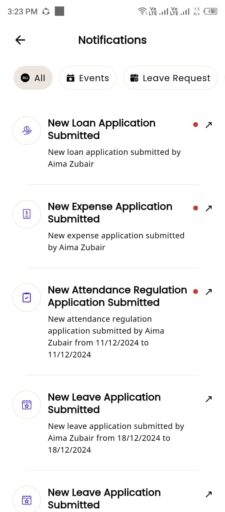
All
- Displays all types of notifications in one consolidated view for easy access.
-
Events
- Click events.
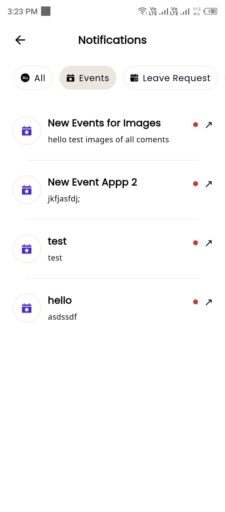
- Alerts related to company events, meetings, or announcements.
- By clicking an event, you can view its details. If the admin has enabled comments, you can also add your comments on the event by clicking write a comment.
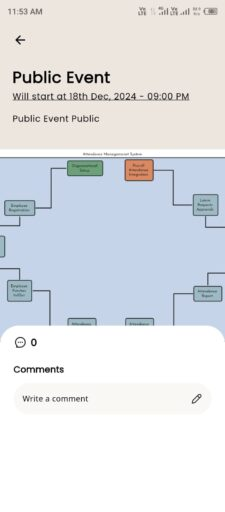
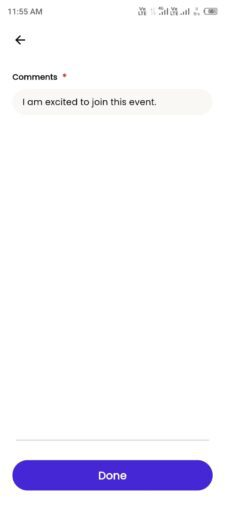
- Write comment > Done.
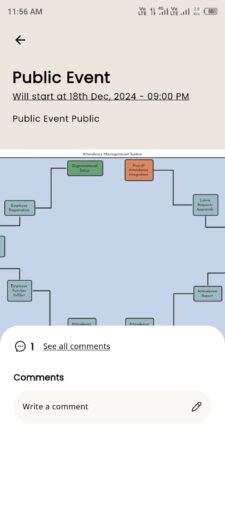
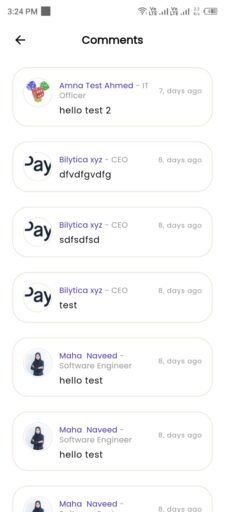
- After done, you can view yourself and other employees comments by clicking see all comments.
-
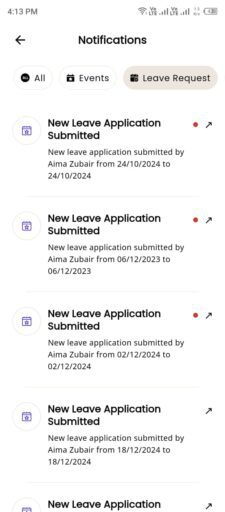
Leave Requests
- Click Leave Requests.
-
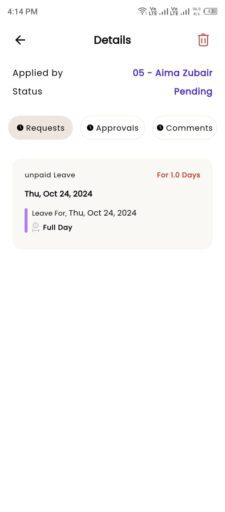
- In request tab, you can view leave details.
- In approvals tab, you can view the approver’s name.
- In the comments tab, if someone writes a comment, it will be visible.
- If you are a admin you can also delete the request.
-
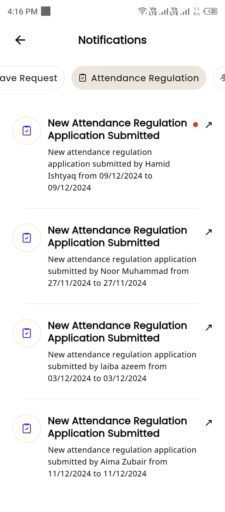
Attendance Regulation
- Click Attendance Regulation to see attendance notifications.
-
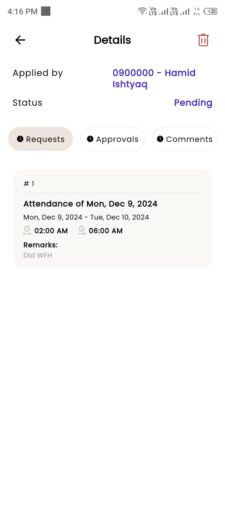
- In request tab, you can view details.
- In approvals tab, you can view the approver’s name.
- In the comments tab, if someone writes a comment, it will be visible.
- If you are a admin you can also delete the request.
-
Loan
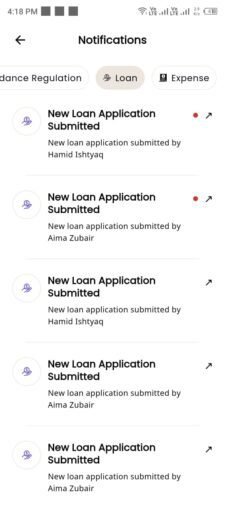
- Click Loan to see loan notification.
-
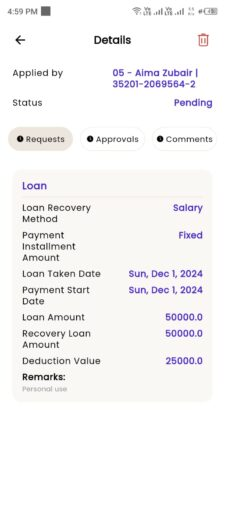
- In request tab, you can view loan payment details.
- In approvals tab, you can view the approver’s name.
- In the comments tab, if someone writes a comment, it will be visible.
- If you are a admin you can also delete the request.
-
Expense
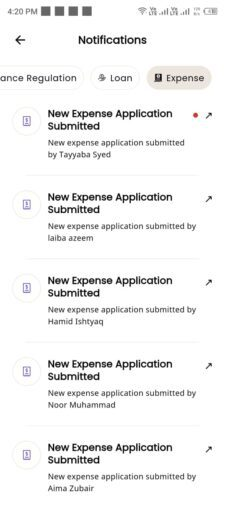
- Click Expense to see expense notifications.
-
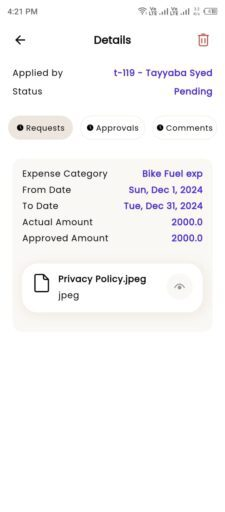
- In requests tab, you can view request details.
- In approvals tab, you can view the approver’s name.
- In the comments tab, if someone writes a comment, it will be visible.
- If you are a admin you can also delete the request.
How to View Your Team Members?
- Click search icon on the home screen to view your reporting team. For further details click on Team link.
Dashboard Overview
The Dashboard in the PayPeople App serves as a centralized hub, offering users a quick glance at important information and actionable insights. Here’s a detailed overview of its features and functionality:
- You can view event notification on dashboard.
- By clicking the arrow in the event section, you can view the event details and add comments to the event.
Comments can only be added if the admin has granted access to comment on the event.
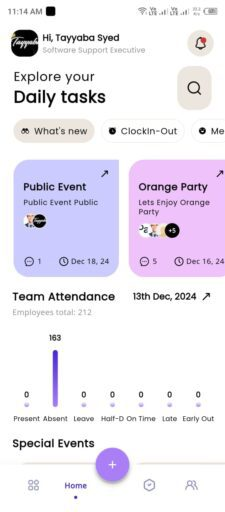
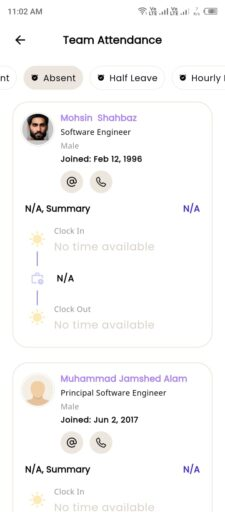
- You can view the current day’s attendance for your reporting team, and by clicking on the arrow, you can see your reporting team list attendance status such as present, absent, half leave, hourly leave, leave, missing out, missing in, lateness, early out, on-time, holiday, as well as detailed attendance records of your reporting team.
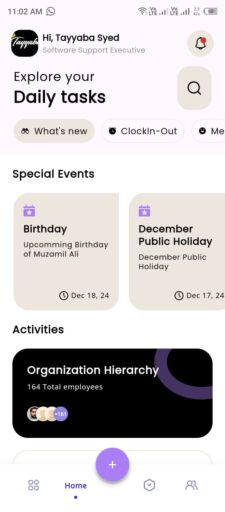
- You can also view special events on the dashboard, such as birthdays, public holidays, and job anniversaries.
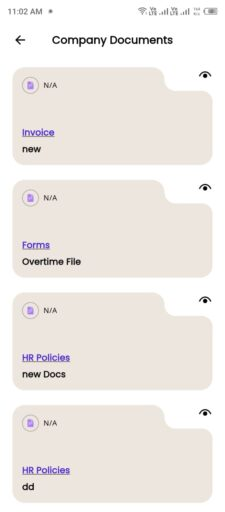
- You can also view company documents uploaded by HR or Admin.
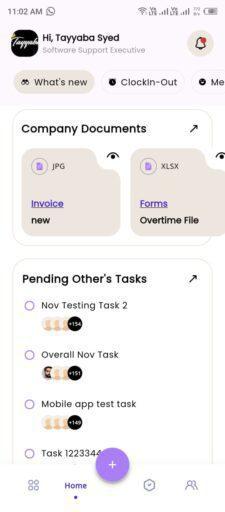
- By clicking the arrow icon on document section, you can view a list of documents and download them by selecting the desired document.
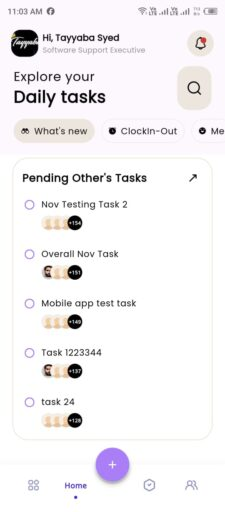
- You can view tasks related to your team.
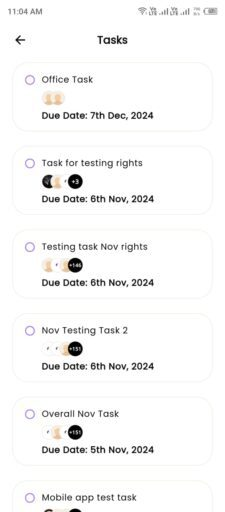
- By clicking the arrow icon on task section, you can see the task list along with the assigned team members.
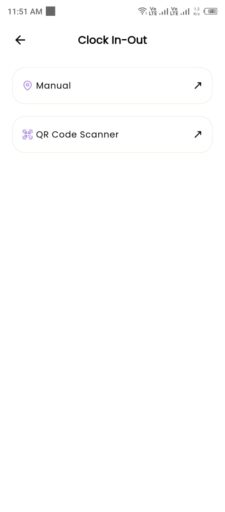
How to Clock In and Clock Out in the PayPeople Mobile App
- Access the Clock In/Out Tab:
- From the dashboard screen, click on the Clock In-Out tab.
- Clock In:
- Click the Play Button to clock in.
- Once clocked in, your attendance hours will be displayed on the play icon.
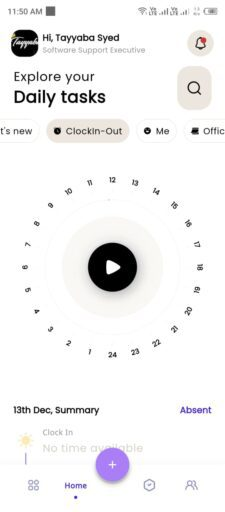
- Clock Out:
- Click the Clock Out Button to clock out.
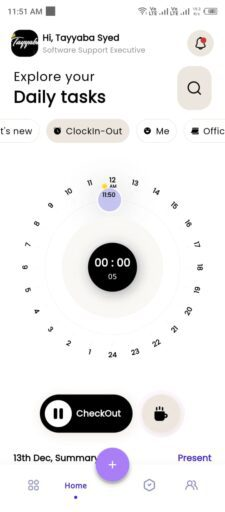
- Attendance Details:
- You can view your attendance details by scrolling down the screen.
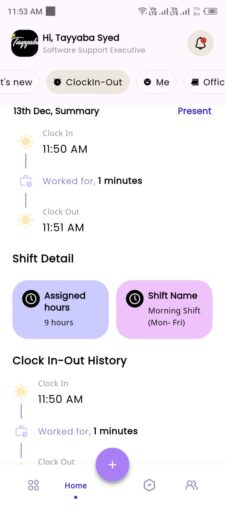
How to View Your Profile Details?
To view your profile details in the PayPeople Mobile App, follow these steps:
- Open the PayPeople Mobile App: Launch the PayPeople app on your mobile device and log in using your credentials.
- Navigate to the Home Screen: After logging in, you will be directed to the home screen.
- Access the “Me” Tab: On the home screen, locate and tap on the “Me” tab.
Leave Balance:
- You can view all your leave balances by swapping between the different leave types.
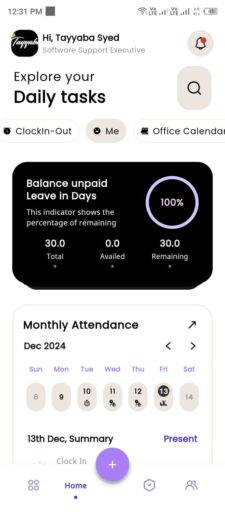
My Attendance
- You can view your current month’s attendance and today’s clock-in and clock-out details.
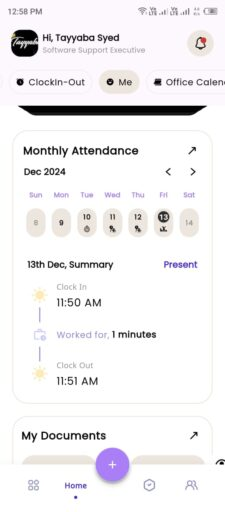
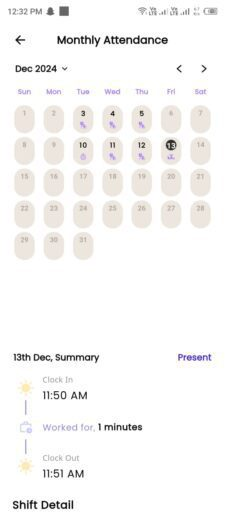
- By clicking the arrow icon in the monthly attendance section, you can view attendance details for any specific month or day as per your requirement.
My Documents:
- The Documents section in the PayPeople Mobile App allows employees to access your personal records. All relevant documents will be visible to you here.
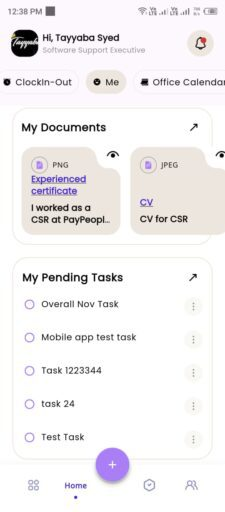
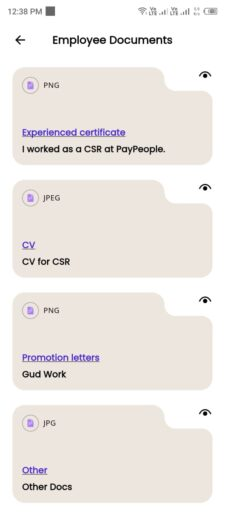
- By clicking the arrow icon in the My Documents section, you can view the list of your documents. Select a document to open and view it, and you also have the option to download it directly from this section.
My Pending Tasks
The My Pending Tasks section in the PayPeople Mobile App allows employees to keep track of their assigned tasks and any outstanding actions.
- In “Me” tab you can view your pending tasks list.
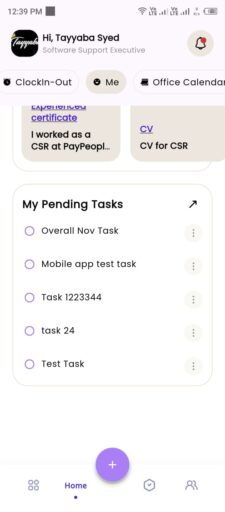
- By clicking the arrow icon in the My Pending Tasks section, you can view the list of your pending task.
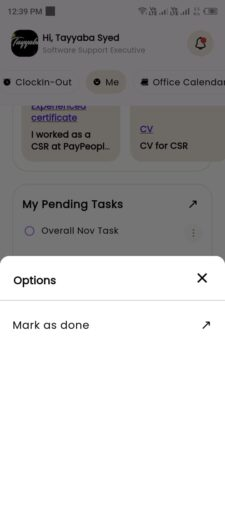
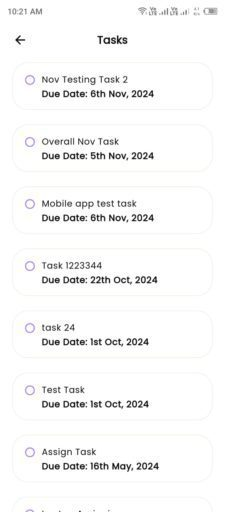 Click on the dots icon next to the task you want to complete.
- A popup window will appear. Select “Mark as Done”.
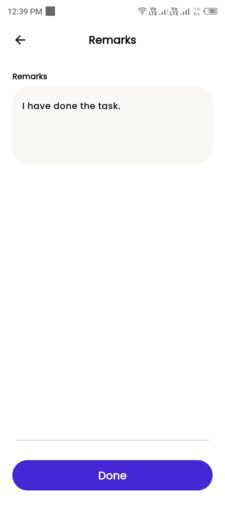
- A new screen will open where you can write any remarks related to the task. Once you’ve added your remarks, click Done.
Office Calendar
The Office Calendar in the PayPeople Mobile App provides employees with an organized view of key dates, events, leaves, birthdays and anniversaries etc. Here’s how you can use this feature:
- Open the PayPeople Mobile App: Launch the PayPeople app on your mobile device and log in using your credentials.
- Navigate to the Home Screen: After logging in, you will be directed to the home screen.
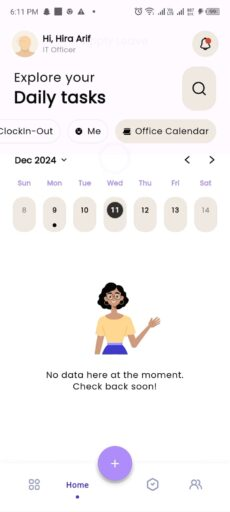
- Access the “Office Calendar” Tab: On the home screen, locate and tap on the “Office Calendar” tab.
- View Updates: Click on any specific date in the calendar. All events or updated related to that selected date will be displayed below the calendar.