How ESS Users Can View Their Attendance in the PayPeople Mobile App
The PayPeople Mobile App makes it easy for ESS (Employee Self-Service) users to view their attendance records. Users can track their attendance history, check-in and check-out details, and ensure that their attendance data is accurate.
Steps to View Attendance:
- Log in to the Mobile App:
- Open the PayPeople Mobile App on your device.
- Enter your credentials and log in.
- Access the Attendance Section:
- From the home screen, tap on the ‘Me’ tab.
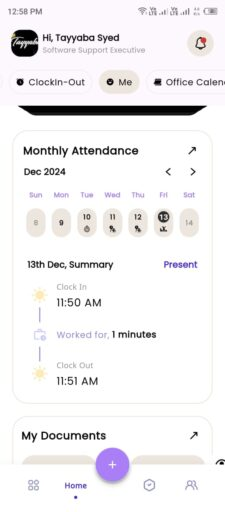
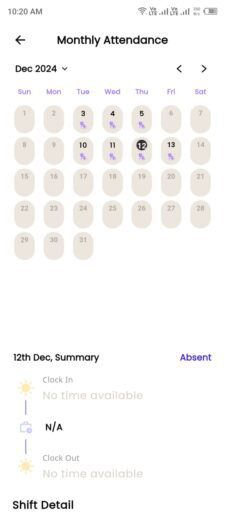
- You can view your current month’s attendance in Monthly Attendance section and today’s clock-in and clock-out details.
-
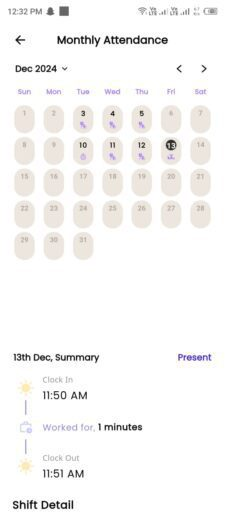
- By clicking the arrow icon in the monthly attendance section, you can view attendance details for any specific month or day as per your requirement.
How to View Your Team’s Current Day Attendance in the PayPeople Mobile App
If you are a supervisor or manager with team management privileges, the PayPeople Mobile App allows you to view and monitor the attendance records of your team members. This feature provides transparency and helps ensure that your team complies with attendance policies.
Steps to View Team Current Day Attendance:
- Log in to the Mobile App:
- Open the PayPeople Mobile App and enter your credentials to log in.
- Navigate to Team Attendance:
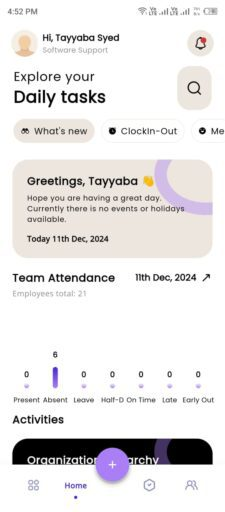
- From the home screen, tap on the What's new tab.
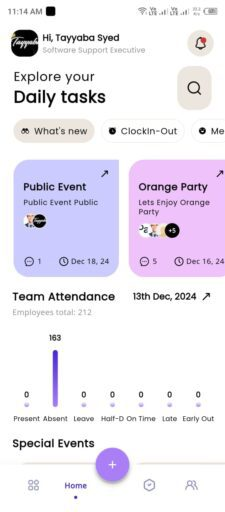
- Click arrow icon in Team Attendance section
-
- You can view the current day’s attendance for your reporting team, and by clicking on the arrow, you can see your reporting team attendance status such as present, absent, half leave, hourly leave, leave, missing out, missing in, lateness, early out, on-time, holiday, as well as detailed attendance records of your reporting team.
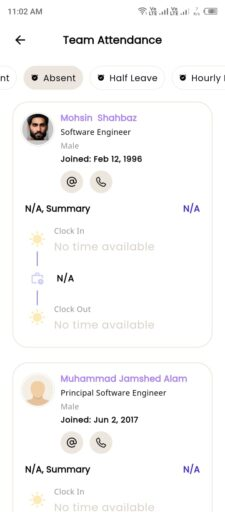
How to View Reporting Team Attendance for a Specific Date in the PayPeople Mobile App
As a manager or supervisor, you can view the attendance records of your reporting team for any specific day, month, or year in the PayPeople Mobile App. This feature provides a detailed overview of your team’s attendance and helps with performance tracking, ensuring compliance with attendance policies.
Steps to View Reporting Team Attendance for a Specific Date:
- Log in to the Mobile App:
- Open the PayPeople Mobile App and log in using your credentials.
- Navigate to Team Attendance:
- Click search icon on the home screen.
-
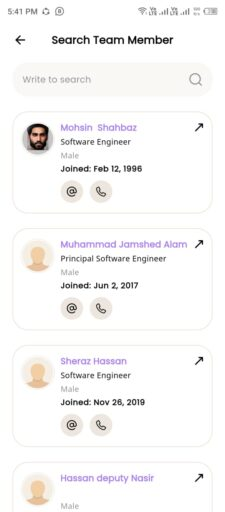
- Team list will show.
-
- By clicking the arrow icon next to a specific employee, you can view their profile details, including their personal information, team members, monthly attendance, leave balances, and pending tasks.
- By scrolling down on an employee’s profile, you can view your team member’s current day attendance. To view attendance for other months, click on the arrow located in the top right corner of the monthly attendance section.
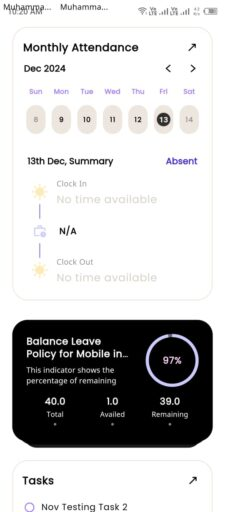
- By clicking arrow you can view any month attendance and per day attendance details.
How to Mark Attendance for Other Employees
In the PayPeople Mobile App, an employee can mark the attendance of other employees if the admin has granted the necessary permissions. If you have been authorized to do so, follow these steps to mark or adjust another employee’s attendance:
- Log in to the App:
Open the PayPeople Mobile App and log in using your credentials. - Navigate to the Mark Other’s Attendance Section:
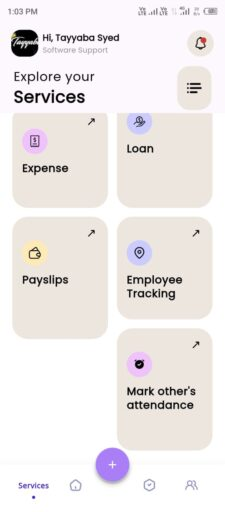
- From the home screen, tap on the Services icon located in the bottom navigation bar.
- Select the Mark Other’s Attendance option from the available services.
- Mark Attendance:
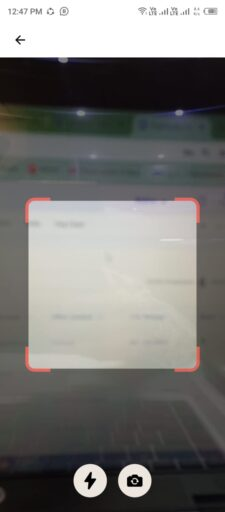
- Once in the Attendance section, your camera will automatically be activated.
- Scan the QR code provided by the Admin or HR team. This QR code will be unique for each employee.
- Click Done:
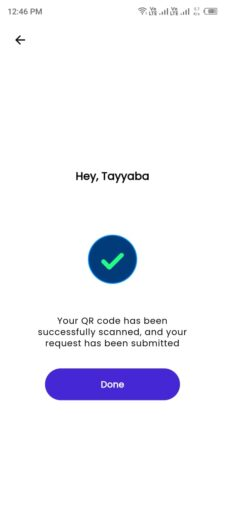
- After scanning the QR code, the employee’s attendance will be marked automatically. A success screen will appear, confirming that the attendance has been successfully recorded.
- Tap the Done button to complete the process.