To screen applicants and set up structured interviews:
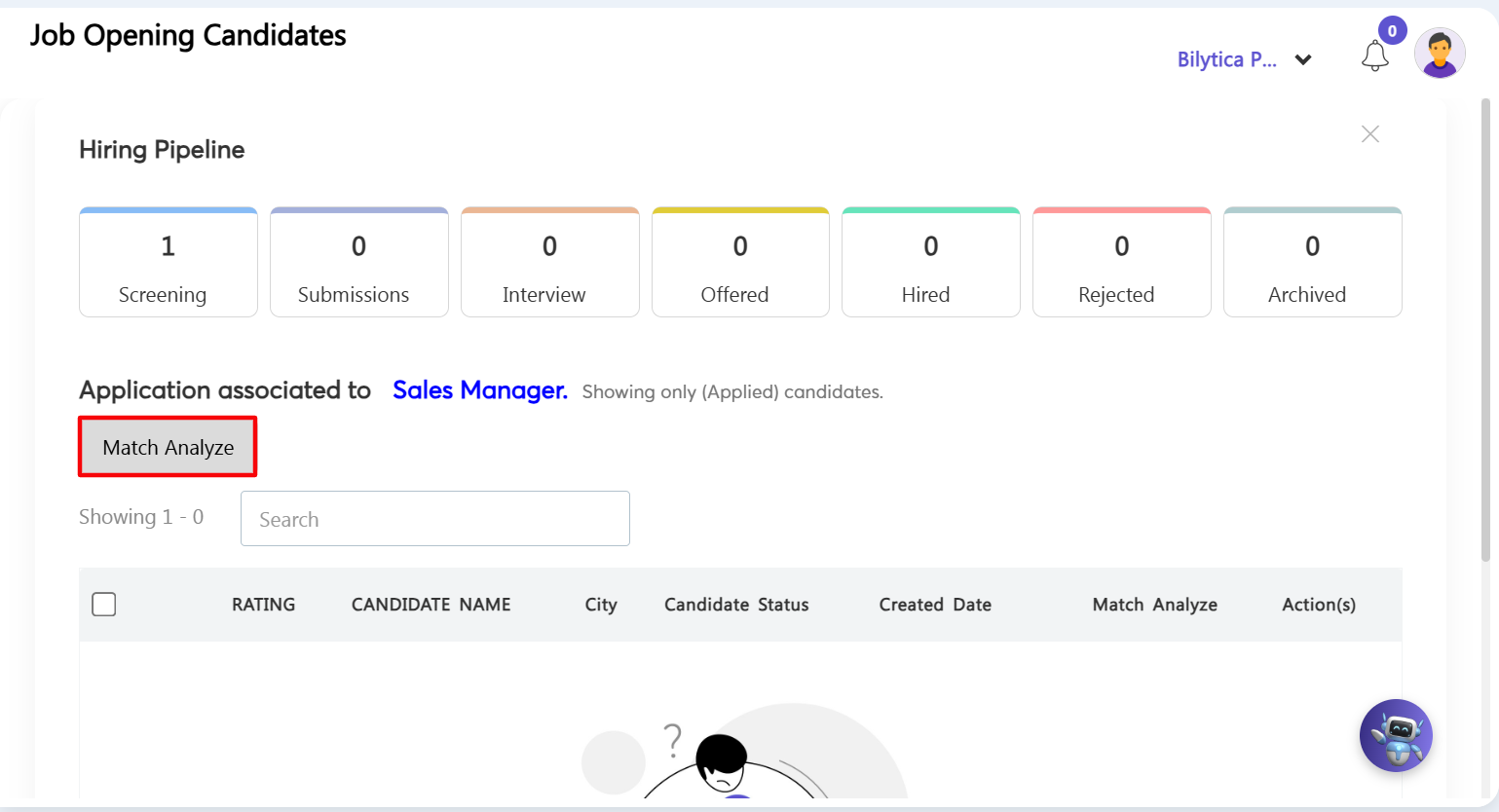
- Step 10: Run AI Resume Screening — Go to the candidate grid view inside Job Openings. Click Screening > Applied, select a candidate's profile, and click Match Analyze (marked with a red box). The AI will instantly score the resume against your job requirements, tagging the candidate as a High, Medium, or Poor match.
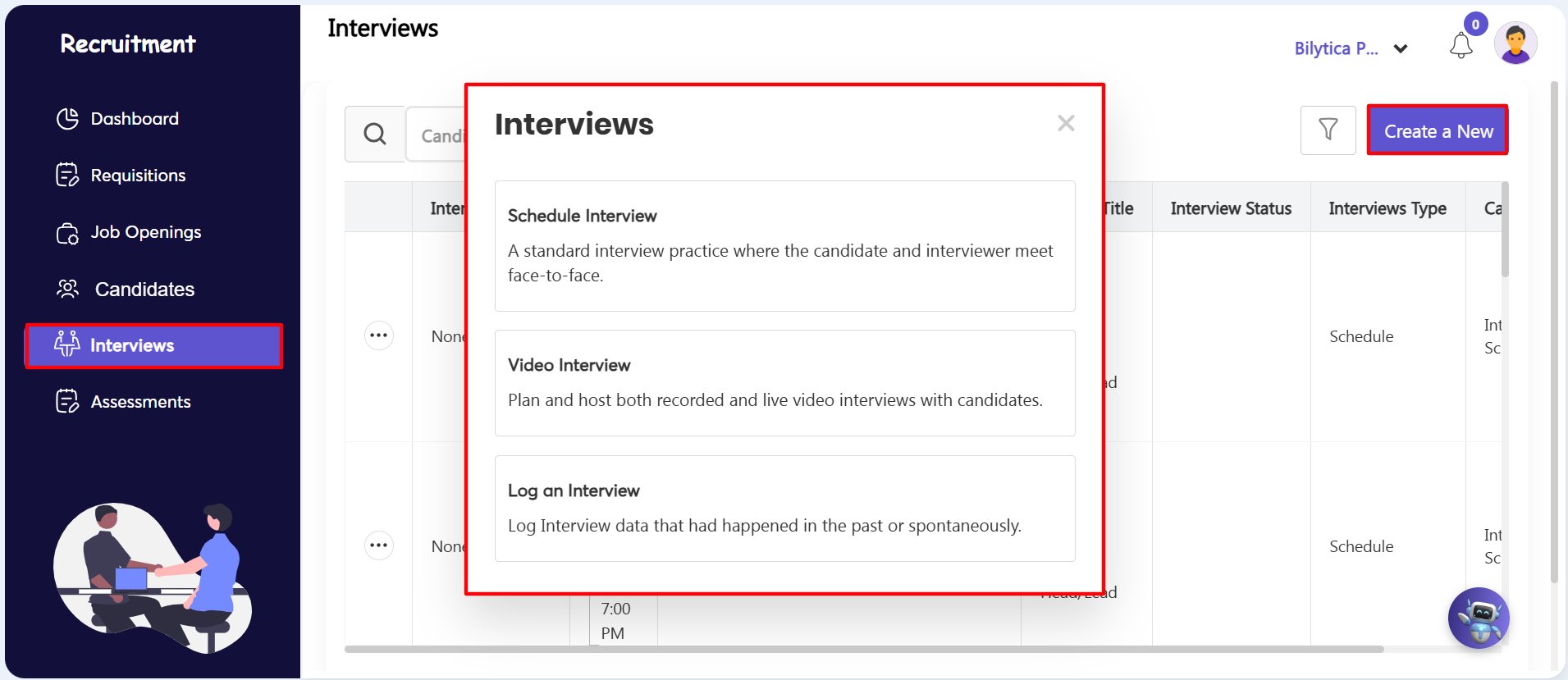
- Step 11: Set Up the Interview — Go to the main Interviews tab at the top, click Create a New, and choose one of three interview options:
- Option A: Onsite Interviews — Select Onsite, then enter the interviewer's name, date, time, and office location. Click Send Email to instantly send calendar invites and email notifications to both the candidate and interviewer.
- Option B: Recorded Online Assessments — Select Recorded to create a video questionnaire. Choose a skills test template and send the link so candidates can record and submit their video responses online.
- Option C: Live Online Interviews (Agora Integration) — Select Live to launch a virtual video interview. Powered by PayPeople's built-in Agora engine, your team can conduct live, face-to-face video panels directly inside the web browser without needing external apps like Zoom or Google Meet.
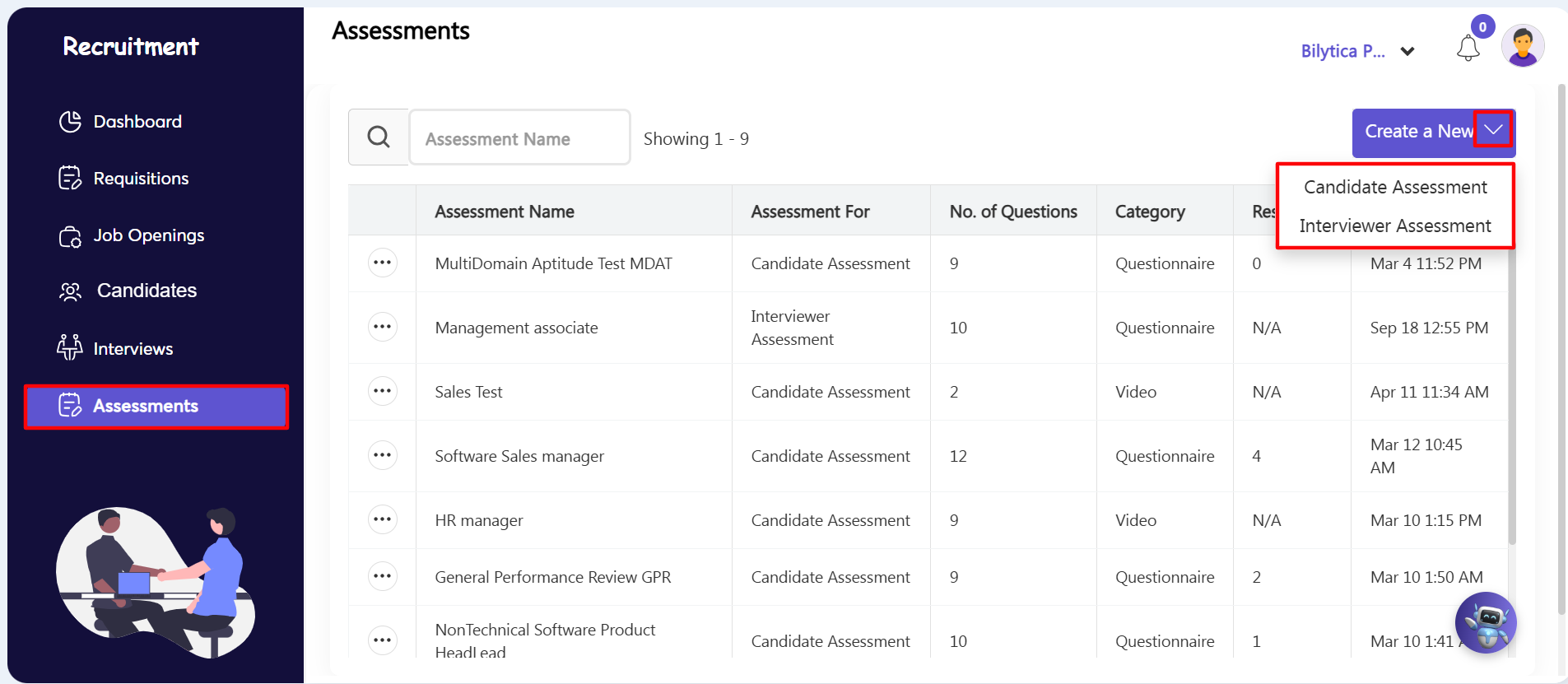
Step 12: Set Up Custom Assessments — Go to the Assessments tab to create structured verification scorecards for interviewers or candidates. You can click Blank Template to write your own evaluation questions manually, or type a topic into the Describe Topic field to let the AI instantly generate custom evaluation criteria. These finished assessment templates can be attached directly to job openings or interview schedules.