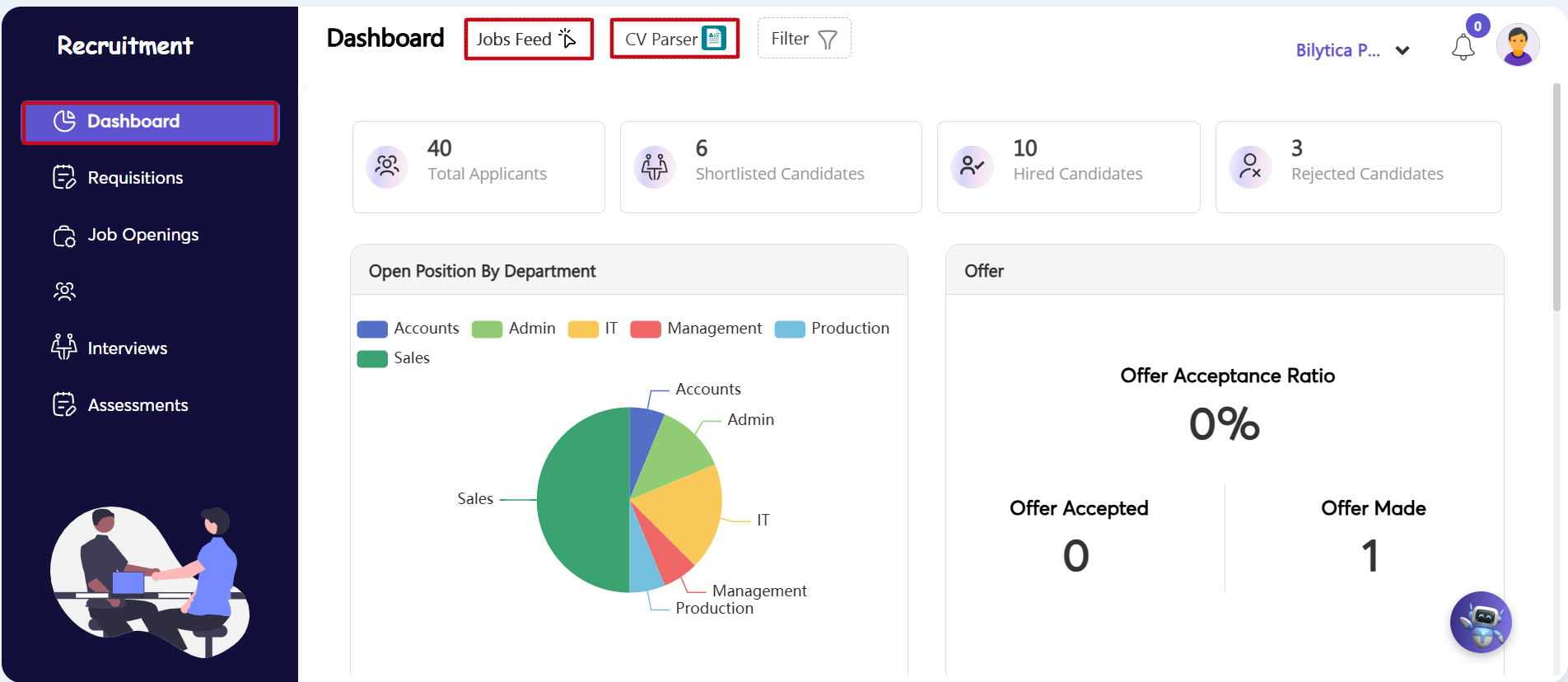
To access the main applicant dashboard and view high-level hiring metrics:
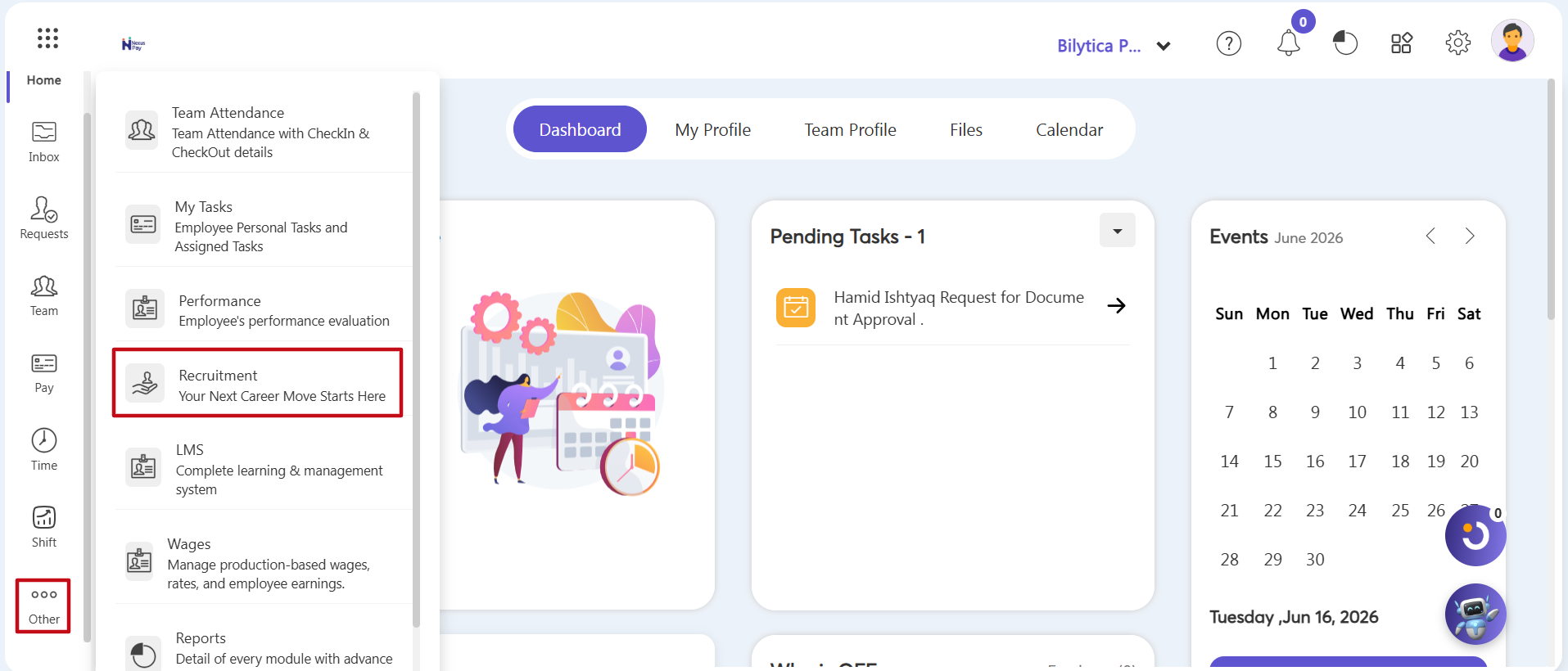
- Step 1: Open the Recruitment Panel — Go to the main left-hand vertical menu bar. Click on the three-dot icon at the bottom labeled Other (marked with a red box), and then select the Recruitment module card (marked with a red box).
- Step 2: Review Recruitment Metrics — The main dashboard displays high-level hiring graphs and numbers at a glance:
- Applicant Pipeline: Track totals for Total Applicants, Shortlisted, Hired, and Rejected Candidates.
- Open Positions by Department: View pie charts showing active job openings across teams like Accounts, Admin, IT, Management, Production, and Sales.
- Sourcing Channels & CV Parsing: Monitor where applicants are coming from (LinkedIn, Facebook, WhatsApp, X, etc.). Click the CV Parser button to instantly view automatically extracted resume data.