

For organizations deploying field teams or remote workforces, administrators can track live travel maps via mobile location telemetry paths:
Step 11: Launch Employee Tracking Interface — Click on the fourth horizontal category tab labeled Employee Tracking (highlighted with a red rectangular frame box) to populate the centralized geographical mapping interface container view.
Step 12: Query Paths and Replay Movement Logs — Utilize left margin control modules to track active location routes securely:
• Track Date Selector: Click the small calendar picker button icon (highlighted within a red box) to pick the specific day you want to audit.
• Search Employee Option: Key in your target field worker's name string inside the text lookup box container to automatically center the interactive map view on their location.
• Replay Path Playback Trigger: Click the inline play button icon shortcut (highlighted with a red rectangular box) positioned right next to the employee name row entry. This runs a dynamic route tracking line across the map layout, showing exactly how the employee moved from point A to point B with accurate timestamp notes (e.g., Date Time: 2026-03-26 09:23:58) to audit outdoor travel paths.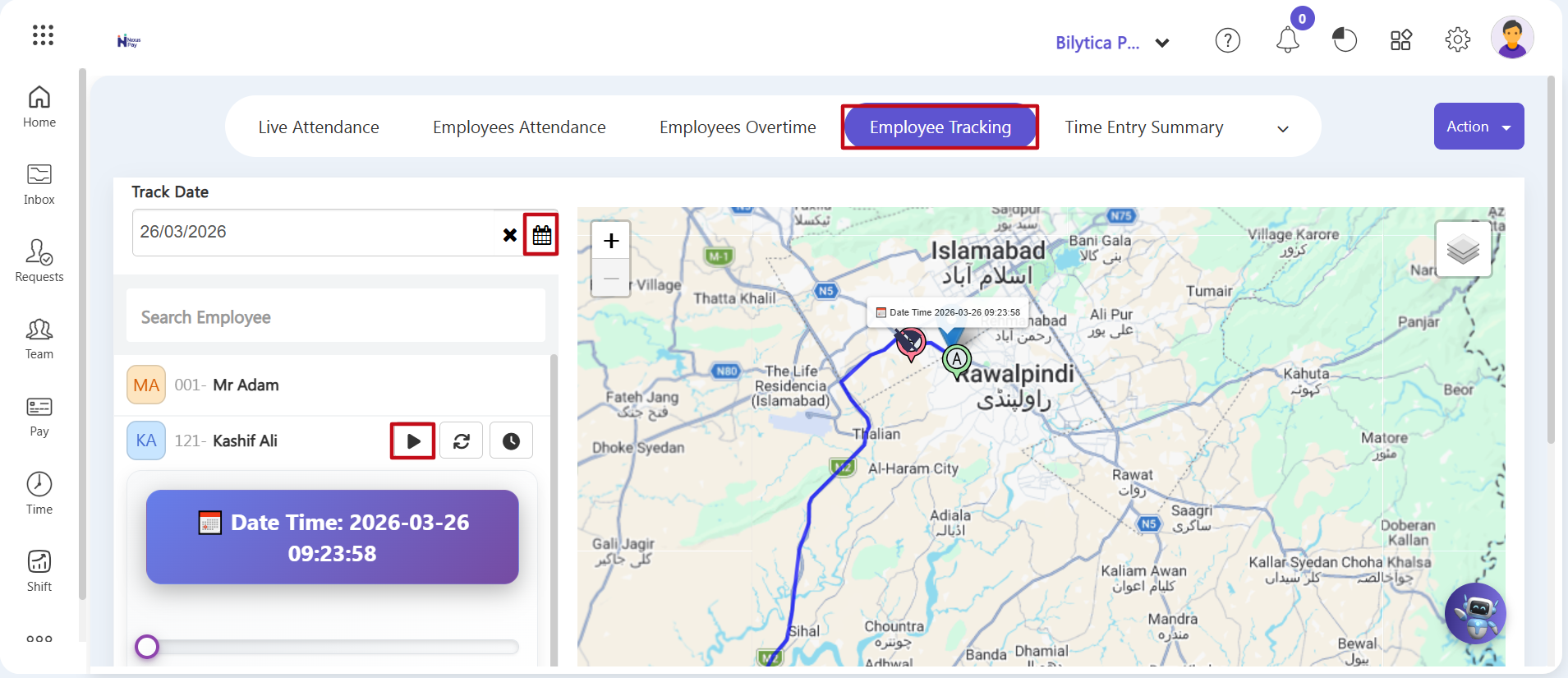
Time Synchronization Data Optimization Tip: |