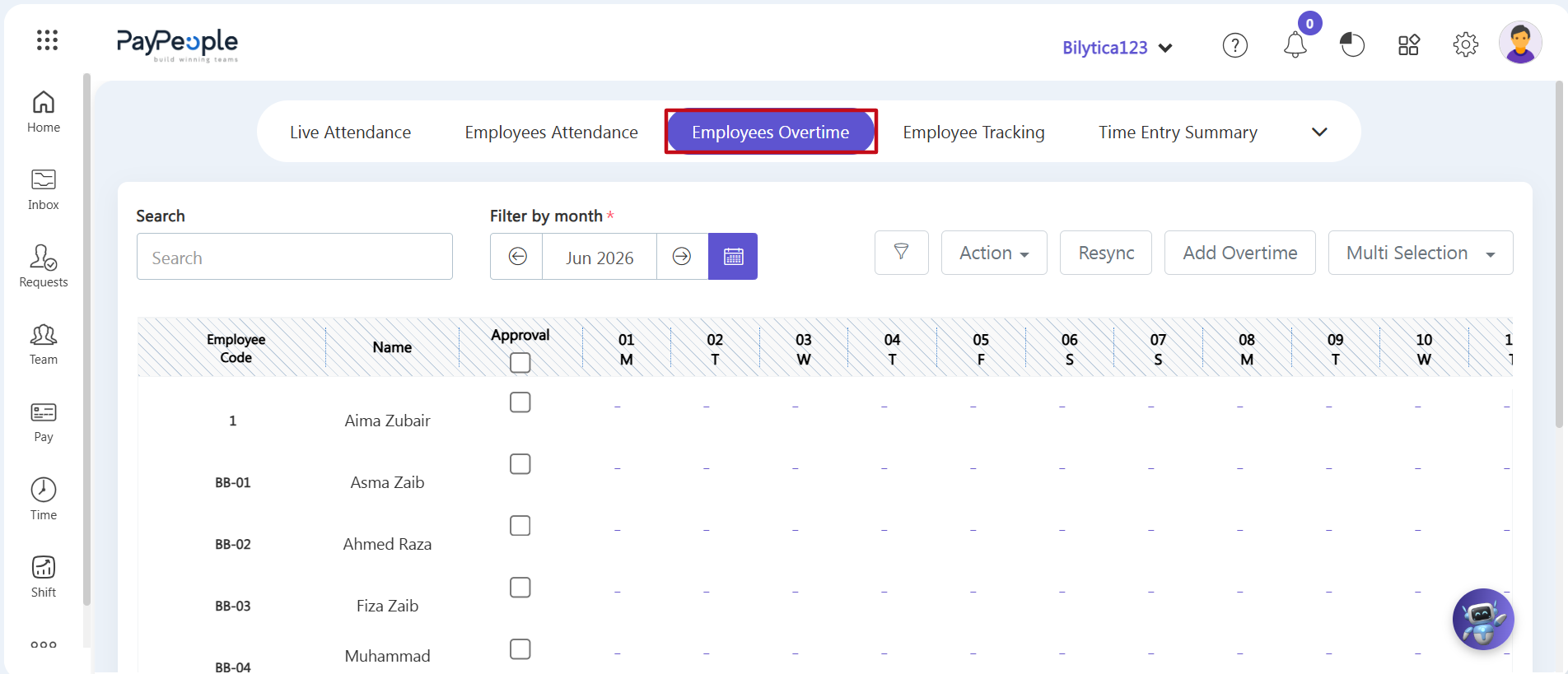
To review, change, and approve calculated overtime hours before running your upcoming monthly payroll:
Step 9: Open the Overtime Sheet — Click on the third tab at the top labeled Employees Overtime (marked with a red box) to open the main overtime approval list.
Step 10: Manage Overtime and Sync Changes — Look over the calculated hours for each date row. Managers can quickly approve or adjust these hours using the tools at the top of the screen:
- Bulk Approval and Changes: Check the boxes next to multiple employee names to change hours, approve records, or reject entries for several people at the same time.
- Add Overtime / Action Dropdown: Click the Add Overtime button to type in extra hours manually, or use the Action dropdown menu to upload bulk overtime spreadsheets.
- Resync Overtime Button: Click the white Resync button right after making any updates. This locks in the new hours and safely updates your active payroll records.