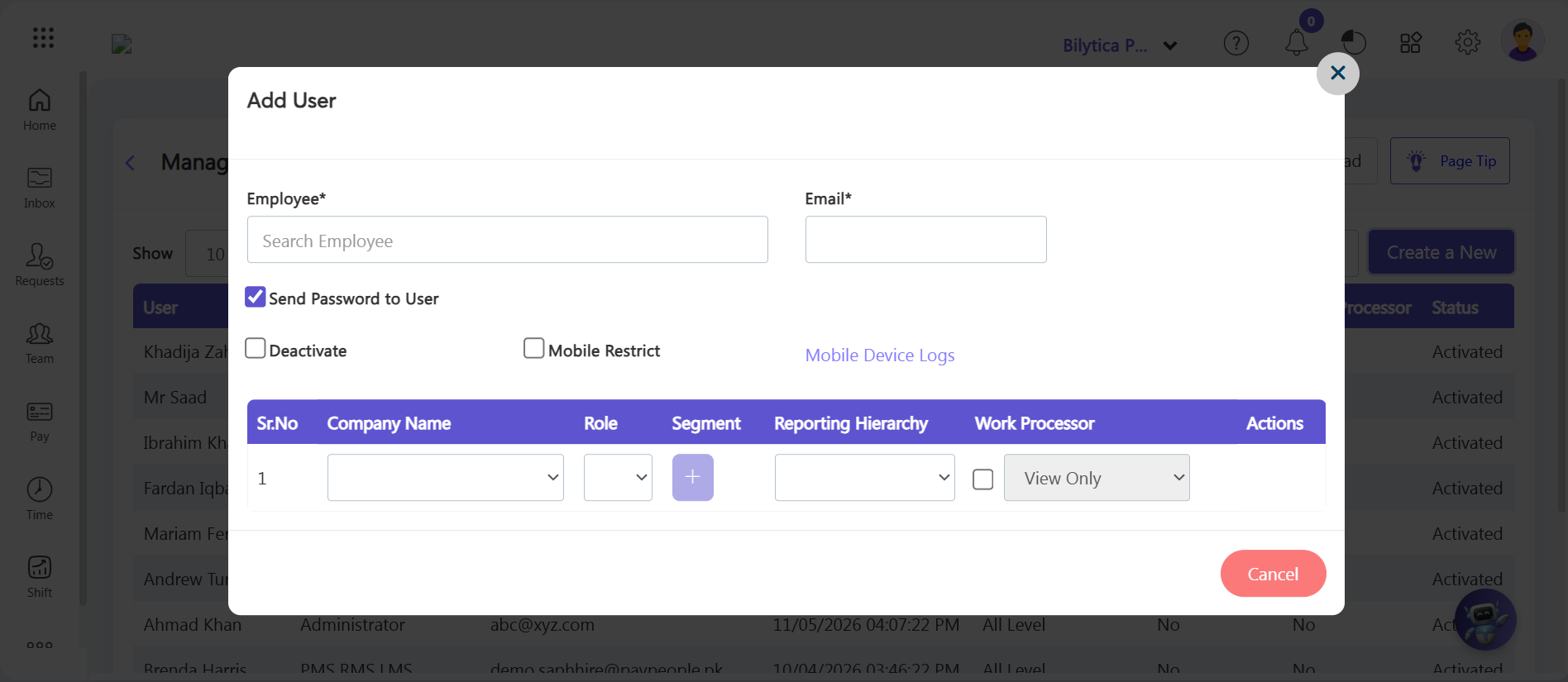
Once your permissions are saved, you can add user logins for your team using two simple methods:
• Bulk Upload Method: Go to Settings > Security > Manage Users and click the white Upload button on the right margin to import multiple accounts at once using a data spreadsheet template.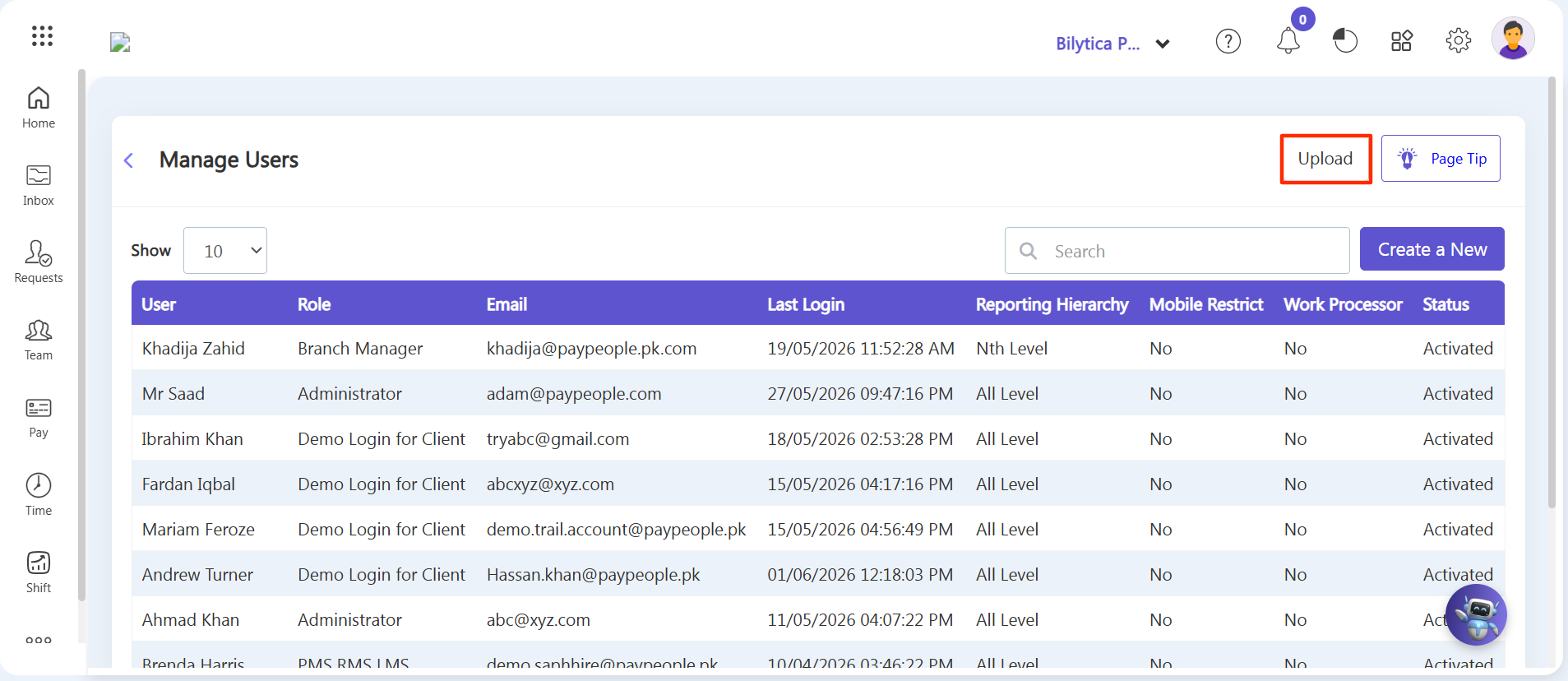
• Manual Method (Create Directly): Click the purple Create a New button on the Manage Users dashboard screen.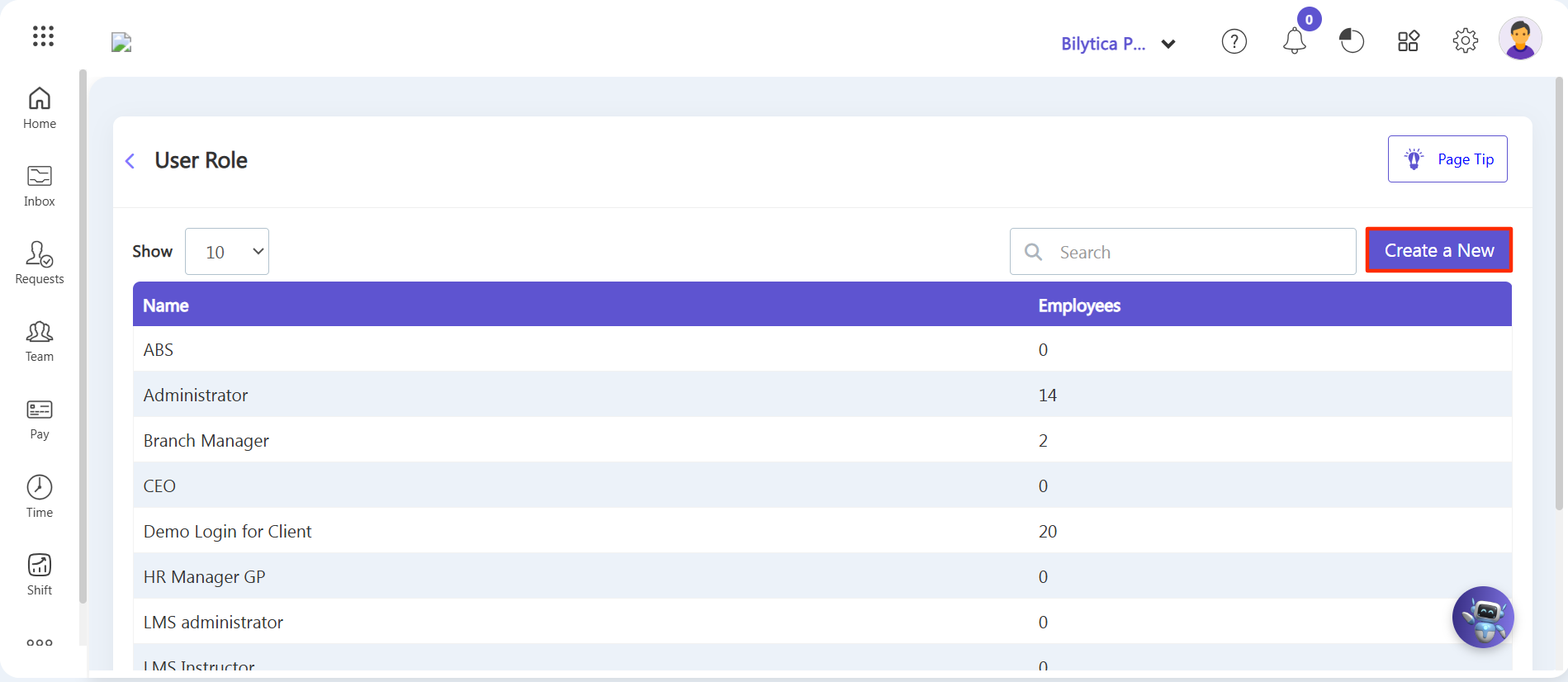
Step 1: Inside the Add User form, search and select the Employee's name.
Step 2: Assign a default startup Password. ( Note: Employees can easily change this password later on from their own settings panel).
Step 3: Select or assign how deep their Reporting Hierarchy map should be displayed on their view screen profile.
Step 4: Click the Save button to authorize their active login profile database connection.