

Running enterprise payroll requires specialized tools to handle non-fixed pay adjustments alongside basic salaries. The PayPeople system includes a dedicated Monthly Inputs feature designed to let payroll specialists map variable financial parameters—such as monthly commissions, performance bonuses, one-time rewards, non-fixed allowances, variable deductions, and ad-hoc company contributions—safely into active payroll runs for single employees or bulk groups.
1. Going to the Variable Monthly Inputs Panel
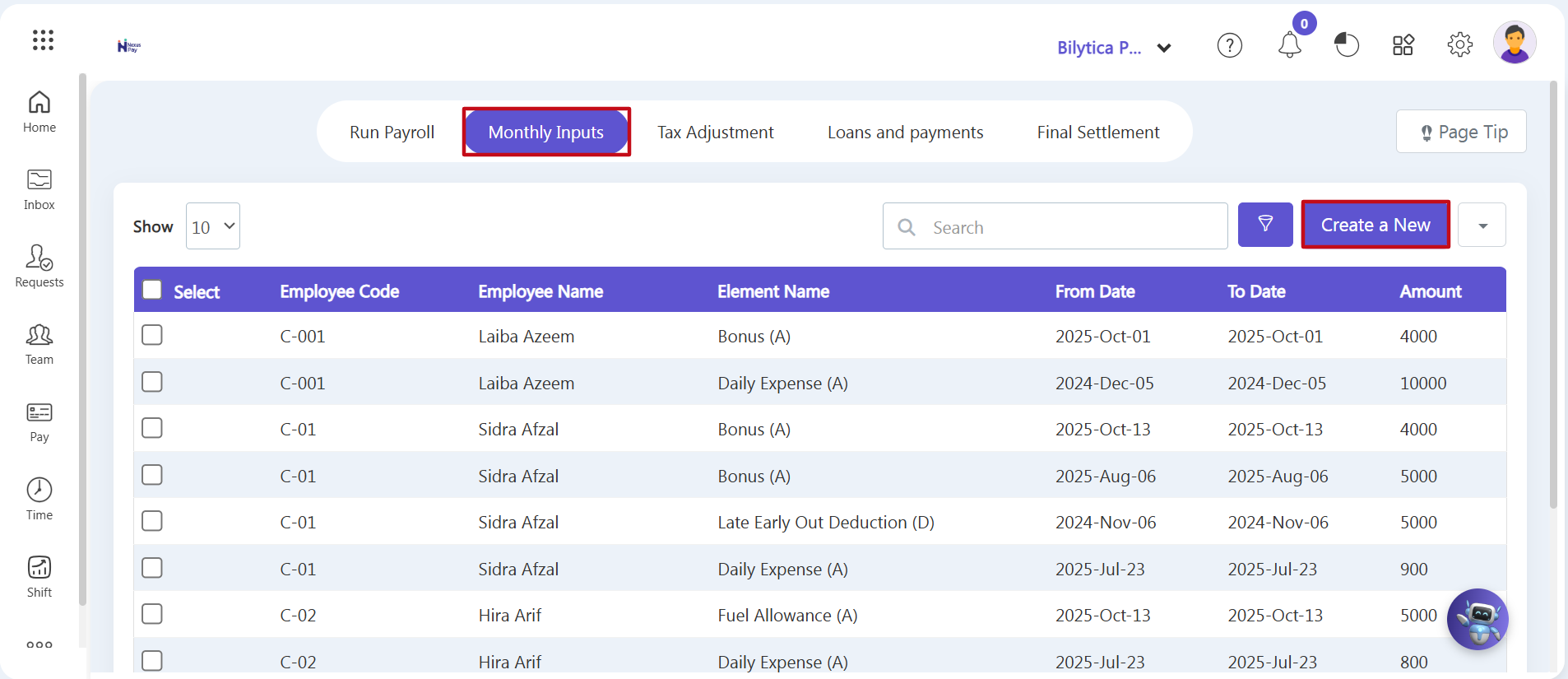
To open your system's centralized monthly inputs register and start a new transaction sheet:
- Step 1: Open the Pay Module — Go to the main left-hand vertical menu and click on the Pay icon box.
- Step 2: Open the Inputs Directory — Click on the second horizontal tab at the top titled Monthly Inputs.
- Step 3: Open the Entry Workspace — On the main monthly inputs index page, go to the top right toolbar and click the Create a New button.
2. Setting Scopes, Syncing Data, and Saving Records
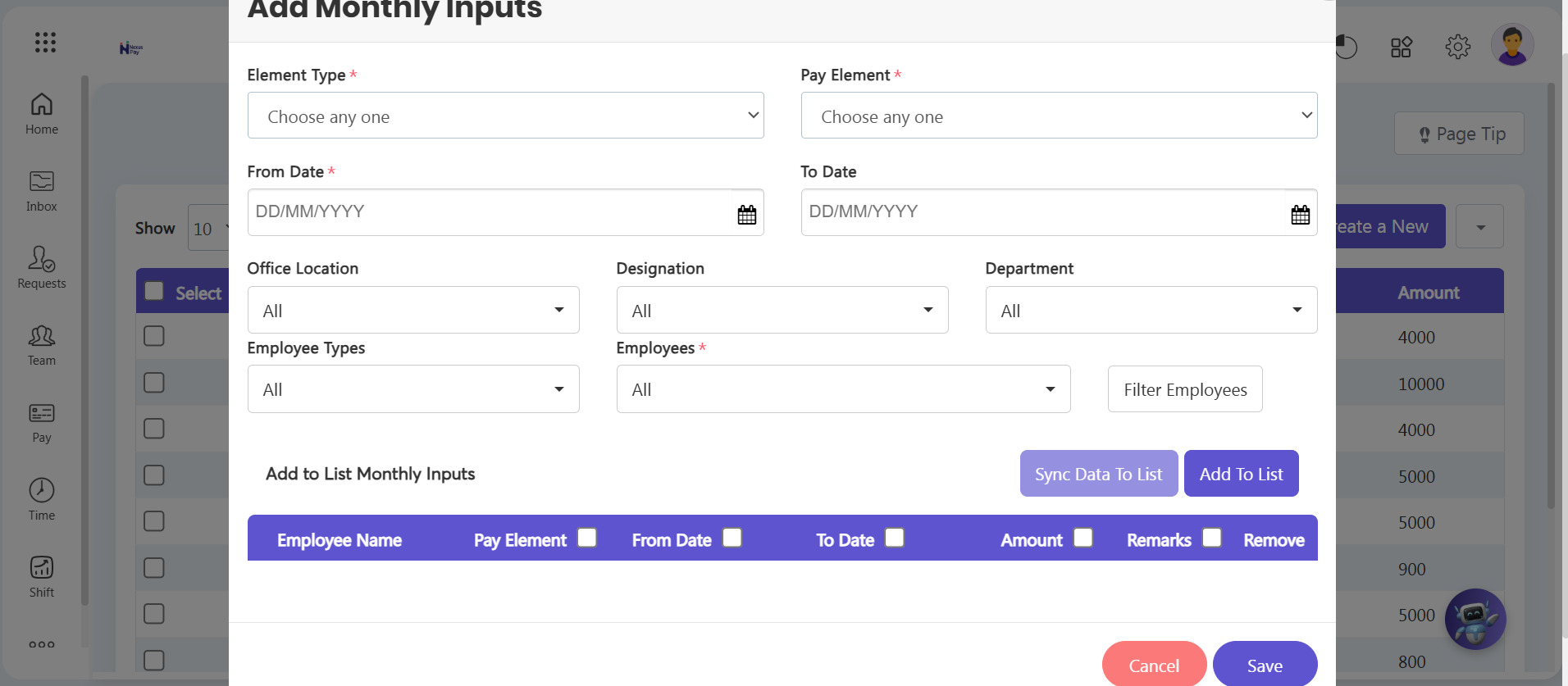
A setup wizard window will pop up on your screen. Fill out the target filtering fields and entry lines step-by-step:
- Step 4: Set Your Filtering Boundaries — Use the dropdown menus to choose who to include. You can select a single employee profile or filter groups across specific office locations, departments, and job designations to make bulk changes.
- Step 5: Pull Active Data Records — Once your filters are set, click the Sync Data to List button. The system will automatically pull up matching employee data rows in a clean list below.
- Step 6: Enter Variable Amounts — Scroll down the list to enter non-fixed adjustments row by row:
- Earnings Entry: Type the exact calculated amount next to the employee's name for specific parameters like monthly commissions, performance bonuses, one-time rewards, or custom allowances.
- Deductions & Contributions: Use the exact same grid cells to input non-fixed penalties, variable deductions, or individual company contributions.
- Save to Queue: Click the blue Add to List button to move individual lines into the active processing queue.
- Step 7: Save to the Database — Check your column totals, description notes, and employee codes. Once everything looks correct, click the Save button. The system will sync the datasets, instantly feeding your variable inputs directly into active Draft payroll calculations.
Variable Input Reconciliations Optimization Pro-Tip: |