

How to View Profile?
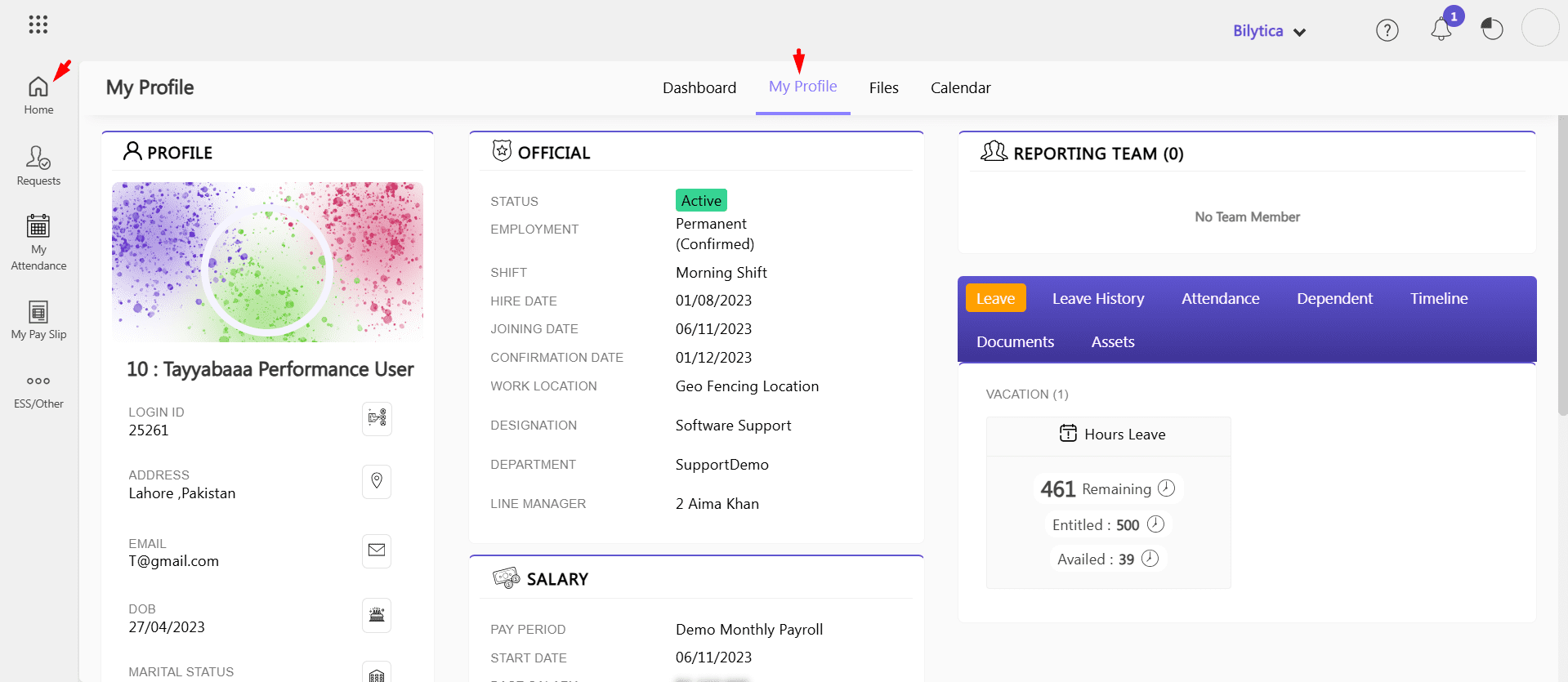
- Click My Profile from Home screen.
- You can view all of your information here.
How to view Documents?
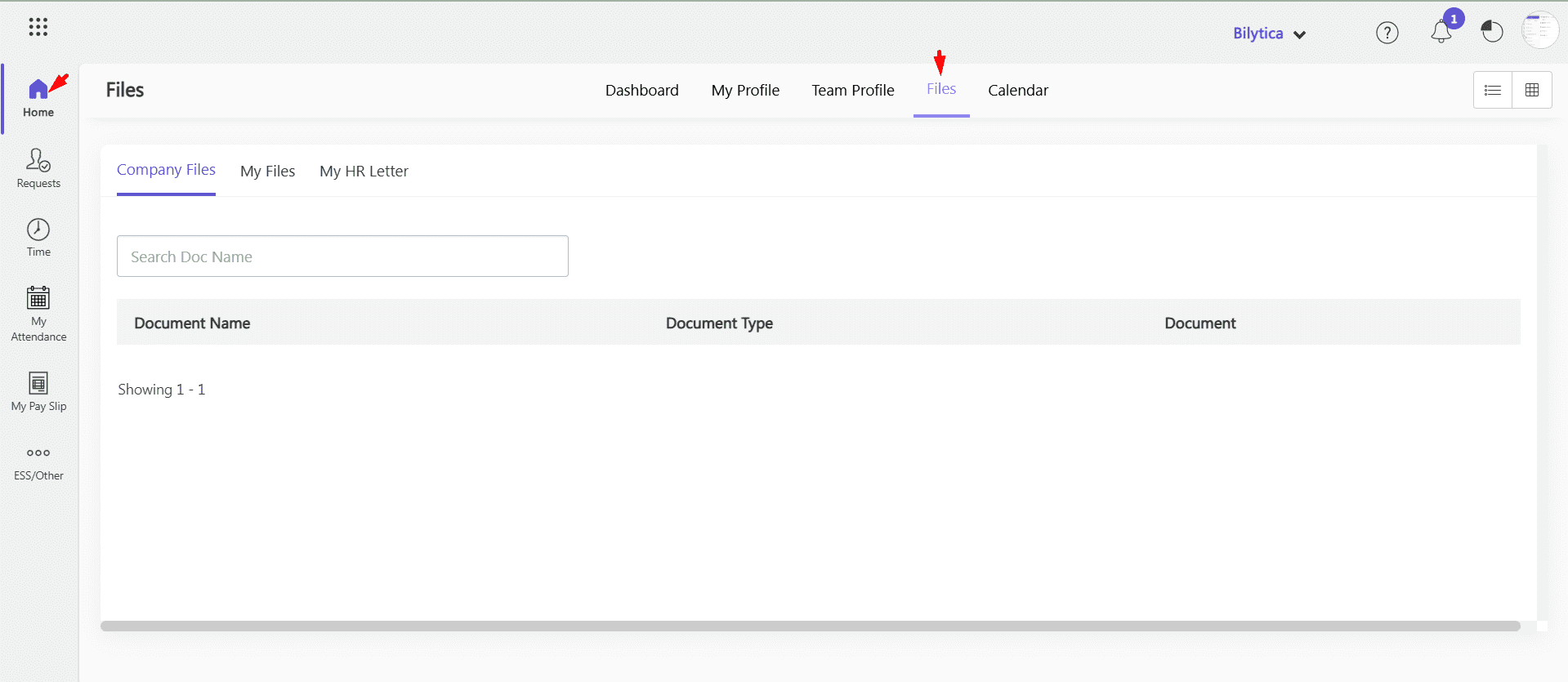
- To view your documents click Files from home screen.
Company Files
Company Files include the document that belongs to the company and has to share with the employees of the company.
What we can do here:
- View Company Documents or files here.
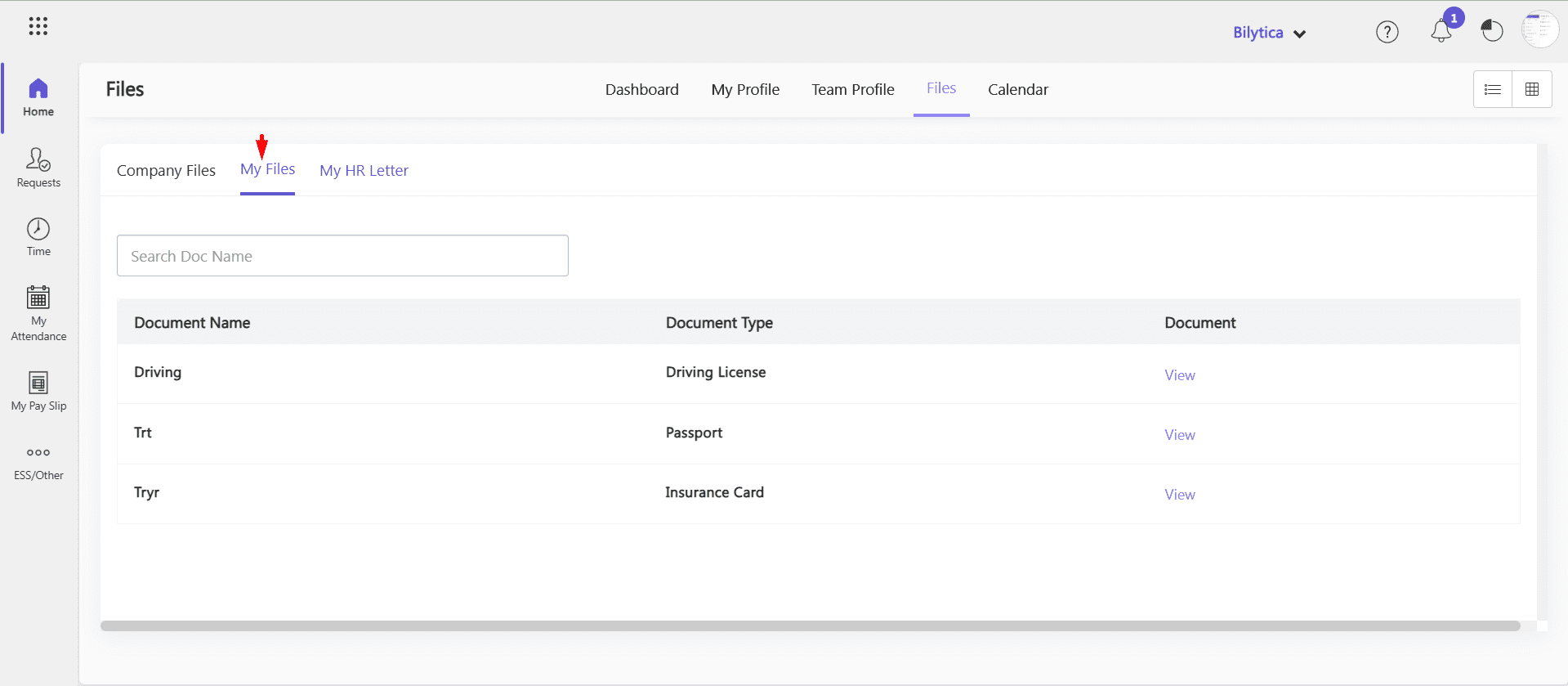
My Files
In this section, you can see the files that admin previously attached to the Self Service profile.
How to View Task?
You can view your pending and completed tasks by following these steps.
- Go to Menu Path:ESS/OtherMy Tasks.
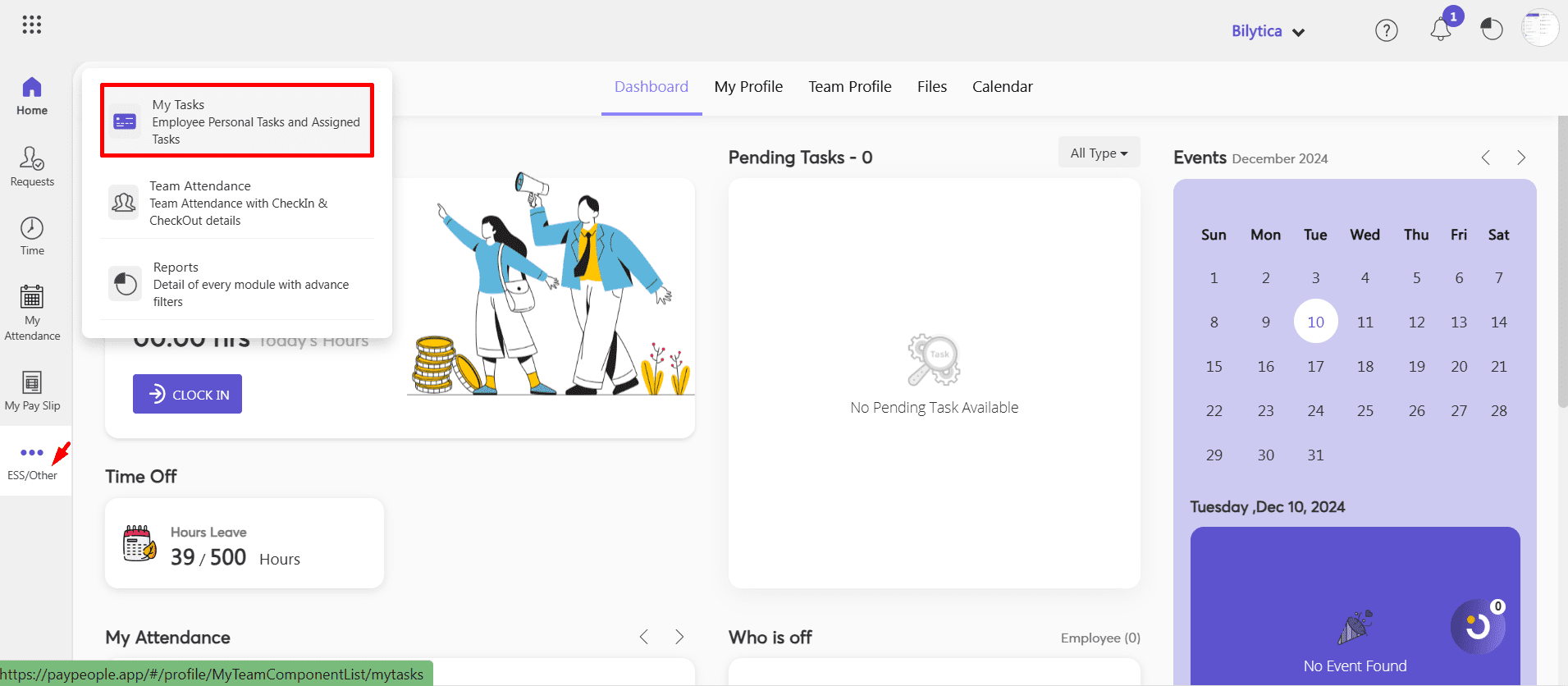
- You can view your task details here.
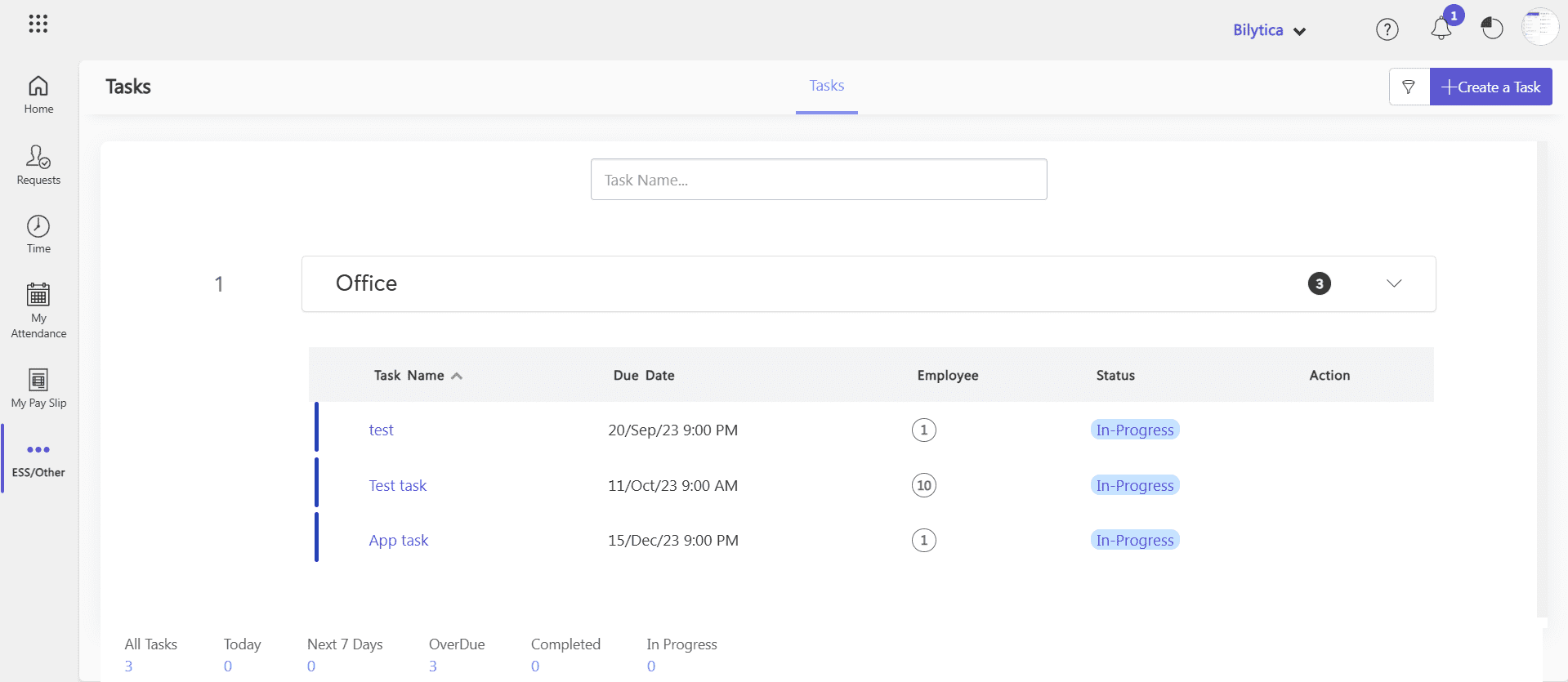
- You can view here all of your personal and office tasks which are pending and overdue.
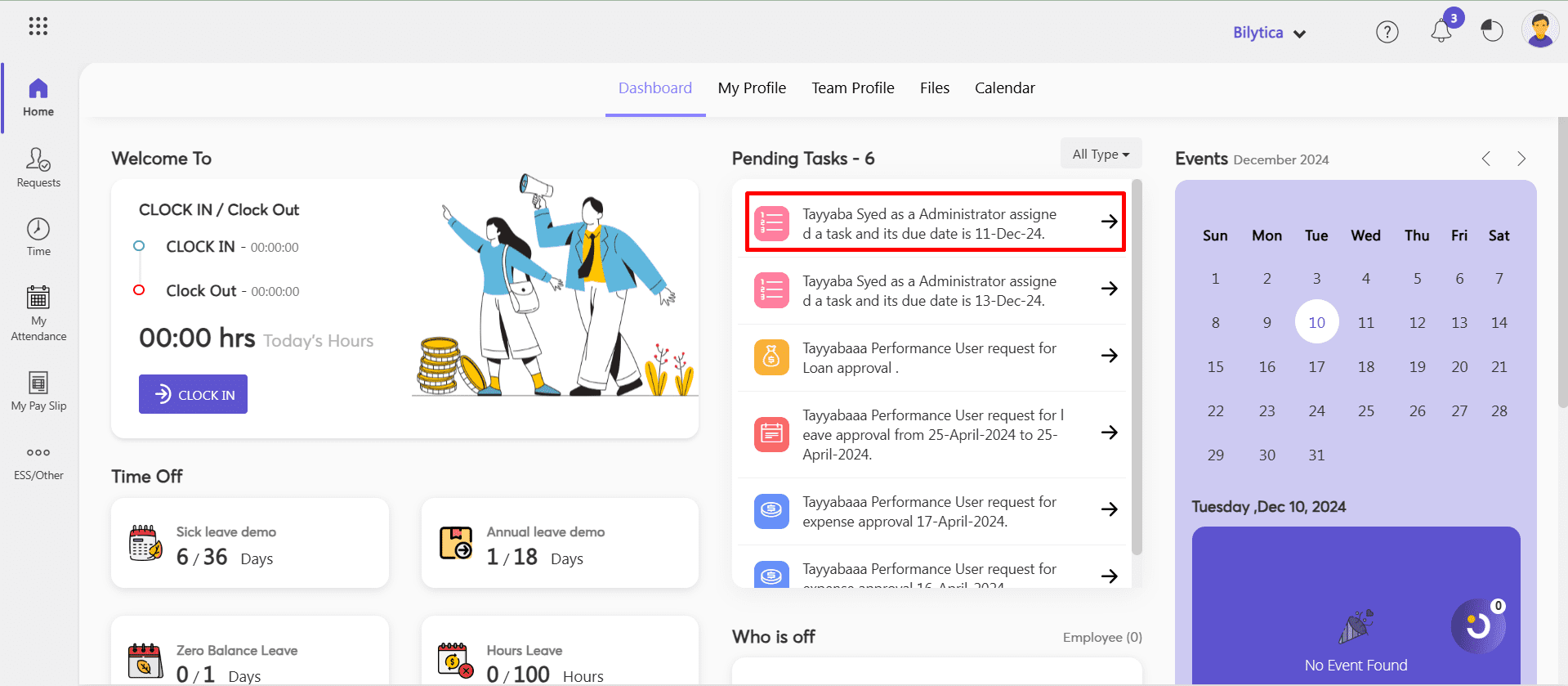
- You may also view your tasks by clicking the Dashboard button at the right side of this window.
How to Create Tasks?
- To View how to create tasks click on Create Tasks.