

Employee Self Service

Employee Self Service Dashboard

5 min read Official Workflow Click any image to enlarge

Dashboard Overview

PayPeople Dashboard provides a user interface that makes it easy for employers to navigate and use the platform.

  • First You can mark your Attendance By using the Clock-in and Clock-out feature.
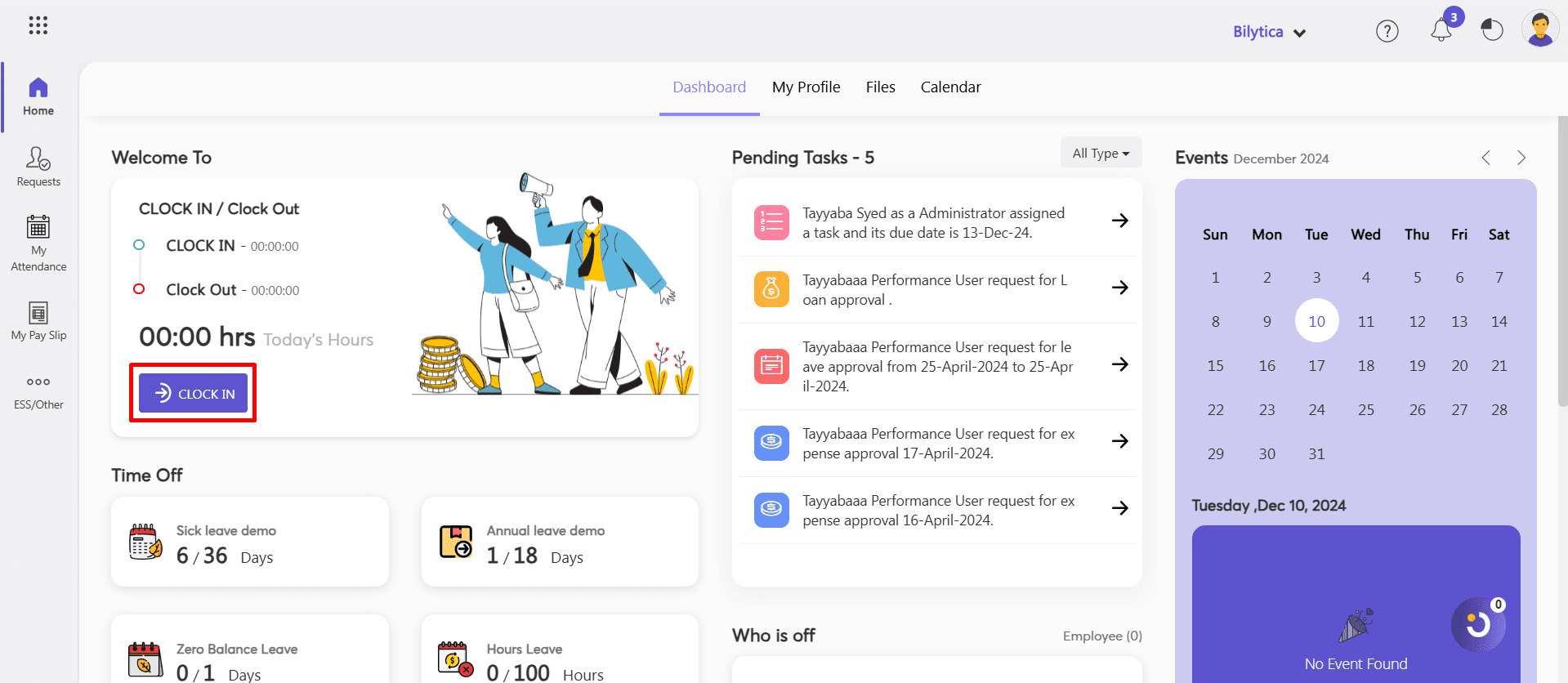
Dashboard: Dashboard Overview (screen 1)

  • You can view here your upcoming events, upcoming time off, upcoming holidays, and your pending tasks.
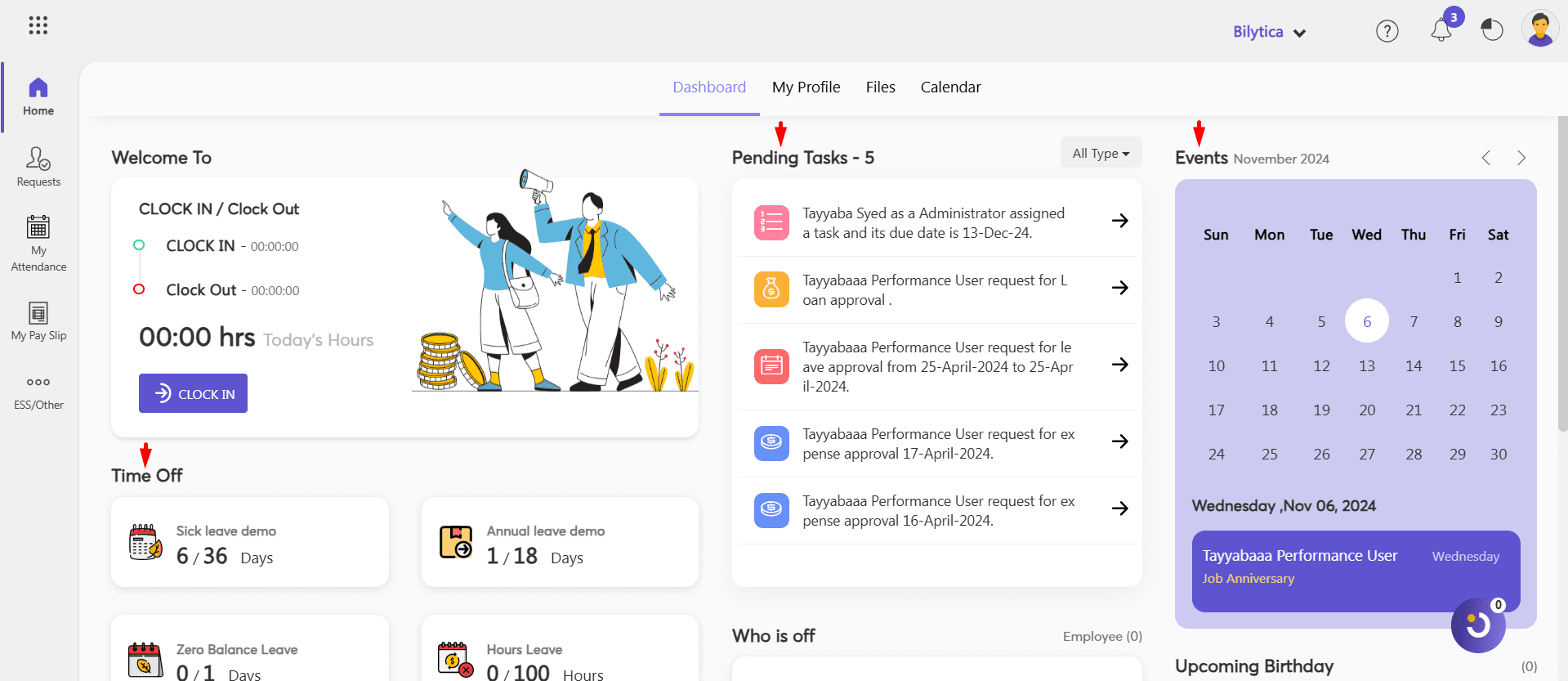
Dashboard: Dashboard Overview (screen 2)

  • You can see your attendance, who is on off in your team if you are a manager and upcoming birthdays.
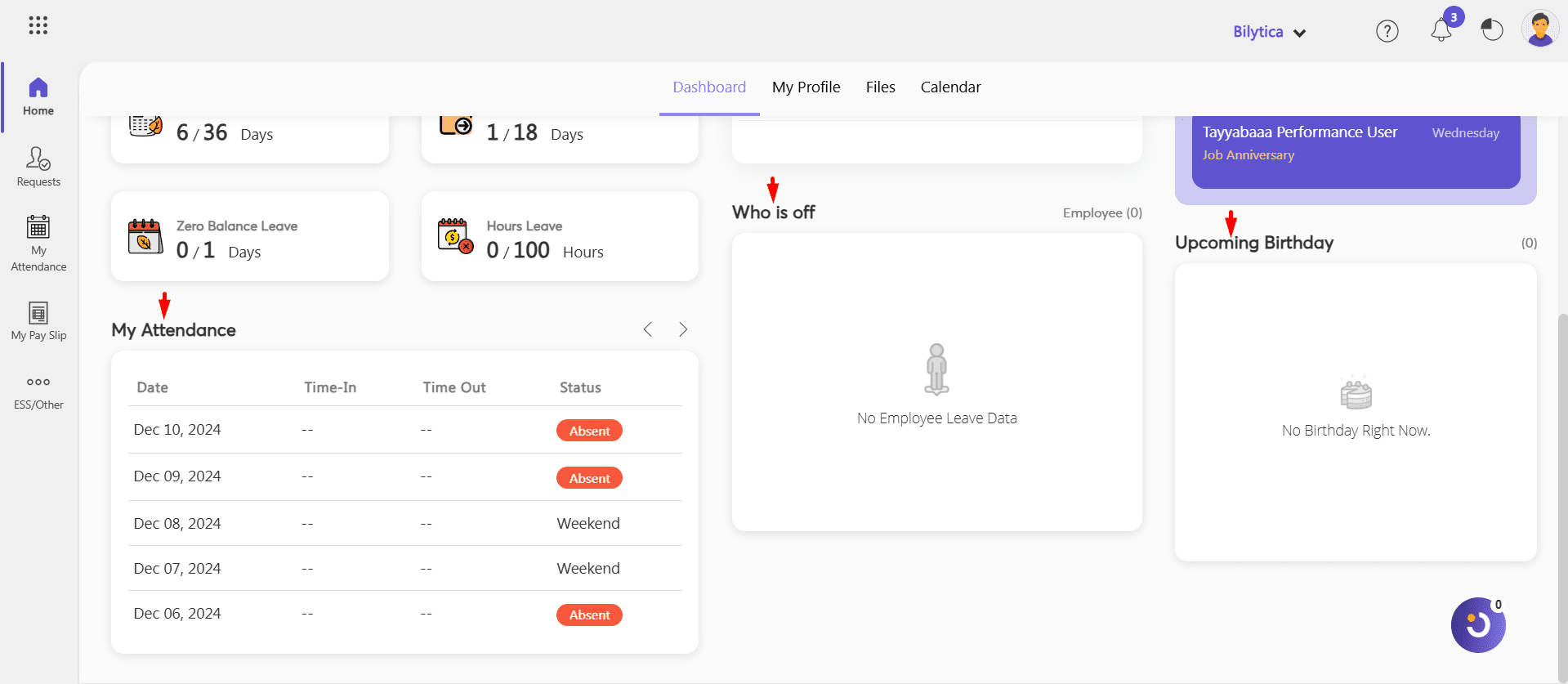
Dashboard: Dashboard Overview (screen 3)

Calendar

  • In this, you can view the Company Events, Employee anniversaries, Public Holidays, and Employee Birthdays.
  • You can view the monthly, weekly, and current-day events.
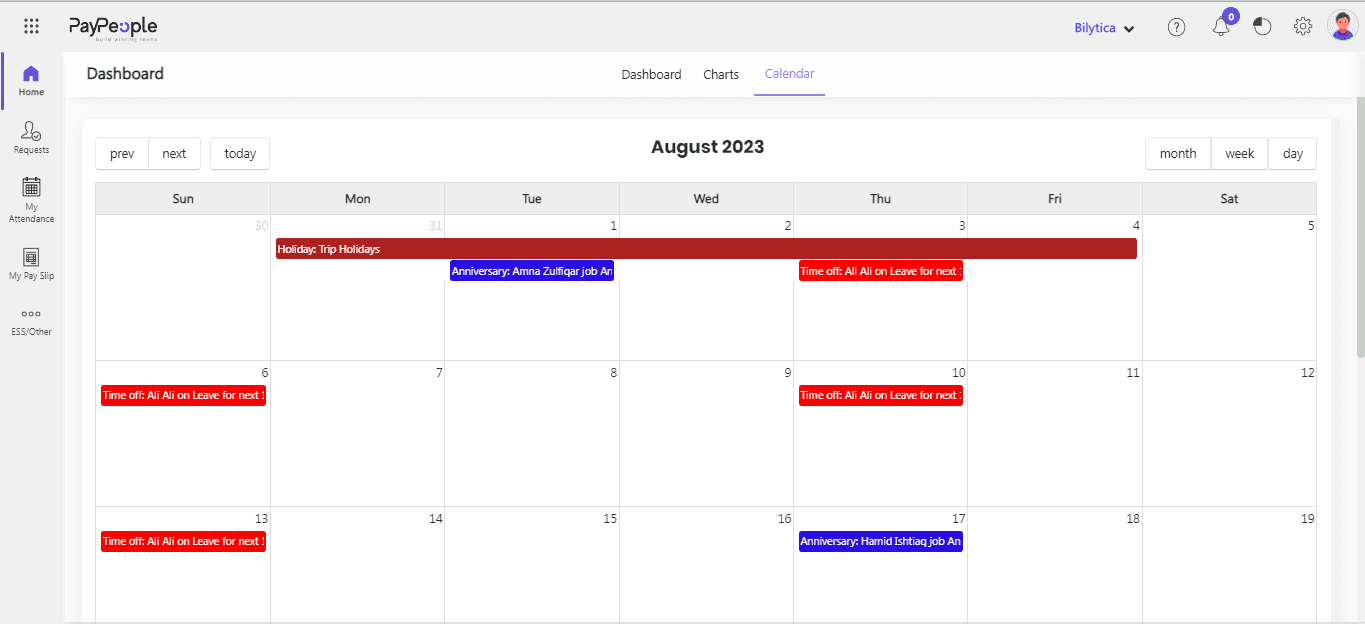
Dashboard: Calendar (screen 4)

Subscribed Client Operational Run Assistance

Executing this payroll run or configuring your biometric machines? Connect with our dedicated Client Operations Desk on WhatsApp (please have your Organization ID ready).

Client Desk
Was this documentation guide helpful?

Your feedback helps our product and documentation teams continuously improve these instructions.

Based on verified PayPeople system workflow. View original help center article

Enterprise Guidance & Configuration

Need direct assistance implementing this workflow?

Our payroll operations team helps configure multi-branch biometrics, complex FBR tax rules, and custom shift schedules for your team.