

If your organization needs to quickly view or download standard default reporting matrices pre-configured inside the core ecosystem:
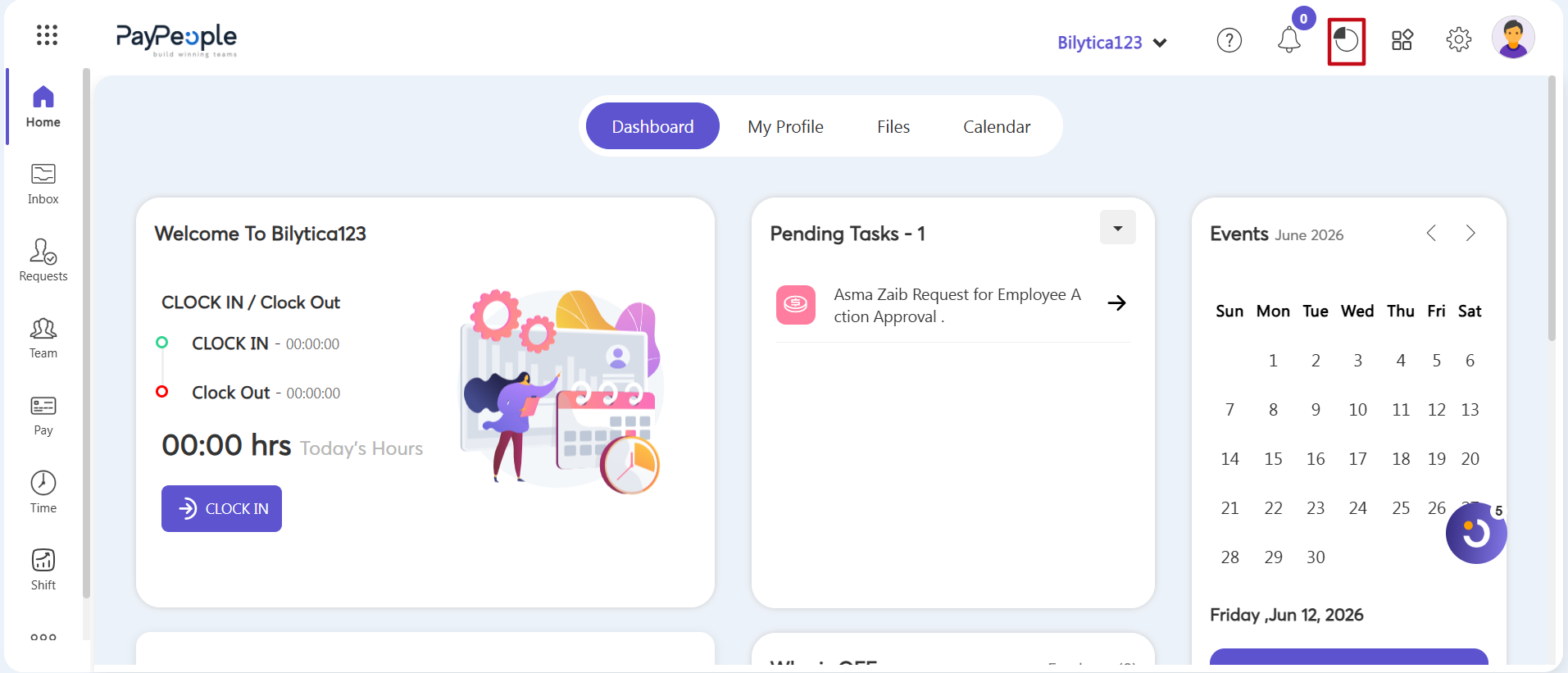
- Step 7: Launch the General Reports Panel — Go to the top utility toolbar on any page. Click directly on the Reports loop icon (marked with a red frame box container).
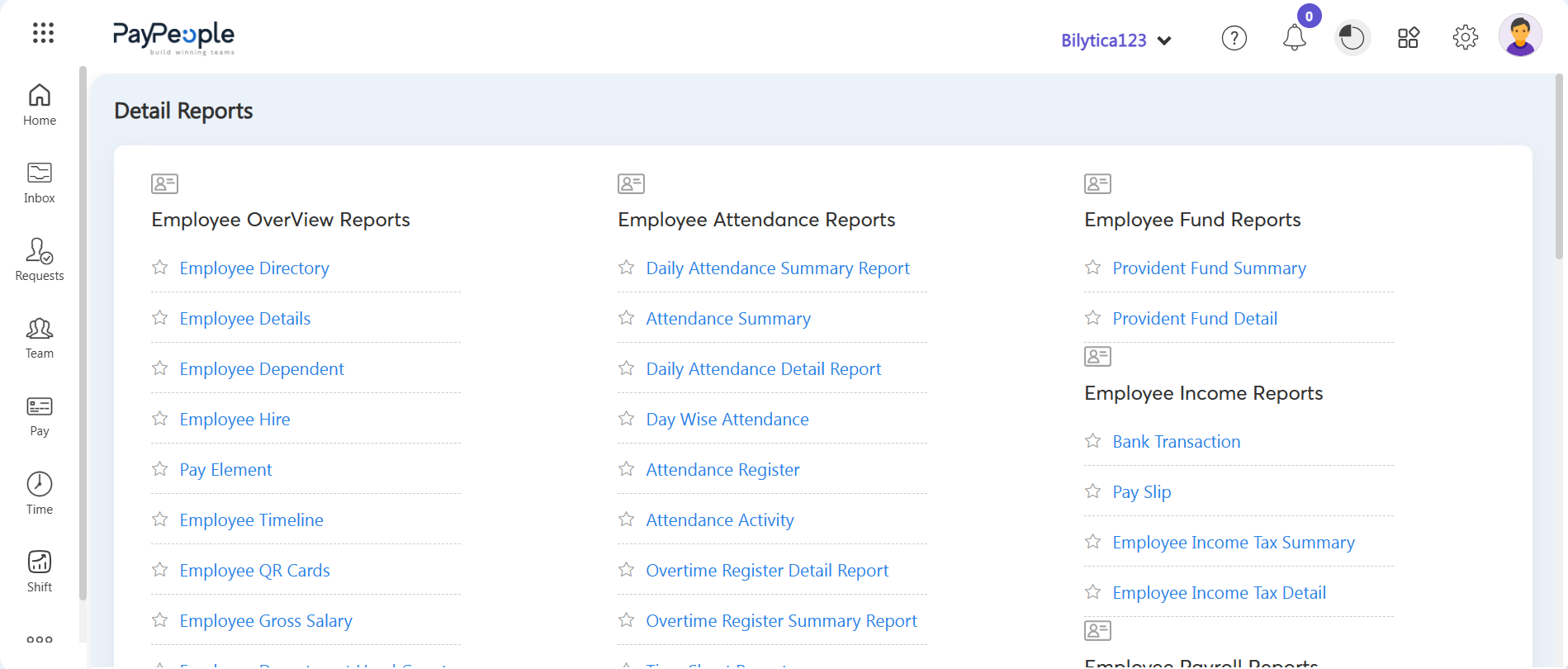
- Step 8: Select Your Report — The main Detail Reports dashboard will open, showing pre-built categories across distinct areas: Employee Overview Reports (e.g., Directory, Details, Dependent, Pay Element), Employee Attendance Reports, Employee Fund Reports, Employee Income Reports (e.g., Bank Transaction, Pay Slip), and Employee Payroll Reports. Click directly on the specific report link you want to view or download.
- Step 9: Apply Filters — A Report Filters popup window will open over your workspace. Fill out any relevant fields (such as From Date, To Date, Work Location, Department, Designation, Employee Type, Employee Status, or specific Employee dropdown lists) to narrow down the scope of your data.
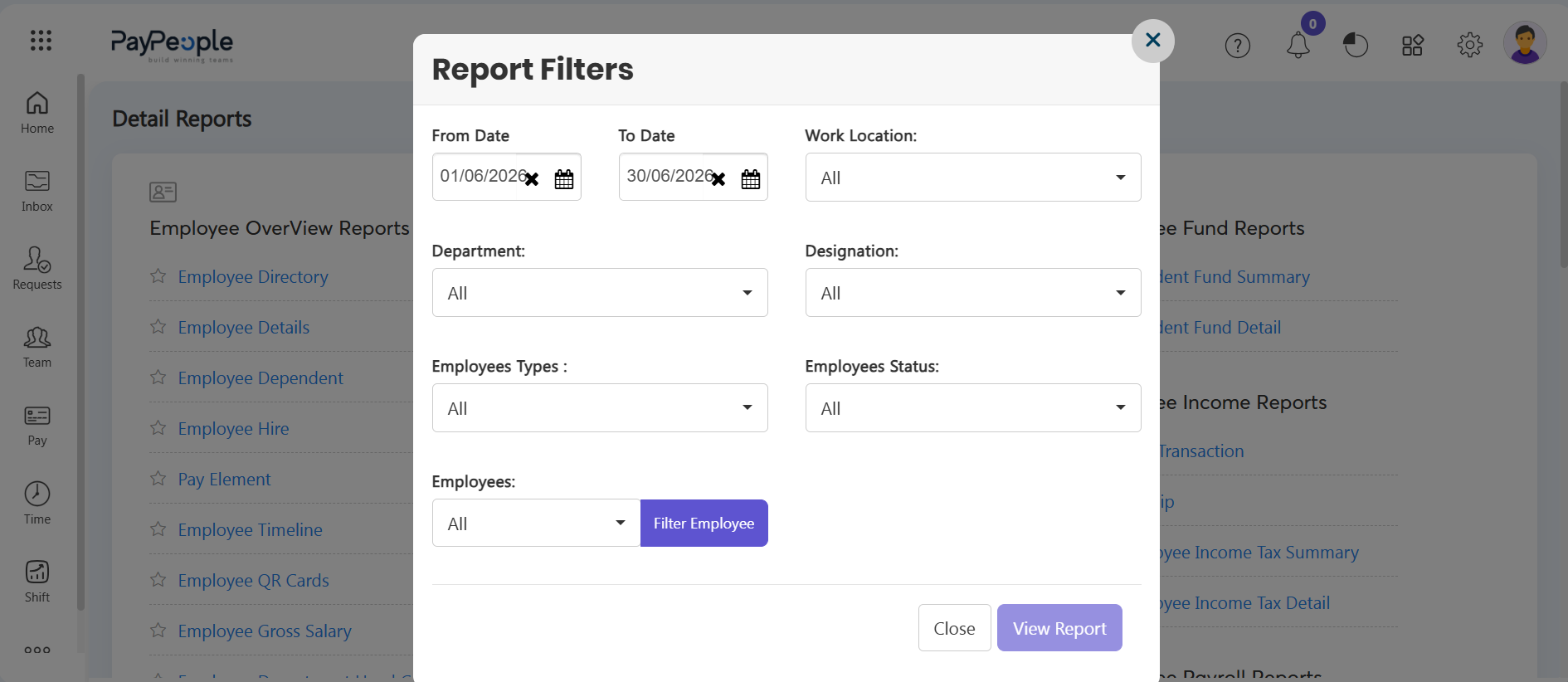
- Step 10: Run and Download the Report — Click the purple View Report button at the bottom of the window. Once the report is generated, choose your preferred export format to download the file either as a PDF layout or an Excel spreadsheet.
Analytical Audit Implementation Pro-Tip: |