To construct a tailored analytical dataset and execute customized report expressions from the platform backend:
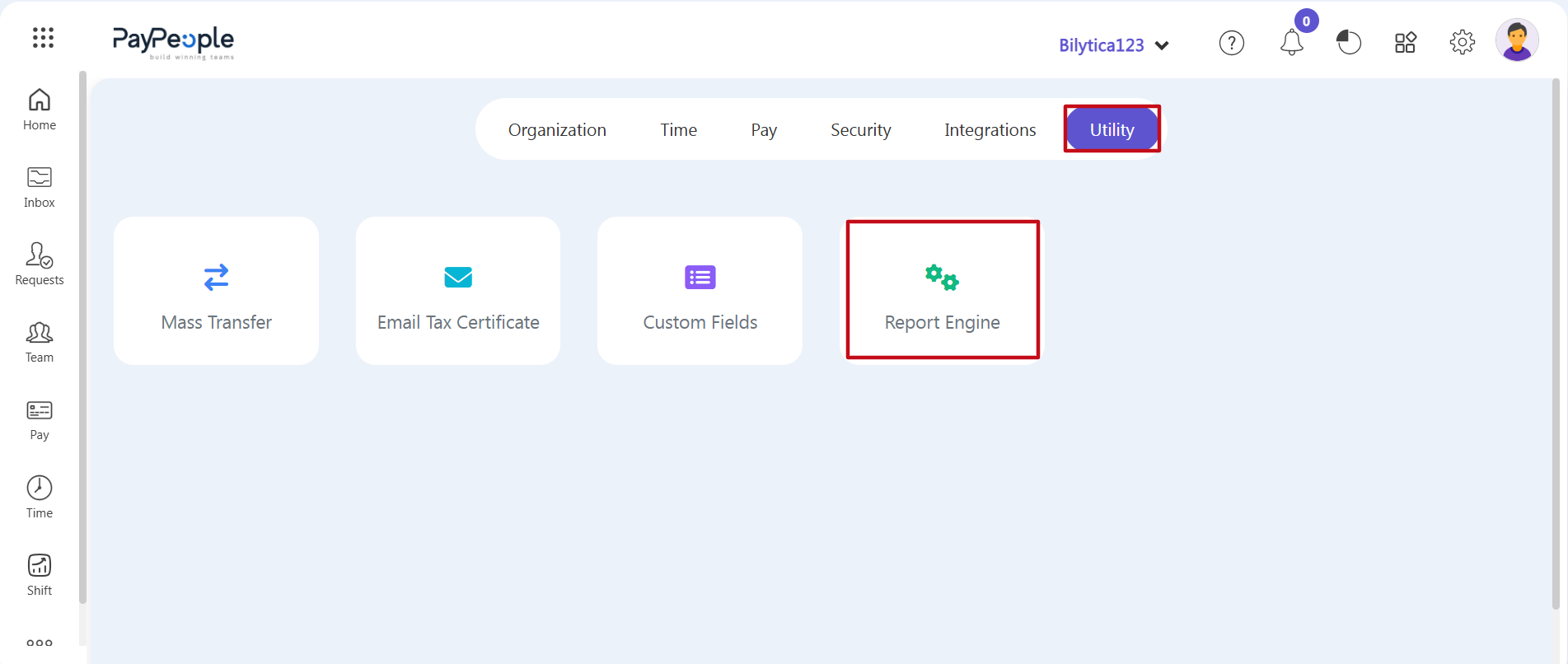
- Step 1: Open Utility Navigation — Go to your main administrator platform dashboard interface and click on the primary Setup gear icon located in the upper-right control toolbar.
- Step 2: Access Report Engine Hub — Click on the horizontal Utility tab inside the top setup menu. Locate and click on the primary Report Engine card module (marked with a red box frame).
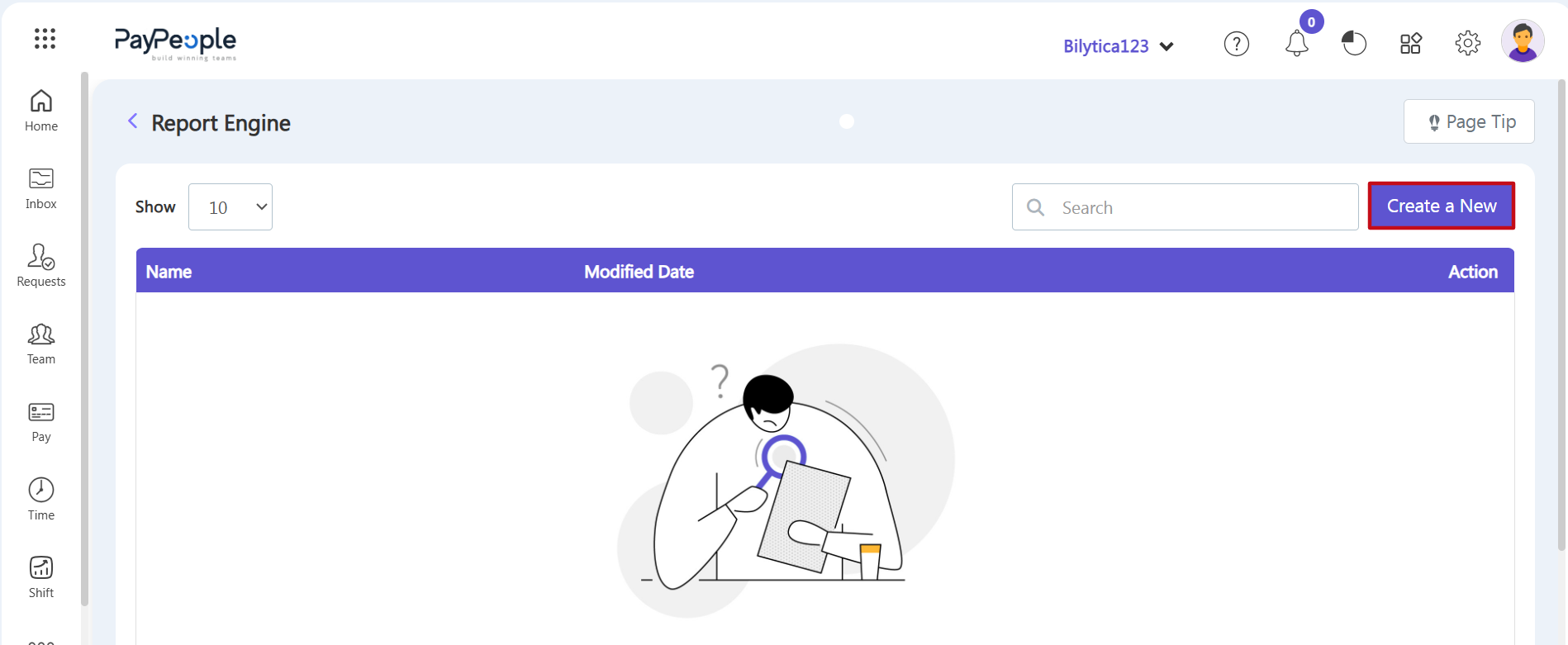
- Step 3: Start Report Creation — The main Report Engine index page will open. To set up a new data extraction template, click the purple Create a New button (marked with a red rectangular frame box) on the right side of the toolbar.
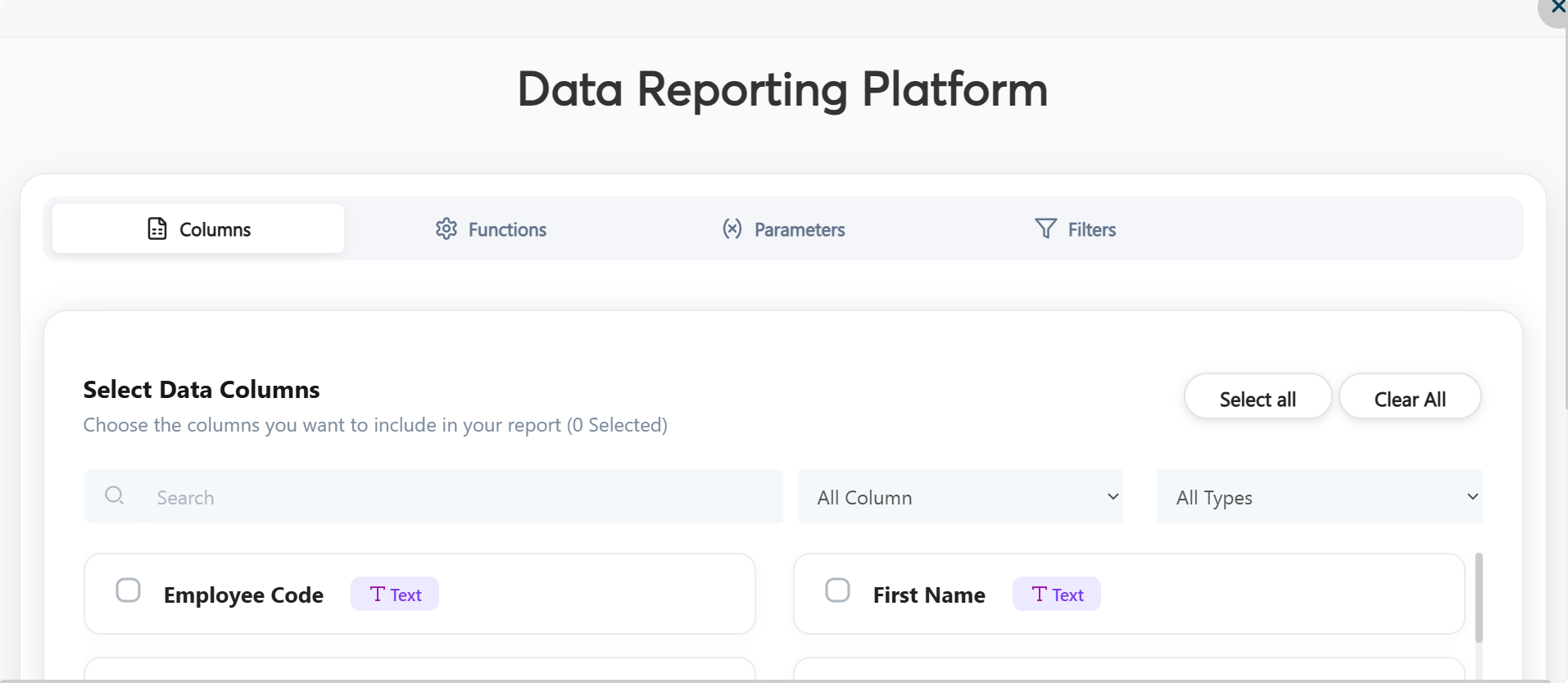
- Step 4: Configure Columns, Functions, and Parameters — A data reporting wizard page will open. Move through the configuration tabs step-by-step:
- Columns Sub-Tab: Choose the data points you want to include in your report by checking the available field boxes (e.g., Employee Code, First Name).
- Functions Sub-Tab: Set up programmatic rules to dictate how the selected columns process or calculate data.
- Parameters Sub-Tab: Choose how output values display across the report structure (such as text strings, integers, or specific formatting rules).
- Filters Sub-Tab: Add data limits and range rules to filter down your dataset to the exact information you need.
- Step 5: Save and Compile — Once your columns and filters are set, click the Save button to store the template in your global database registry.
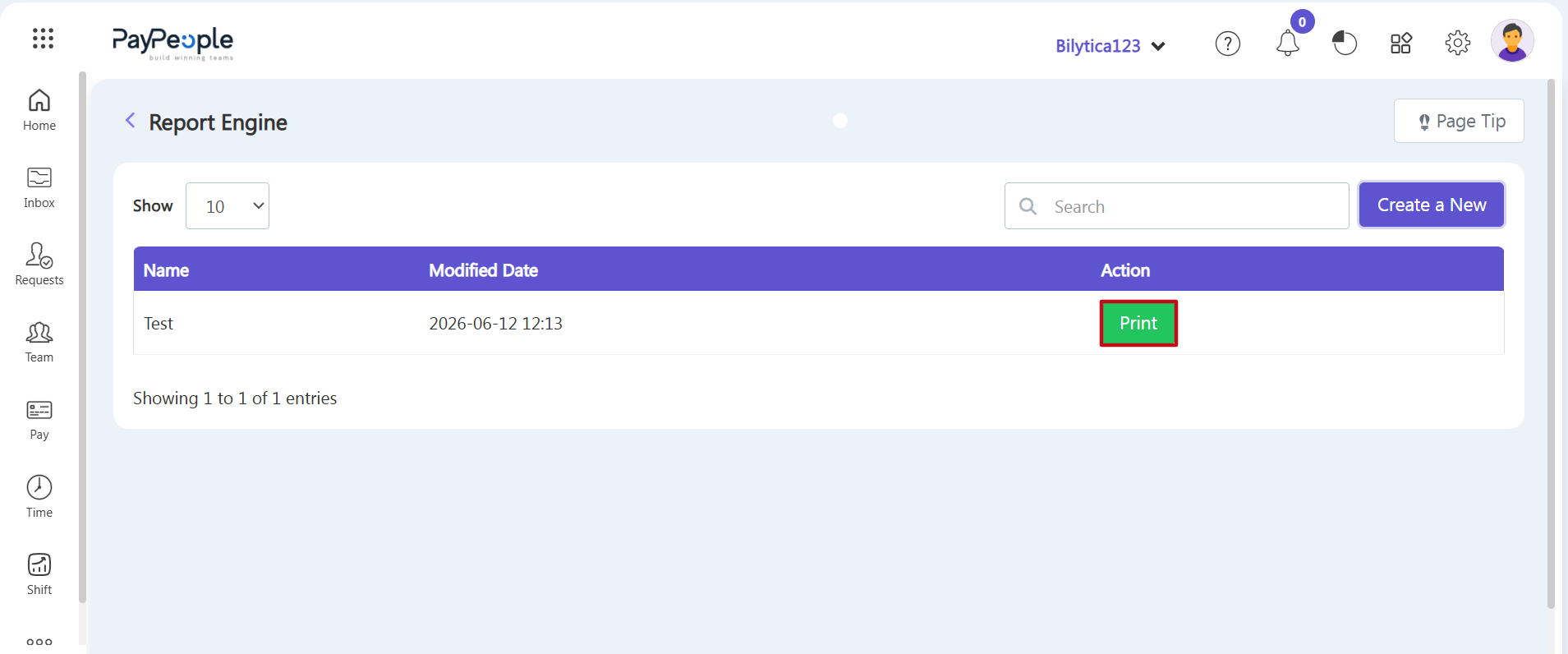
- Step 6: Run and Export the Report — Go back to the main Report Engine ledger table. Find your saved template and click the green Print button (marked with a red rectangular frame box) under the Action column to compile and view your final report.