


For security reasons, it is good practice to update your account password every few months. PayPeople allows you to safely update your login password at any time from your account settings panel.
Step-by-Step Instructions:
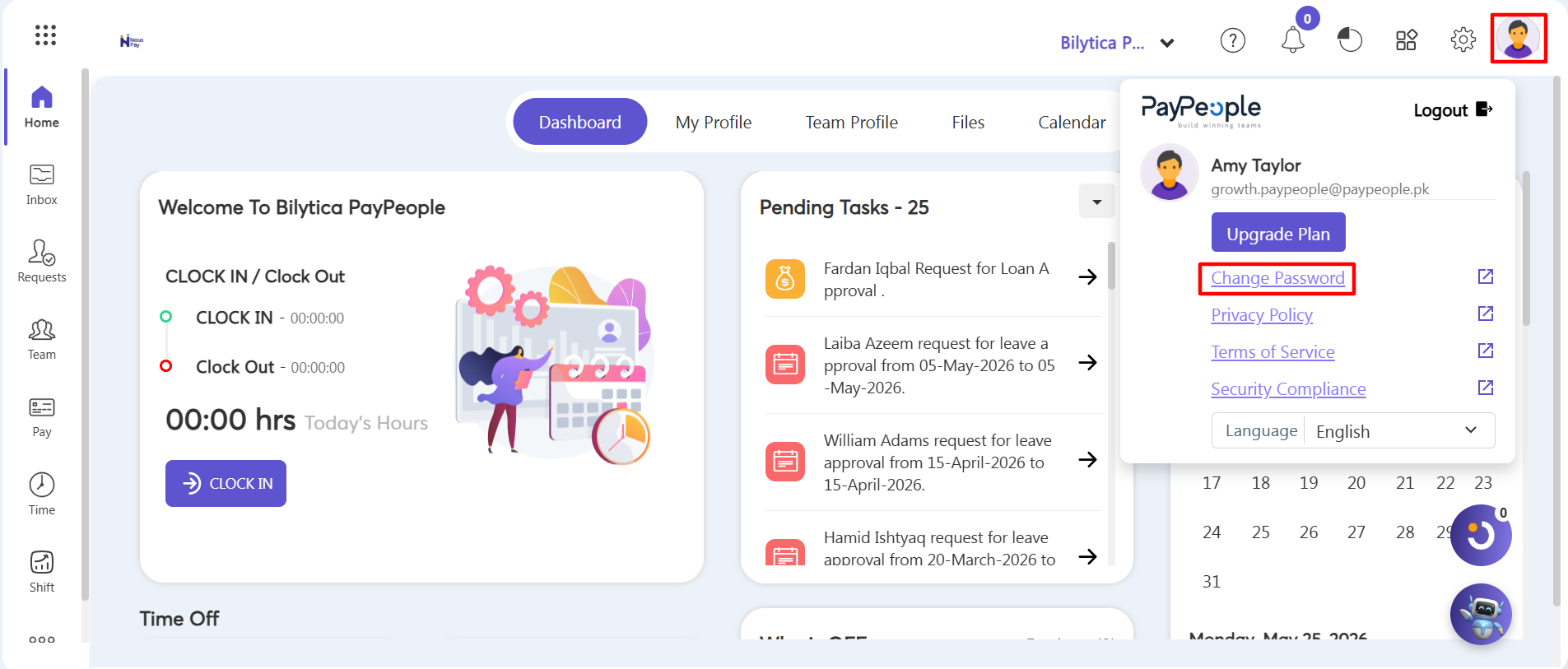
- Step 1: Access Your Profile — Look at the top-right corner of your screen and click on your Profile Icon (the circular user avatar).
- Step 2: Select Change Password — From the dropdown menu that appears, click the Change Password option.
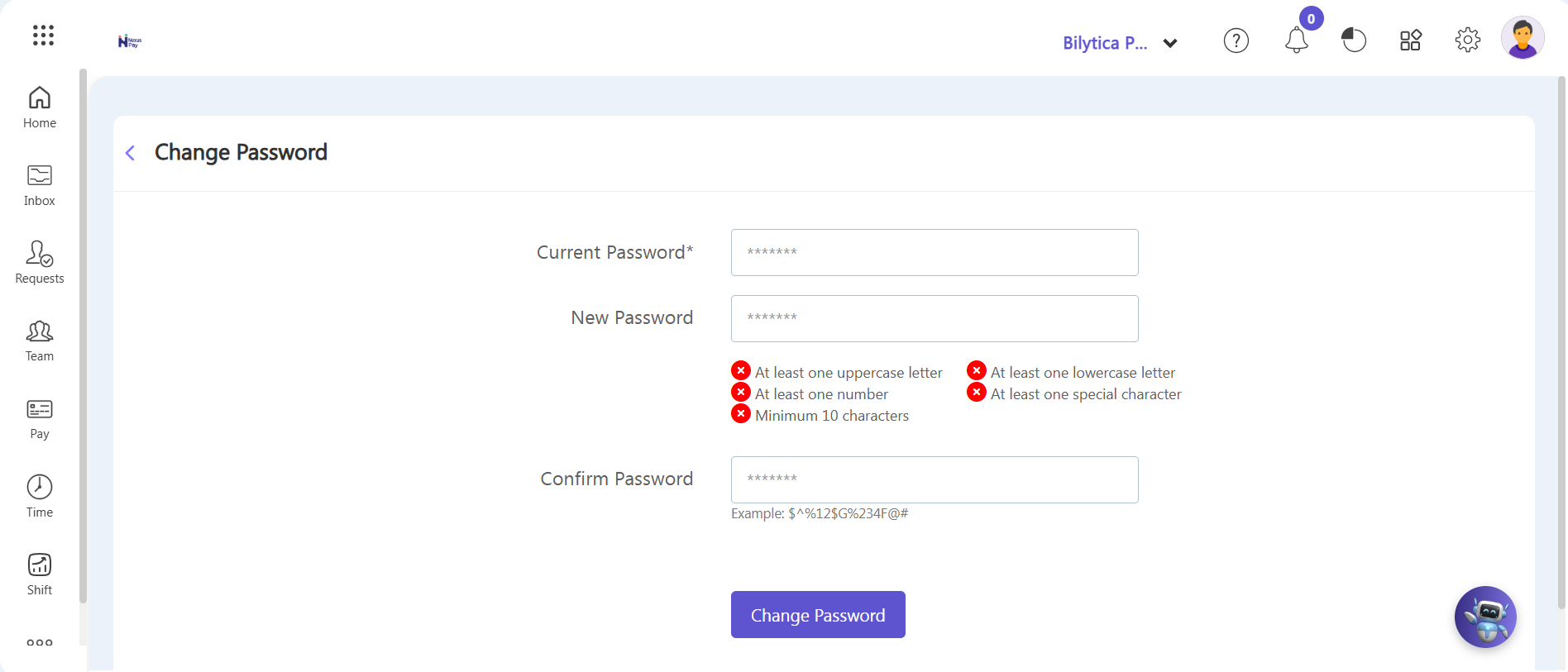
- Step 3: Open the Password Window — A pop-up window titled Change Password will appear on your screen.
- Step 4: Enter Current Password — Type your existing password into the Current Password field.
- Step 5: Enter and Confirm New Password — Type your new secure password into the New Password field, then retype it in the Confirm Password field to verify.
- Step 6: Save Changes — Click the purple Save button at the bottom of the window to update your password.
Fast Security Advice: |