

Managing unexpected structural shifts, such as when a manager leaves the organization or departmental reporting lines change, requires a swift way to re-allocate employee groups. Instead of updating each worker's profile one by one, PayPeople features a centralized Mass Transfer utility. This lets system administrators safely change reporting lines for an entire team in a single step.
1. Navigating to the Mass Transfer Control Panel
To access the team relocation module and look at your historical transfer records:
- Step 1: Open Module Navigation — Go to your main administrator platform dashboard interface and click on the primary Setup gear icon located in the upper-right control toolbar.
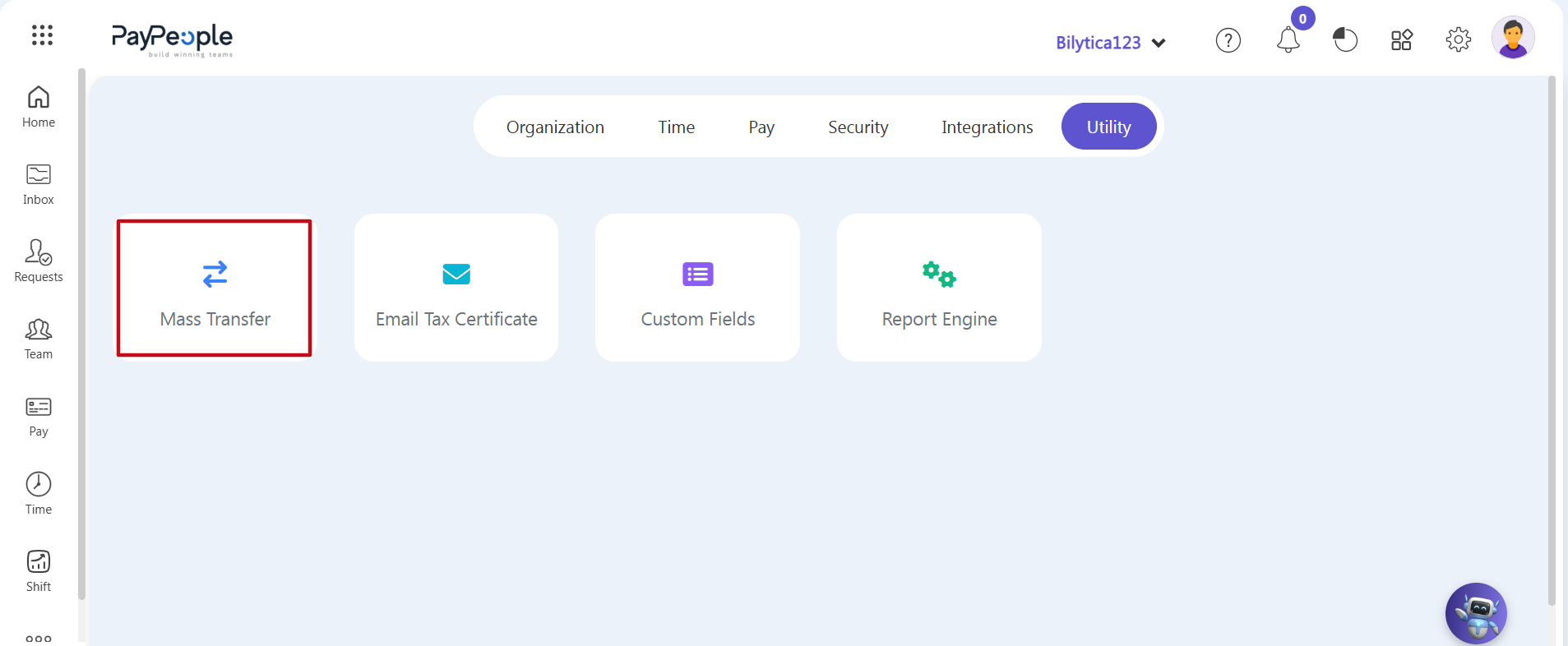
- Step 2: Access Utility Categories — Click on the horizontal Utility tab inside the top setup menu, then select the primary card module titled Mass Transfer (marked with a red rectangular frame box) to open the main index page.
Step 3: Launch the Re-assignment Workspace — The main ledger screen registry index will open. Look to the right margin toolbar header and click on the purple Create a New action button component block (highlighted with a red rectangular frame box) to deploy a new data re-assignment form wizard.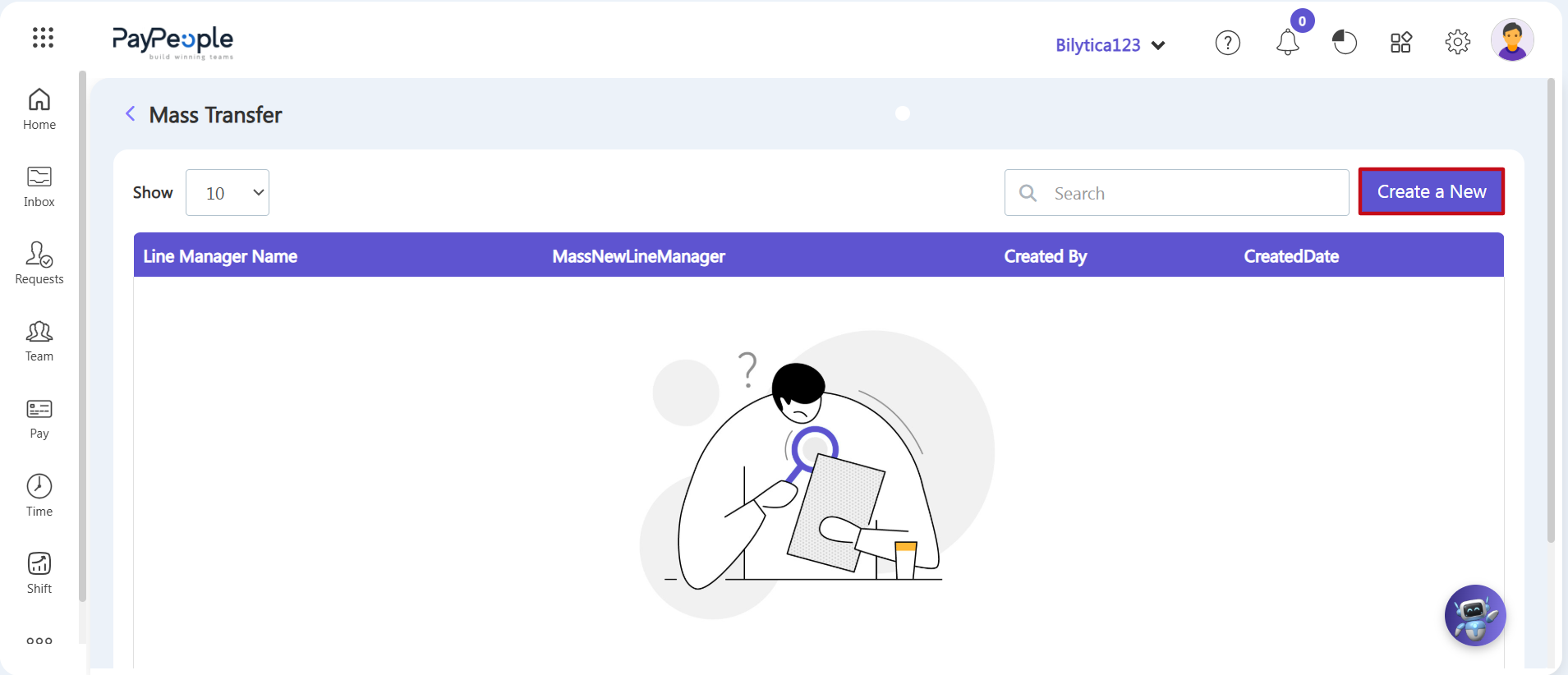
2. Filling Out the Mass Transfer Wizard Details
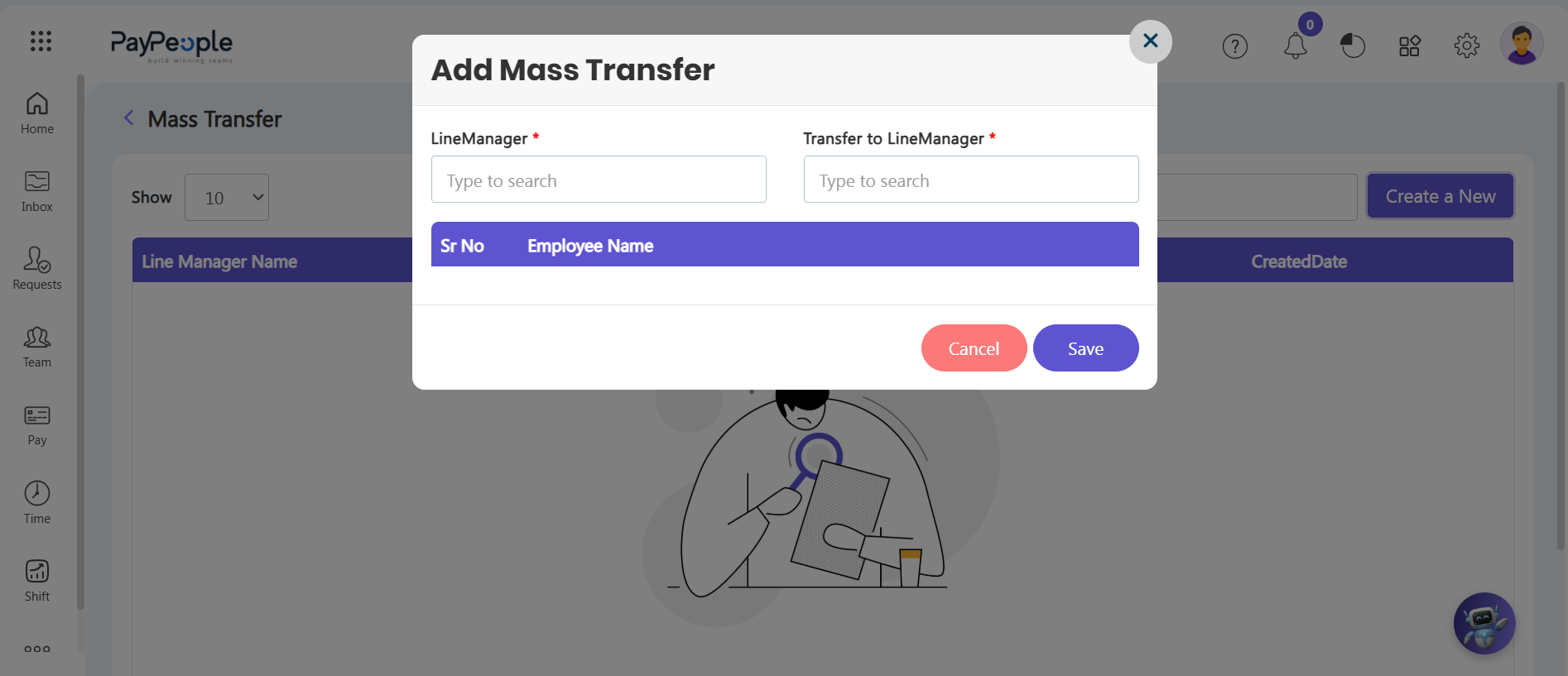
A dynamic Add Mass Transfer wizard pop-up window will open on your screen. Fill out the target management fields step-by-step:
- Step 4: Select the Outgoing Manager — Click inside the LineManager* search box and select the current manager whose entire active team needs to be re-assigned.
- Step 5: Select the New Manager — Click inside the Transfer to LineManager* search box and select the new manager who will be taking over that team.
- Step 6: Review the Team List — Once you select the outgoing manager, the middle grid will automatically load and list all employee names tied to them. Quickly review this list to double-check your data.
- Step 7: Save and Apply Changes — After verifying your outgoing and incoming managers, click the purple Save button in the bottom right corner. The system will instantly assign the new manager to the entire team, updating reporting trees across all active profiles simultaneously.
Workforce Management Relocation Pro-Tip: |