In PayPeople LMS, a group is a collection of users who are organized together for the purpose of course assignments, reporting, and management. Groups offer a convenient way to administer training to specific subsets of users and to track their progress collectively.
How to Work with Groups?
PayPeople LMS lets you organize your users in groups and assign one or more courses to all group members with a single click.
To create your first group, follow these steps:
- Sign in to your PayPeople LMS account as Administrator, go to Groups, and click Create e New button.
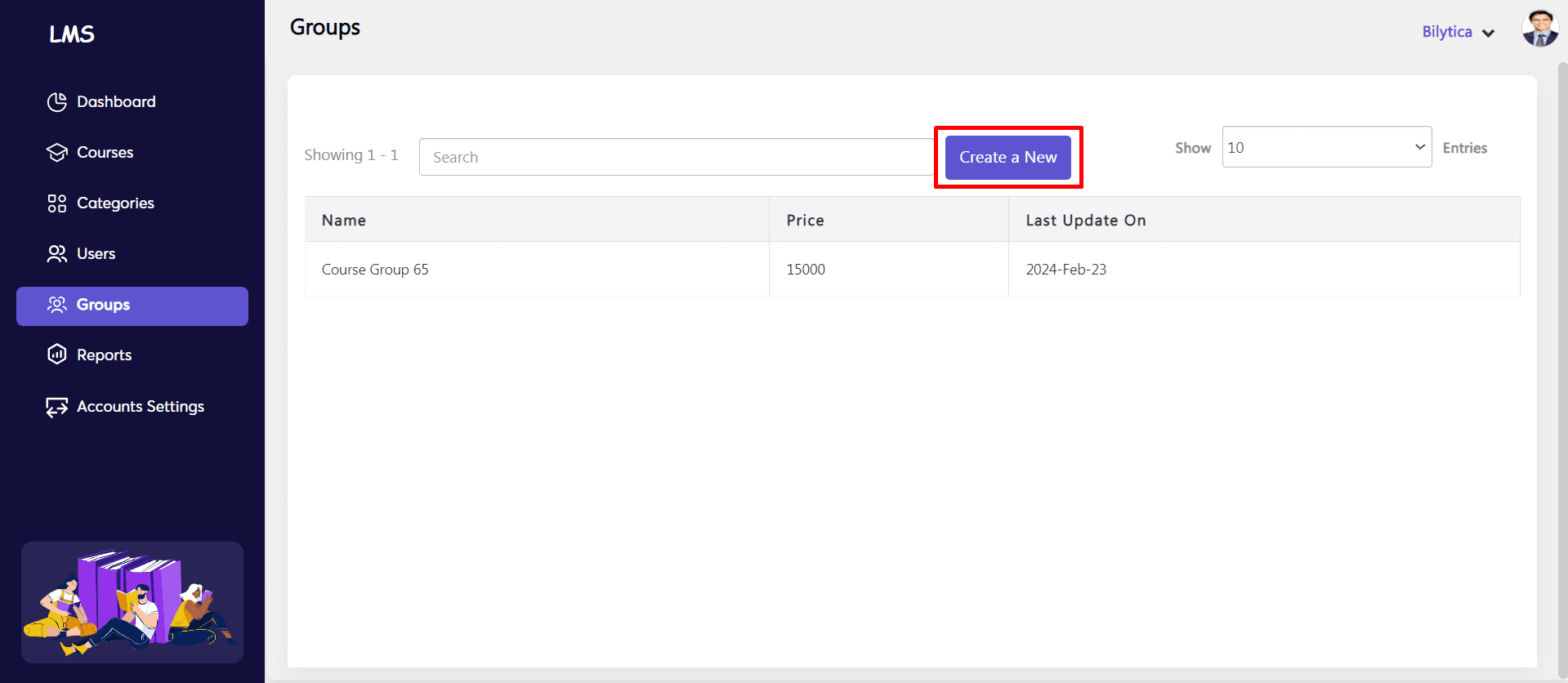
Note: Instructors can also access groups from their dashboard.
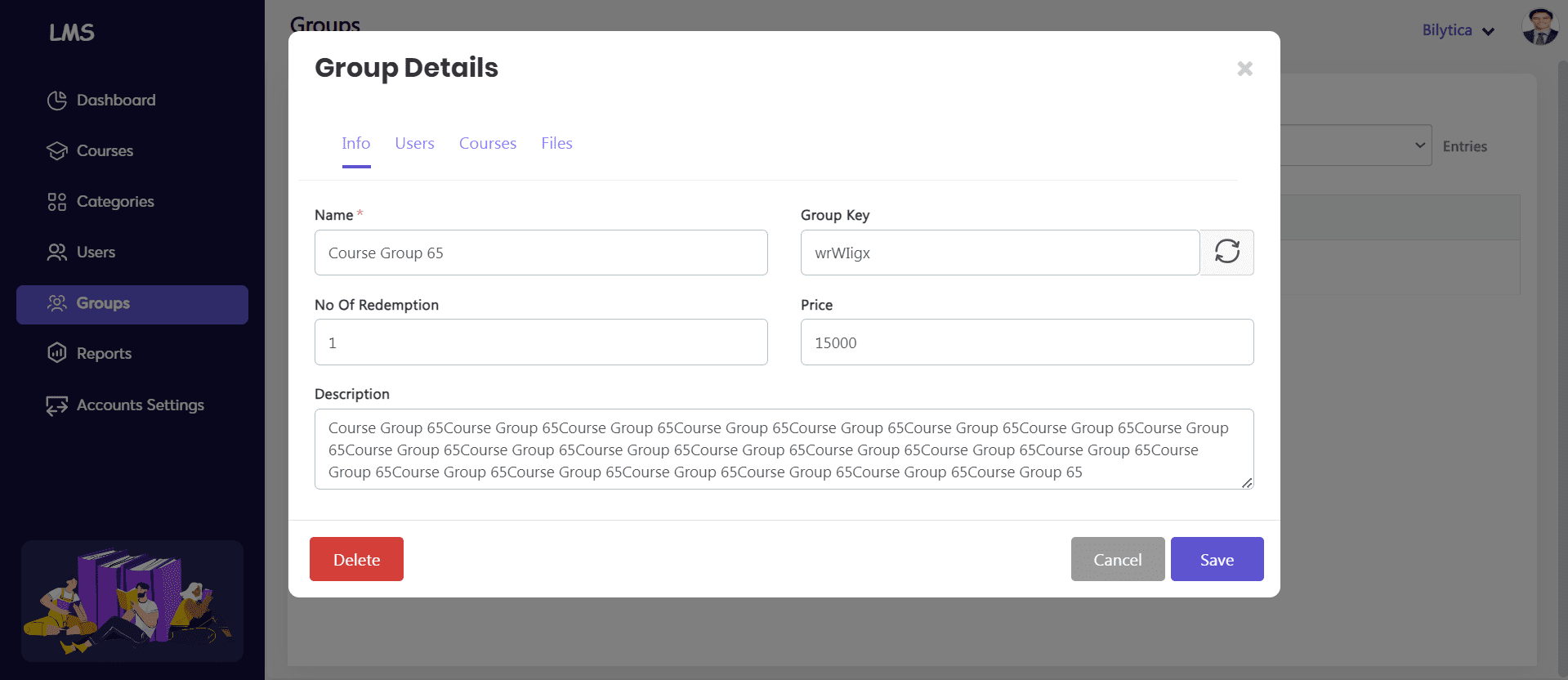
- Type a distinct Name (e.g., Startup courses) and a Description for your new group.
- If you want users to register themselves to the group, simply click Group key to generate a self-registration key.
- Then, send the Group key to users along with the simple instructions on how to self-register. (You’ll find instructions at the end of this article.)
Note: You can replace the generated key by typing your own key in the Group key field.
- If you want to sell courses associated with the group as a course bundle, click Price and type your preferred amount.
- Click Add group to complete the process.
- After the new group has been added, you’re automatically taken to the Users tab on the group page. To add a user to your group, just click the respective add symbol to add employee and minus symbol to remove employee in the Options column.
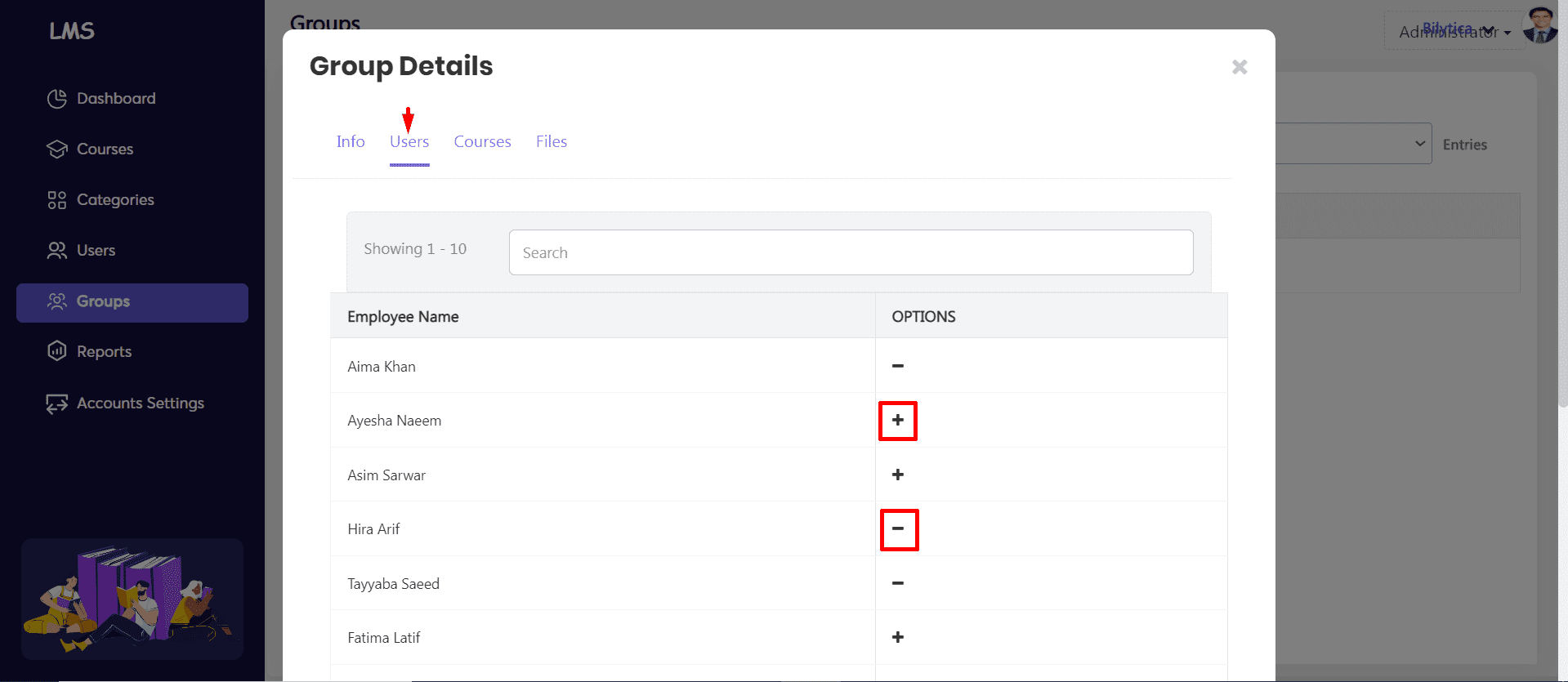
Note: If you have sent a Group key to the users you want in the group, there’s no need to add them manually.
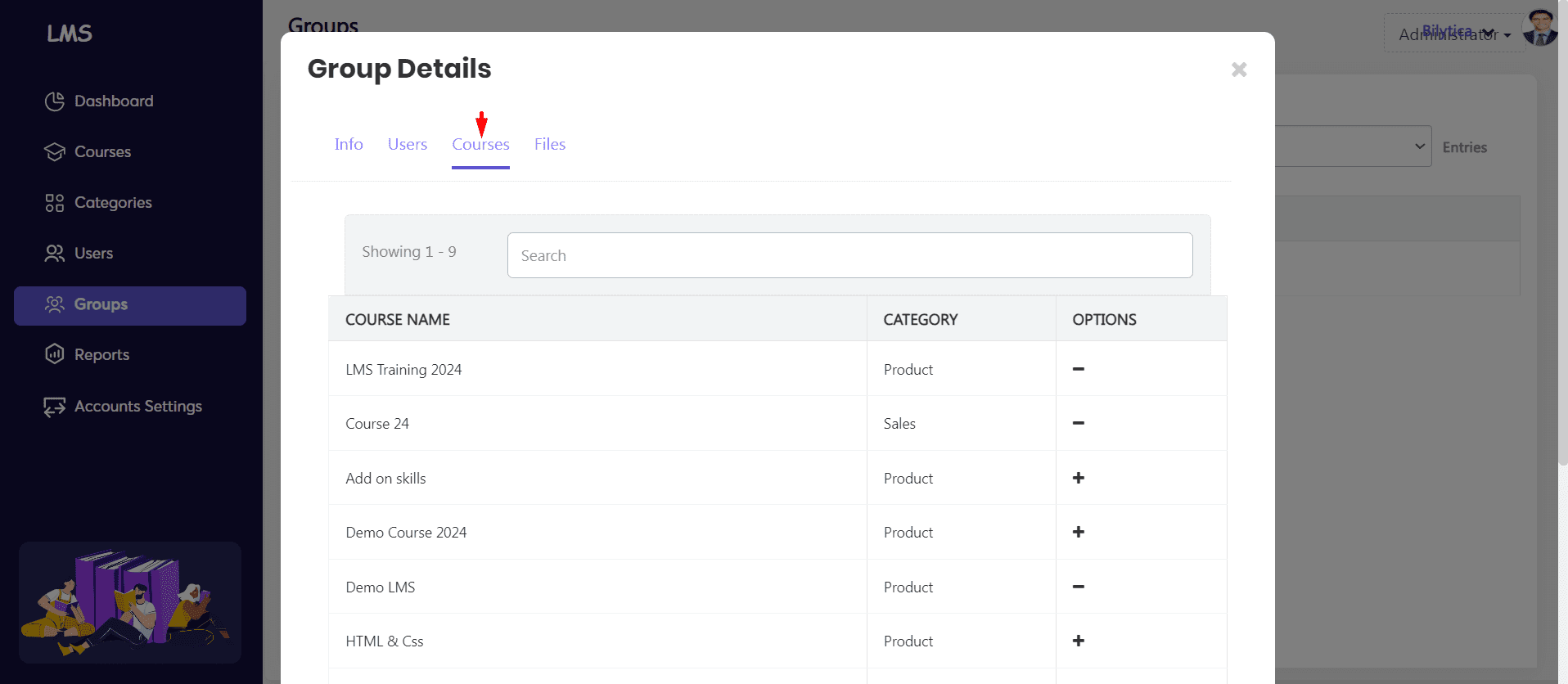
- Go to the Courses tab to choose which courses the group members can access. To assign a course to your group, just click the respective add symbol in the Options column.
- Return to the Users tab to assign the selected courses to group members.
- To assign all courses to a specific user, click the respective add symbol on the Synchronize users with courses column.
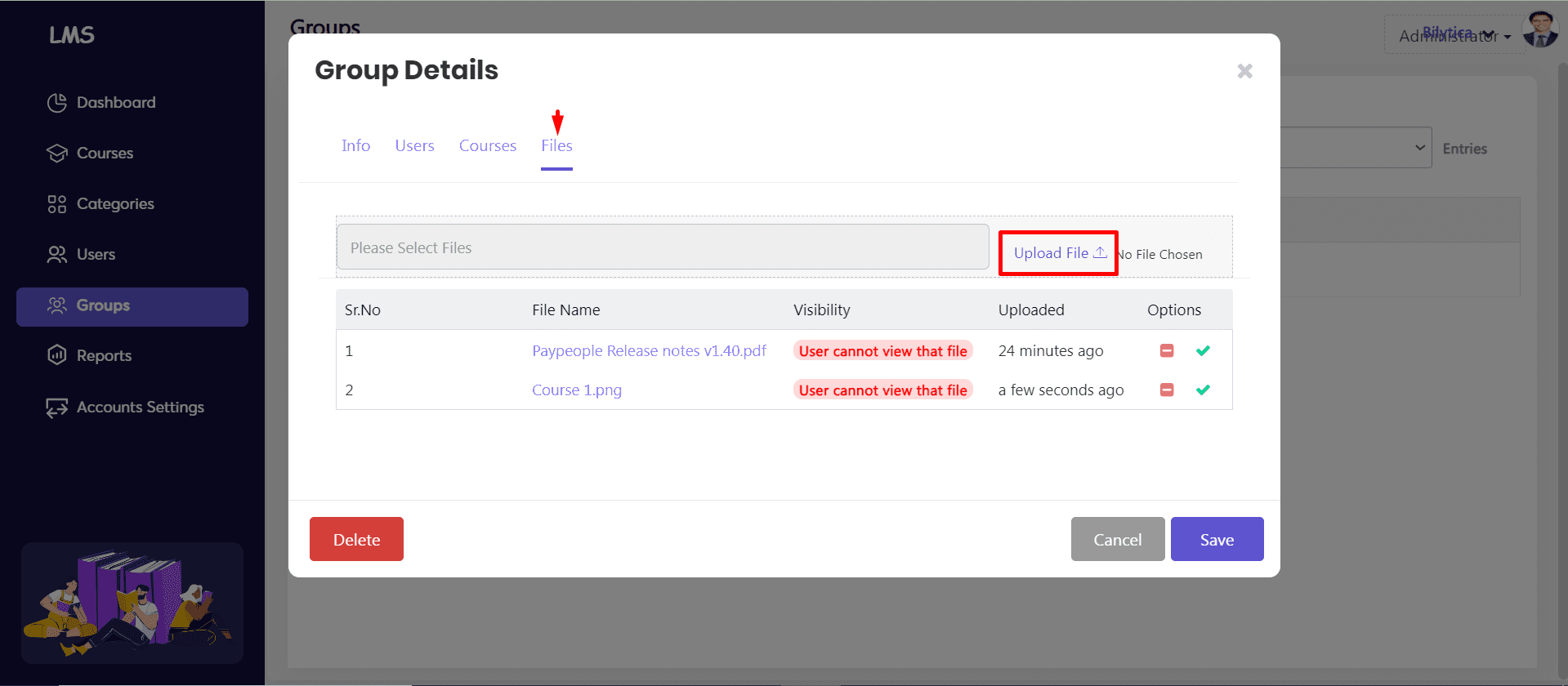
- Go to the Files tab to upload file.
How can Learners Join a Group with a Group Key?
To use the Group key a learner has to:
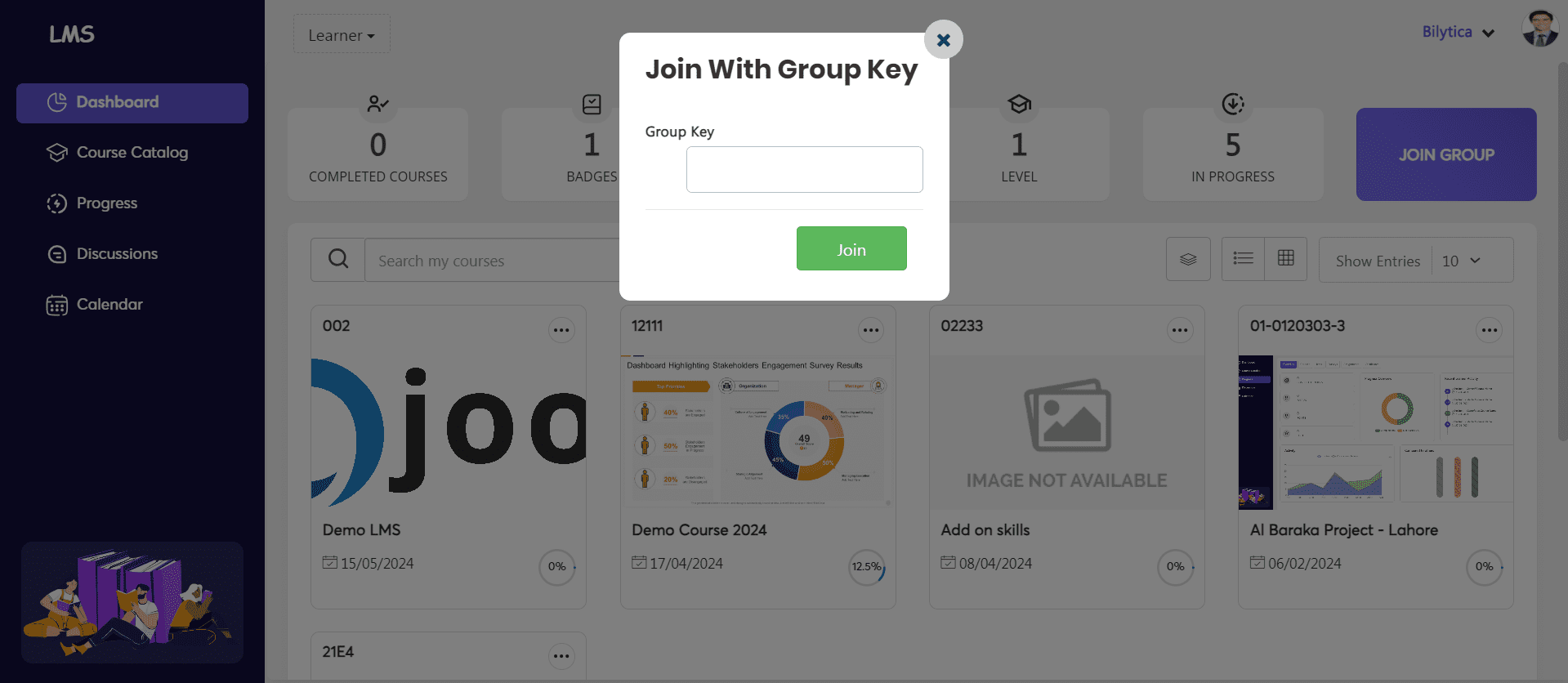
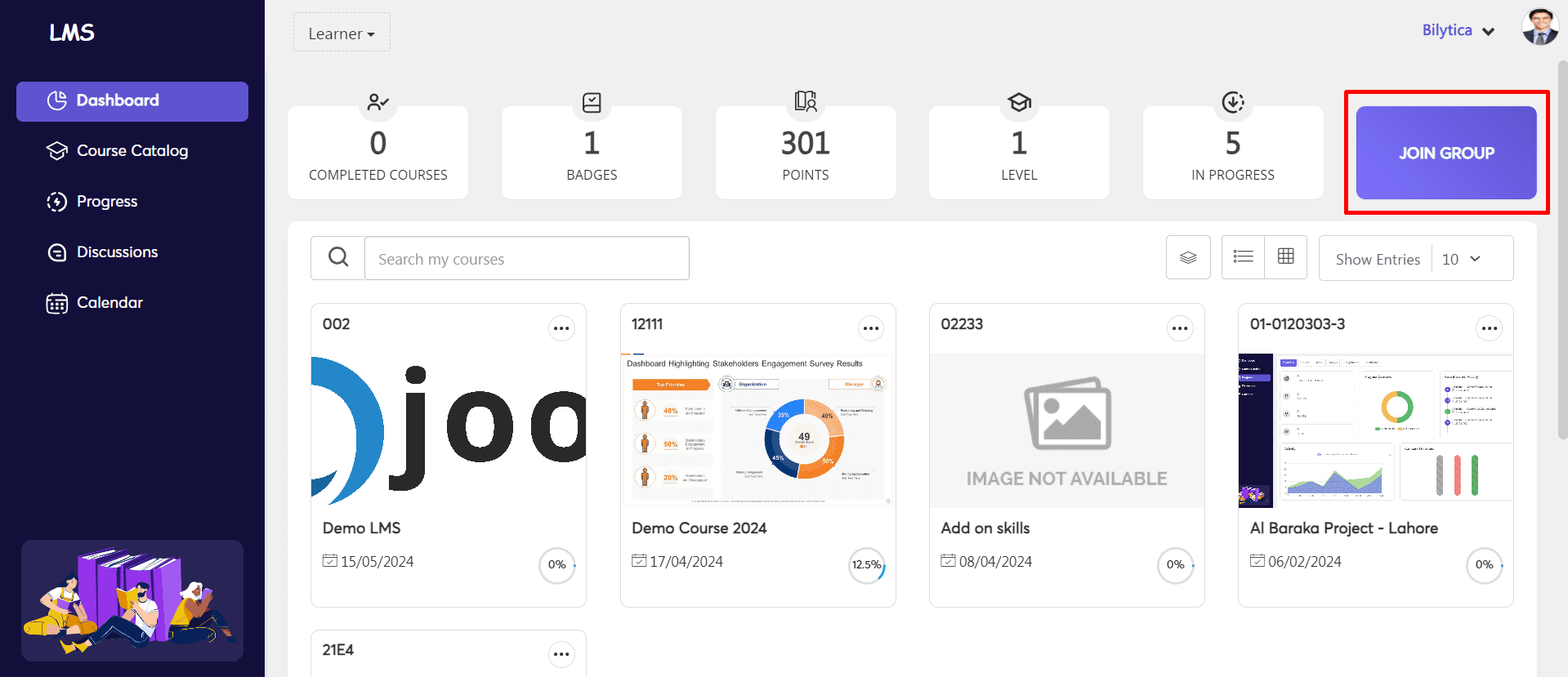
- Sign in to their PayPeople LMS account and click Join group on the right-hand panel.
- On the dialog box that pops up, type the Group key in the respective field.
- Click join and they will be automatically enrolled to all the courses of the group. The courses will appear in their view.