

Sending out finalized tax withholding slips and tax certificates gives workers the necessary proof of their tax deductions for legal compliance. The PayPeople tax system simplifies end-of-year workflows through an automated email delivery system. This tool allows administrators to filter employees by specific groups, check statement proofs directly on the screen, and email the digital files straight to their entire workforce.
1. Navigating to the Email Tax Certificate Workspace
To load your organization's statutory withholding portal and launch a distribution batch:
- Step 1: Open Module Navigation — Go to your main administrator platform dashboard view and click on the primary Setup gear icon located in the upper-right utility banner.
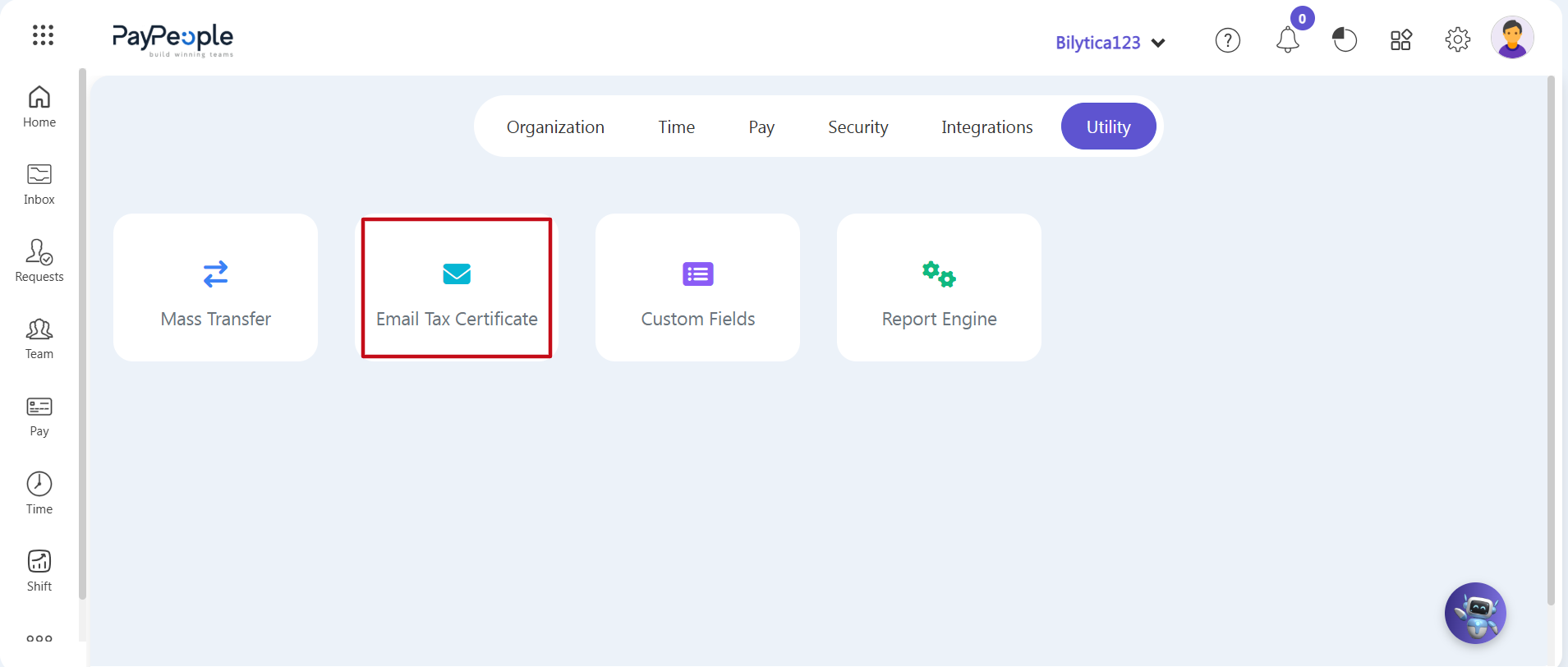
- Step 2: Enter Utility Panel — Click on the horizontal Utility tab inside the top setup menu, then select the central module card titled Email Tax Certificate (marked with a red rectangular frame box) to open the dashboard overview page.
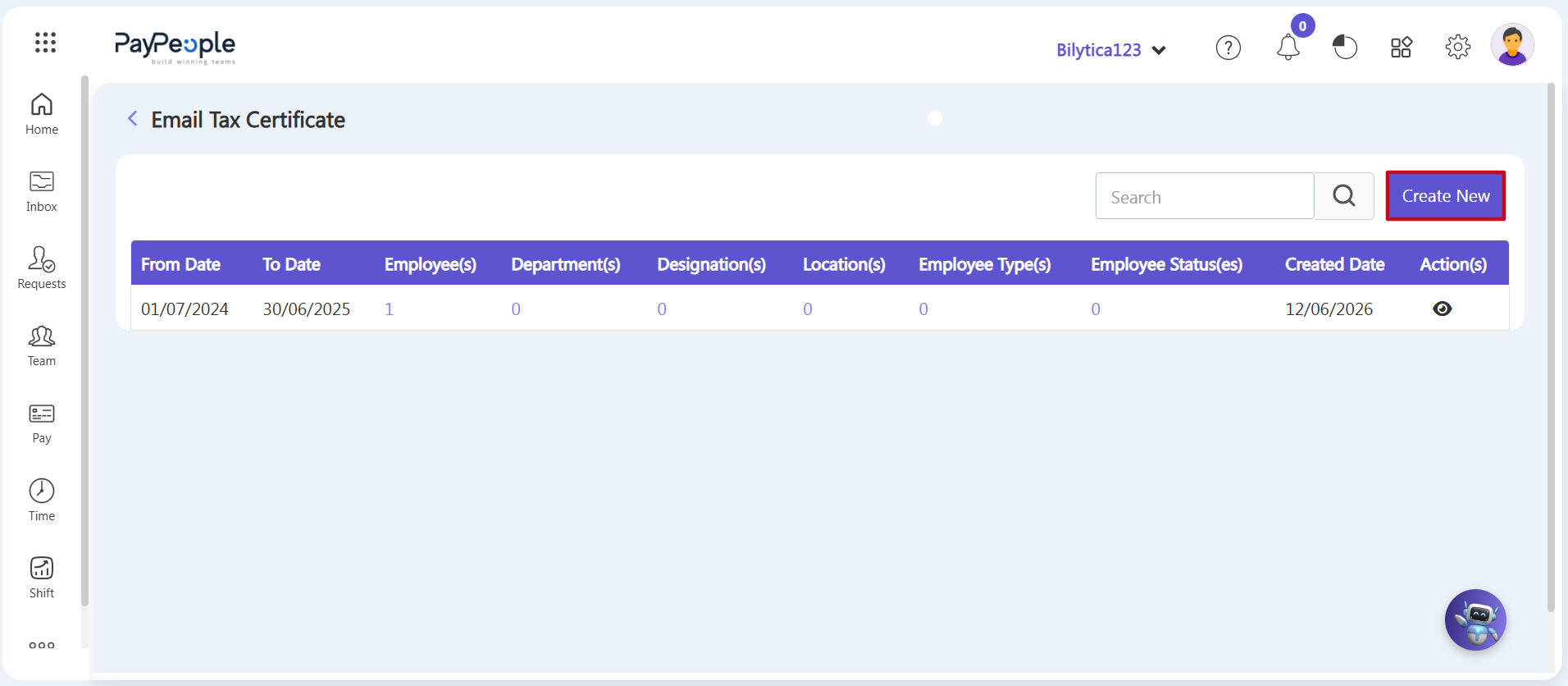
- Step 3: Trigger the Distribution Wizard — The main delivery log page will open, showing your historical sending records. To launch a new delivery batch, click the purple Create New button (marked with a red box) on the top right side of the screen.
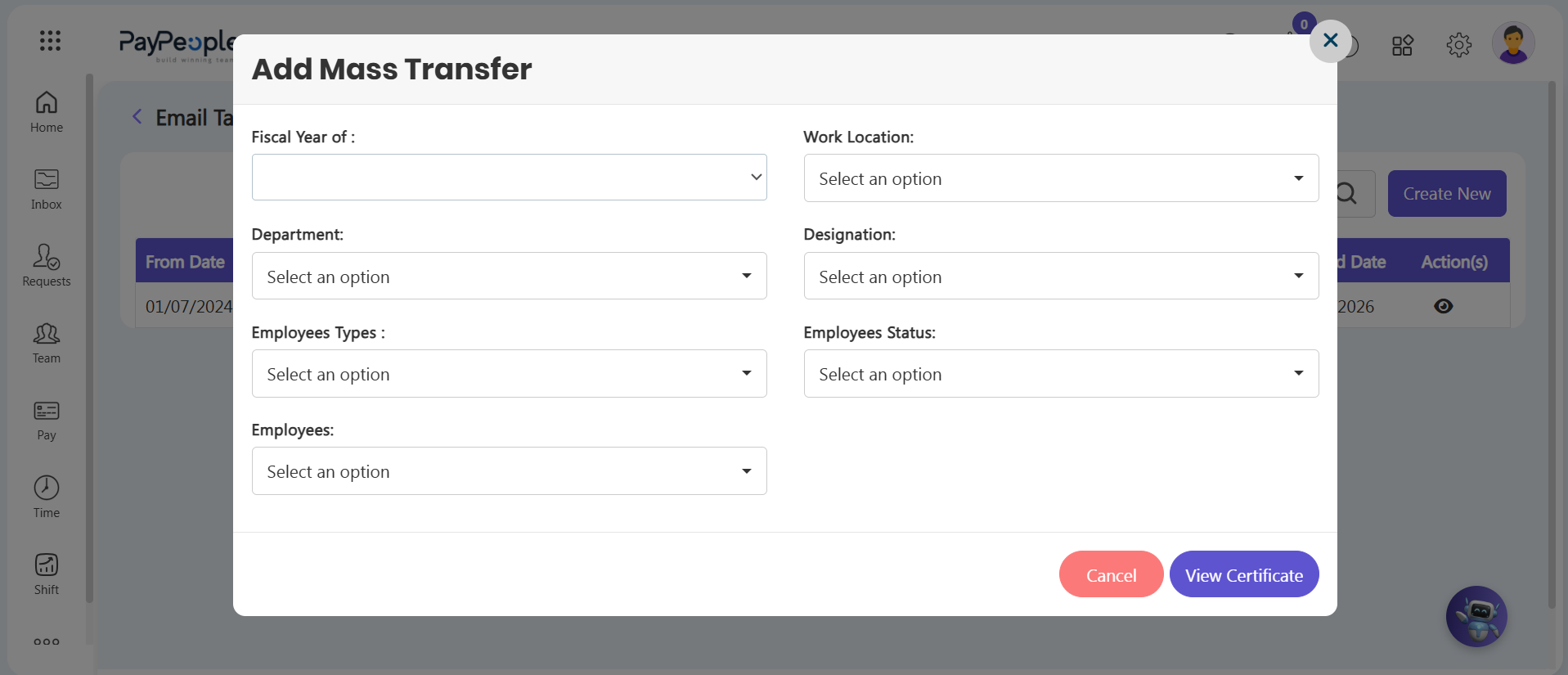
- Step 4: Select Target Employee Groups and Tax Year — Define your filters step-by-step to specify which workers should receive their tax documents:
- Fiscal Year of: Pick the exact payroll calendar year that matches the target tax year.
- Work Location / Department / Designation: Use the dropdown menus to narrow the data scope down to specific office locations, departments, or job titles.
- Employees Types / Employees Status / Employees: Select precise worker classifications (such as active full-time staff vs. contract employees) or select an individual employee from the list to pull the document for a single person.
- Step 5: Load and View the Certificates — Review your filter configurations. Once confirmed, click the purple View Certificate button at the bottom right of the wizard window to display the documents on your screen.
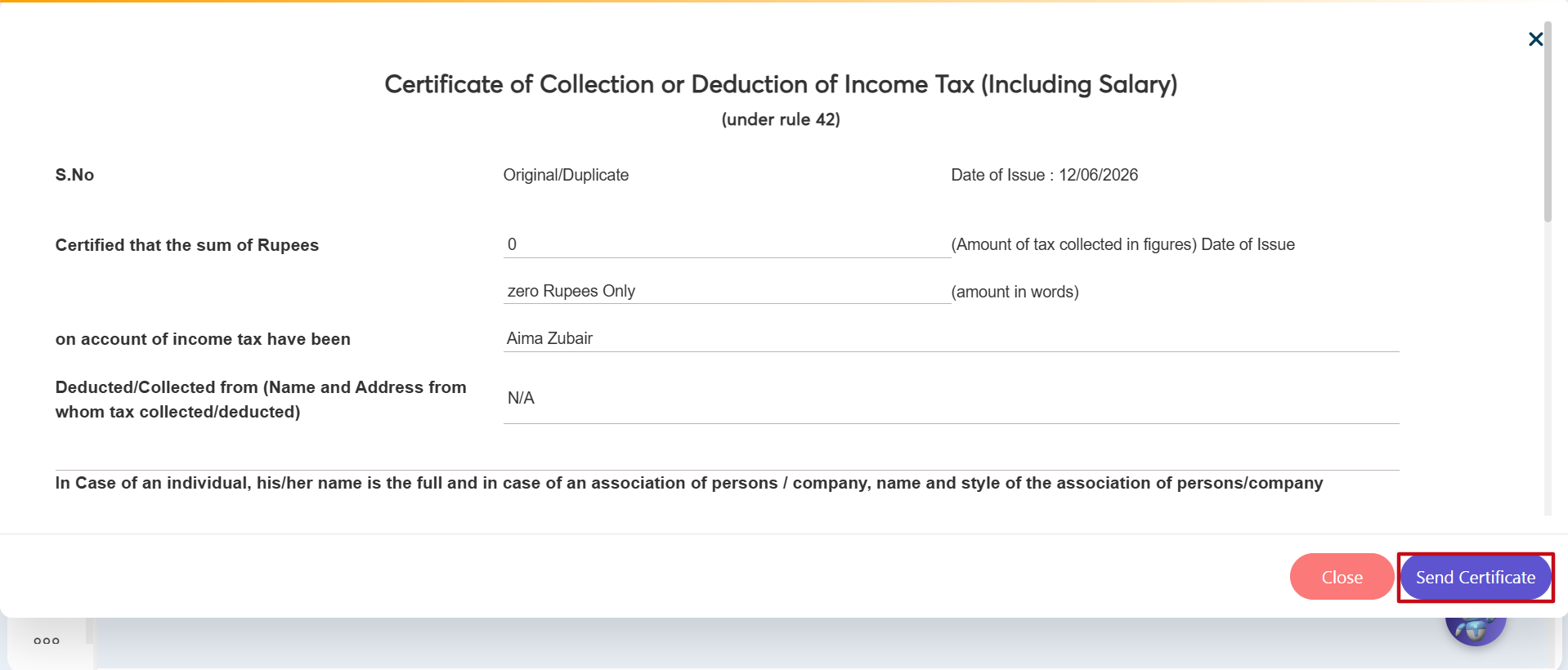
- Step 6: Review and Email Certificates — The system will instantly display a preview of the official "Certificate of Collection or Deduction of Income Tax," showing all legal tax figures, serial numbers, total amounts, and employee names. Double-check these details on your screen. Once verified, click the blue Send Certificate button (marked with a red box) at the bottom right. The system will automatically email the final certified PDF files directly to your employees' accounts.
Electronic Document Transmittal Optimization Pro-Tip: |